Feature Summary
The dropdown question allows respondents to select an option from a dropdown list. When there are many options, the dropdown menu is collapsed by default and expands upon clicking, avoiding taking up too much space.
Feature Description
| Feature Dimension | Description |
|---|---|
| Membership Restriction | No membership restriction |
| Version Restriction | No version restriction |
Operation Steps
Add a Dropdown Question
Feature Entry
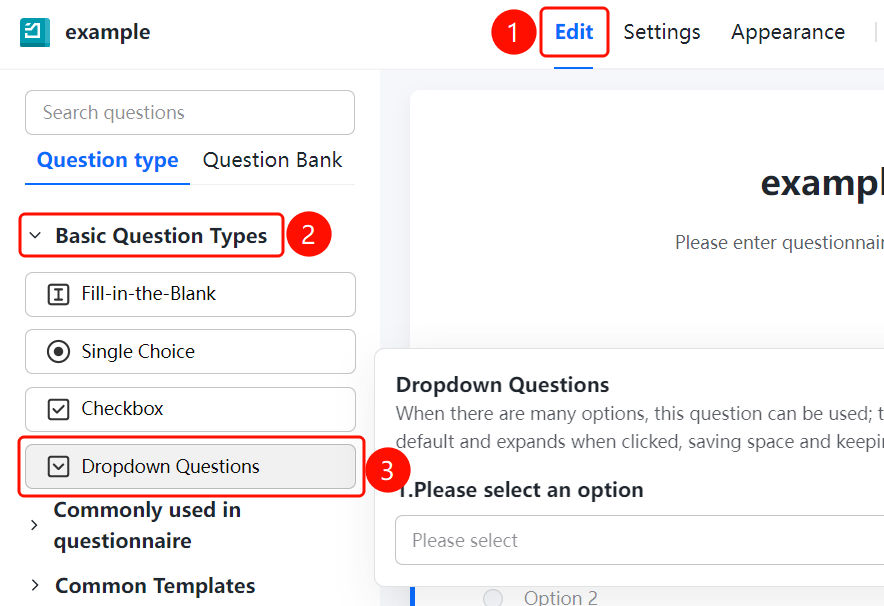
「Edit」tab → 「Basic question types」 → 「Dropdown」button
- Click the top 「Edit」 tab
- Expand the 「Basic question types」 area in the left panel
- Click the 「Dropdown」 button to add it to the form
Set Preset Answer
Feature Entry
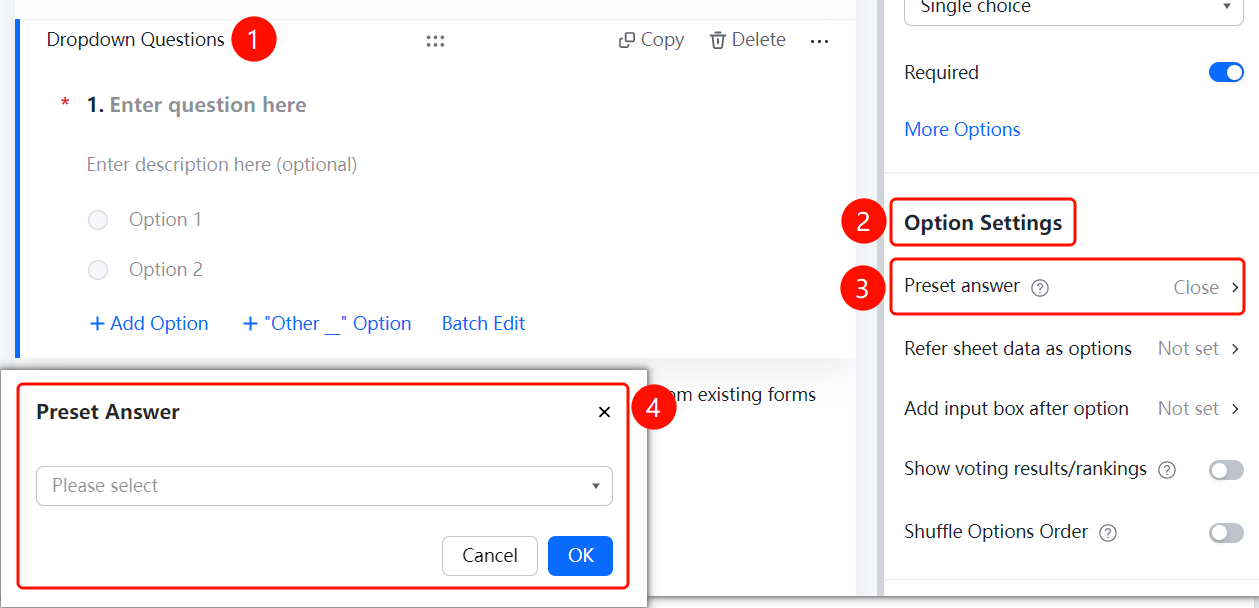
Dropdown question → 「Option Settings」 → 「Preset Answer」option
- Click the added dropdown question
- Click the 「Preset Answer」 option in the 「Option Settings」 panel on the right
Reference Sheets Data as Options
Feature Entry
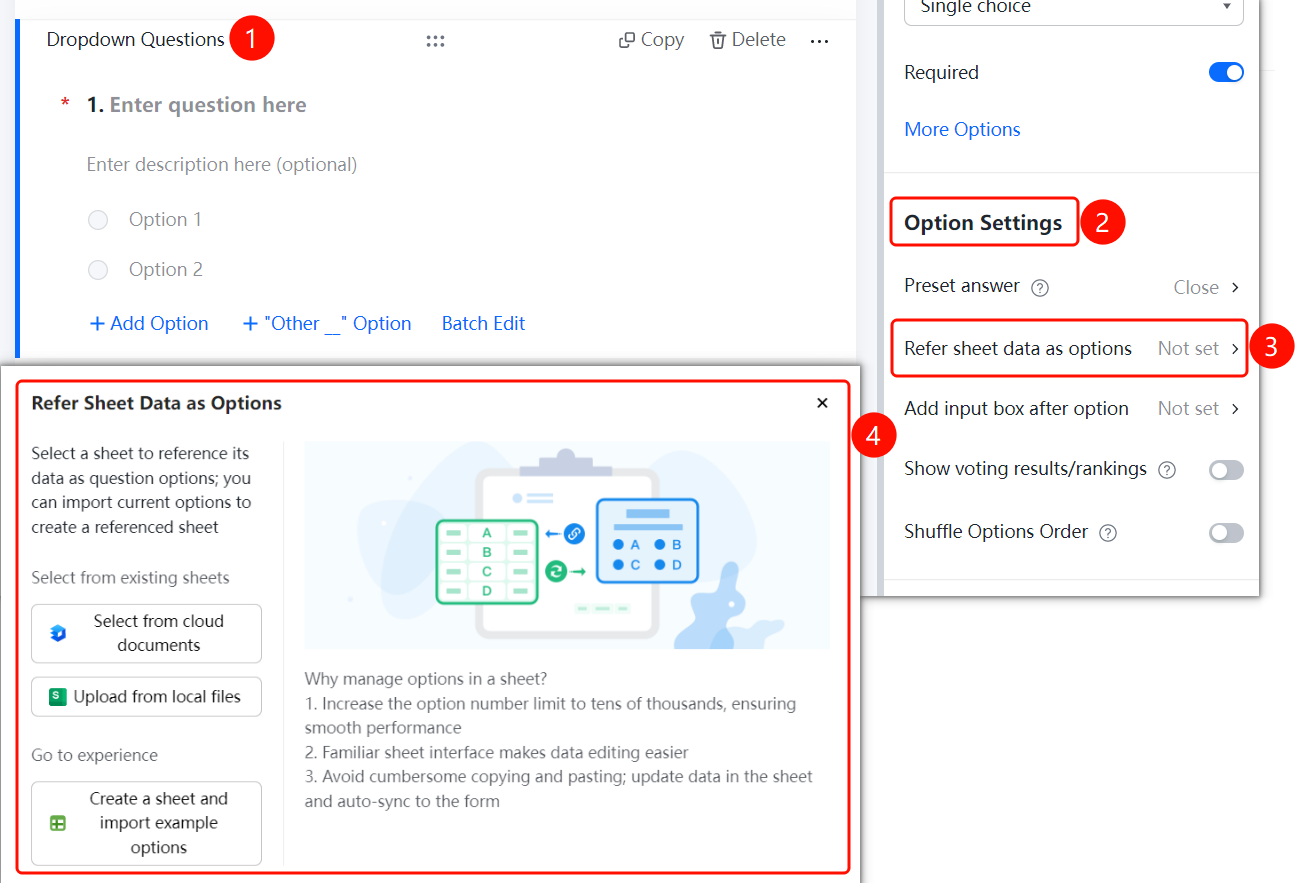
Dropdown question → 「Option Settings」 → 「Reference Sheets data as options」option
- Click the added dropdown question
- Click the 「Reference Sheets data as options」 option in the 「Option Settings」 panel on the right
Add Input Box After Option
Feature Entry
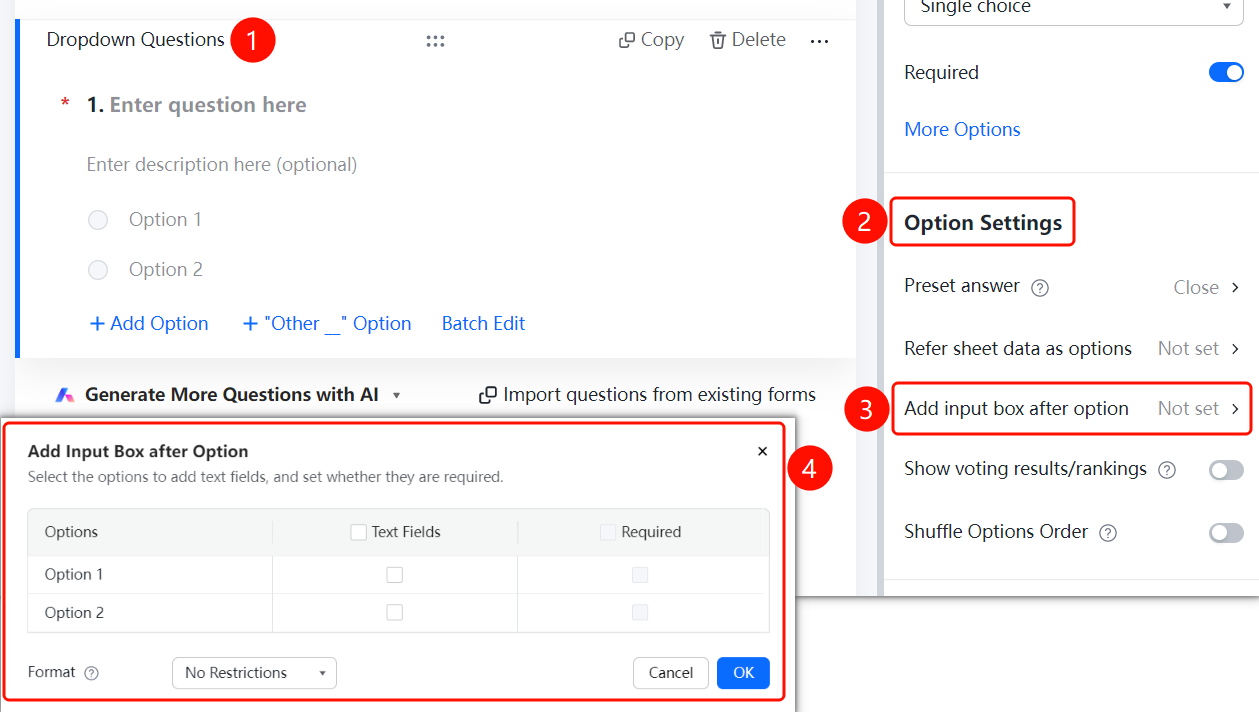
Dropdown question → 「Option Settings」 → 「Add input box after option」option
- Click the added dropdown question
- Click the 「Add input box after option」 option in the 「Option Settings」 panel on the right
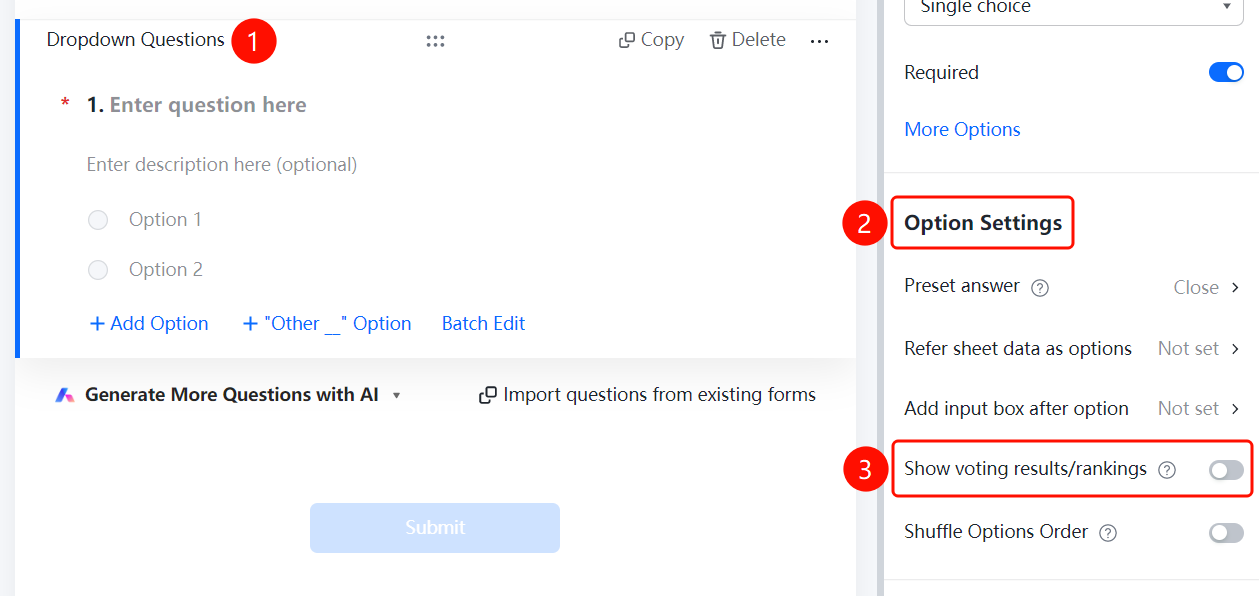
Display Poll Results/Leaderboard
Feature Entry
Dropdown question → 「Option Settings」 → 「Display poll results/leaderboard」toggle
- Click the added dropdown question
- Turn on the 「Display poll results/leaderboard」 toggle in the 「Option Settings」 panel on the right
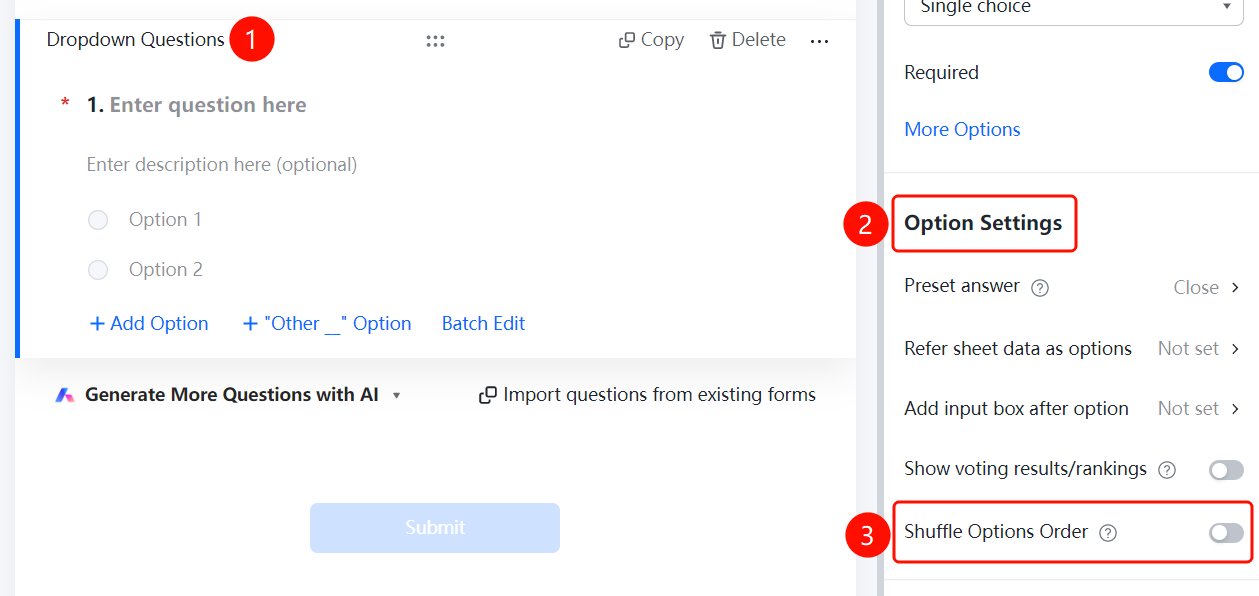
Shuffle Option Order
Feature Entry
Dropdown question → 「Option Settings」 → 「Shuffle option order」toggle
- Click the added dropdown question
- Turn on the 「Shuffle option order」 toggle in the 「Option Settings」 panel on the right
FAQ
Q1: How to set a default option for a dropdown question?
- Solution: Click the dropdown question, and click 「Preset Answer」 in the 「Option Settings」 panel.
Q2: Can a dropdown question reference Sheets data as options?
- Solution: Yes. Click the dropdown question, and click 「Reference Sheets data as options」 in the 「Option Settings」 panel.
Q3: How to allow respondents to enter custom content after selecting an option?
- Solution: Click the dropdown question, and click 「Add input box after option」 in the 「Option Settings」 panel.
Notes
- Dropdown questions support adding multiple options, which can be managed via 「Add Option」 or 「Batch Edit」
- After turning on 「Shuffle option order」, the order of options seen by each respondent will be randomly arranged