Feature Summary
Global Settings is used to configure the global parameters of the questionnaire, including setting all questions as required, form submission validation, one question per page, and hiding the outline.
Feature Description
| Feature Dimension | Description |
|---|---|
| Member Limit | No member limit |
| Version Limit | No version limit |
Steps
Set All Questions as Required
Entry
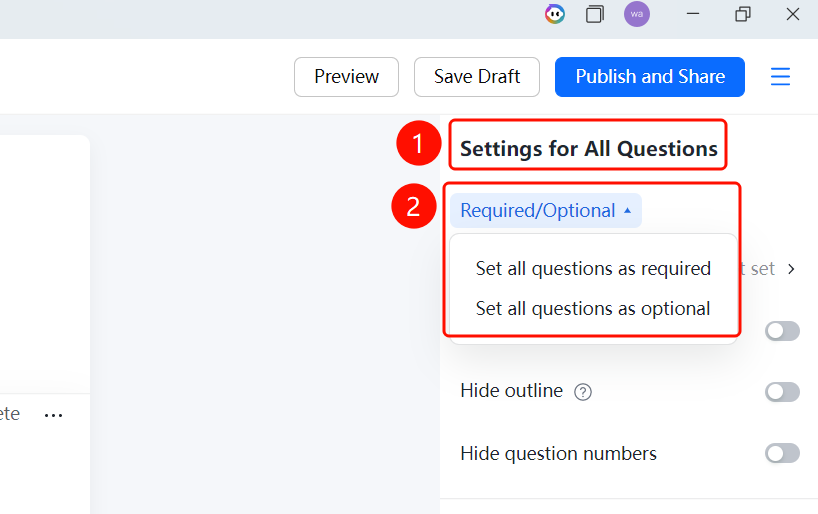
Global Settings > Set All Questions as Required dropdown menu
- On the questionnaire editing page, find the Global Settings panel.
- Click the Set All Questions as Required dropdown menu.
- Select Set All Questions as Required or Set All Questions as Optional.
- Once set, all questions will be uniformly set to required or optional.
Set Form Submission Validation
Entry
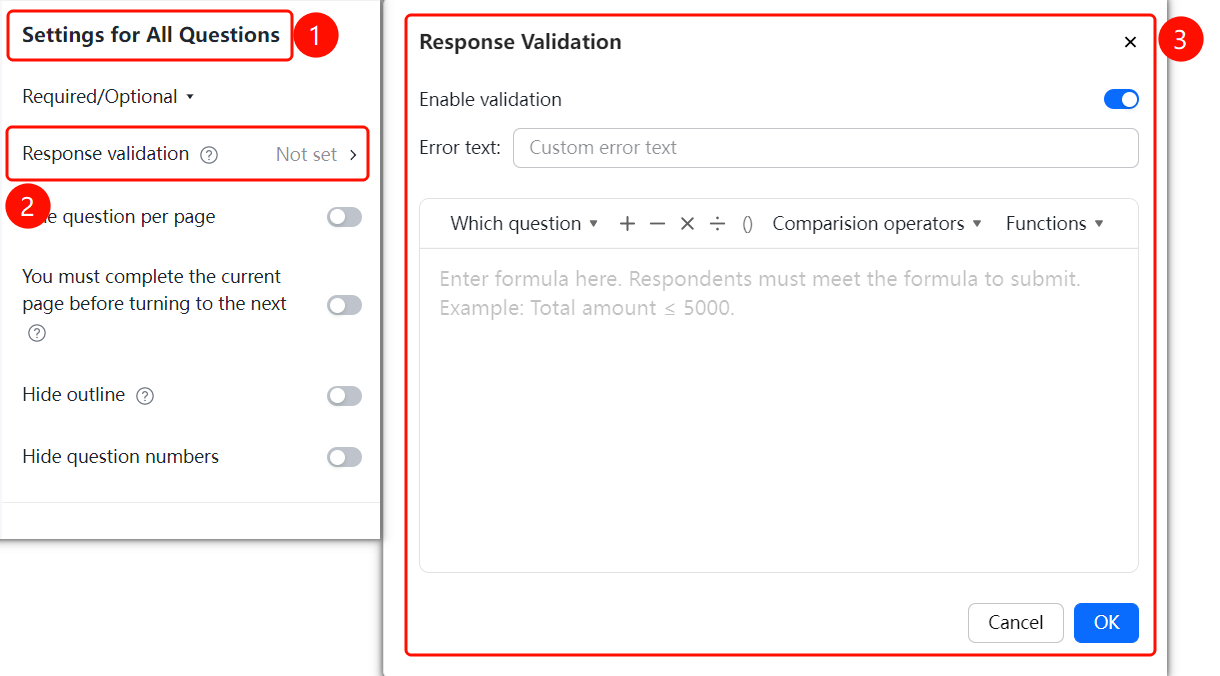
Global Settings > Form Submission Validation option
- On the questionnaire editing page, find the Global Settings panel.
- Click the Form Submission Validation option.
- In the panel that appears, turn on the Enable Validation switch.
- Click the OK button to complete the setting.
Set One Question per Page
Entry
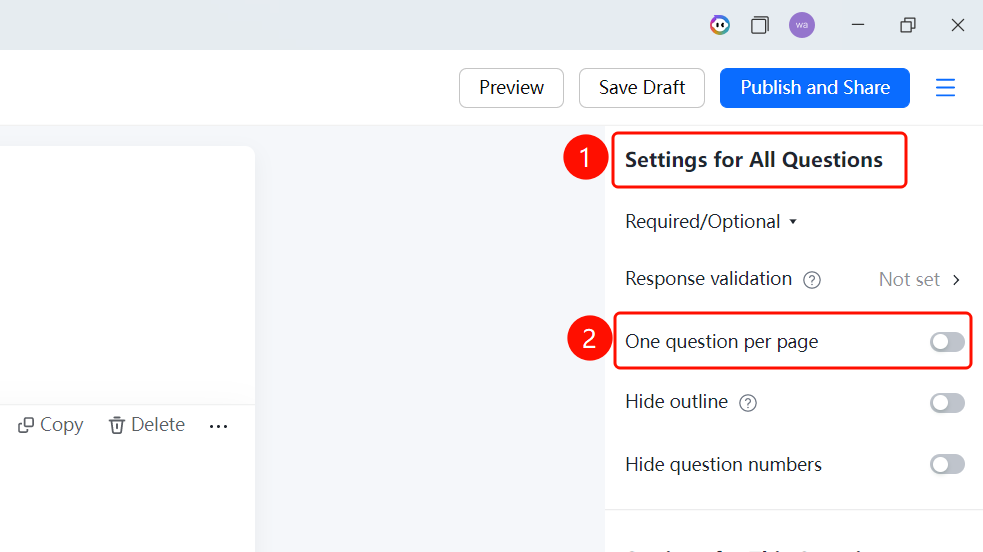
Global Settings > One Question per Page switch
- On the questionnaire editing page, find the Global Settings panel.
- Turn on the One Question per Page switch.
- Once set, respondents will only see one question per page when filling out the questionnaire.
Hide Outline
Entry
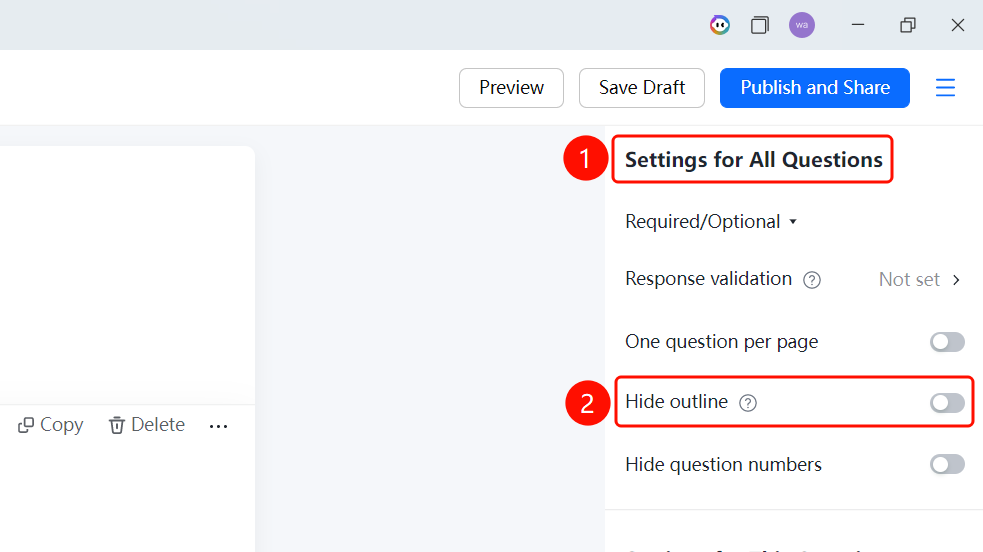
Global Settings > Hide Outline switch
- On the questionnaire editing page, find the Global Settings panel.
- Turn on the Hide Outline switch.
- Once set, respondents will not see the outline navigation when filling out the questionnaire.
FAQ
Question 1: How do I quickly set all questions as required?
- Solution: In Global Settings, click Set All Questions as Required > Set All Questions as Required.
Question 2: What is the purpose of form submission validation?
- Solution: Once form submission validation is enabled, the system will perform validation checks when respondents submit the questionnaire to avoid invalid submissions caused by accidental operations.
Question 3: What scenarios is "One Question per Page" suitable for?
- Solution: "One Question per Page" is suitable for questionnaire scenarios where the questions are important and require respondents to focus on answering them one by one, which can improve the quality of responses.
Question 4: How do respondents navigate after the outline is hidden?
- Solution: After the outline is hidden, respondents can only browse the questionnaire by scrolling up and down, which is suitable for scenarios where you want respondents to answer in order.
Notes
- Global settings affect all questions or the entire questionnaire. Confirm whether you need a uniform setting before making modifications.
- Individual questions can still be adjusted separately in the question settings.
- Remember to click the Save Changes button to save your configuration after completing the settings.