Feature Summary
Automatically calculate results based on filled content, such as total score, average score, total amount, etc. Calculations are performed automatically based on formulas without requiring manual input from respondents.
Feature Description
| Feature Dimension | Description |
|---|---|
| Subscription Limit | No subscription limit |
| Version Limit | No version limit |
Steps
Add a Formula
Feature Entry
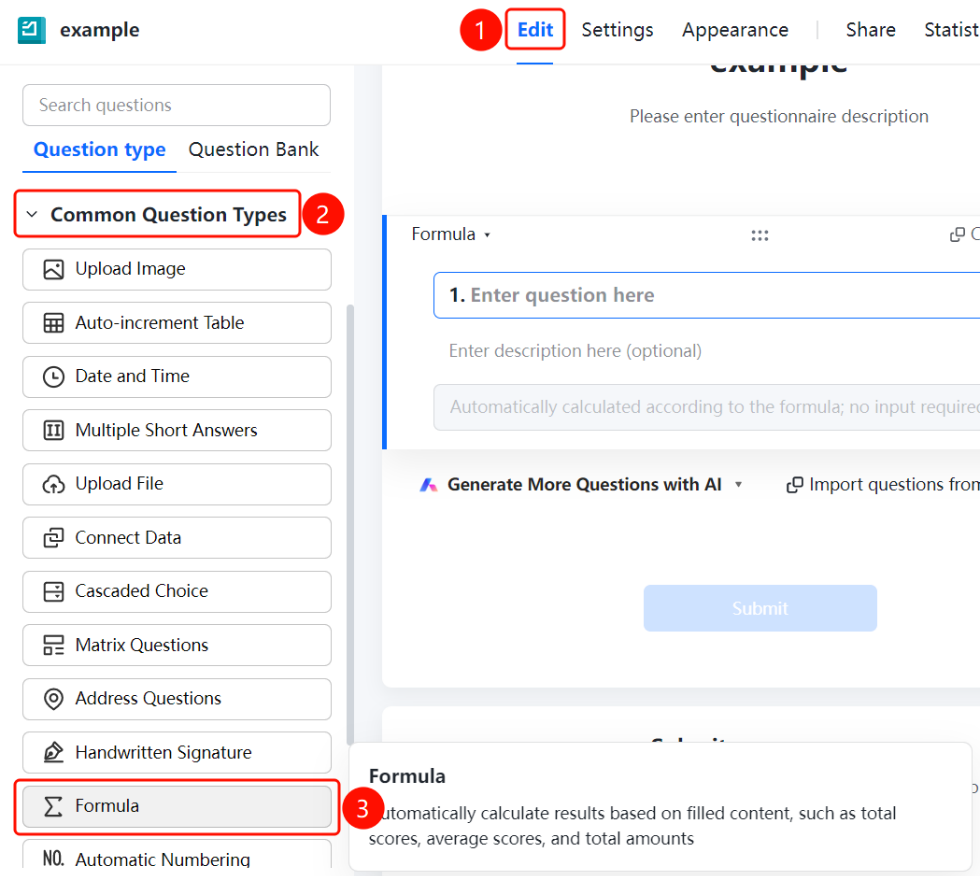
Edit tab > Common Question Types > Formula button
- Click the Edit tab at the top.
- Expand the Common Question Types area in the left panel.
- Click the Formula button to add a formula to the questionnaire.
- Once clicked, the formula question will be added to the questionnaire, and the answer area will display "Automatically calculated based on formula, no input required".
Set Up a Formula
Feature Entry
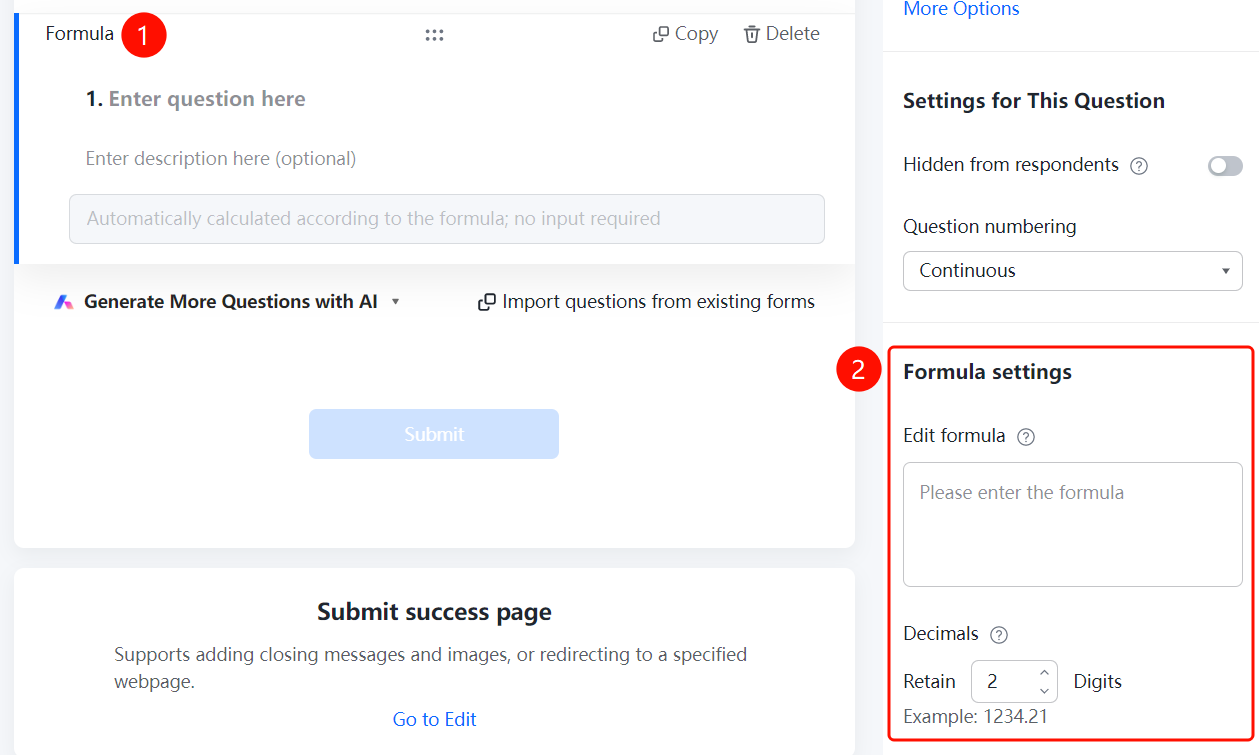
Question Settings panel > Formula Settings panel
- Click the added Formula question.
- Enter the calculation formula in the Edit Formula input box in the Formula Settings panel on the left.
- Set the number of decimal places to retain for the calculation result in Decimal Places (retains 2 decimal places by default, e.g., 1234.21).
- Once set up, the system will automatically calculate and display the results based on the formula when respondents answer.
FAQ
Question 1: What is the purpose of a formula?
- Solution: Automatically calculate results based on filled content, such as total score, average score, total amount, etc. Calculations are performed automatically based on formulas without requiring manual input from respondents.
Question 2: Which questions can be referenced by a formula?
- Solution: Formulas can reference the content of numeric questions already added to the questionnaire for calculations. We recommend adding relevant numeric questions before configuring formulas.
Question 3: Can calculation results retain decimal places?
- Solution: Yes. Set the number of decimal places to retain in Decimal Places in the Formula Settings panel. 2 decimal places are retained by default.
Notes
- Formulas are located in the Common Question Types area.
- Calculation results are for reference only. For precise statistics, check whether the formula configuration is correct.