Feature Summary
Link a sheet so that respondents can select one or more rows of data from the sheet to submit. The data is updated in real time.
Feature Description
| Feature Dimension | Description |
|---|---|
| Member Limit | No member limit |
| Version Limit | No version limit |
Steps
Adding Linked Data
Feature Entry
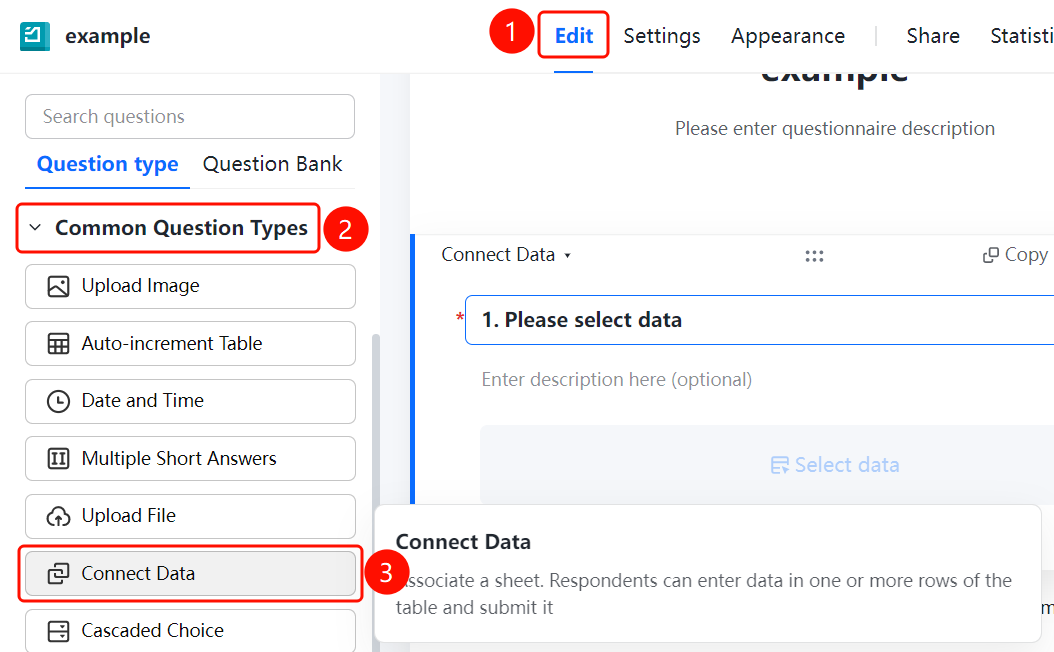
"Edit" tab > "Common Question Types" > "Linked Data" button
- Click the "Edit" tab at the top.
- Expand the "Common Question Types" area in the left panel.
- Click the "Linked Data" button to add linked data to the questionnaire.
- After clicking the "Linked Data" button, the question will be added to the questionnaire, and the answer area will display the "Select Data" button.
Setting Up the Linked Sheet
Feature Entry
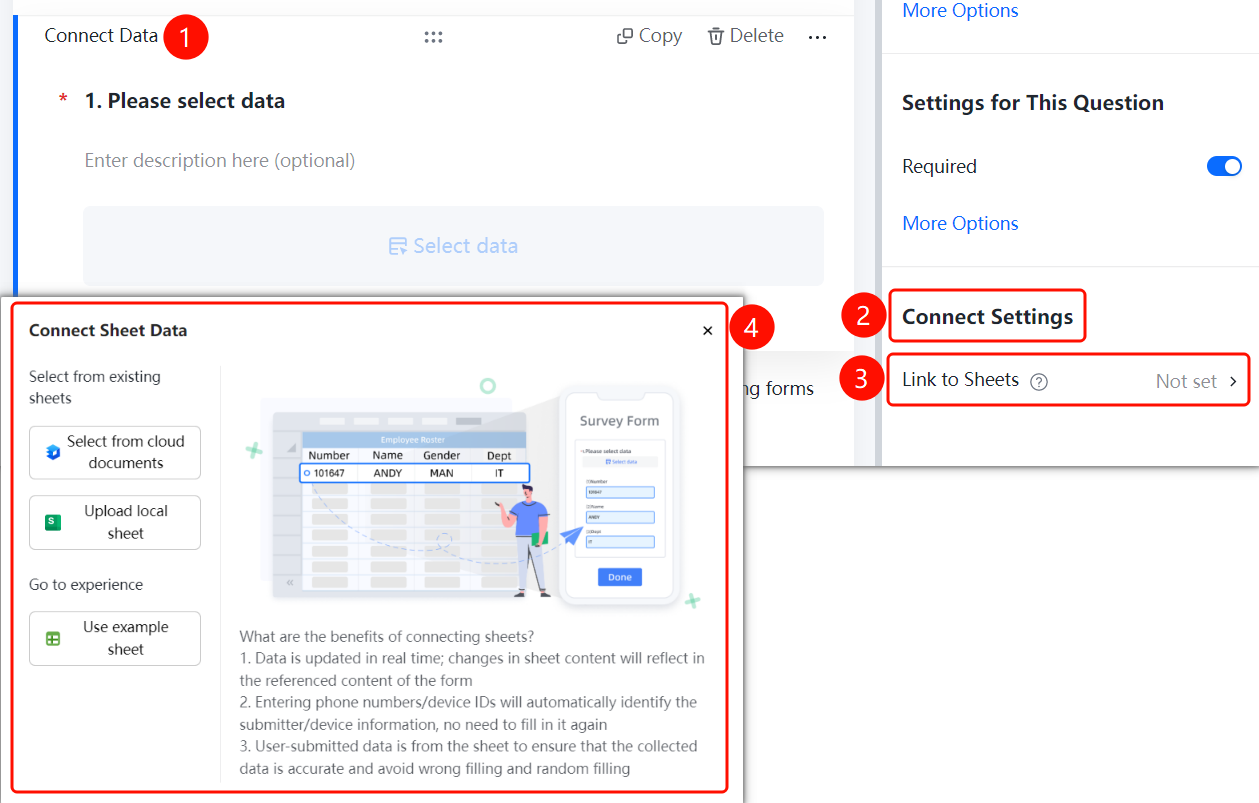
Question settings panel > "Link Settings" > "Linked Sheet" option
- Click the added "Linked Data" question.
- In the right "Link Settings" panel, click the "Linked Sheet" option (displays as "Not Set" when not configured).
- In the pop-up "Link Sheet Data" window, choose from existing sheets: click the "Select from Cloud Document" button or the "Upload Local Sheet" button.
FAQ
Question 1: What is the purpose of linking data?
- Solution: Link a sheet so that respondents can select one or more rows of data from the sheet to submit. The data is updated in real time.
Question 2: What are the data sources for the linked sheet?
- Solution: You can select a sheet from cloud documents, upload a local sheet, or use the sample sheets provided by the system for a quick trial.
Question 3: Will the form sync after the sheet data changes?
- Solution: Yes. When the sheet content changes, the content referenced by the form will also change in real time, without needing to edit the form again.
Notes
- Linked data is located in the "Common Question Types" area.
- We recommend preparing the sheet files to be linked in advance to ensure the accuracy of the sheet data.