Feature Summary
Single-choice questions are used to select one option from a set. They are commonly used in scenarios such as event registration, exams and teaching, and information collection.
Feature Description
| Feature Dimension | Description |
|---|---|
| Member Limit | No membership limit |
| Version Limit | No version limit |
Steps
Add a Single-Choice Question
Feature Entry
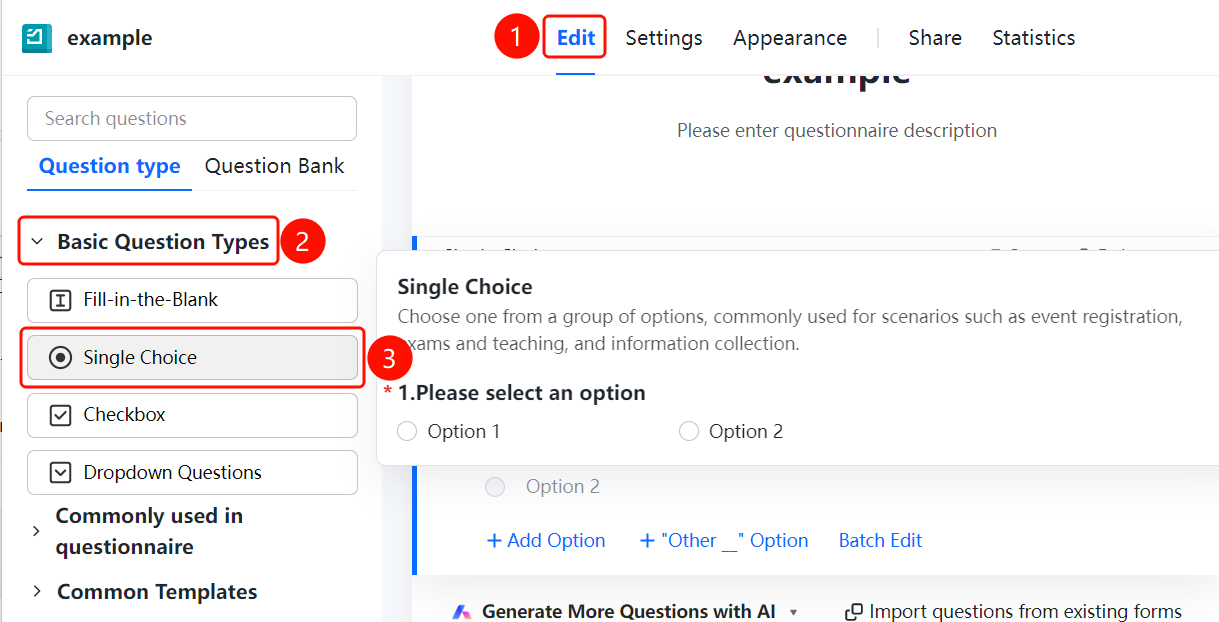
"Edit" tab → "Basic Question Types" → "Single-Choice" button
- Click the "Edit" tab at the top.
- Expand the "Basic Question Types" area in the left panel.
- Click the "Single-Choice" button to add a single-choice question to the questionnaire.
- Enter the question title and option content in the question editing area.
Set Preset Answers
Feature Entry
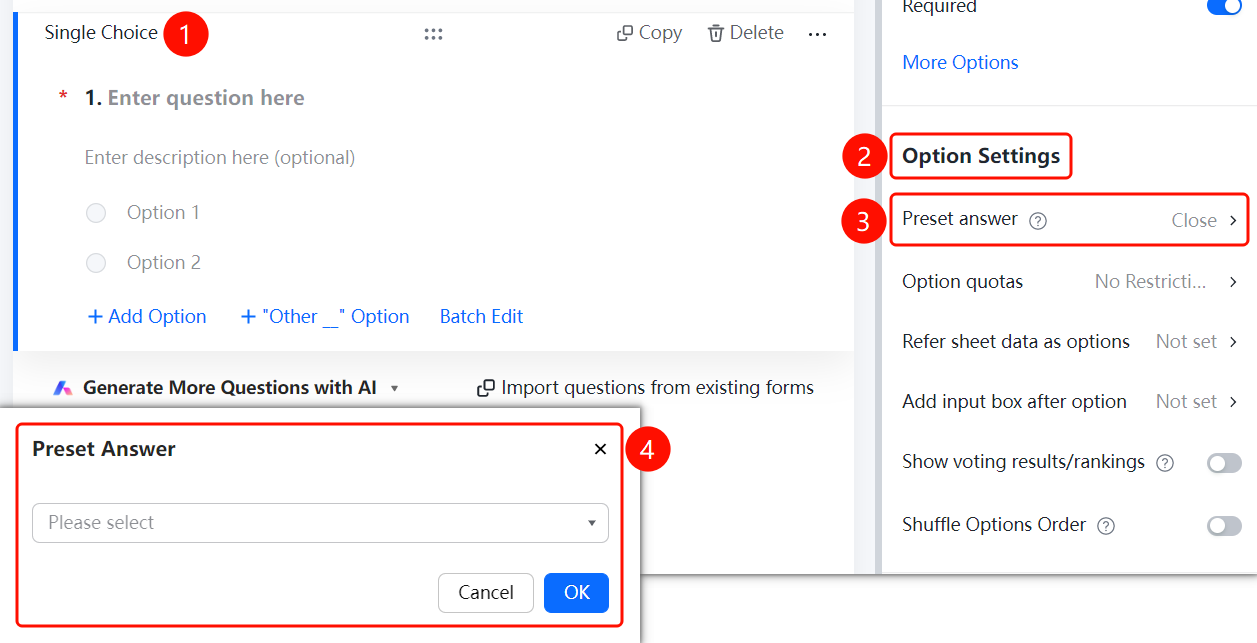
Question settings panel → "Option Settings" → "Preset Answers" option
- Click the added "Single-Choice" question.
- In the right settings panel, click "Option Settings".
- Click the "Preset Answers" option.
- Select the desired preset answer option from the drop-down list. This option will be selected by default when respondents open the questionnaire.
Set Option Quotas
Feature Entry
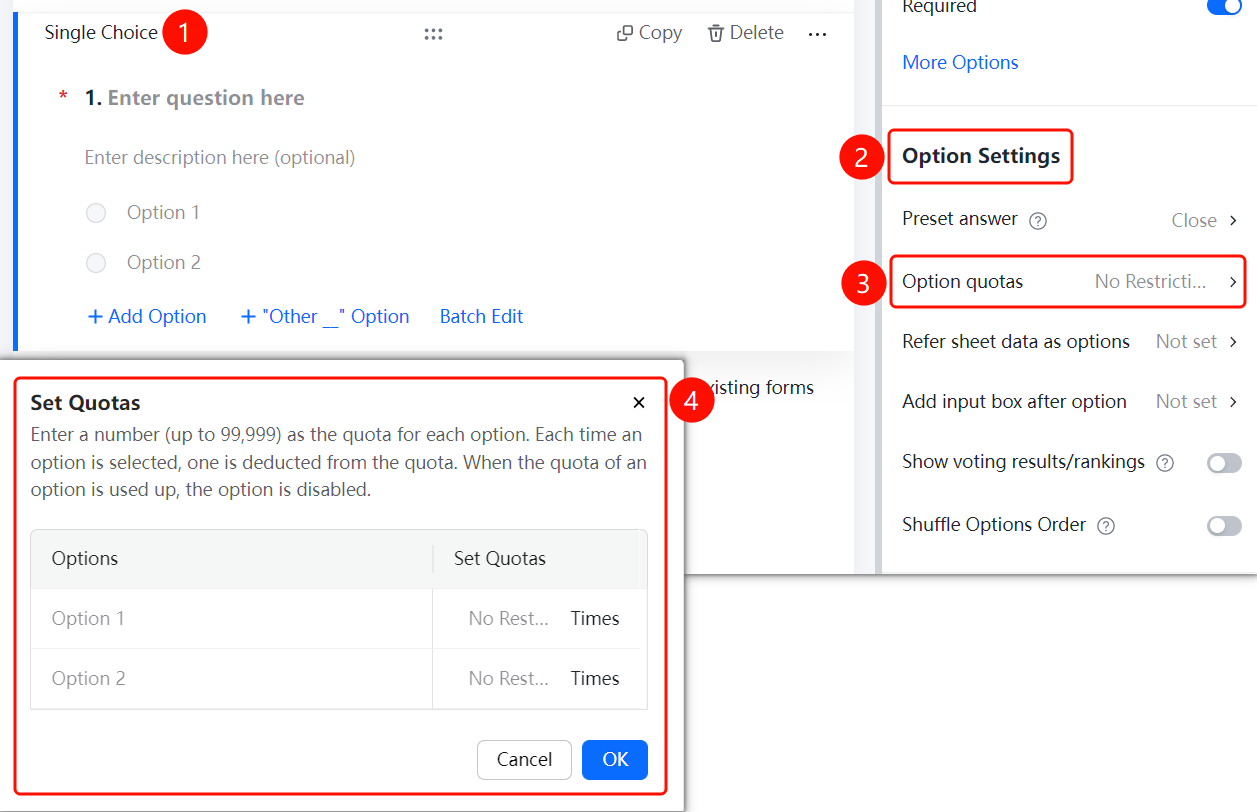
Question settings panel → "Option Settings" → "Option Quotas" option
- Click the added "Single-Choice" question.
- In the right settings panel, click "Option Settings".
- Click the "Option Quotas" option.
- In the pop-up panel, enter the quota quantity for each option. The maximum quota quantity supported is 99999.
- Each time an option is selected, one quota will be consumed. Once the quota is used up, the option can no longer be selected.
- Click the "OK" button to complete the settings.
Reference Sheet Data as Options
Feature Entry
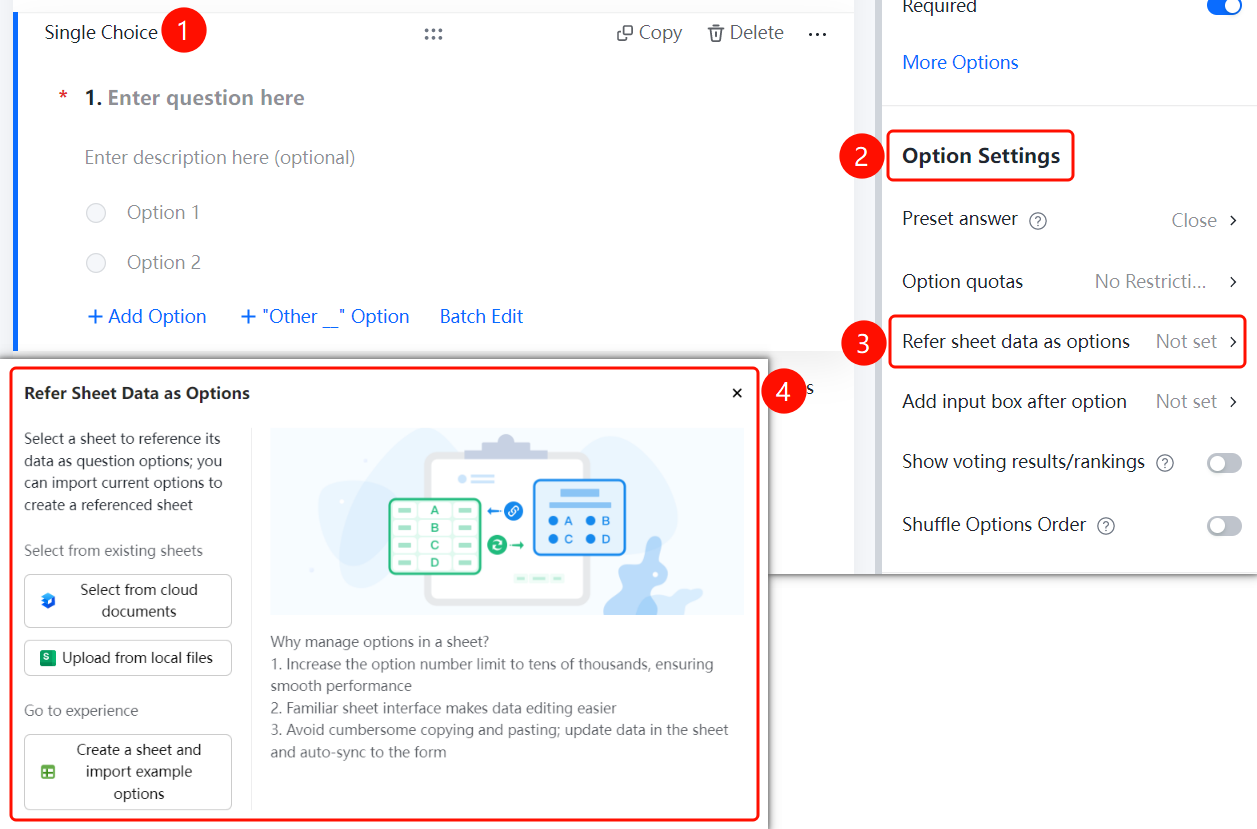
Question settings panel → "Option Settings" → "Reference Sheet Data as Options" option
- Click the added "Single-Choice" question.
- In the right settings panel, click "Option Settings".
- Click the "Reference Sheet Data as Options" option.
- Select "Choose from Cloud Documents" or "Upload from Local Files". You can also create a new sheet and import sample options.
- The system will import the sheet data as question options, and data updates in the sheet will be automatically synchronized to the form.
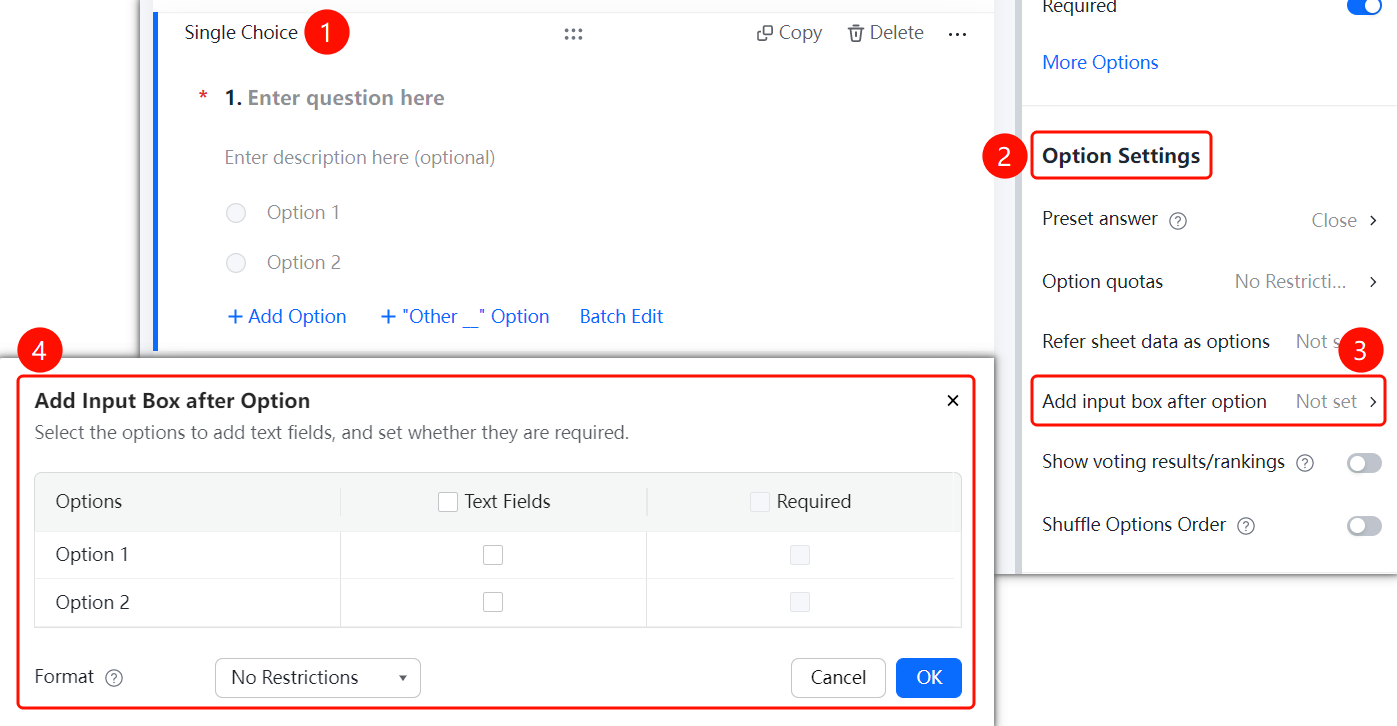
Add Text Box After Option
Feature Entry
Question settings panel → "Option Settings" → "Add Text Box After Option" option
- Click the added "Single-Choice" question.
- In the right settings panel, click "Option Settings".
- Click the "Add Text Box After Option" option.
- In the pop-up panel, select the options where you want to add a text box, and set "Required".
- Select the format limit (such as No Limit) in the "Input Content Format Limit" drop-down box.
- Click the "OK" button to complete the settings.
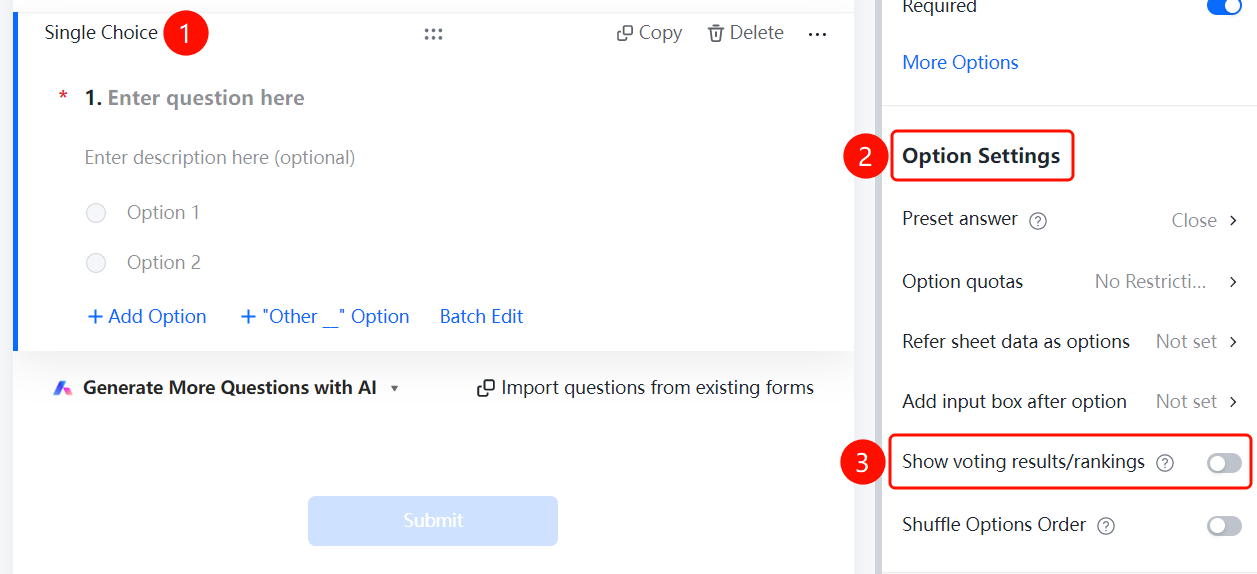
Show Voting Results/Leaderboard
Feature Entry
Question settings panel → "Option Settings" → "Show Voting Results/Leaderboard" switch
- Click the added "Single-Choice" question.
- In the right settings panel, click "Option Settings".
- Turn on the "Show Voting Results/Leaderboard" switch.
- Respondents can view the voting results or leaderboard of the question after submitting.
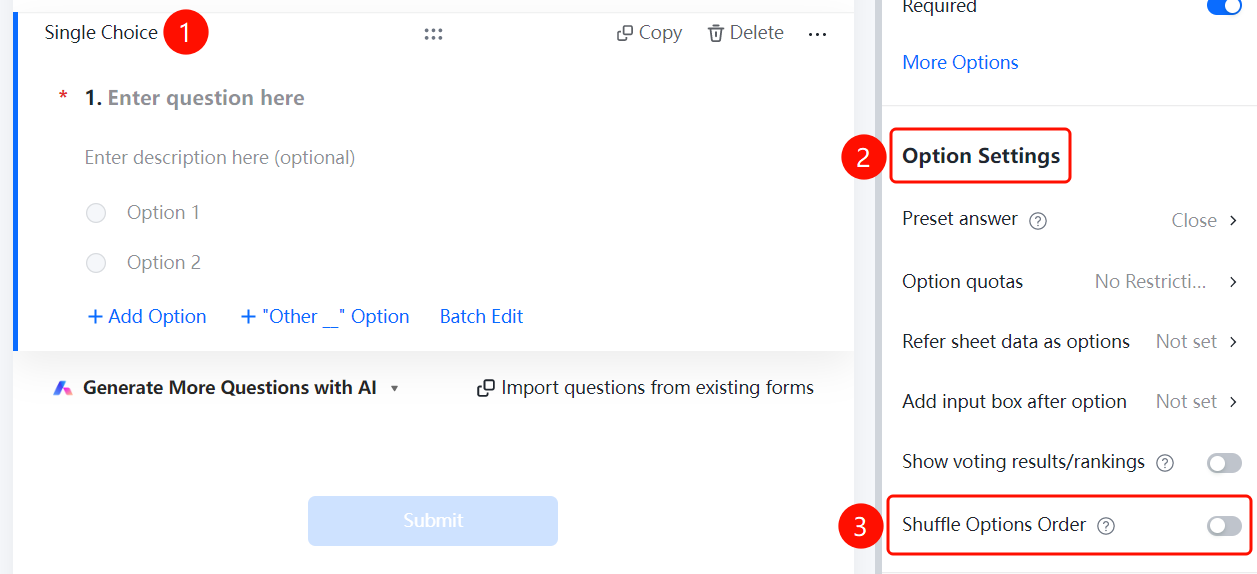
Shuffle Option Order
Feature Entry
Question settings panel → "Option Settings" → "Shuffle Option Order" switch
- Click the added "Single-Choice" question.
- In the right settings panel, click "Option Settings".
- Turn on the "Shuffle Option Order" switch.
- When respondents fill out the questionnaire, the options will be displayed in a random order, which can effectively prevent order bias.
FAQ
Q1: What is the difference between single-choice and multiple-choice questions?
- Solution: Single-choice questions only allow selecting one option from a set, while multiple-choice questions allow selecting multiple options. You can choose the question type based on your actual collection needs.
Q2: How do I limit the number of people who can select a certain option?
- Solution: Click "Option Quotas" in "Option Settings" and set the quota quantity for the option. Once the quota is used up, the option can no longer be selected.
Q3: How do I quickly enter options if there are too many?
- Solution: Use the "Reference Sheet Data as Options" feature to import sheet data from cloud documents or local files as options. You can also click "Batch Edit" to quickly enter multiple options.
Notes
- Single-choice questions are located in the "Basic Question Types" area and are suitable for scenarios where a single answer needs to be selected.
- Features such as setting preset answers, option quotas, and shuffling option order are supported.