Feature Overview
Product items are used to display products and their prices. Respondents can select the number of desired items, and the total price will be automatically calculated. This feature is suitable for scenarios such as group-buying questionnaires and product selection.
Feature Description
| Feature Dimension | Description |
|---|---|
| Membership Restrictions | No membership restrictions |
| Version Restrictions | No version restrictions |
Operating Steps
Adding a Product Question
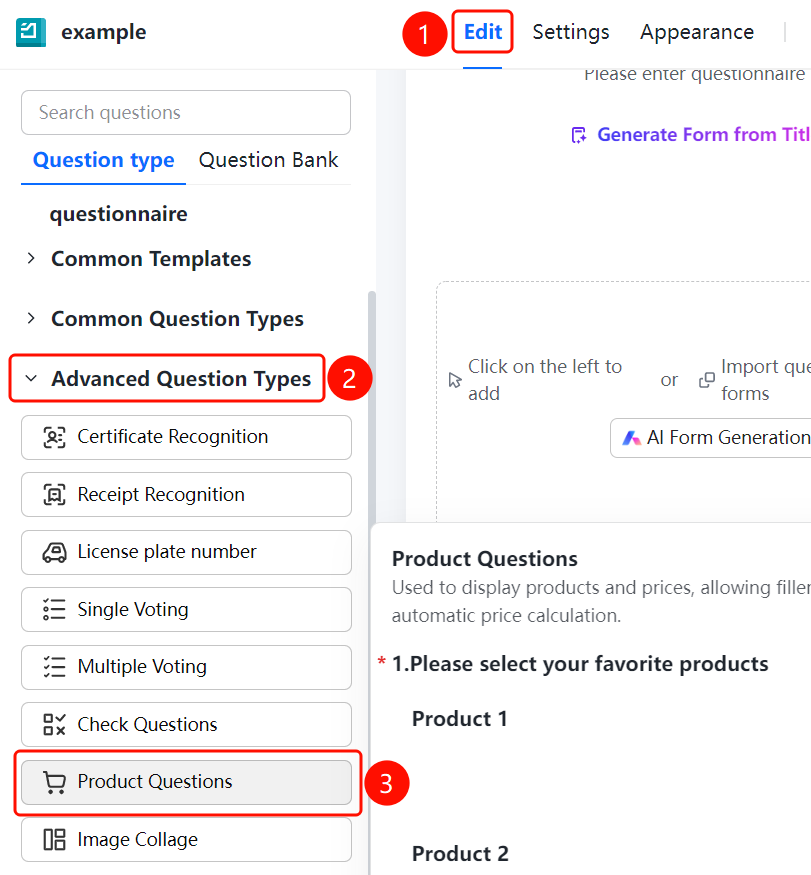
Accessing the Feature"Edit" tab → "Advanced Question Types" → "Product Question" button
- Click the "Edit" tab at the top
- Expand the "Advanced Question Types" section in the left panel
- Click the "Product Question" button to add a product question to the survey
- Enter the question text in the question editing area, for example: "Please select your preferred products"
- Add products (e.g., "Product 1", "Product 2") and set the quantity limit for each product (e.g., "Unlimited")
- After respondents select products, the system automatically calculates the total price
Frequently Asked Questions
Question 1: How do I add a product and set its price?
- Solution: Click on the product question, then enter the product name, image, and price in the editing area. Respondents will be able to view and select the product.
Question 2: Can respondents select multiple products at once?
- Solution: Yes. The product question allows respondents to choose multiple items, and you can set quantity limits for each product. The system automatically calculates the total amount.
Question 3: How is the total amount calculated in a product question?
- Solution: The system automatically calculates the total based on the number of selected items and their unit prices—no manual calculation required.
Notes
- Product questions support adding product images, names, and pricing information.
- You can set individual quantity limits for each product, such as "unlimited" or a specified maximum number.