Feature Summary
Image questions are used to collect images. They can collect one or more images uploaded by respondents, and support settings such as image size limits and quantity limits.
Feature Description
| Dimension | Description |
|---|---|
| Member Limit | No membership limit |
| Version Limit | No version limit |
Operating Steps
Add an Image Question
Entry
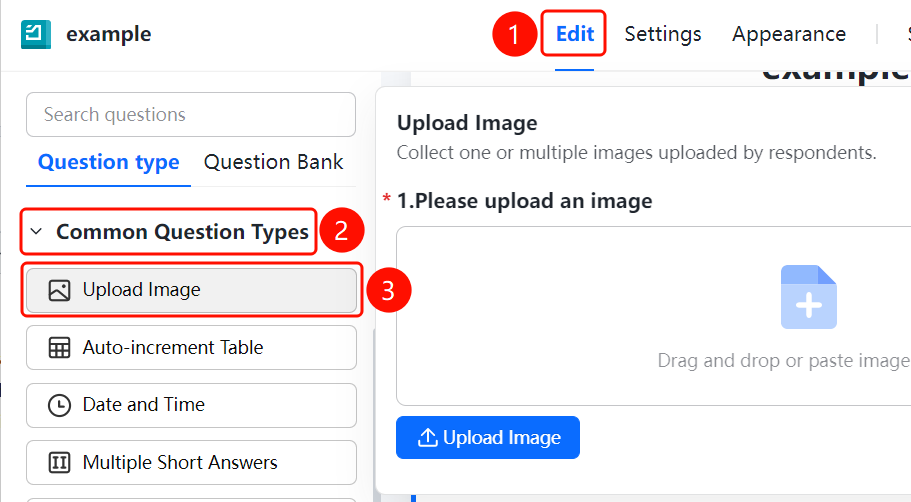
"Edit" tab → "Common Question Types" → "Image Question" button
- Click the "Edit" tab at the top.
- Expand the "Common Question Types" area in the left panel.
- Click the "Image Question" button to add the image question to the questionnaire.
- The default question title is "Please upload images", and respondents can drag and drop or paste images into the upload area.
Set Image Limits
Entry
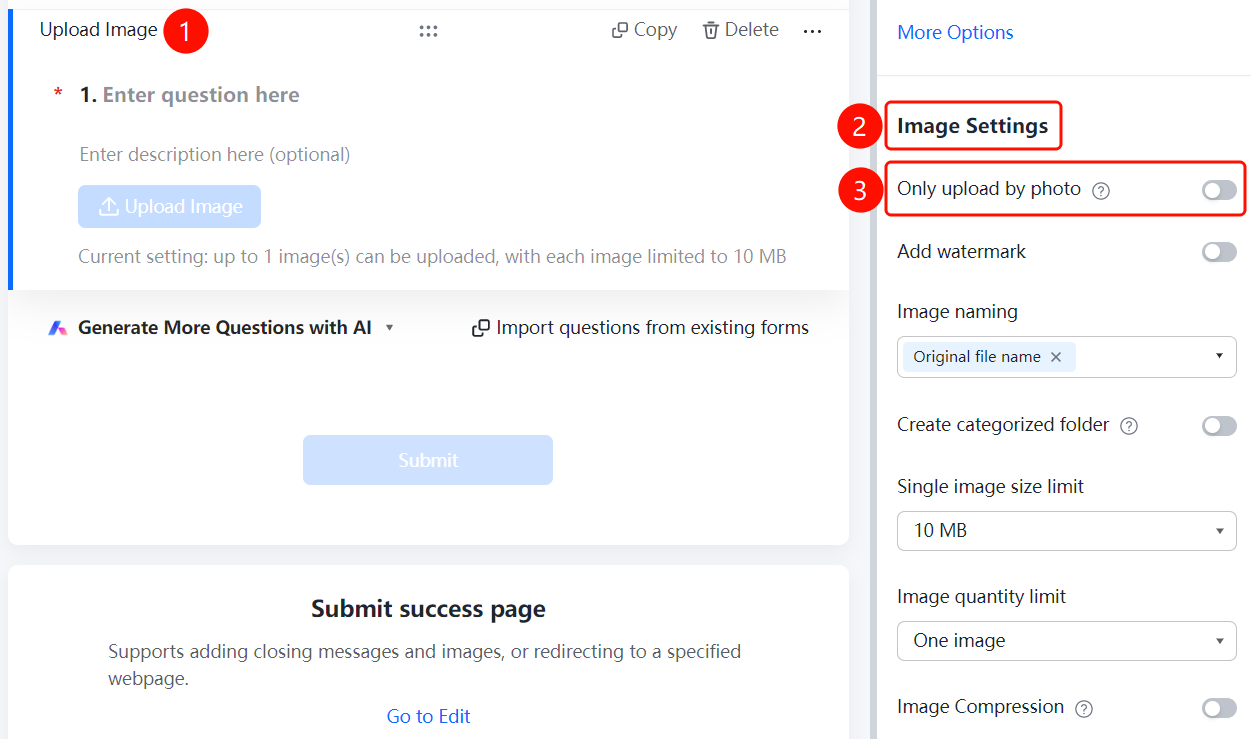
Image Question → "Image Settings" panel
- Click the added "Image Question".
- In the "Image Settings" panel on the right, you can set the following parameters: "Camera Upload Only", "Add Watermark", "Image Naming Method", "Create Categorized Folders", "Single Image Size Limit" (default 10M), "Image Quantity Limit" (default 1), and "Compress Image".
Enable Add Watermark
Entry
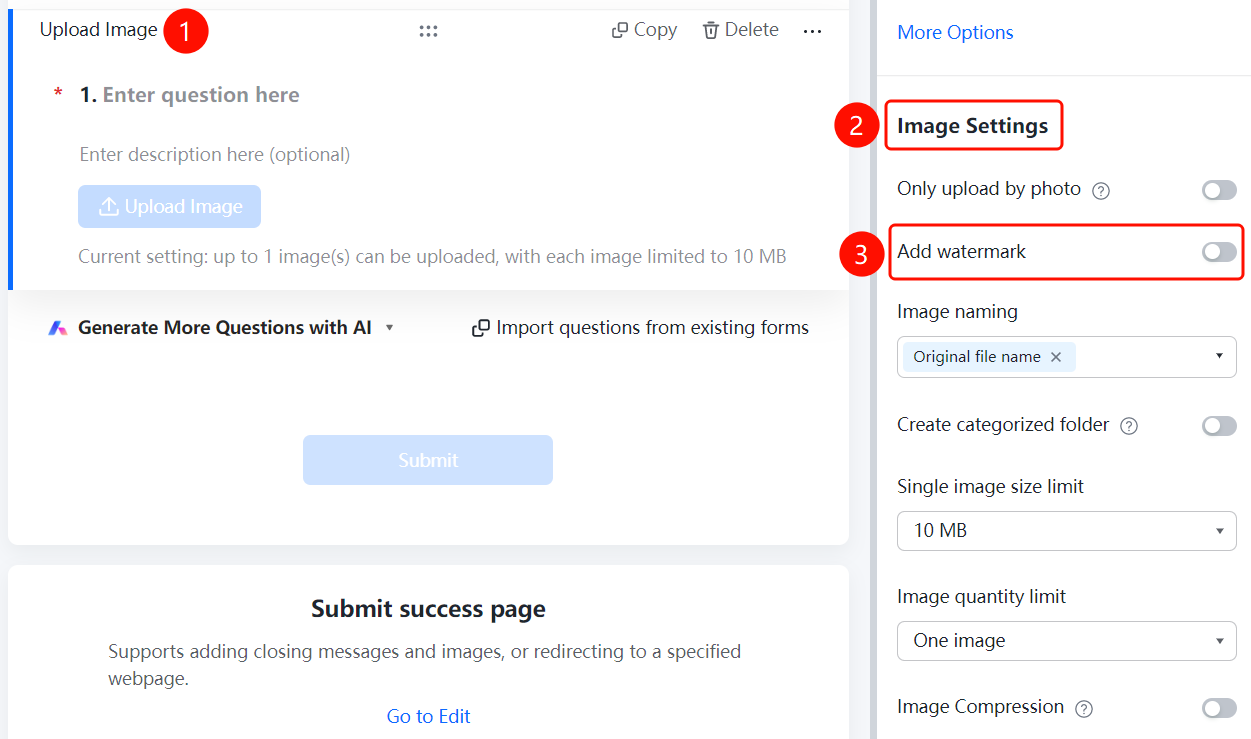
Image Question → "Image Settings" → "Add Watermark" switch
- Click the added "Image Question".
- Turn on the "Add Watermark" switch in the "Image Settings" panel on the right.
- Once enabled, watermarks will be automatically added to the images uploaded by respondents.
Set Image Naming Method
Entry
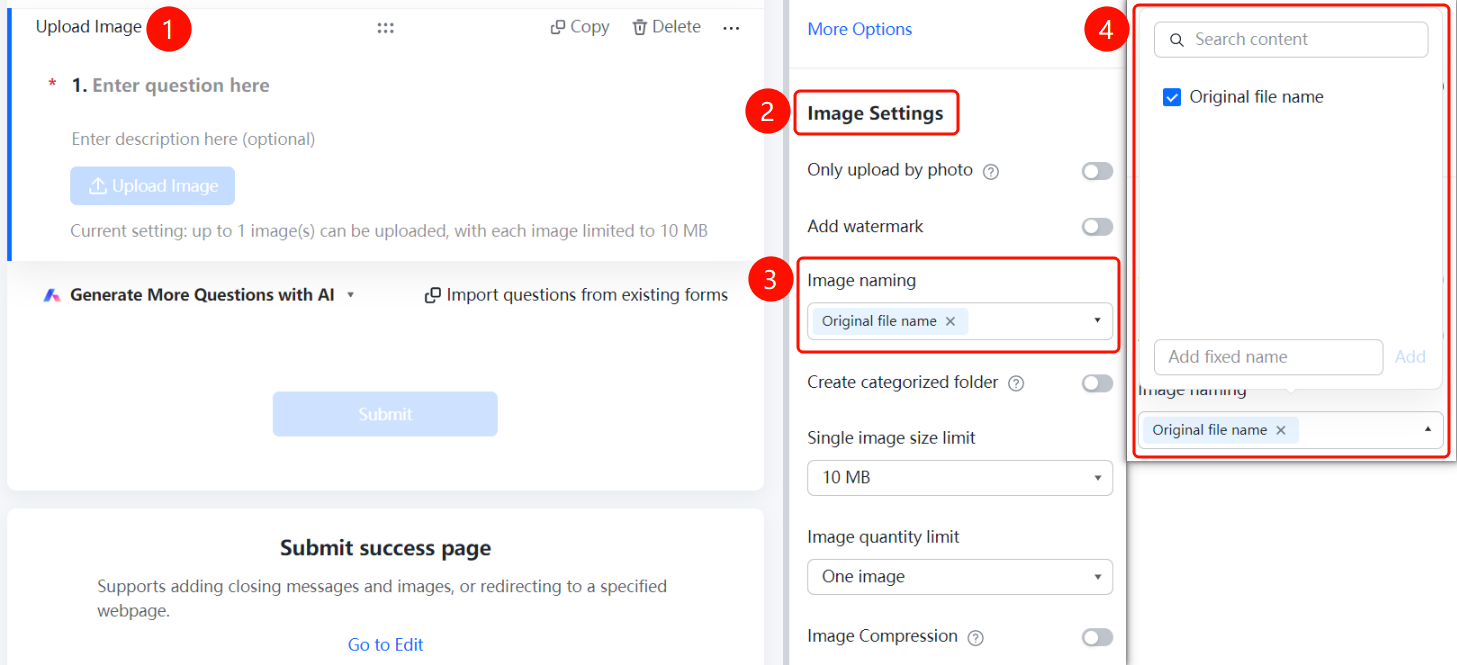
Image Question → "Image Settings" → "Image Naming Method" option box
- Click the added "Image Question".
- Click "Image Naming Method" in the "Image Settings" panel on the right (currently displayed as "Original File Name ×").
- Check the naming fields (such as "Original File Name") in the pop-up panel, or add custom rules in the "Add Custom Fixed Name" input box.
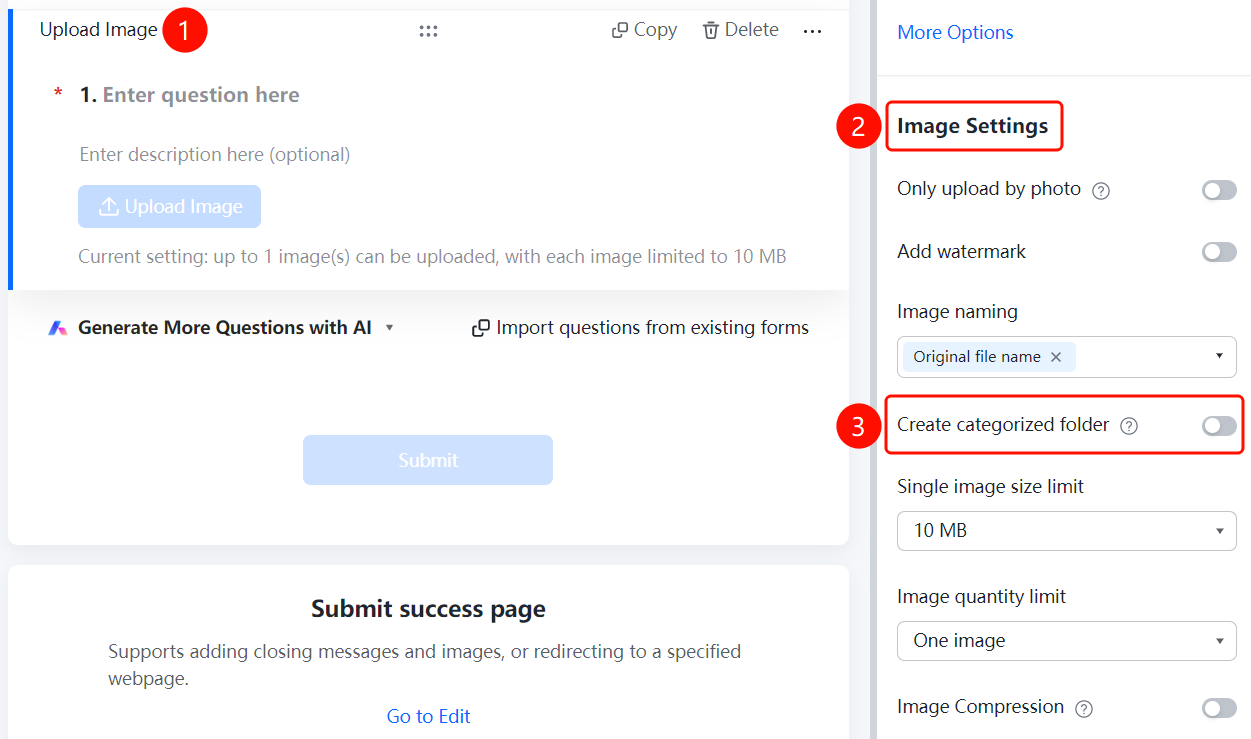
Enable Create Categorized Folders
Entry
Image Question → "Image Settings" → "Create Categorized Folders" switch
- Click the added "Image Question".
- Turn on the "Create Categorized Folders" switch in the "Image Settings" panel on the right.
Set Single Image Size Limit
Entry
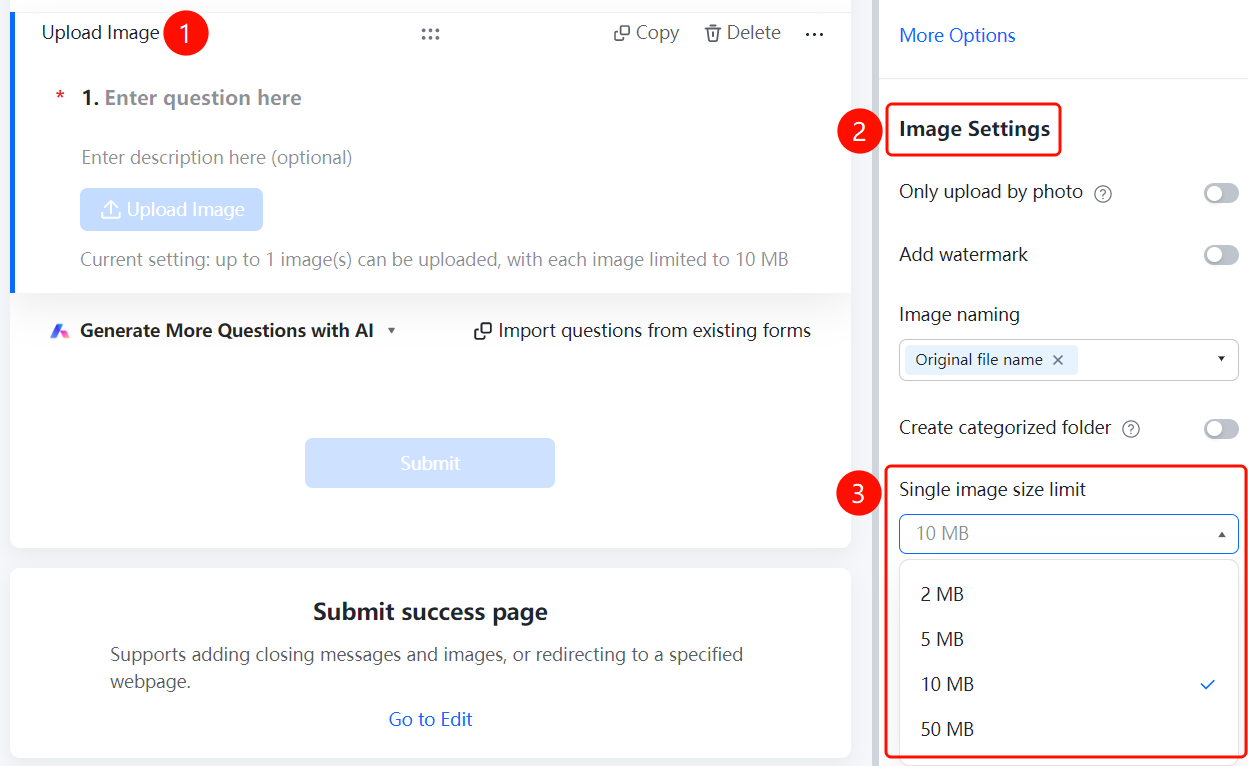
Image Question → "Image Settings" → "Single Image Size Limit" drop-down list
- Click the added "Image Question".
- Click the "Single Image Size Limit" drop-down list in the "Image Settings" panel on the right.
- Optional sizes: "2M", "5M", "10M" (default), "50M".
Set Image Quantity Limit
Entry
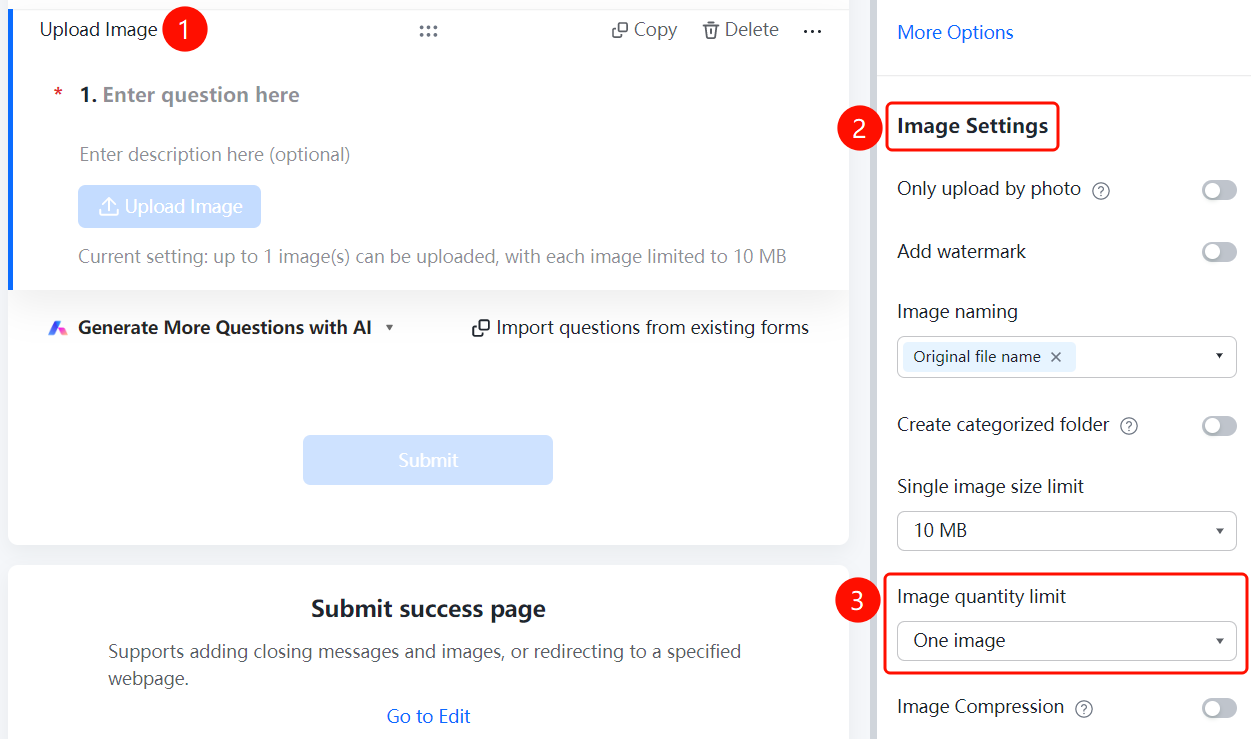
Image Question → "Image Settings" → "Image Quantity Limit" option
- Click the added "Image Question".
- Click "Image Quantity Limit" in the "Image Settings" panel on the right.
- Set the number of images allowed to be uploaded, which defaults to "1".
Enable Image Compression
Entry
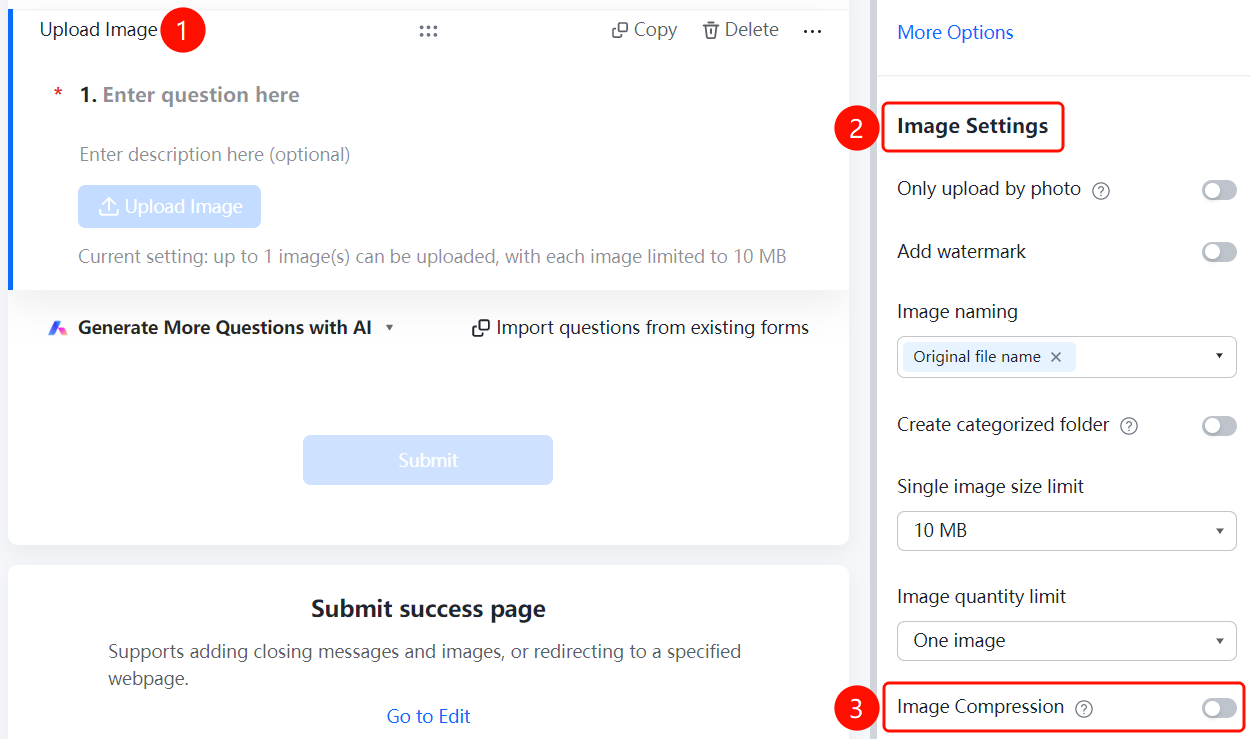
Image Question → "Image Settings" → "Compress Image" switch
- Click the added "Image Question".
- Turn on the "Compress Image" switch in the "Image Settings" panel on the right.
FAQ
Q1: Can I limit the image size for image questions?
- Solution: Yes. In "Image Settings", click the "Single Image Size Limit" drop-down list and choose from 2M, 5M, 10M, or 50M.
Q2: How do I set it to allow camera upload only?
- Solution: Turn on the "Camera Upload Only" switch in "Image Settings". Respondents will only be able to upload images by taking photos.
Q3: Do image questions support uploading multiple images?
- Solution: Yes. Click "Image Quantity Limit" in "Image Settings" to allow uploading multiple images.
Notes
- Image questions are located in the "Common Question Types" area.
- Supports features such as camera upload only, adding watermarks, image naming methods, creating categorized folders, image size limits, quantity limits, and image compression.