Feature Summary
Fill settings are used to configure the filling rules of the questionnaire, including requiring sign-in to fill, anonymous filling, not allowing reuse of the previous fill record, total response limits, limiting the number of times each user can fill, hiding and custom logos, and displaying the number of participants.
Feature Description
| Feature Dimension | Description |
|---|---|
| Member Limit | No member limit |
| Version Limit | No version limit |
Operating Steps
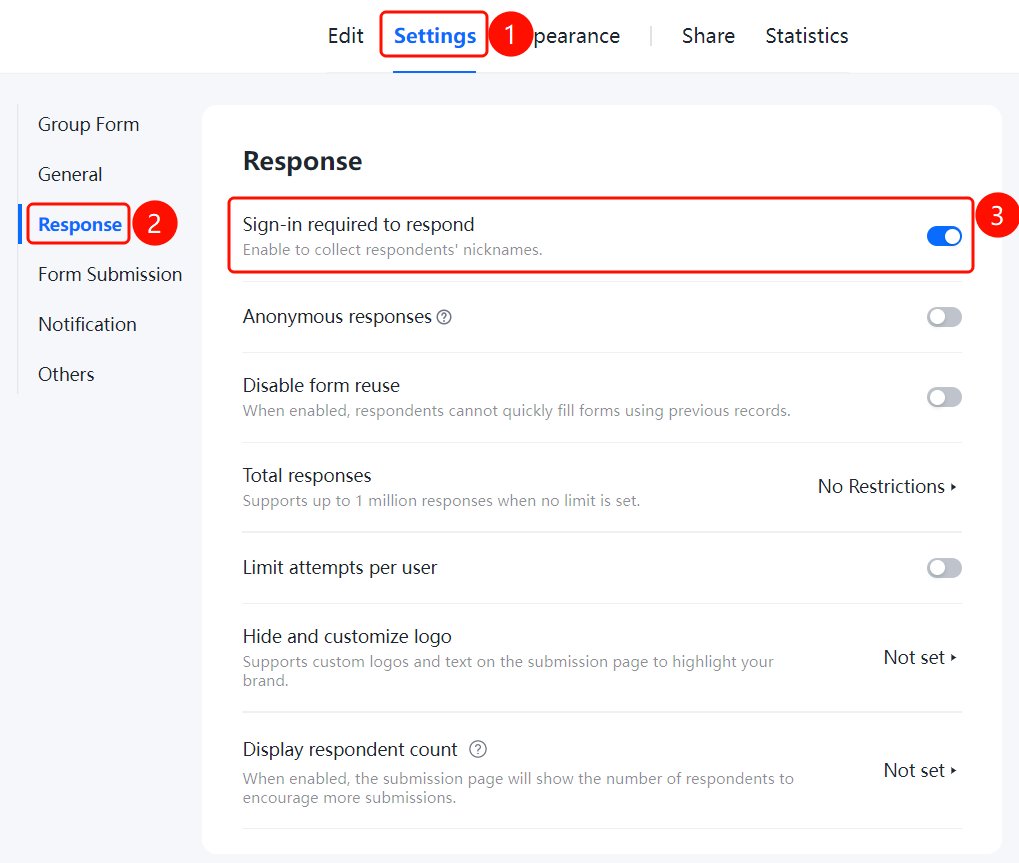
Set Require Sign-in to Fill
Feature Entry "Settings" tab → "Fill Settings" → "Require Sign-in to Fill" switch
- Click the "Settings" tab at the top.
- Click "Fill Settings" in the left menu.
- Turn on the "Require Sign-in to Fill" switch.
- Once enabled, you can collect the nickname information of the filler.
Set Anonymous Filling
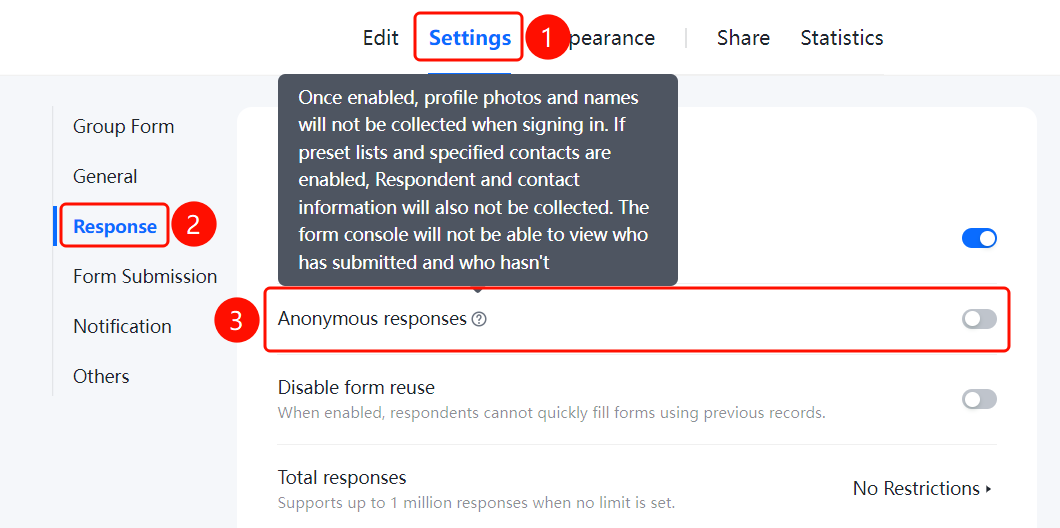
Feature Entry "Settings" tab → "Fill Settings" → "Anonymous Filling" switch
- Click the "Settings" tab at the top.
- Click "Fill Settings" in the left menu.
- Turn on the "Anonymous Filling" switch.
- Once enabled, the identity of the filler cannot be known, and the filler's profile picture, nickname, and preset list of fillers cannot be automatically collected. The form Admin Console cannot view who has submitted and who has not. The default value of the contact question cannot be the person filling out this form.
Set Do Not Allow Reuse of Previous Fill Record
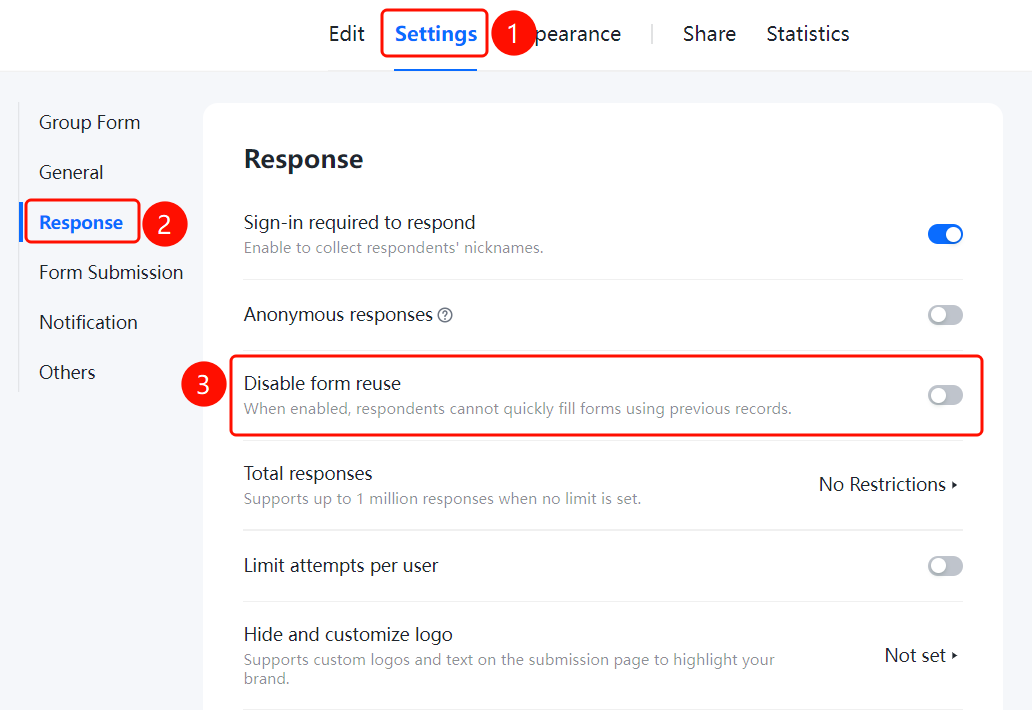
Feature Entry "Settings" tab → "Fill Settings" → "Do Not Allow Reuse of Previous Fill Record" switch
- Click the "Settings" tab at the top.
- Click "Fill Settings" in the left menu.
- Turn on the "Do Not Allow Reuse of Previous Fill Record" switch.
- Once enabled, fillers will not be able to use this feature for quick filling.
Set Total Responses
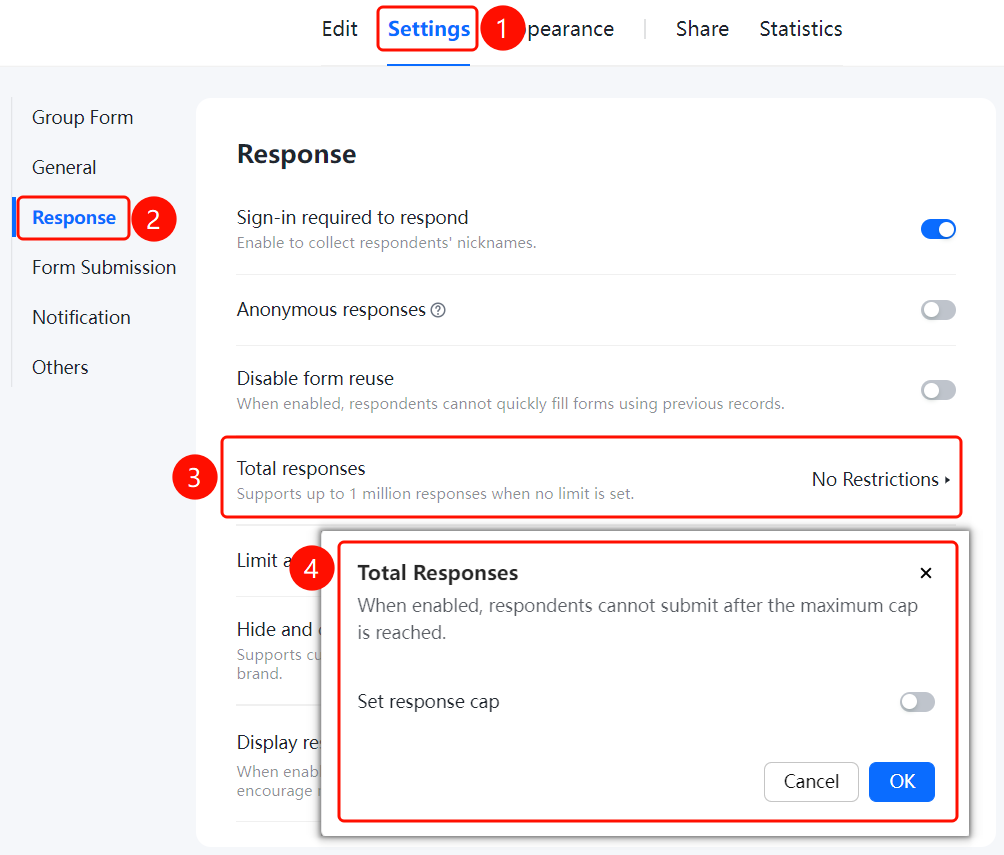
Feature Entry "Settings" tab → "Fill Settings" → "Total Responses" option
- Click the "Settings" tab at the top.
- Click "Fill Settings" in the left menu.
- Click "Total Responses" (currently "No Limit"; when the limit is not enabled, the total number can support up to millions of records).
- In the pop-up "Total Responses" dialog box, turn on the "Limit Total Responses" switch and set the maximum limit (e.g., 10).
- Once the limit is enabled, fillers will not be able to submit after exceeding the maximum limit.
- Click the "OK" button to save settings.
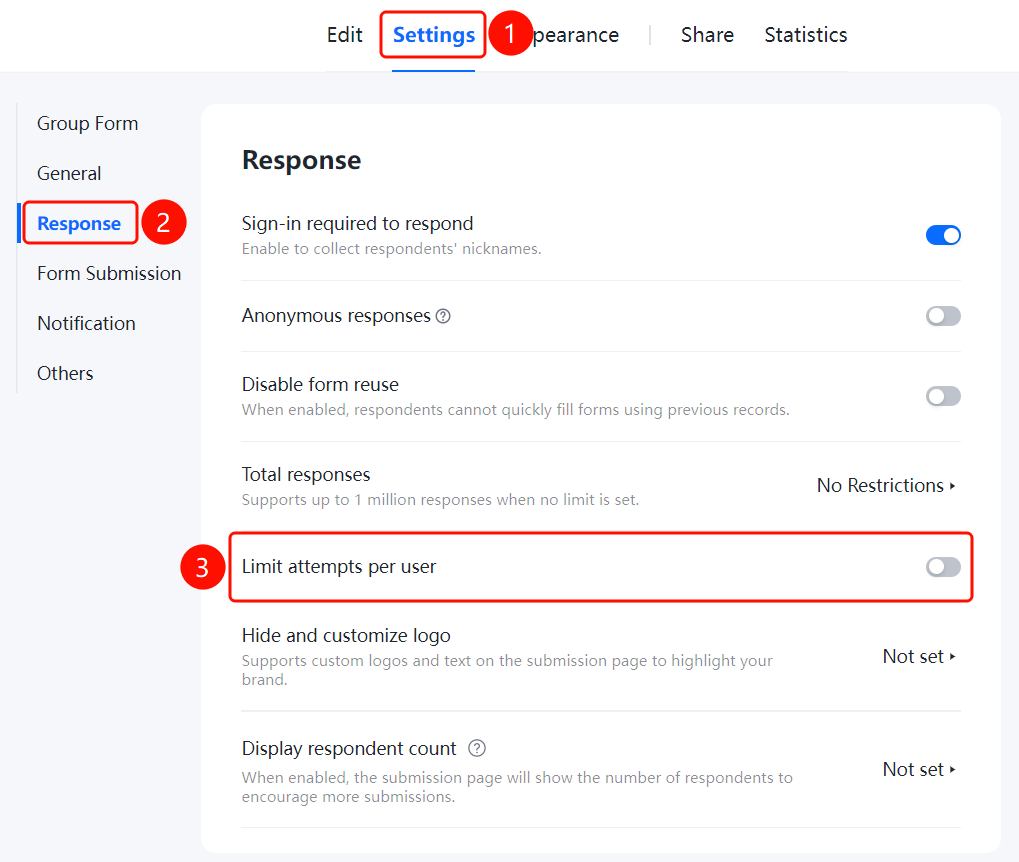
Set Limit Number of Fills per User
Feature Entry "Settings" tab → "Fill Settings" → "Limit Number of Fills per User" switch
- Click the "Settings" tab at the top.
- Click "Fill Settings" in the left menu.
- Turn on the "Limit Number of Fills per User" switch.
- Set the number of fills allowed per user.
Set Hide and Custom Logo
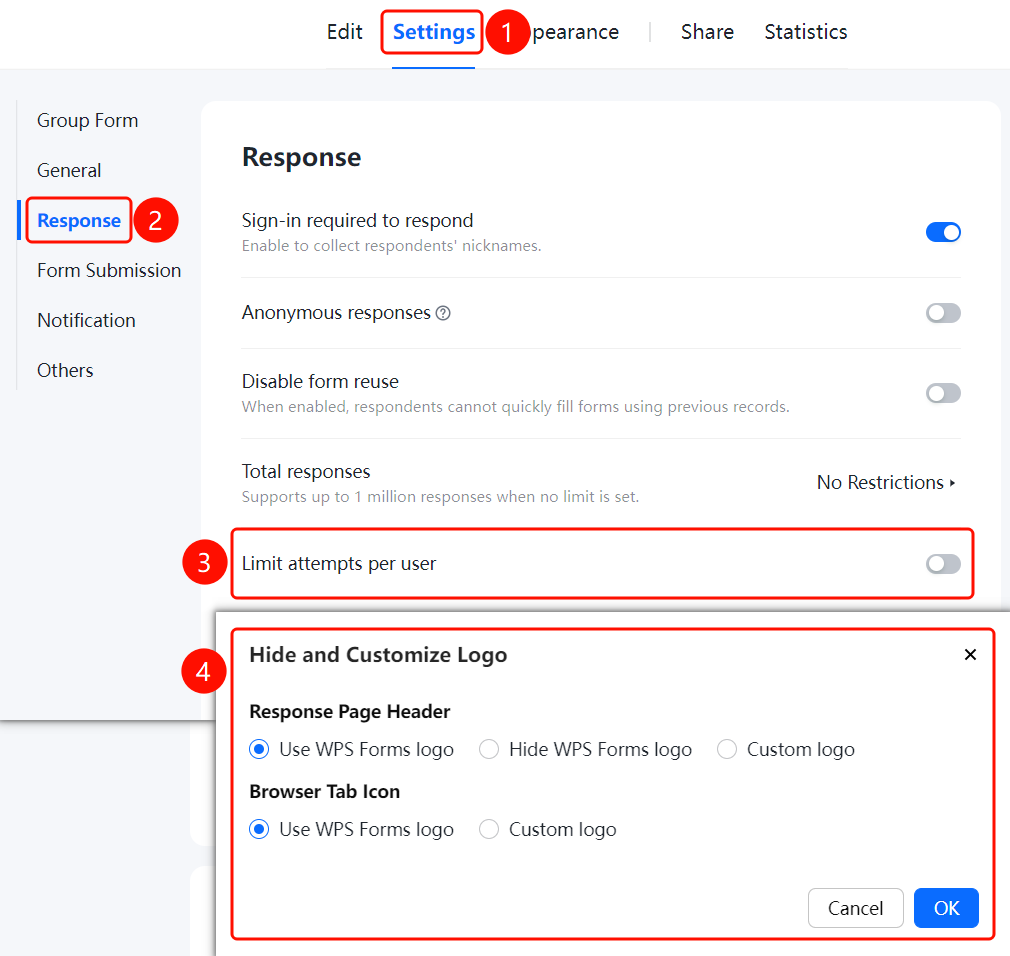
Feature Entry "Settings" tab → "Fill Settings" → "Hide and Custom Logo" option
Click the "Settings" tab at the top.
Click "Fill Settings" in the left menu.
Click "Hide and Custom Logo" (currently "Not Set").
In the pop-up "Hide and Custom Logo" dialog box, you can configure the following:
- "Fill Page Navigation Bar": You can choose**"Use WPS Forms Logo","Hide WPS Forms Logo", or"Custom Logo"**.
- "Computer Browser Tab": You can choose "Use WPS Forms Logo" or "Custom Logo".
Click the "OK" button to save settings.
Set Display Number of Participants
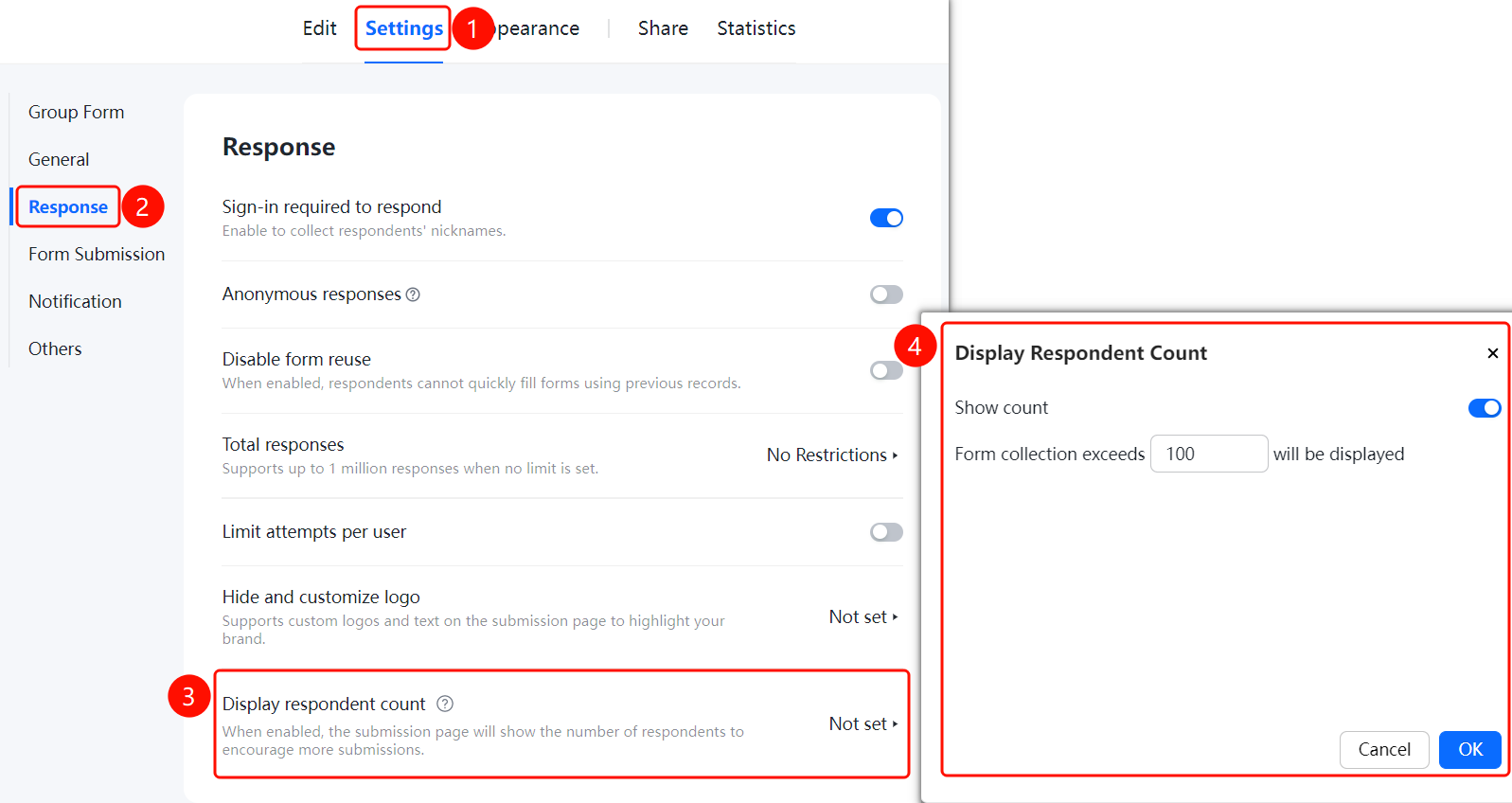
Feature Entry "Settings" tab → "Fill Settings" → "Display Number of Participants" option
- Click the "Settings" tab at the top.
- Click "Fill Settings" in the left menu.
- Click "Display Number of Participants" (currently "Not Set").
- In the pop-up "Display Number of Participants" dialog box, turn on the "Display Number of Participants" switch.
- Set the number of "Form Responses Exceed" (e.g., 100) to display.
- Click the "OK" button to save settings.
FAQ
Q1: What is the difference between requiring sign-in to fill and anonymous filling?
- Solution: Once requiring sign-in to fill is enabled, you can collect the nickname information of the filler. Once anonymous filling is enabled, the identity of the filler cannot be known, and you cannot view who has submitted and who has not.
Q2: How do I limit the total responses of the questionnaire?
- Solution: In "Settings" → "Fill Settings", click "Total Responses", turn on "Limit Total Responses" and set the limit. Fillers will not be able to submit after exceeding the limit.
Q3: How do I customize the logo and text on the fill page?
- Solution: In "Settings" → "Fill Settings", click "Hide and Custom Logo". You can configure the fill page navigation bar and computer browser tab to use the WPS Forms logo, hide the logo, or use a custom logo respectively.
Notes
- Requiring sign-in to fill and anonymous filling are mutually exclusive settings.
- When total responses are not limited, the system can support up to millions of records.
- Displaying the number of participants can effectively boost filling participation.