Feature Overview
The name field is used to collect respondents' names and belongs to the fill-in-the-blank question type within the "Common Templates" category. Respondents enter their names in the answer area, with support for format restrictions, character limits, duplicate entry prevention, and content submission prohibitions.
Feature Description
| Feature Dimension | Description |
|---|---|
| Membership Restrictions | No membership restrictions |
| Version Restrictions | No version restrictions |
Operating Steps
Adding Name
Feature Access
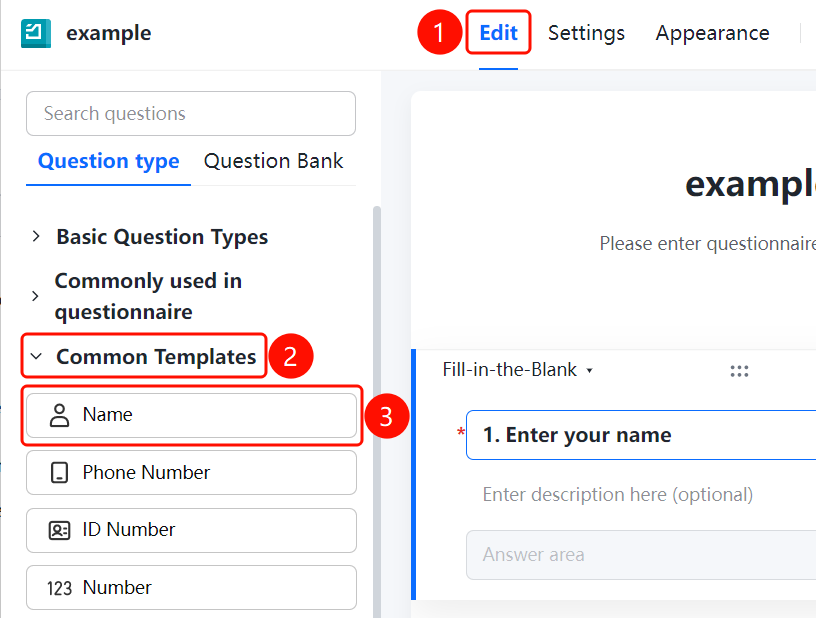
"Edit" tab → "Common Templates" → "Name" option
- Click the "Edit" tab at the top
- Expand the "Common Templates" section in the left panel
- Click the "Name" option to add a name field to the questionnaire
Setting Format Restrictions
Feature Entry
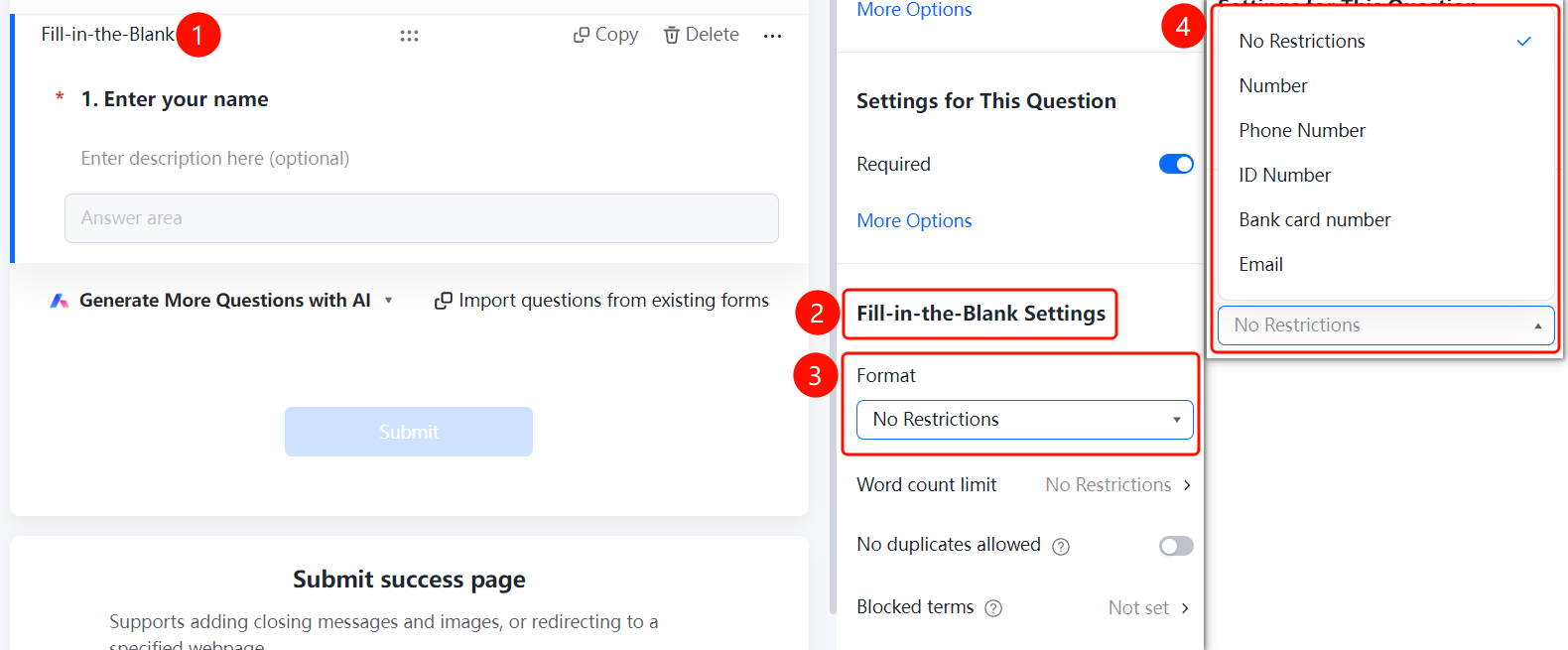
Name question → "Fill Settings" → "Format Restriction"
- Click the added Name question
- In the right "Fill Settings" panel, click the "Format Restriction" dropdown
- Select a format: No Restriction, Number, Phone Number, ID Number, Bank Card Number, Email
Setting Word count Limit
Feature Entry
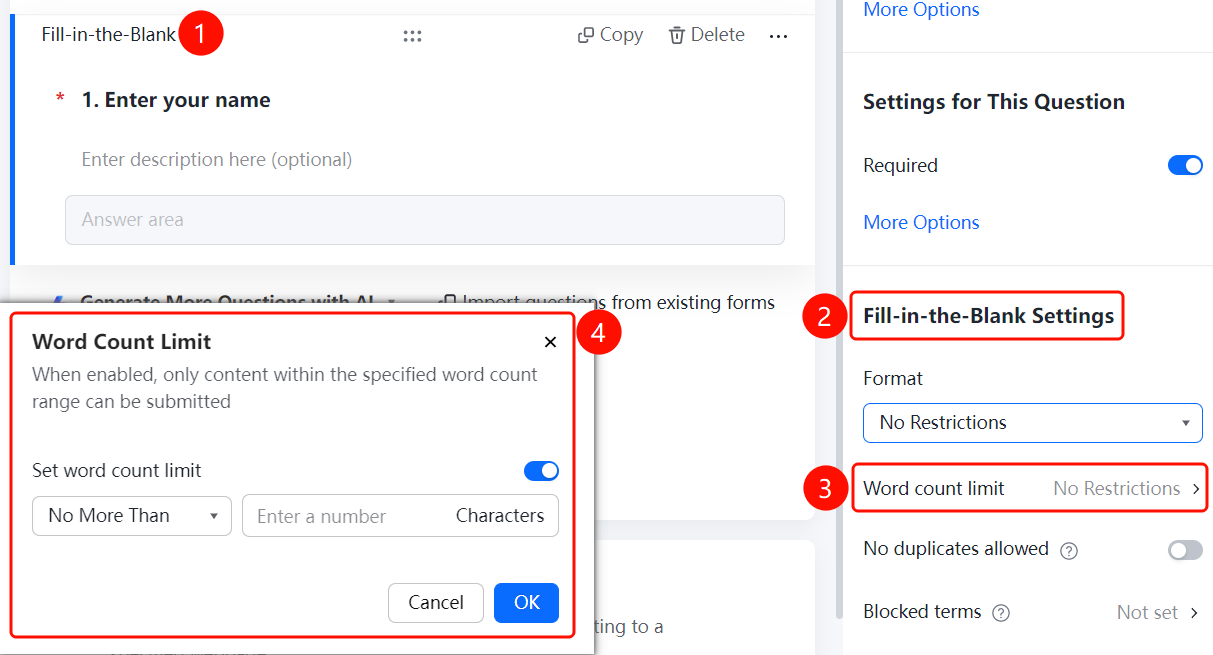
Name question → "Fill Settings" → "Character Limit"
- Click the added Name question
- In the right "Fill Settings" panel, click the "Word count Limit" option
- In the pop-up panel, enable the "Set word count Limit" toggle
- Set the minimum and maximum character limits
Set Noduplicates allowed
Feature Entry
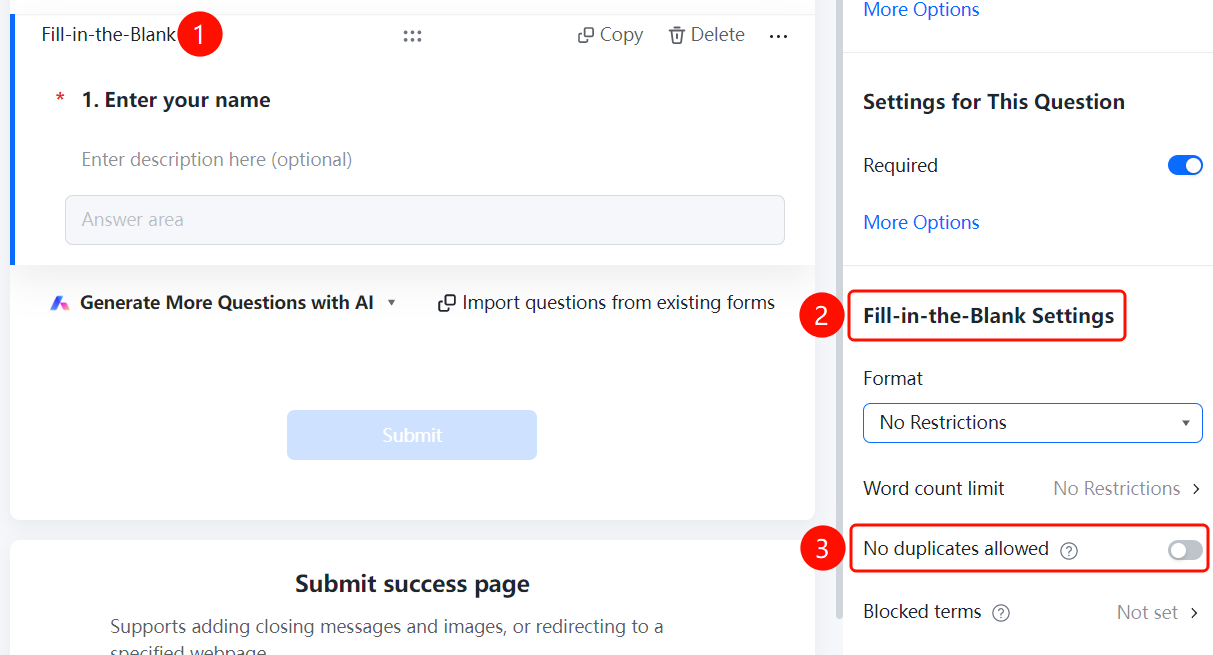
Name question → "Fill Settings" → "Noduplicates allowed"
- Click the added Name question
- In the right "Fill Settings" panel, find the "Noduplicates allowed" option
- After enabling the toggle, the same name cannot be submitted repeatedly
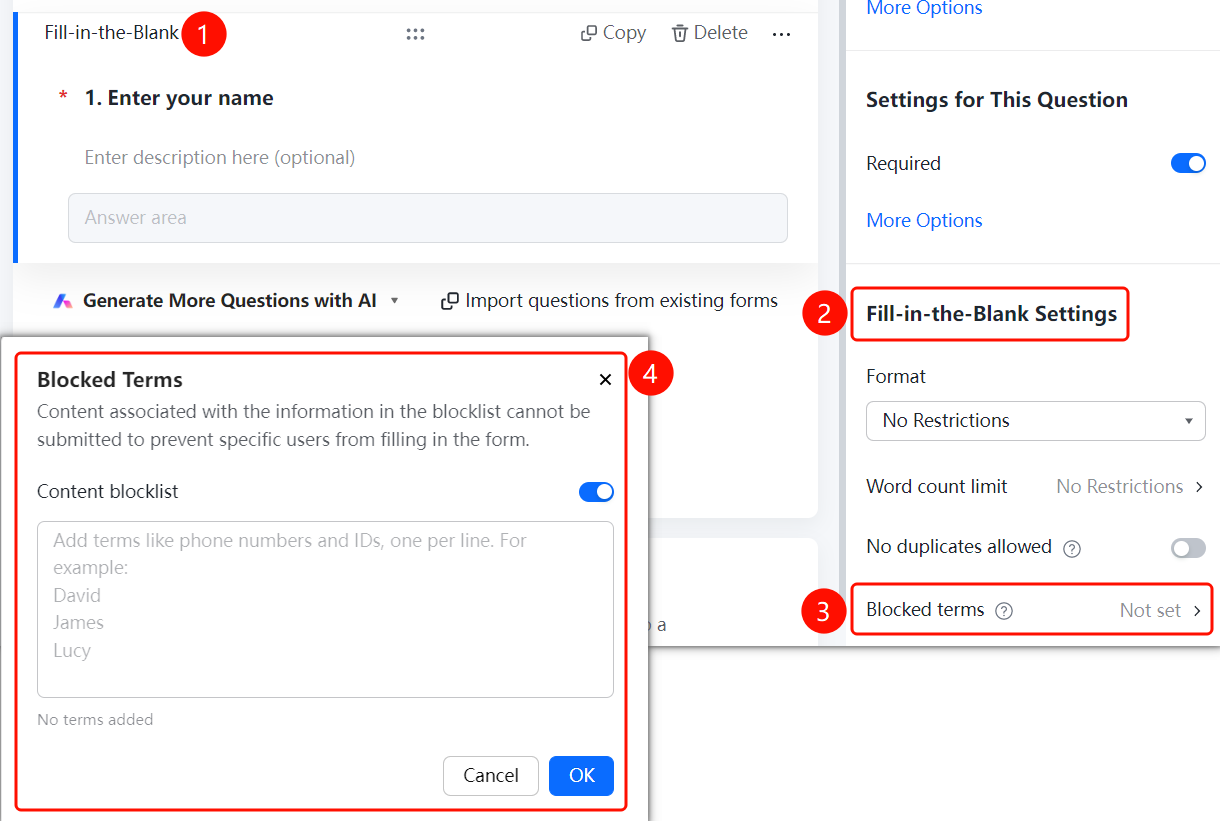
Set Blocked terms
Feature Entry
Name question → "Fill Settings" → "Blocked terms"
- Click the added Name question
- In the right "Fill Settings" panel, click the "Blocked terms" option
- Enable the "Content blocklist" toggle
- Add the name content to be prohibited, one per line
- Click the "OK" button to save
Frequently Asked Questions
Question 1: How to add a name field?
- Solution: Click the "Name" option under "Common Templates" in the "Edit" tab.
Question 2: How to prevent duplicate names?
- Solution: Click the name field, then enable the "Disallow duplicates" option in "Field Settings" to ensure no two submitters can enter the same name.
Question 3: How to block submissions from specific names?
- Solution: In "Field Settings," click "Prohibited Submission Content," enable "Content Blacklist," and add the names you wish to block.
Notes
- The name field is a type of fill-in question within "Common Templates."
- Supports various settings including format restrictions, character limits, disallowing duplicates, and blocking specific content.