Feature Summary
Common Settings are used to configure the core parameters of a questionnaire, including the submission availability period, who can fill it out, the collection cycle, pausing collection, settings for respondents to modify their submissions, and submission approval.
Feature Description
| Feature Dimension | Description |
|---|---|
| Member Limit | No membership limit |
| Version Limit | No version limit |
Operating Steps
Set Submission Availability Period
Feature Entry
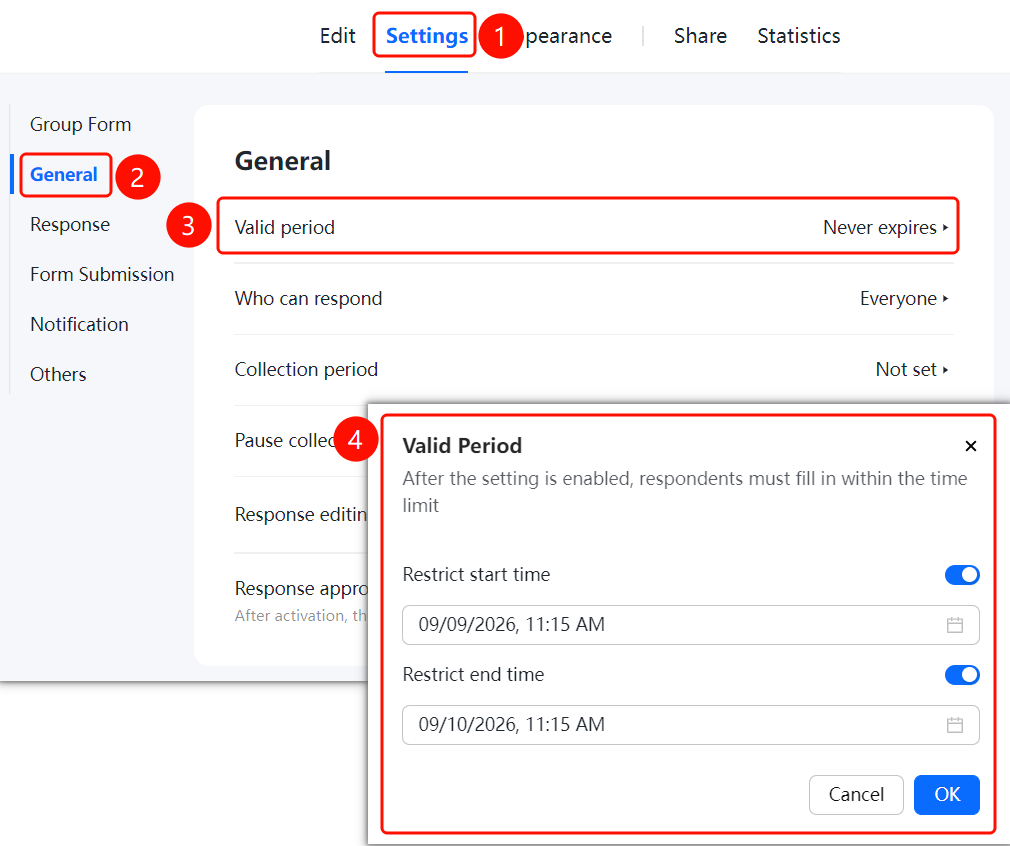
"Settings" tab → "Common Settings" → "Submission Availability Period" option
- Click the "Settings" tab at the top.
- Click "Common Settings" in the left panel.
- Click "Submission Availability Period" (currently set to "Unlimited").
- In the pop-up window, enable "Limit Start Time" and "Limit End Time", and set the specific times.
- Once enabled, respondents must fill out the questionnaire within the specified time. Click "OK" to save.
Set Who Can Fill Out
Feature Entry
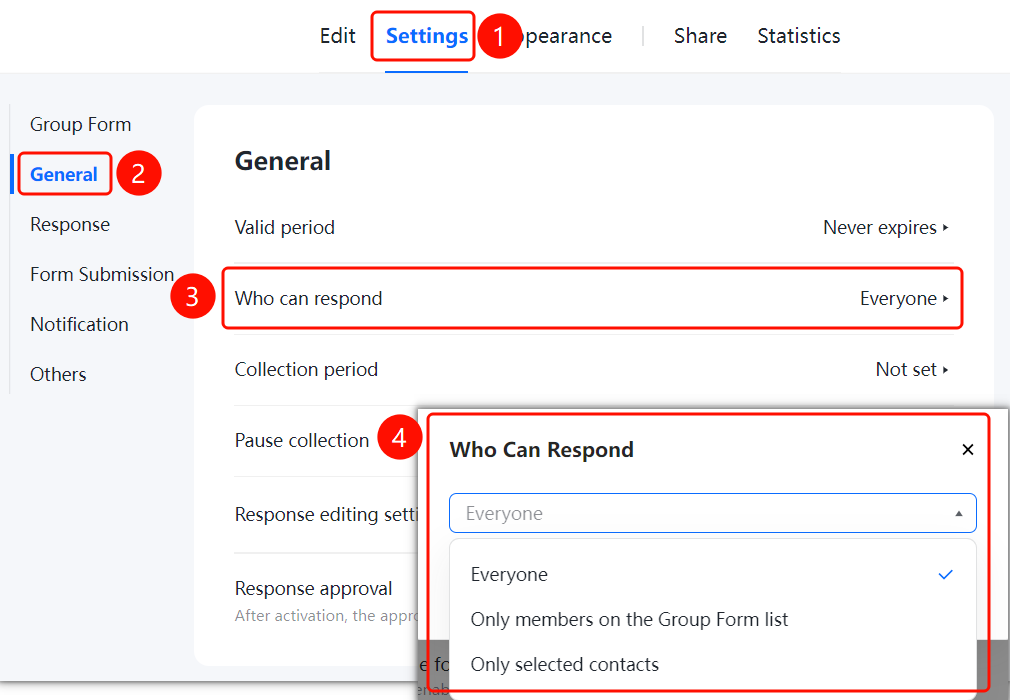
"Settings" tab → "Common Settings" → "Who Can Fill Out" option
- Click the "Settings" tab at the top.
- Click "Common Settings" in the left panel.
- Click "Who Can Fill Out" (currently set to "Anyone").
- Select the permission: "Anyone", "Only members in the preset list", or "Only selected contacts".
Set Collection Cycle
Feature Entry
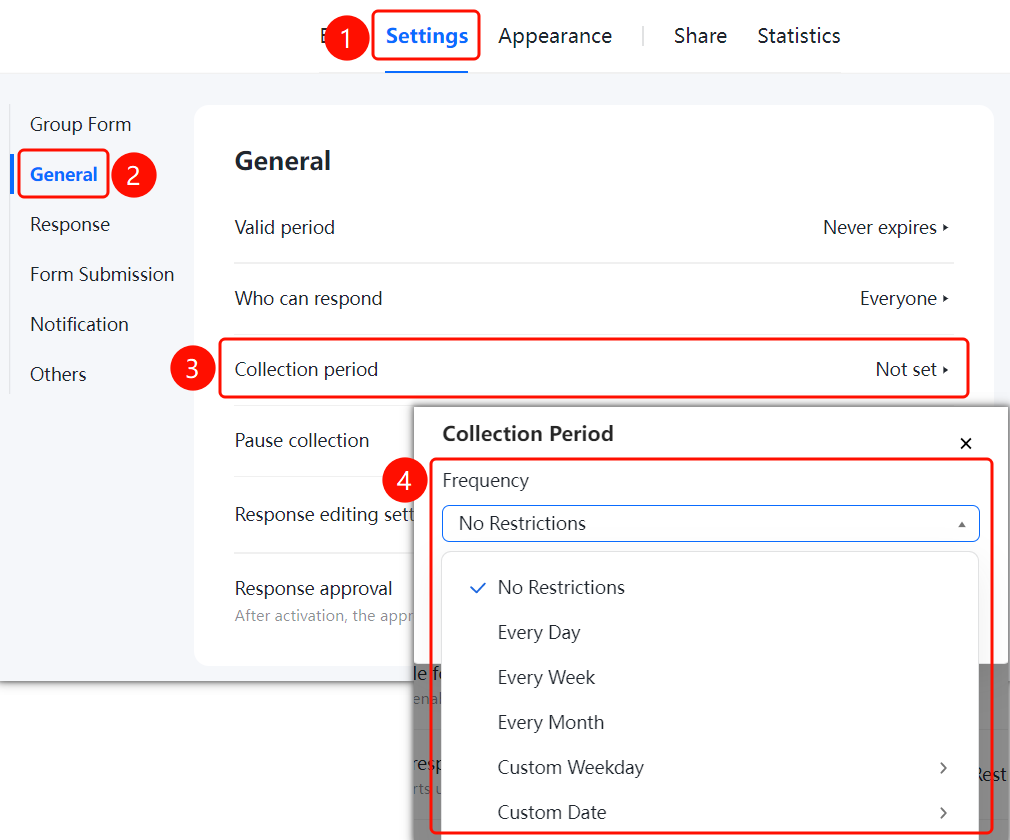
"Settings" tab → "Common Settings" → "Collection Cycle" option
- Click the "Settings" tab at the top.
- Click "Common Settings" in the left panel.
- Click "Collection Cycle" (currently set to "Not Set").
- In the pop-up "Collection Cycle" dialog box, click the "Cycle Settings" drop-down list and select the cycle type: "Unlimited" (default), "Daily", "Weekly", "Monthly", "Custom Days of the Week", or "Custom Dates".
Set Pause Collection
Feature Entry
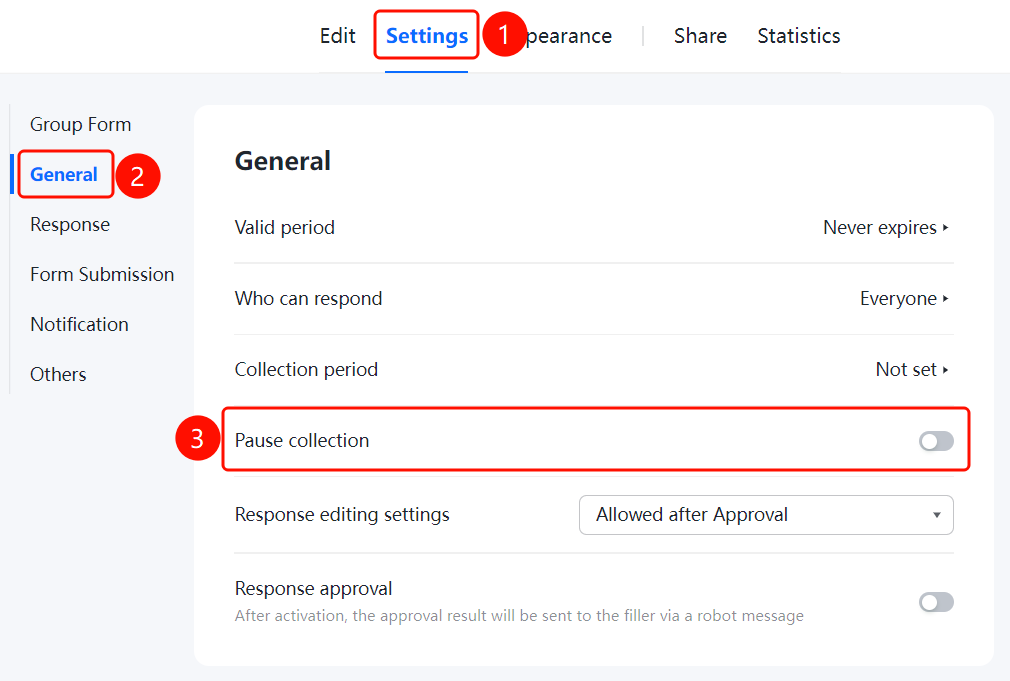
"Settings" tab → "Common Settings" → "Pause Collection" switch
- Click the "Settings" tab at the top.
- Click "Common Settings" in the left panel.
- Turn on the "Pause Collection" switch.
- Once enabled, the questionnaire collection will be paused, and respondents will not be able to submit.
Set Respondents to Modify Submissions
Feature Entry
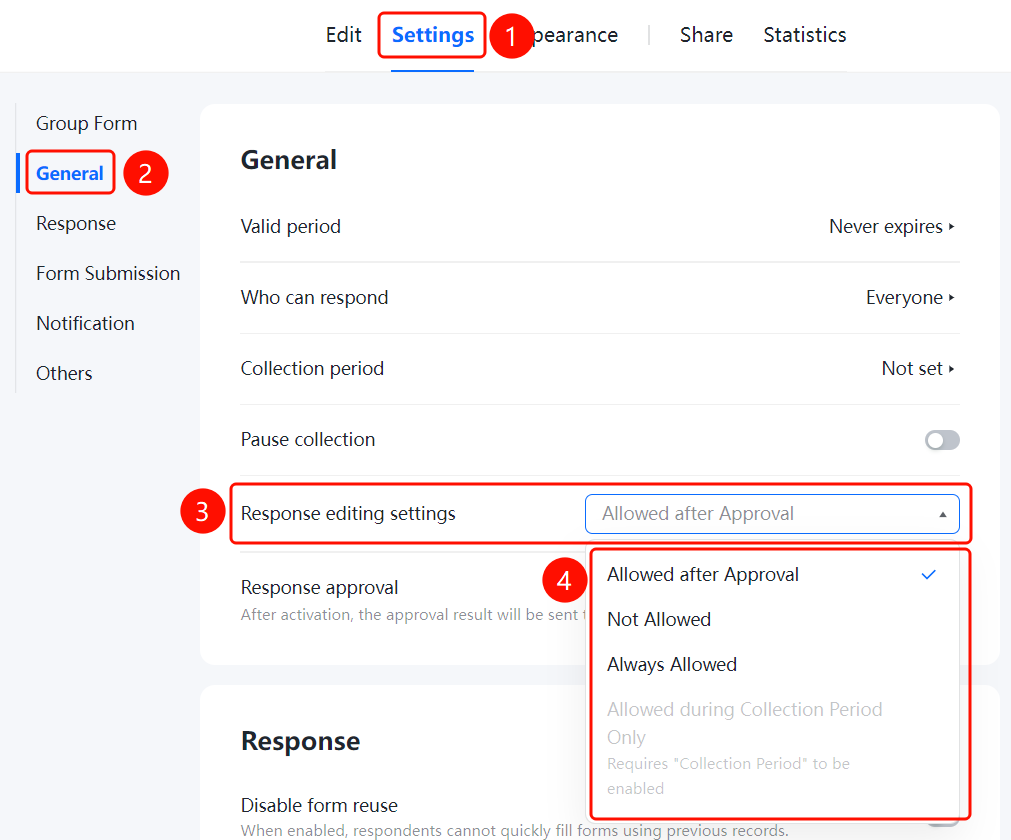
"Settings" tab → "Common Settings" → "Respondent Submission Modification Settings" option
- Click the "Settings" tab at the top.
- Click "Common Settings" in the left panel.
- Click "Respondent Submission Modification Settings".
- In the drop-down list, select the modification permission: "Allow modification after approval" (default), "Do not allow modification", "Always allow modification", or "Only allow modification within the collection cycle" (available only when "Collection Cycle" is enabled).
Set Submission Approval
Feature Entry
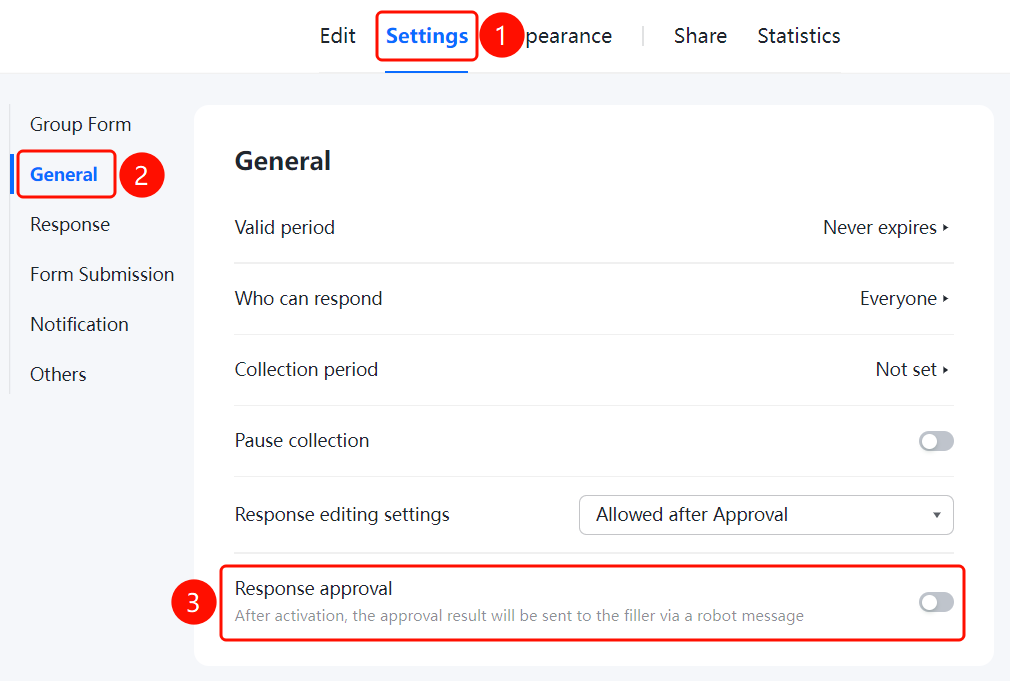
"Settings" tab → "Common Settings" → "Submission Approval" switch
- Click the "Settings" tab at the top.
- Click "Common Settings" in the left panel.
- Turn on the "Submission Approval" switch.
- Once enabled, approval results will be sent to respondents as messages via the Bot.
FAQ
Q1: How do I make a questionnaire valid only during a specific time period?
- Solution: Under "Common Settings", click "Submission Availability Period", enable "Limit Start Time" and "Limit End Time", and set the specific times.
Q2: How do I restrict who can fill out the questionnaire?
- Solution: Under "Common Settings", click "Who Can Fill Out", and select "Anyone", "Only members in the preset list", or "Only selected contacts".
Q3: How do I enable submission approval?
- Solution: Under "Common Settings", turn on the "Submission Approval" switch. Once enabled, approval results will be sent as messages via the Bot.
Notes
- Once the submission availability period is set, respondents will not be able to submit after the specified time range.
- The collection cycle supports periodic collection by day, week, month, or custom dates.