Feature Summary
The phone number template is used to quickly add phone number input questions. It belongs to the "fill-in-the-blank" question type in "Common Templates". The respondent's answer area is preset to the phone number format, making it easy to collect contact information.
Feature Description
| Feature Dimension | Description |
|---|---|
| Premium Limits | No premium limits |
| Version Limits | No version limits |
Steps
Add a Phone Number Question
Feature Entry
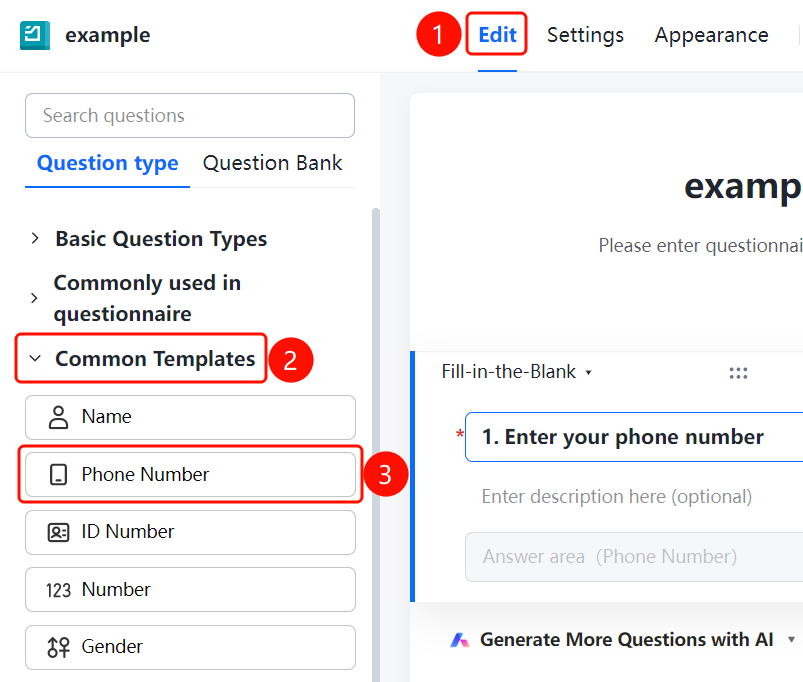
"Edit" tab -> "Common Templates" -> "Phone Number" option
- Click the Edit tab at the top.
- Expand the Common Templates area in the left panel.
- Click the Phone Number option to add a phone number question to the questionnaire.
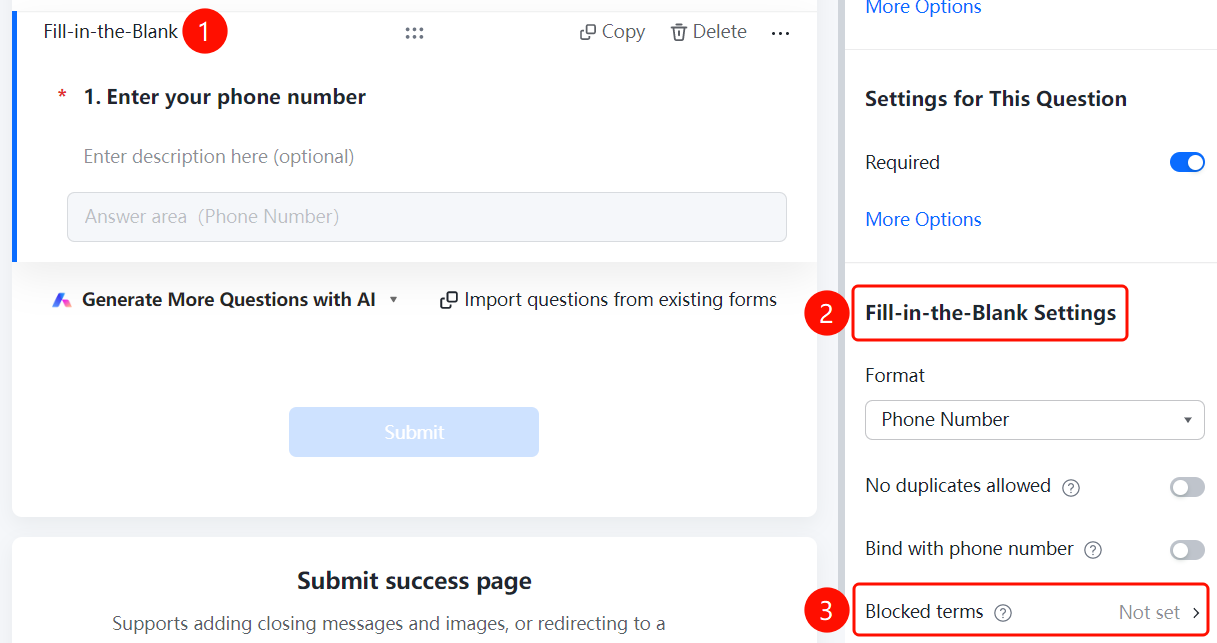
- By default, it is a fill-in-the-blank question type with the question "Enter your phone number". The respondent's answer area is preset to the phone number format.
Set Format Restrictions
Feature Entry
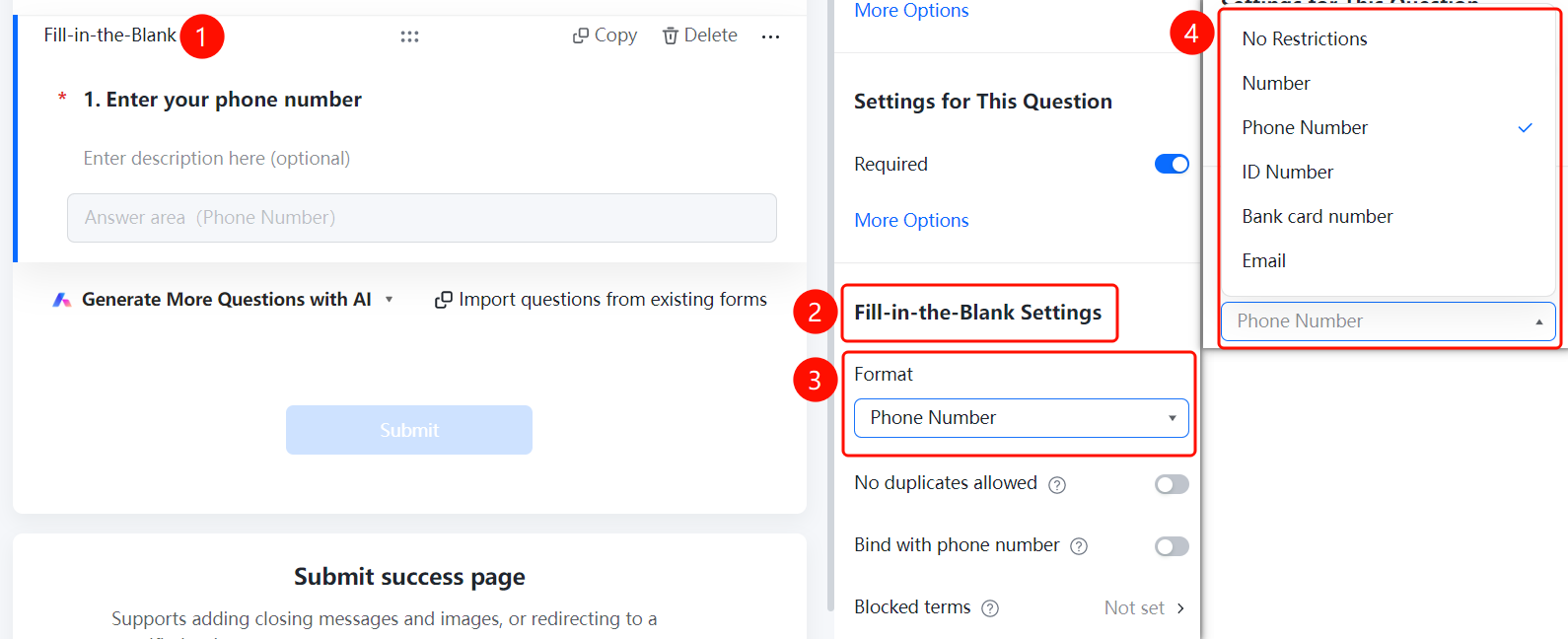
Phone Number -> "Fill-in-the-Blank Settings" -> "Format Restriction" dropdown list
- Click the added phone number question.
- In the Fill-in-the-Blank Settings panel on the right, click the Format Restriction dropdown list.
- The phone number template selects the Phone Number format by default. You can also switch to No Restriction, Digits, ID Numbers, Bank Card Numbers, or Email.
Set "No Duplicates Allowed"
Feature Entry
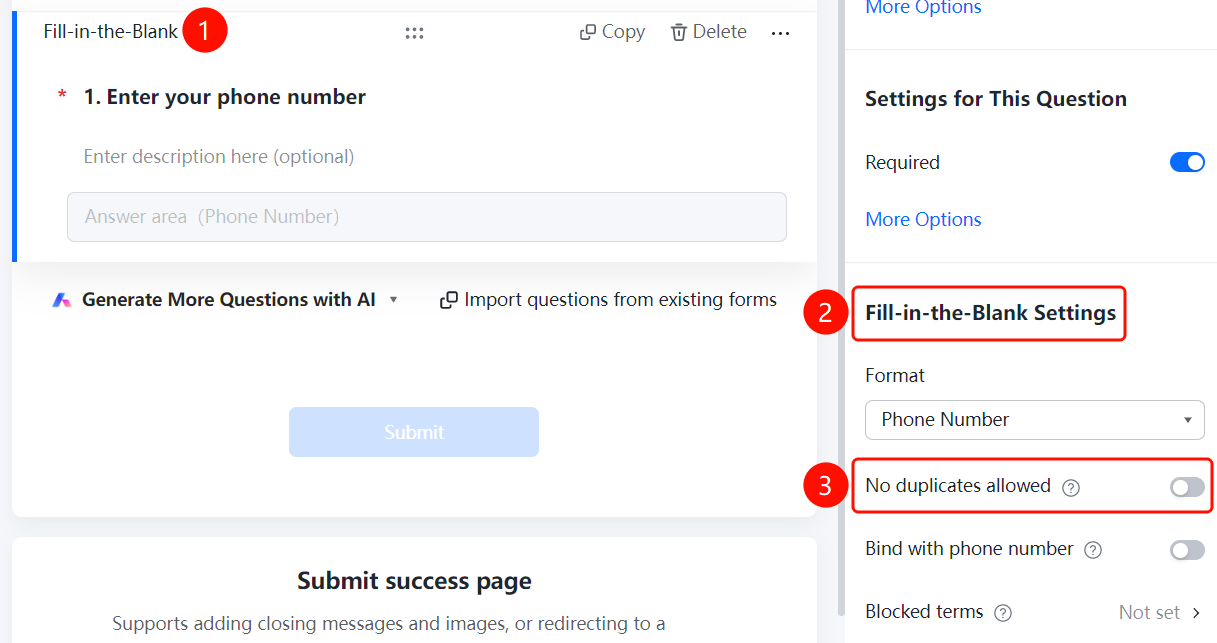
Phone Number -> "Fill-in-the-Blank Settings" -> "No Duplicates Allowed" switch
- Click the added phone number question.
- Turn on the No Duplicates Allowed switch in the Fill-in-the-Blank Settings panel on the right.
- Once enabled, phone numbers submitted by different respondents cannot be duplicated.
Enable Phone Number Verification
Feature Entry
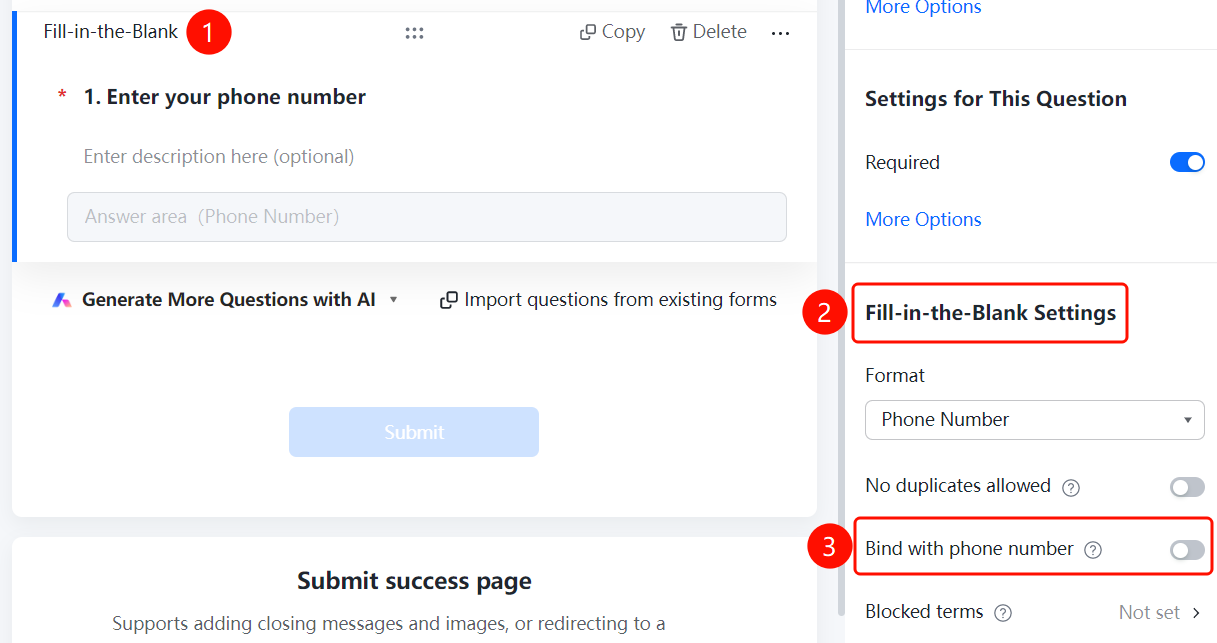
Phone Number -> "Fill-in-the-Blank Settings" -> "Verify Phone Number" switch
- Click the added phone number question.
- Turn on the Verify Phone Number switch in the Fill-in-the-Blank Settings panel on the right.
- Once enabled, the system will verify whether the phone number entered by the respondent is valid.
Set Blocked Content
Feature Entry
Phone Number -> "Fill-in-the-Blank Settings" -> "Blocked Content" option
- Click the added phone number question.
- In the Fill-in-the-Blank Settings panel on the right, click Blocked Content (currently Not Set).
- In the Blocked Content dialog box that appears, turn on the Content Blocklist switch.
- Add the phone numbers to be blocked in the input box, one per line.
- Phone numbers in the blocklist cannot be submitted, which can effectively prevent certain people from filling out the questionnaire.
- Click the OK button to save the settings.
FAQ
Q1: What is the difference between "Phone Number" and "Fill-in-the-Blank"?
- Solution: The phone number template has a preset phone number format restriction, so respondents can only enter phone numbers. The fill-in-the-blank question has no format restriction by default.
Q2: How do I prevent respondents from entering invalid phone numbers?
- Solution: Turn on the "Verify Phone Number" switch in "Fill-in-the-Blank Settings", and the system will verify the validity of the phone number.
Q3: How do I block specific phone numbers?
- Solution: Click "Blocked Content" in "Fill-in-the-Blank Settings", turn on "Content Blocklist", and add the phone numbers to be blocked.
Notes
- Phone number belongs to the "fill-in-the-blank" question type in "Common Templates", and the format restriction defaults to phone number.
- Settings such as no duplicates allowed, phone number verification, and blocked content are supported.