Feature Summary
Multiple-choice voting is used to collect votes. Respondents can select one or more options from a set of voting options. It is commonly used for voting and selections. After submission, users can view the voting results and leaderboard.
Feature Description
| Feature Dimension | Description |
|---|---|
| Member Limit | No member limit |
| Version Limit | No version limit |
Steps
Add Multiple-Choice Vote
Feature Entry
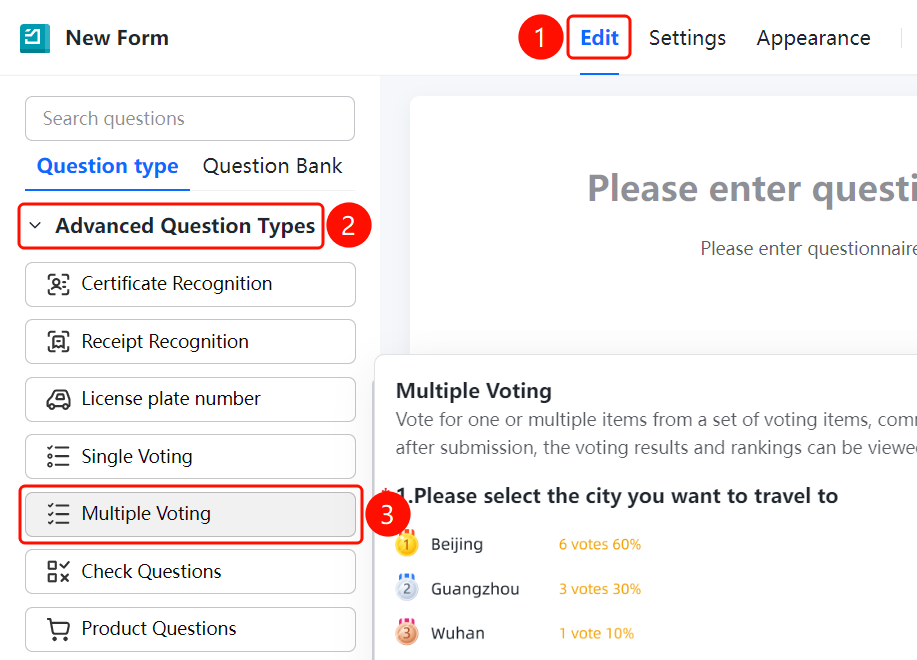
"Edit" tab → "Advanced Questions" → "Multiple-Choice Vote" button
- Click the "Edit" tab at the top.
- In the left panel, expand the "Advanced Questions" area.
- Click the "Multiple-Choice Vote" button to add the question to the questionnaire.
- Enter the question title in the question editing area and add voting options.
Set the Number of Selectable Options
Feature Entry
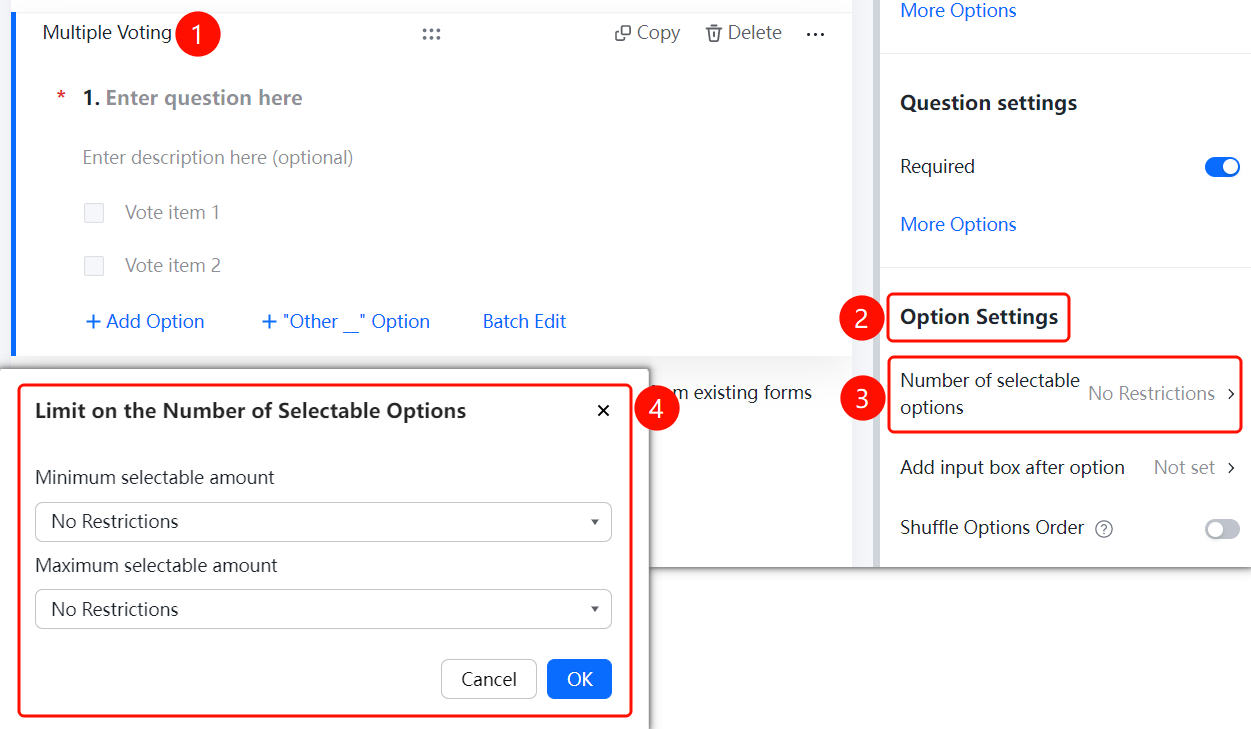
Multiple-Choice Vote → "Option Settings" → "Number of Selectable Options" option
- Click the added "Multiple-Choice Vote" question.
- In the "Option Settings" panel below, click "Number of Selectable Options" (currently set to "No Limit").
- In the "Limit on Number of Selectable Options" dialog box that appears, set the "Minimum Required Options" and "Maximum Selectable Options" (both are set to no limit by default).
- Click the "OK" button to save the settings.
Add Input Box After Option
Feature Entry
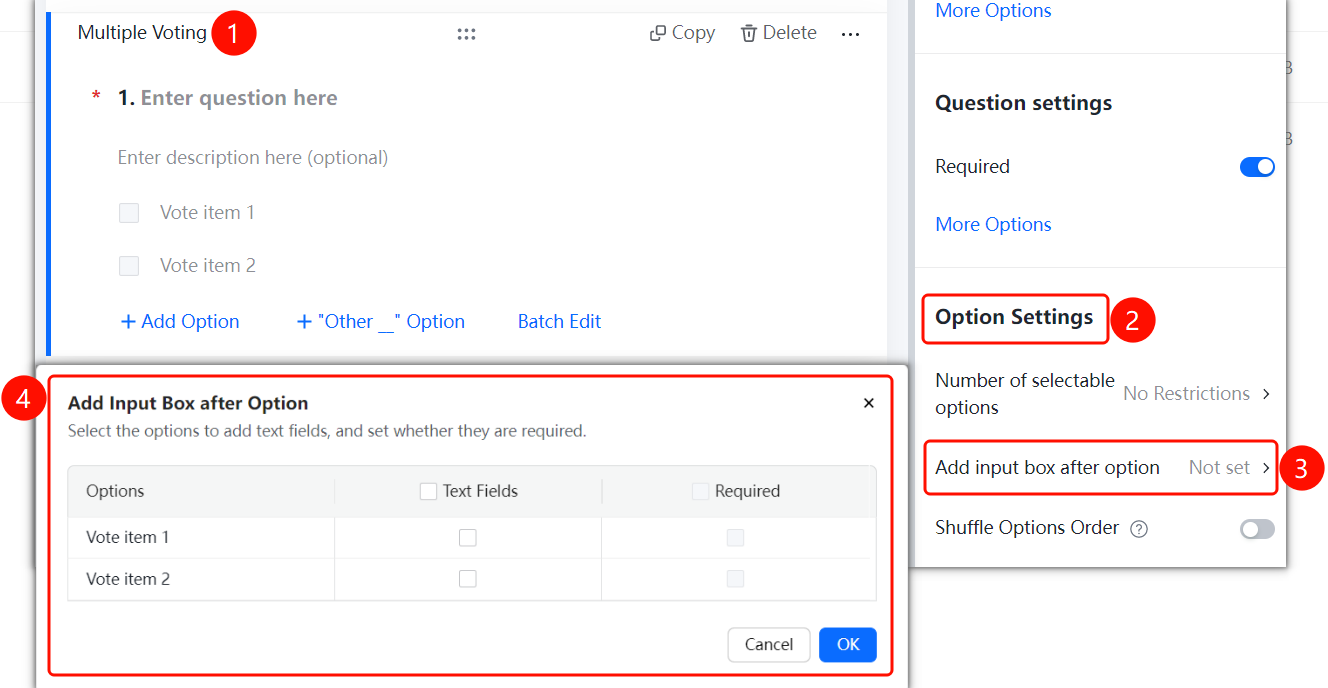
Multiple-Choice Vote → "Option Settings" → "Add Input Box After Option" option
- Click the added "Multiple-Choice Vote" question.
- In the "Option Settings" panel below, click "Add Input Box After Option" (currently set to "Not Set").
- In the "Add Input Box After Option" dialog box that appears, select the voting options where you want to add an input box, and you can set "Input Box Required".
- Click the "OK" button to save the settings.
Shuffle Option Order
Feature Entry
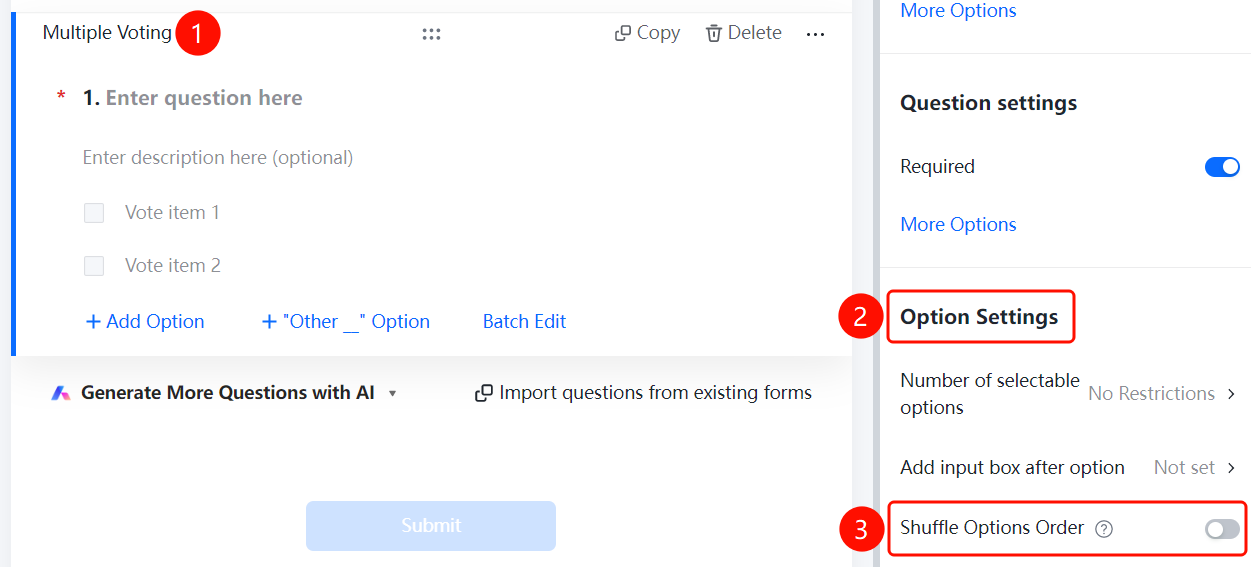
Multiple-Choice Vote → "Option Settings" → "Shuffle Option Order" switch
- Click the added "Multiple-Choice Vote" question.
- In the "Option Settings" panel below, turn on the "Shuffle Option Order" switch.
- Once enabled, respondents will see the options in a shuffled order.
Set Question Association
Feature Entry
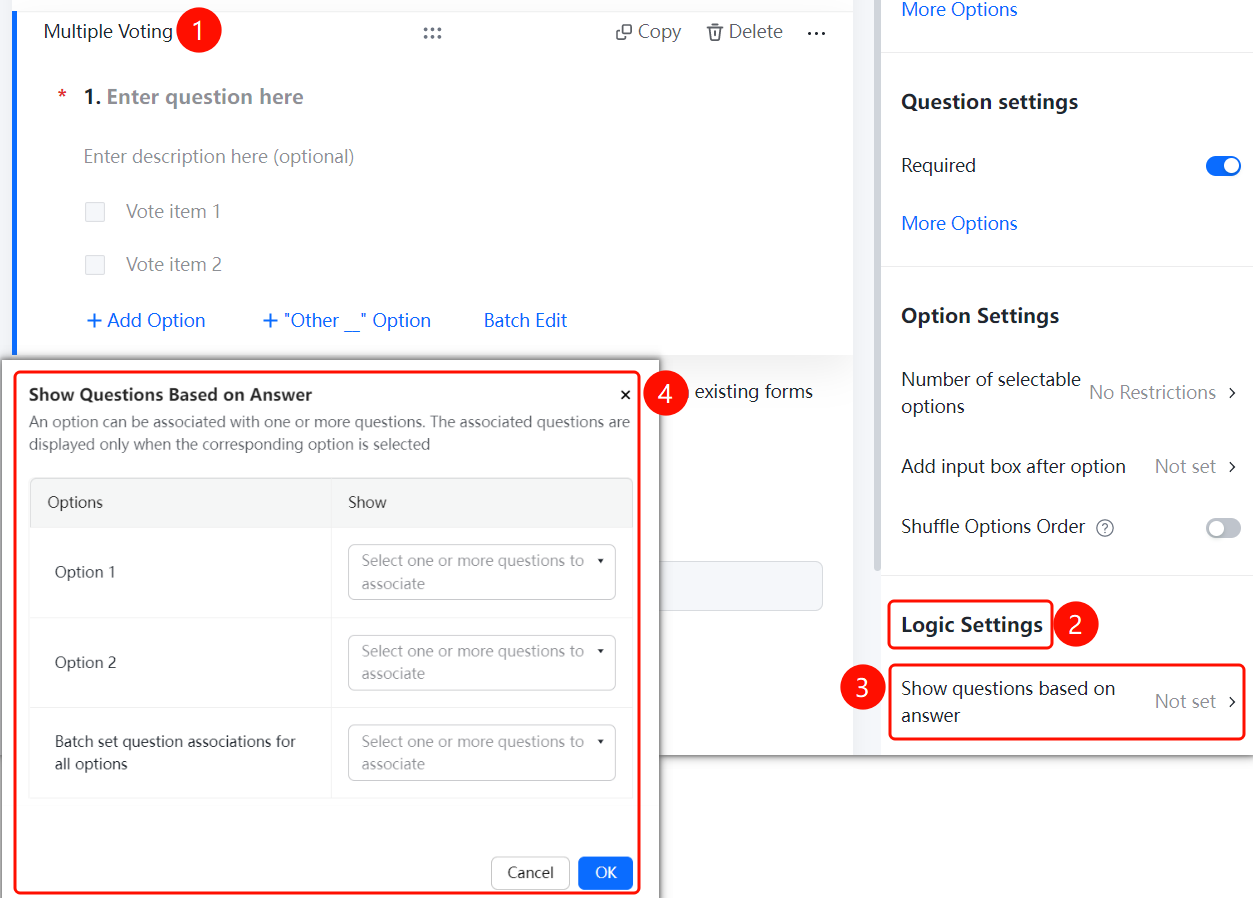
Multiple-Choice Vote → "Logic Settings" → "Question Association" option
- Click the added "Multiple-Choice Vote" question.
- In the "Logic Settings" panel below, click "Question Association" (currently set to "Not Set").
- In the "Set Question Association" dialog box that appears, set the associated question for each option.
- An option can be associated with one or more questions. The associated question will only be displayed when the respondent selects the specified option.
- You can also batch set question associations for all options.
- Click the "OK" button to save the settings.
FAQ
Question 1: What is the difference between multiple-choice voting and regular multiple-choice questions?
- Solution: Multiple-choice voting allows users to view voting results and leaderboards after submission, while regular multiple-choice questions do not have this feature.
Question 2: How do I limit the number of votes selected?
- Solution: In "Option Settings", click "Number of Selectable Options" to set the minimum and maximum number of selectable options.
Notes
- Multiple-choice voting is located in the "Advanced Questions" area.
- It supports settings for the number of selectable options, adding an input box after an option, shuffling option order, and question association.