Feature Summary
Group Form settings are used to configure the Group Form feature of a questionnaire. Once enabled, respondents can view each other's submitted content. It supports settings such as Group Form details display, displaying as a table, allowing private records, and allowing likes.
Feature Description
| Feature Dimension | Description |
|---|---|
| Member Limit | No member limit |
| Version Limit | No version limit |
Steps
Enable Group Form
Feature Entry
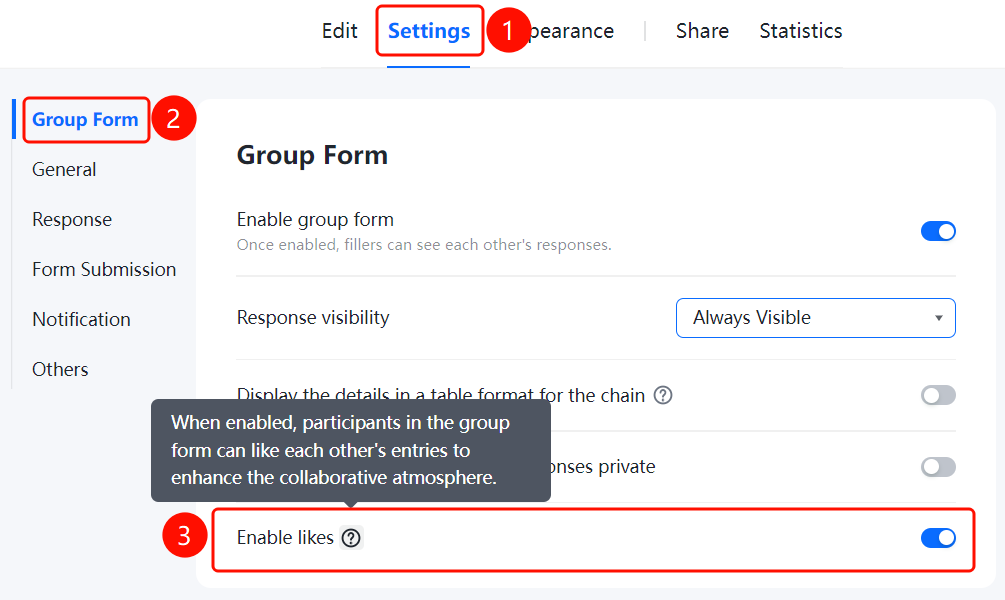
"Settings" tab → "Group Form Settings" → "Enable Group Form" switch
- Click the "Settings" tab at the top.
- Click "Group Form Settings" in the left menu.
- Turn on the "Enable Group Form" switch.
- Once enabled, respondents can view each other's submitted content.
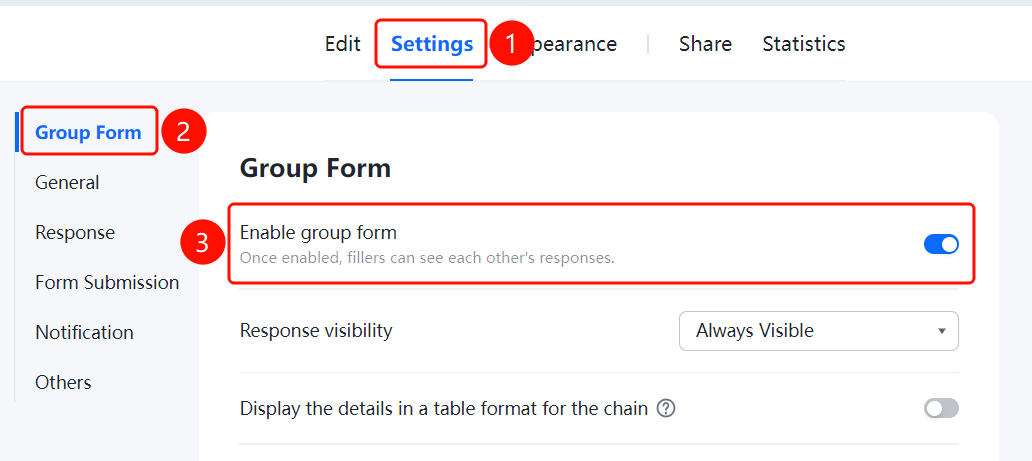
Set Up Group Form Details Display
Feature Entry
Group Form Settings → "Group Form Details Display" drop-down list
- Click the "Group Form Details Display" drop-down list in the "Group Form Settings" panel.
- Choose a display option: "Visible before and after joining the Group Form" (default), "Visible only after joining the Group Form", or "Visible only to the creator".
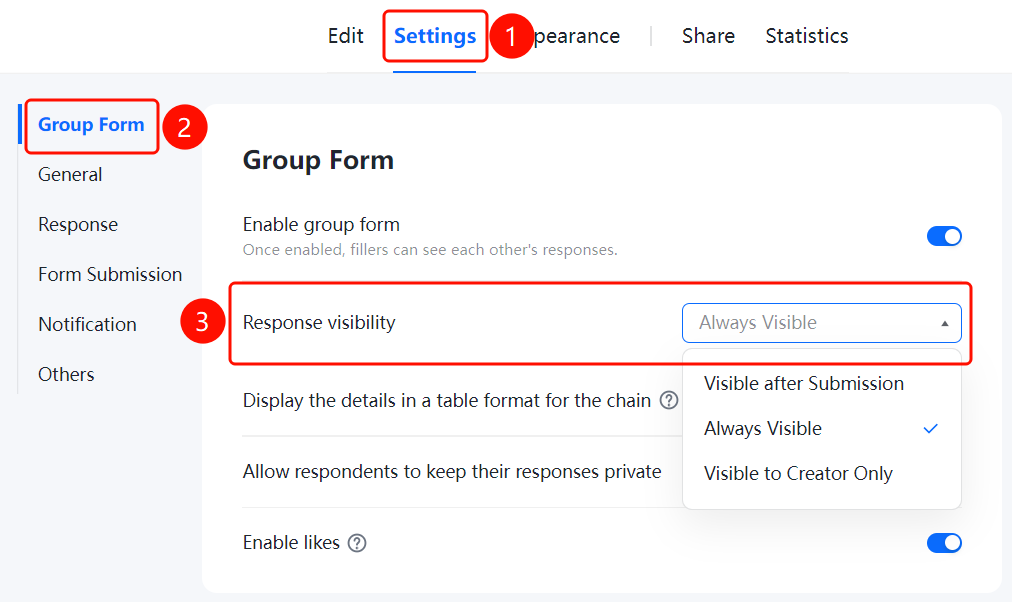
Set Up Displaying Group Form Details as a Table
Feature Entry
Group Form Settings → "Display Group Form Details as a Table" switch
- Turn on the "Display Group Form Details as a Table" switch in the "Group Form Settings" panel.
- Once enabled, participants can open the table on the Group Form page to view all Group Form records. This table can be viewed by anyone by default. Do not add sensitive data.
- You can disable this feature in Forms settings.
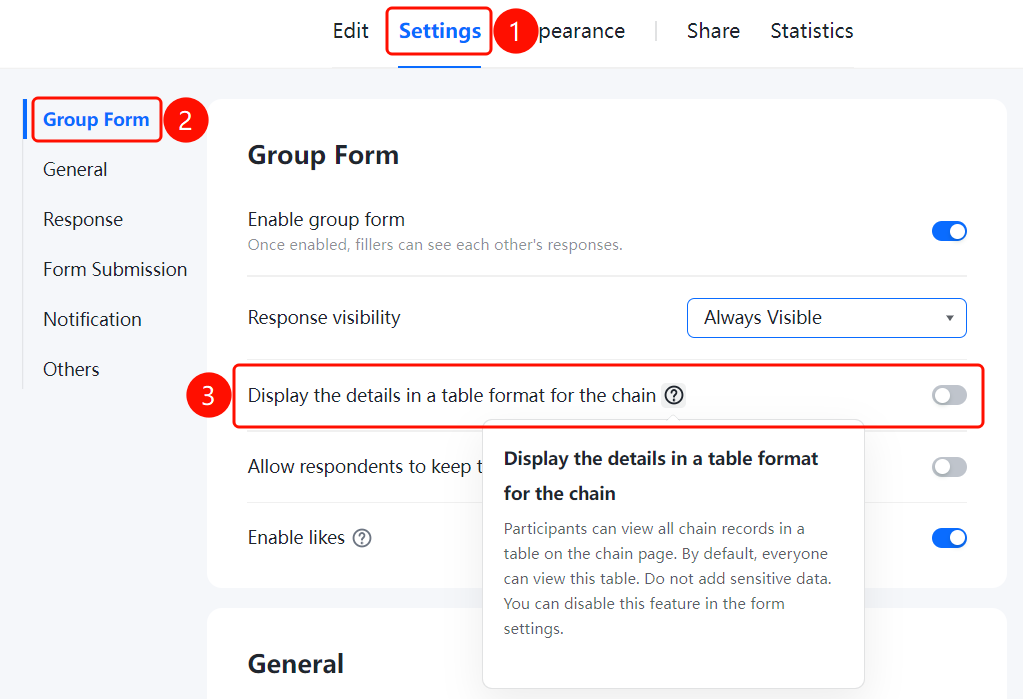
Set Up Allowing Participants to Keep Group Form Records Private
Feature Entry
Group Form Settings → "Allow Participants to Keep Group Form Records Private" switch
- Turn on the "Allow Participants to Keep Group Form Records Private" switch in the "Group Form Settings" panel.
- Once enabled, respondents can choose whether to make their Group Form records public.
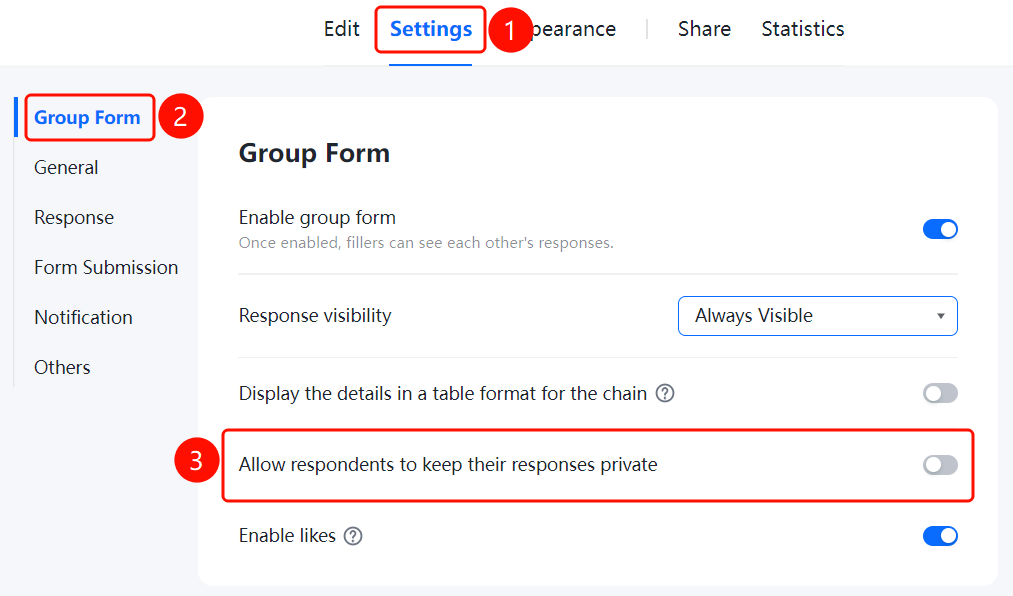
Enable Allowing Likes
Feature Entry
Group Form Settings → "Allow Likes" switch
- Turn on the "Allow Likes" switch in the "Group Form Settings" panel.
- Once enabled, Group Form participants will be allowed to like other people's Group Form records, enhancing the interactive atmosphere.
FAQ
Question 1: What can respondents see after Group Form is enabled?
- Solution: Once Group Form is enabled, respondents can view other people's submitted content after submitting their own, depending on the "Group Form Details Display" settings.
Question 2: Is it safe to display Group Form details as a table?
- Solution: The table can be viewed by anyone by default. Do not add sensitive data. You can disable this feature in Forms settings.
Notes
- Once Group Form is enabled, respondents can view other people's submitted content. Confirm whether you need to make it public.
- This is suitable for scenarios that require public submissions, such as event registration and sign-ins.