Feature Summary
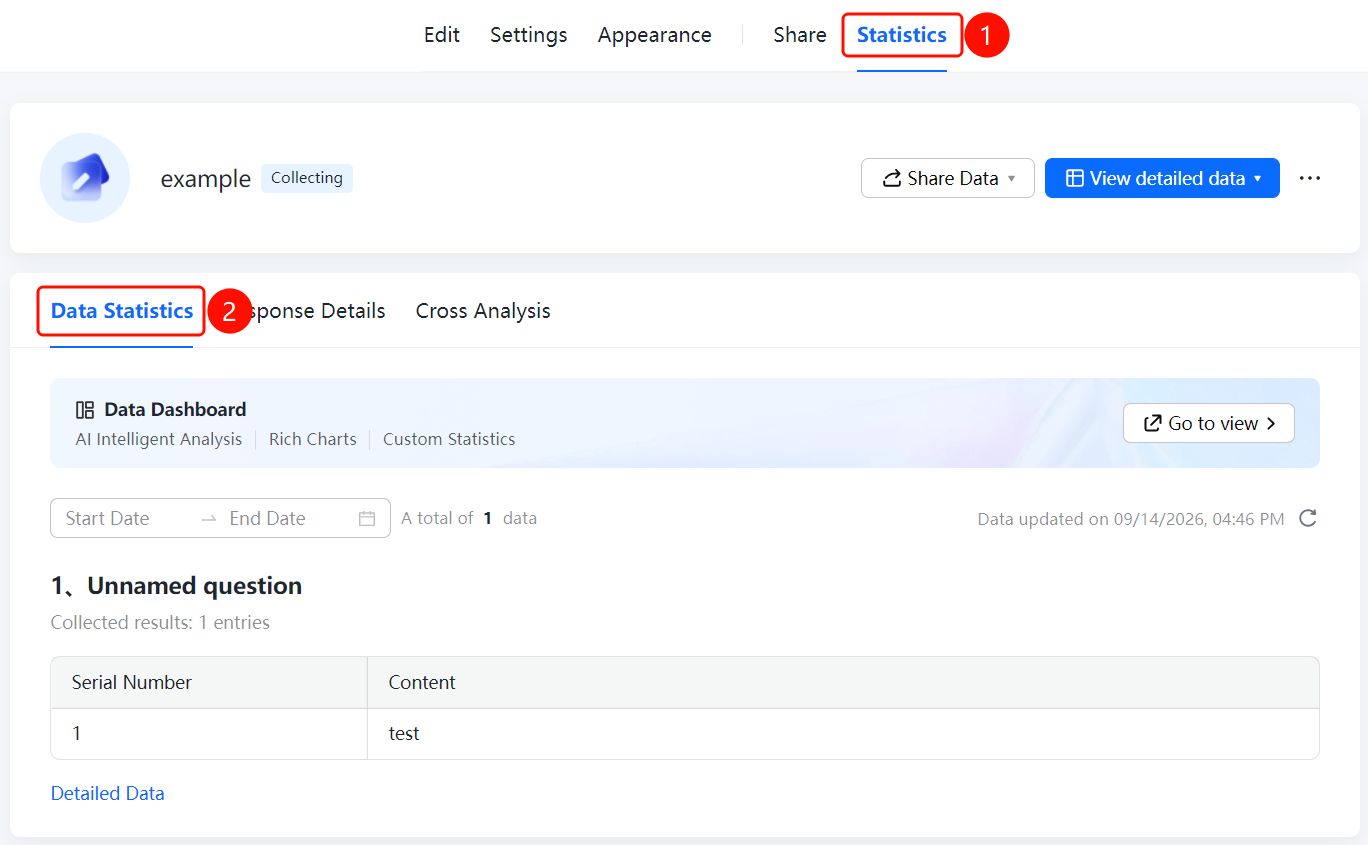
Data Statistics is used to view the collection results of questionnaire data. It supports filtering by time range and viewing detailed data. The page displays the number of collected results and content for each question.
Feature Description
| Feature Dimension | Description |
|---|---|
| Member Limitation | No member limitation |
| Version Limitation | No version limitation |
Steps
View Data Statistics
Feature Entry
"Statistics" tab → "Data Statistics" option
- Click the "Statistics" tab at the top.
- Click the "Data Statistics" option in the submenu.
- The "Data Dashboard" area (AI intelligent analysis, rich charts, custom statistics) is displayed at the top of the page. You can click the "View" button to enter.
- Below, you can set the "Start Date" and "End Date" to filter the data range. The page displays the total amount of data and the data update time.
- View the collection results of each question, such as "Collection results: 1", including the serial number and content.
- Click "Detailed Data" to view detailed data, or click the "View Detailed Data" button at the top.
FAQ
Question 1: How do I filter data by time range?
- Solution: Set the "Start Date" and "End Date" at the top of the "Data Statistics" page.
Question 2: How do I view the detailed content of each piece of data?
- Solution: Click "Detailed Data" to view the detailed content of each submission Record, including submission time and filled content.
Question 3: What information is displayed on the Data Statistics page?
- Solution: The Data Statistics page displays the collection results, serial numbers, content, and data update time of each question, as well as the total amount of data.
Notes
- Data Statistics displays summary statistics. To view the details of each piece of data, click "Detailed Data".
- The data update time is the time of the last data change.