Feature Summary
Used to collect files in various formats, such as documents, images, audio, and video. Respondents can drag and drop or paste files into the upload area.
Feature Description
| Feature Dimension | Description |
|---|---|
| Member Limit | No member limit |
| Version Limit | No member limit |
Steps
Add a File Upload Question
Feature Entry
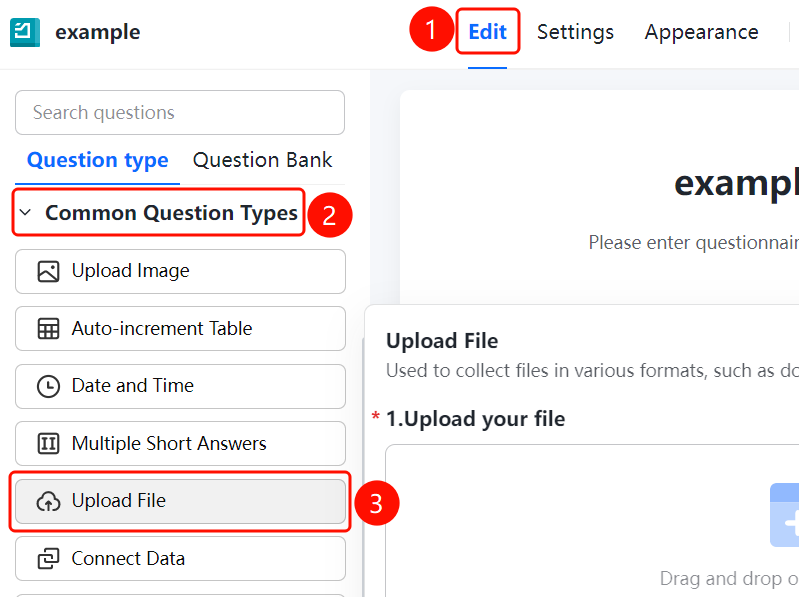
Edit tab > Common Question Types > File Upload button
- Click the Edit tab at the top.
- Expand the Common Question Types area in the left panel.
- Click the File Upload button to add a file upload question to the form.
Set File Type Limits
Feature Entry
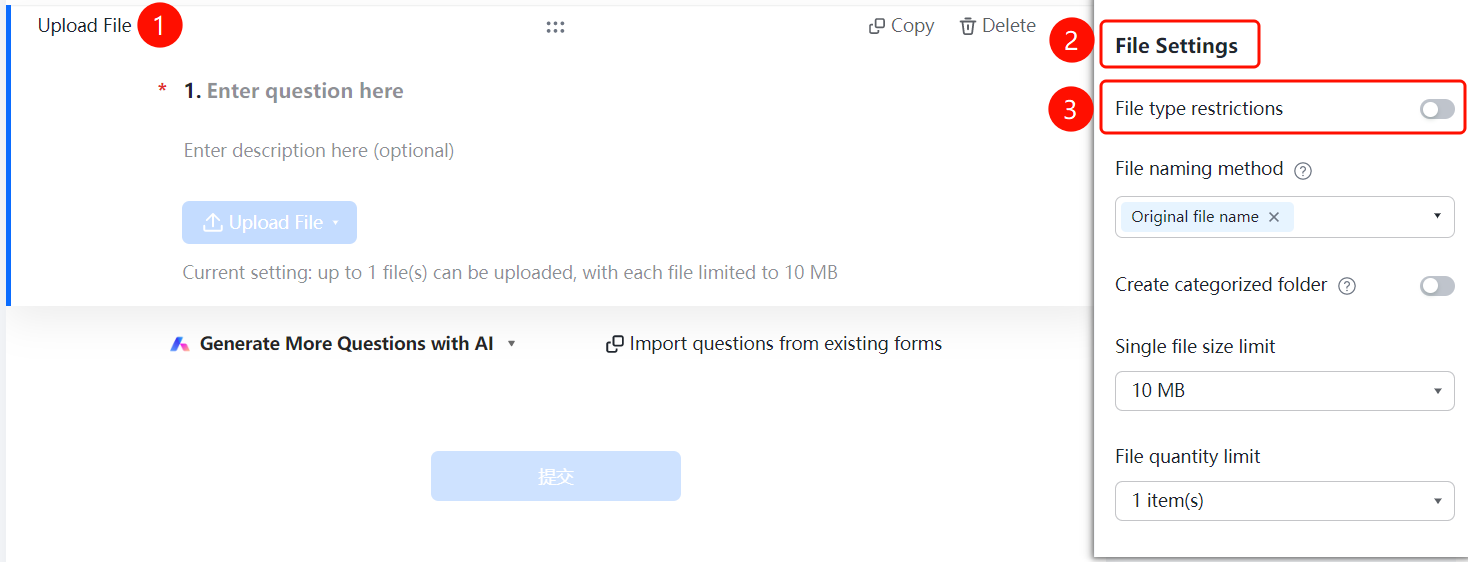
File Upload > File Settings > File Type Limit switch
- Click the added file upload question.
- Turn on the File Type Limit switch in the File Settings panel on the right.
- Once enabled, you can set the allowed file types for upload.
Set File Naming Method
Feature Entry
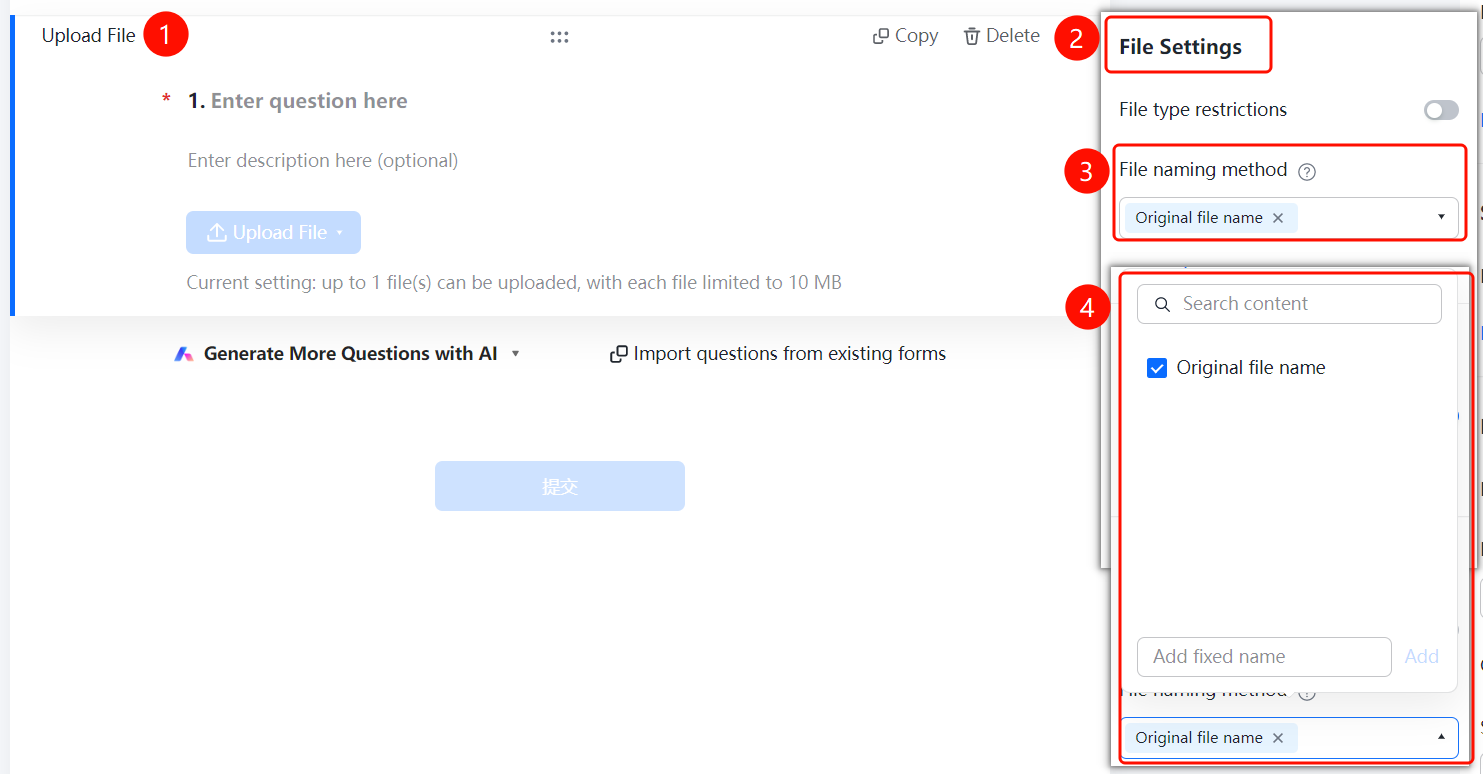
File Upload > File Settings > File Naming Method dropdown menu
- Click the added file upload question.
- Click the File Naming Method dropdown menu in the File Settings panel on the right.
- Select a naming method: Original File Name or Add Custom Fixed Name.
Set Up Categorized Folders
Feature Entry
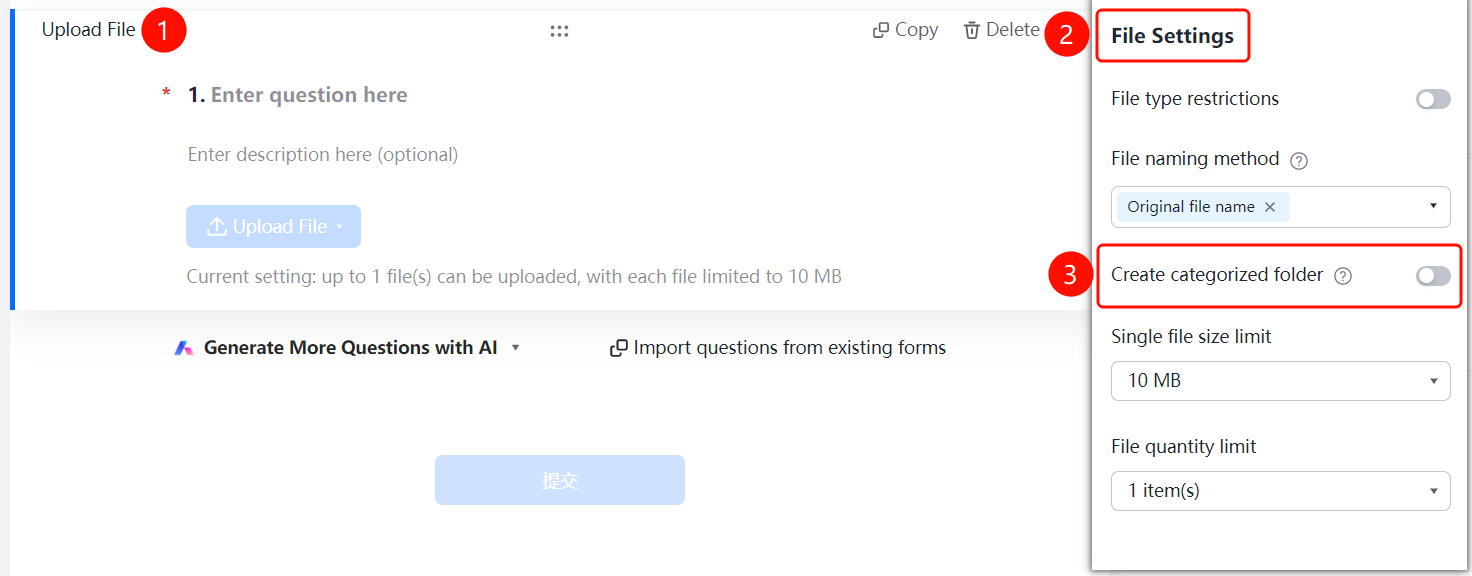
File Upload > File Settings > Create Categorized Folders switch
- Click the added file upload question.
- Turn on the Create Categorized Folders switch in the File Settings panel on the right.
- Once enabled, the system will automatically create categorized folders by respondent to store files.
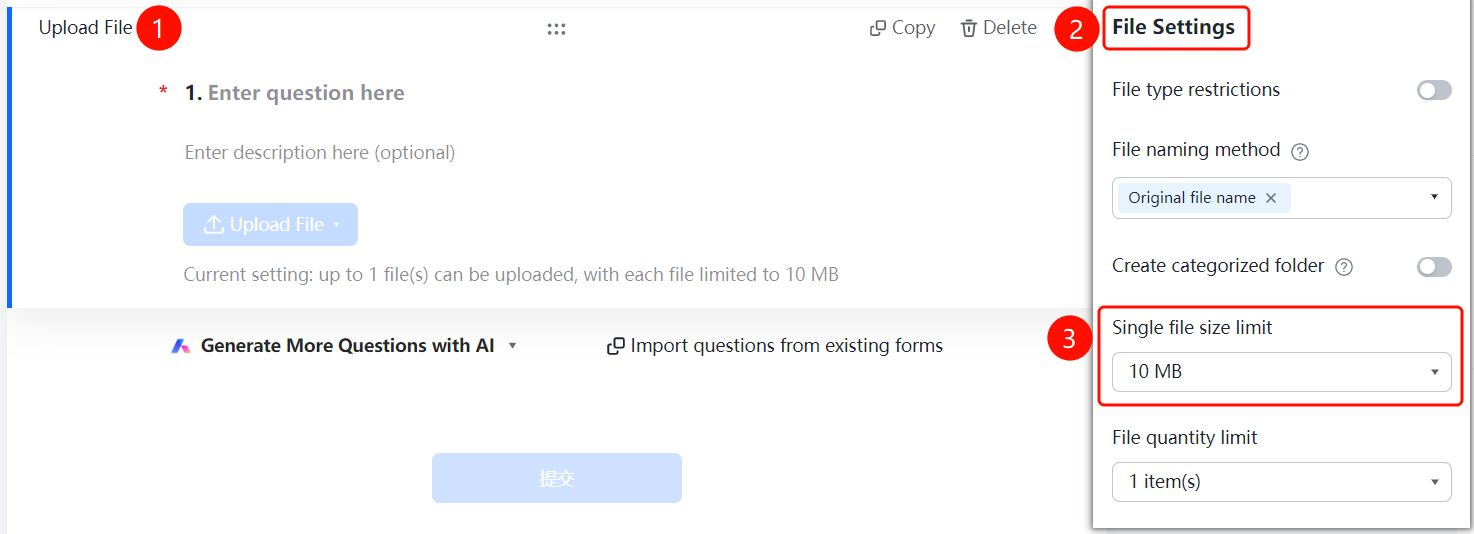
Set Single File Size Limit
Feature Entry
File Upload > File Settings > Single File Size Limit dropdown menu
- Click the added file upload question.
- Click the Single File Size Limit dropdown menu in the File Settings panel on the right.
- Select an allowed size limit: 10 MB, 30 MB, 50 MB, 100 MB, or 300 MB.
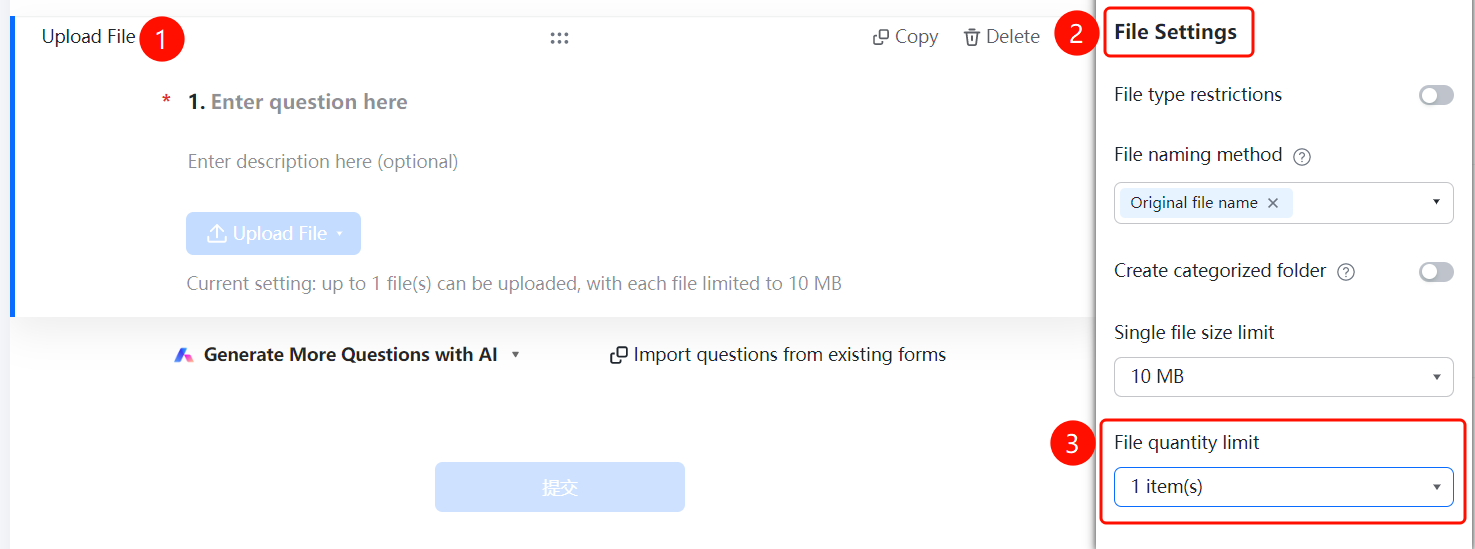
Set File Quantity Limit
Feature Entry
File Upload > File Settings > File Quantity Limit dropdown menu
- Click the added file upload question.
- Click the File Quantity Limit dropdown menu in the File Settings panel on the right.
- Select the allowed number of files to upload.
FAQ
Q1: What file formats are supported by the file upload question?
- Solution: The file upload question supports various file formats, such as documents, images, audio, and video. You can set the allowed file formats using the file type limit feature.
Q2: What is the maximum size that can be set for a single file?
- Solution: The maximum size limit for a single file can be set to 300 MB. You can choose an appropriate size limit based on your actual needs.
Q3: How do I allow multiple files to be uploaded?
- Solution: Click the file upload question, click the File Quantity Limit dropdown menu in the File Settings panel, and select the required number of files.
Notes
- The file upload question is suitable for scenarios where you need to collect files in multiple formats, such as documents, images, audio, and video.
- Enabling the categorized folder feature can help admins better manage the collected files.
- We recommend setting reasonable limits on file size and quantity based on your actual needs to avoid running out of storage space.