Feature Summary
Date & Time is used to collect dates, accurate up to year-month-day-hour-minute-second. It belongs to "Common Question Types", allowing respondents to choose a date and time.
Feature Description
| Feature Dimension | Description |
|---|---|
| Member Limit | No member limit |
| Version Limit | No version limit |
Steps
Add Date & Time
Feature Entry
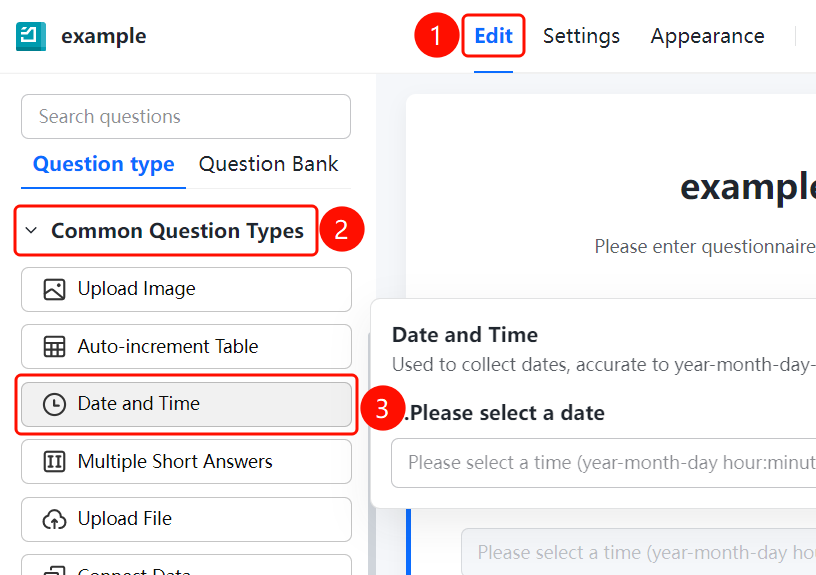
"Edit" tab → "Common Question Types" → "Date & Time" button
- Click the Edit tab at the top.
- Expand the Common Question Types area in the left panel.
- Click the Date & Time button to add Date & Time to the questionnaire.
Set Date & Time Format
Feature Entry
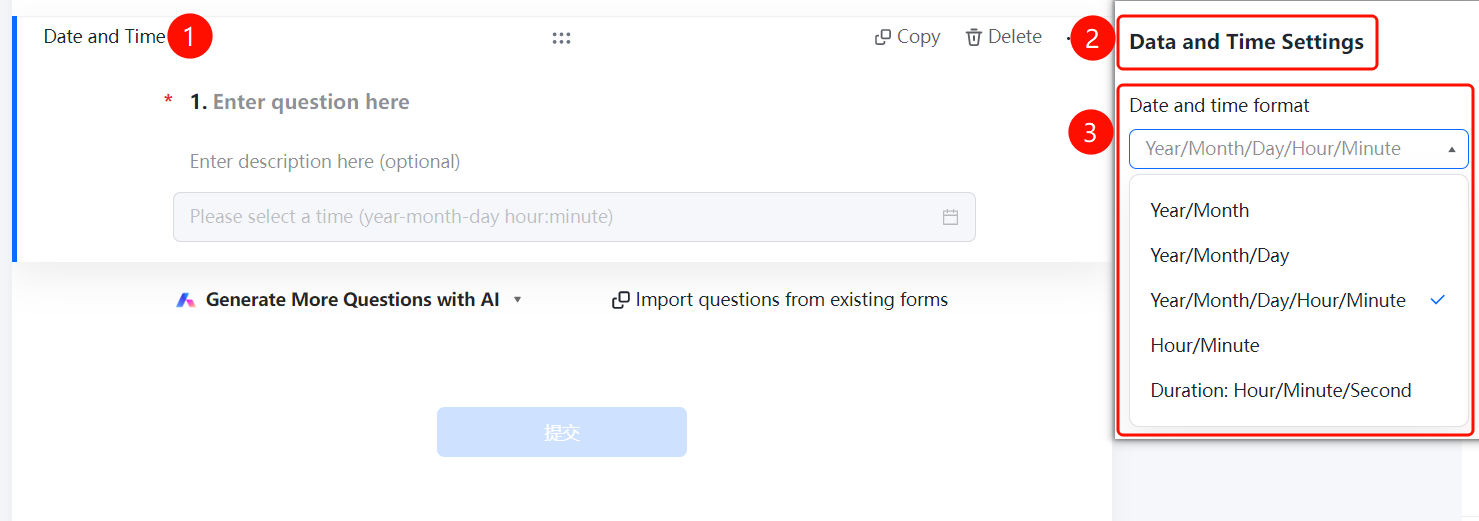
Date & Time → "Date & Time Settings" → "Date & Time Format" dropdown list
- Click the added Date & Time question.
- Click the Date & Time Format dropdown list in the Date & Time Settings panel on the right.
- Select a date and time format.
Set Date Range Limit
Feature Entry
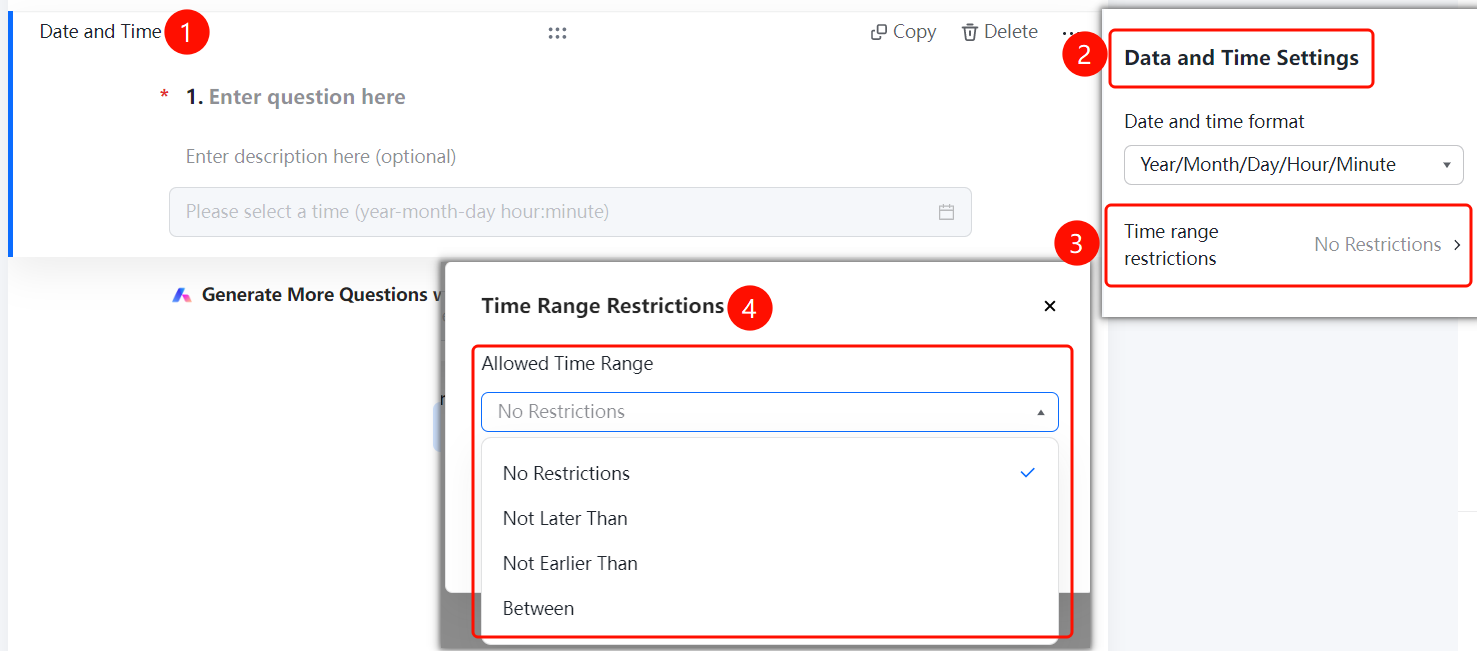
Date & Time → "Date & Time Settings" → "Date Range Limit" option
- Click the added Date & Time question.
- Click Date Range Limit in the Date & Time Settings panel on the right.
- In the pop-up Date Range Limit dialog, click the Limit Range dropdown list.
- Select a limit type: No Limit, No Later Than, No Earlier Than, or Between.
- After setting the specific date range, respondents can only select dates within that range.
FAQ
Question 1: What formats are supported for Date & Time?
- Solution: Formats such as year/month, year/month/day, year/month/day/hour/minute, hour/minute, and duration: hour/minute/second are supported.
Question 2: How do I restrict respondents to only select dates within a certain range?
- Solution: Click "Date Range Limit" in "Date & Time Settings", and set no later than, no earlier than, or between specific dates.
Notes
- Date & Time is located in the "Common Question Types" area.
- Once the date range limit is set, respondents can only select dates within that range.