Feature Summary
Inspection questions are commonly used for equipment inspections. When inspecting multiple pieces of equipment or multiple indicators, they allow you to quickly browse inspection records and follow up on abnormal indicators. This is an "Advanced Question Type."
Feature Description
| Feature Dimension | Description |
|---|---|
| Subscription Limit | No subscription limit |
| Version Limit | No version limit |
Steps
Add an Inspection Question
Feature Entry
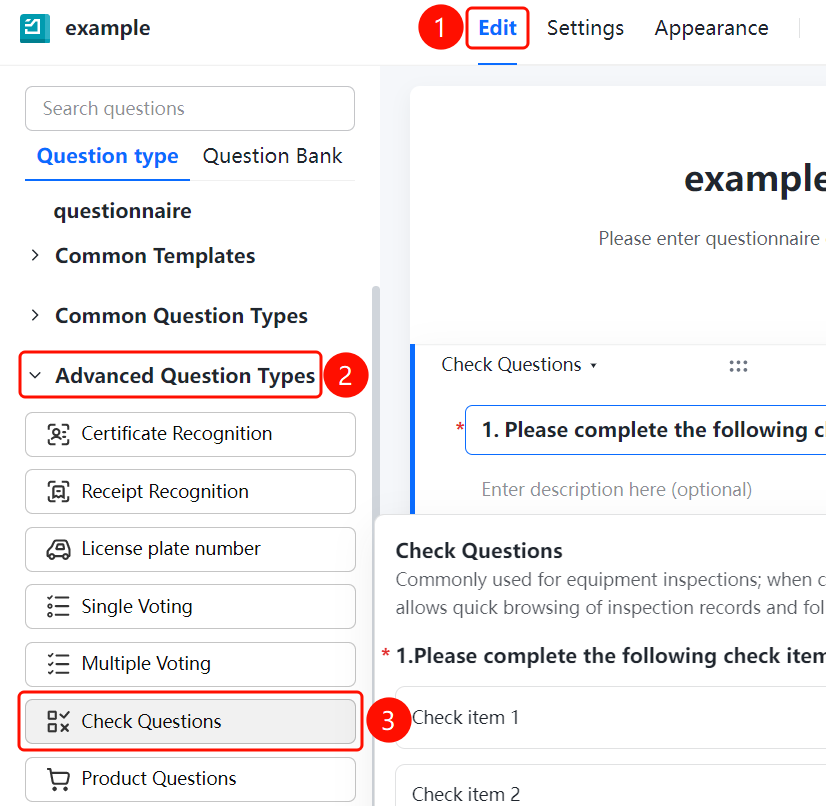
"Edit" tab -> "Advanced Question Types" -> "Inspection Question" button
- Click the "Edit" tab at the top.
- In the left panel, expand the "Advanced Question Types" area.
- Click the "Inspection Question" button to add the inspection question to the questionnaire.
Enable Image and Text Descriptions for Inspection Items
Feature Entry
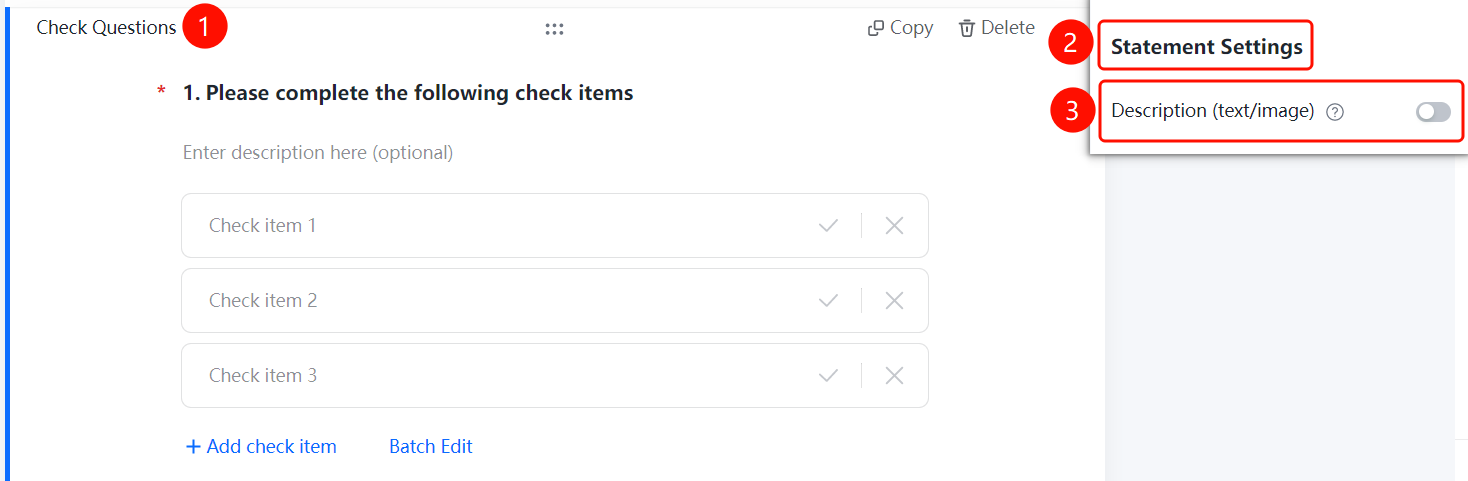
Inspection Question -> "Inspection Item Settings" -> "Allow Image and Text Descriptions" switch
- Click the added "Inspection Question".
- In the "Inspection Item Settings" panel below, turn on the "Allow Image and Text Descriptions" switch.
- Once enabled, you can add image and text descriptions to the inspection results.
FAQ
Question 1: What is the purpose of inspection questions?
- Solution: They are commonly used for equipment inspections. When inspecting multiple pieces of equipment or multiple indicators, they allow you to quickly browse inspection records and follow up on abnormal indicators.
Question 2: How do I add image and text descriptions?
- Solution: After enabling the "Allow Image and Text Descriptions" switch in "Inspection Item Settings," you can add image and text descriptions to inspection items.
Notes
- Inspection questions are located in the "Advanced Question Types" area.
- Each inspection item can be individually marked as Pass (✓) or Fail (×).