Feature Summary
Message notification settings are used to configure notifications for questionnaires. It supports notifying me when someone submits, group bot push notifications, reminding others to fill out forms, and allowing respondents to contact me, helping admins track questionnaire collection in real time.
Feature Description
| Feature Dimension | Description |
|---|---|
| Premium Limitation | No premium limitation |
| Version Limitation | No version limitation |
Steps
Notify Me When Someone Submits
Feature Entry
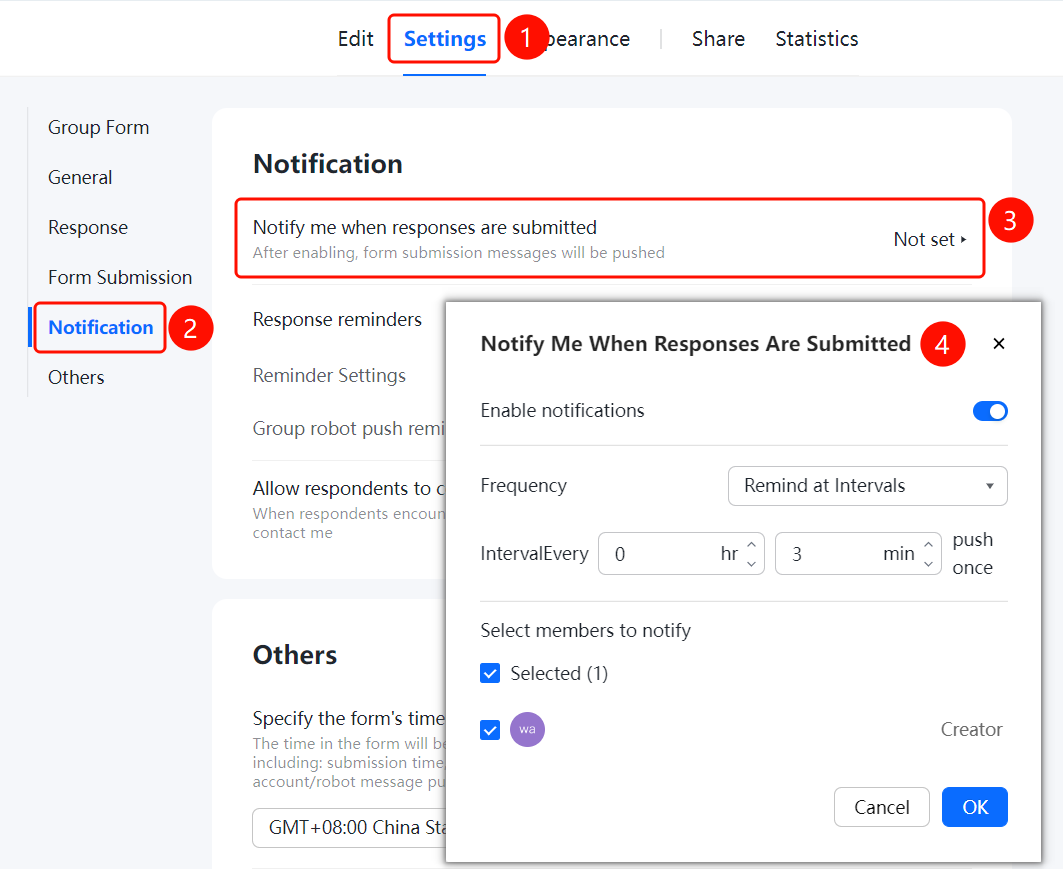
Settings tab → Message Notification Settings → Notify Me When Someone Submits option
- Click the Settings tab at the top.
- Click Message Notification Settings in the left panel.
- Click Notify Me When Someone Submits (currently displayed as Not Set), and enable Push Notifications in the pop-up window.
- Set Push Frequency Settings to Remind by Interval, and set the interval in Hours and Minutes (e.g., every 0 hours and 30 minutes).
- Select members in Select Members to Be Notified (e.g., Creator), and click OK to save.
Group Bot Push Notifications
Feature Entry
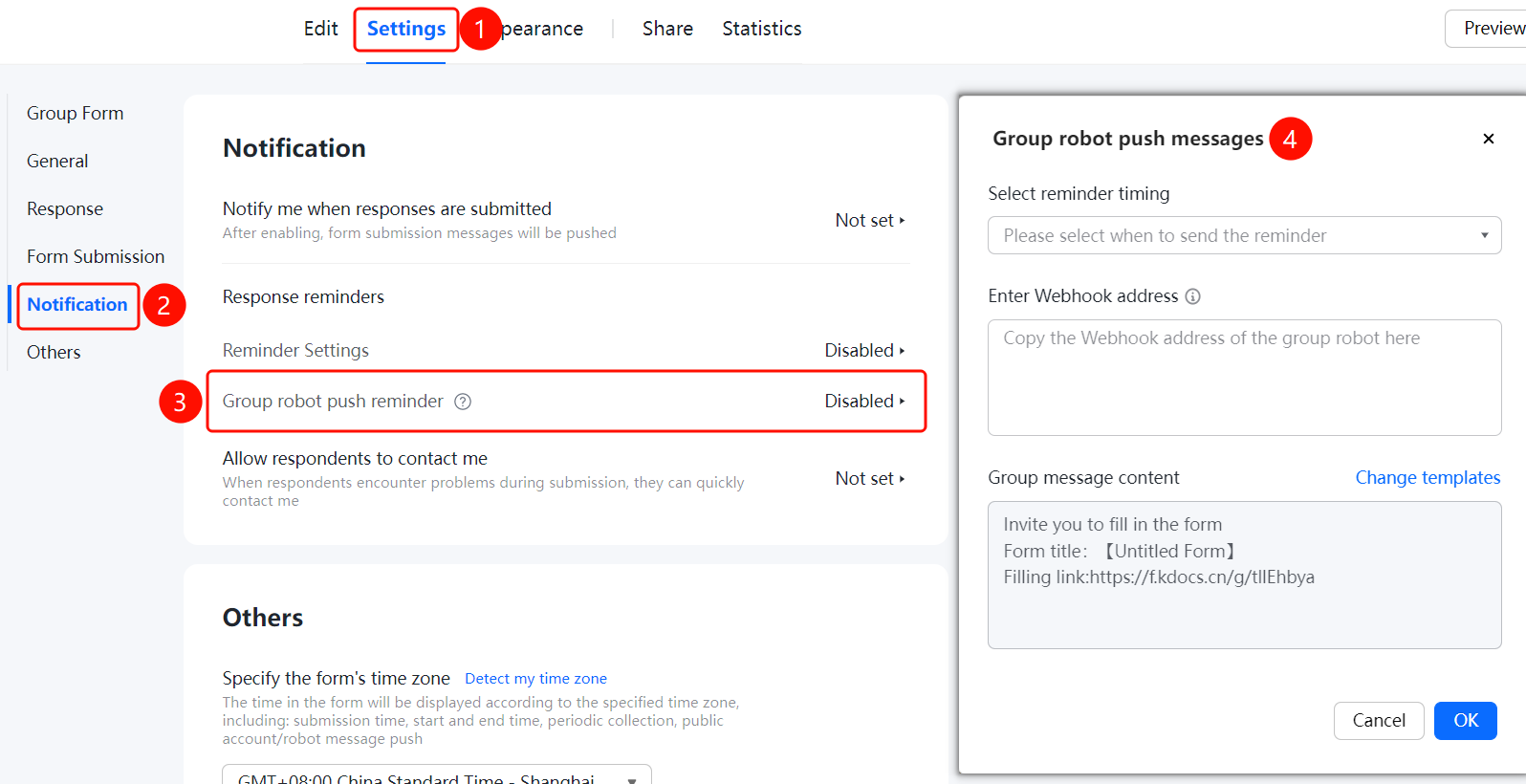
Settings tab → Message Notification Settings → Group Bot Push Notifications option
- Click the Settings tab at the top.
- Click Message Notification Settings in the left panel.
- Click Group Bot Push Notifications (currently displayed as Disabled).
- Set When to Send reminders in the pop-up window, and enter the Webhook Address.
- Customize the Group Message Content, such as Invite you to fill out the form, form title, and submission link. You can also click Change Template.
Remind Others to Fill Out Forms
Feature Entry
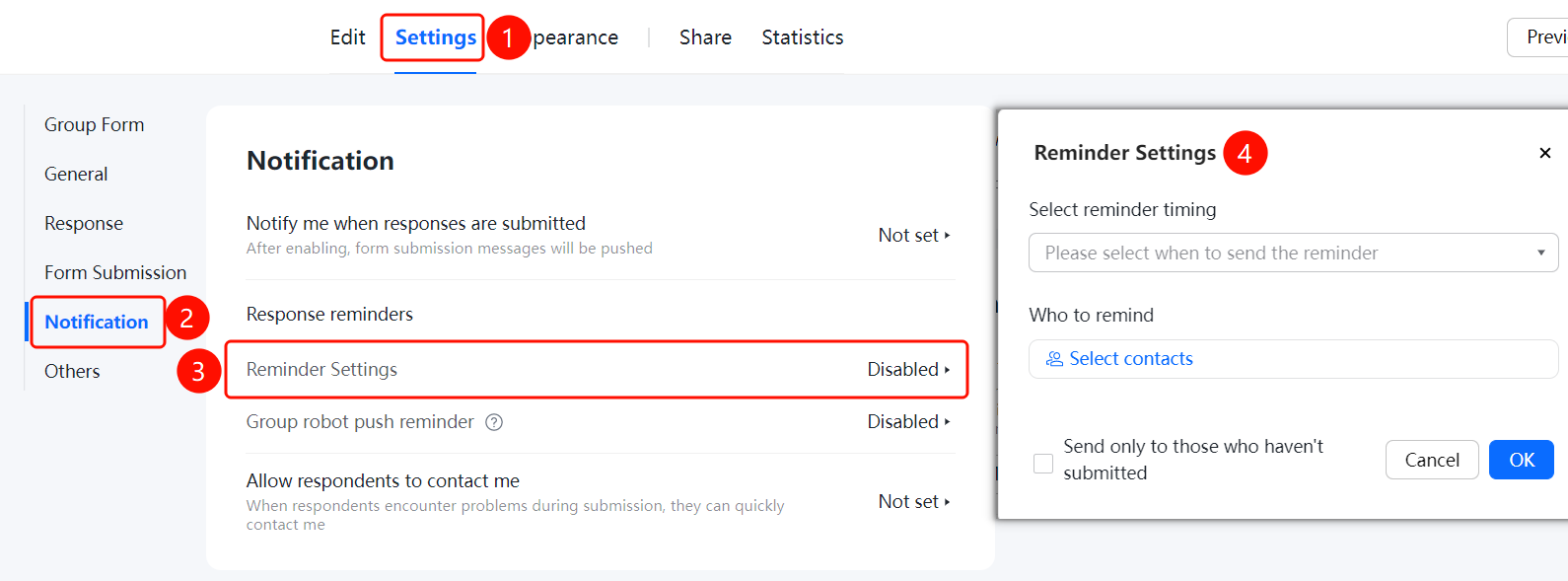
Settings tab → Message Notification Settings → Remind Others to Fill Out Forms option
- Click the Settings tab at the top.
- Click Message Notification Settings in the left panel.
- Click Remind Others to Fill Out Forms, and set When to Send reminders in the pop-up Reminder Settings window.
- Set Who to Remind and select contacts.
- Check Only send to contacts who have not submitted to avoid duplicate reminders.
Allow Respondents to Contact Me
Feature Entry
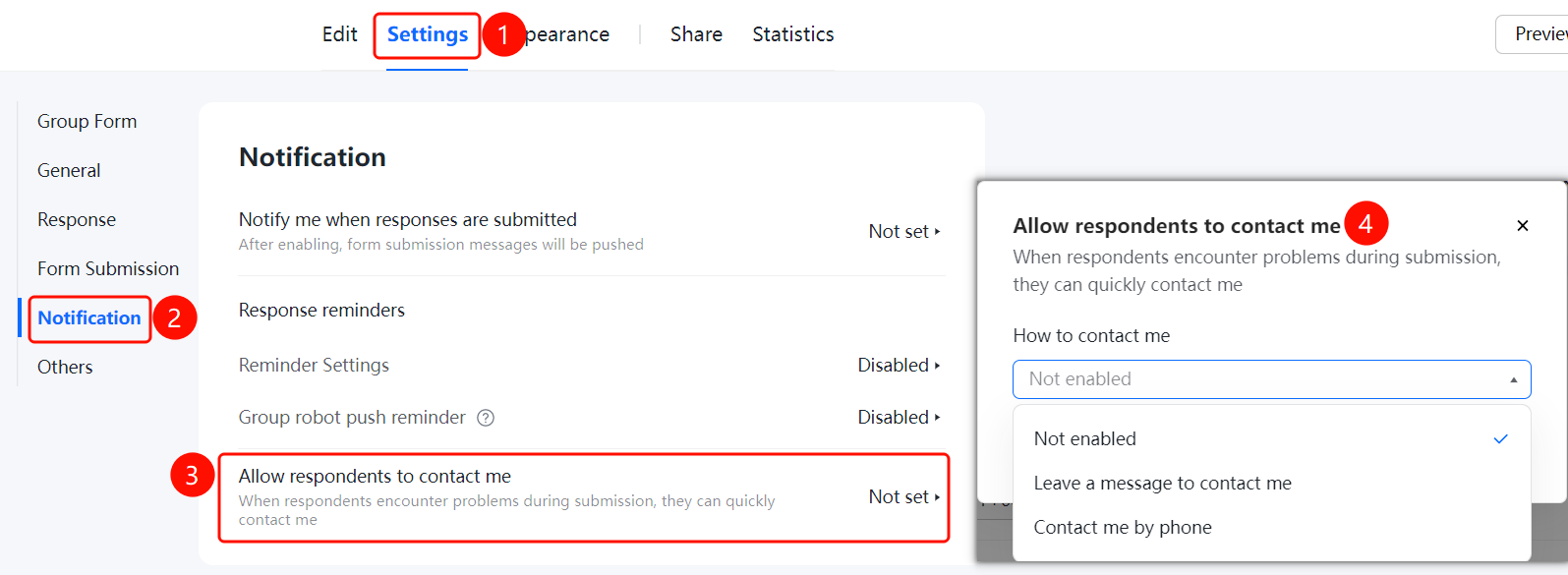
Settings tab → Message Notification Settings → Allow Respondents to Contact Me option
- Click the Settings tab at the top.
- Click Message Notification Settings in the left panel.
- Click Allow Respondents to Contact Me (currently displayed as Not Set).
- Set How to Contact Me in the pop-up window, choosing to enable or disable it.
- When respondents encounter problems during submission, they can quickly contact the admin.
FAQ
Q1: How do I set up notifications when someone submits?
- Solution: In Settings → Message Notification Settings, click Notify Me When Someone Submits, enable push notifications, and set the push frequency.
Q2: How do I set the push frequency?
- Solution: In the Notify Me When Someone Submits settings, select Remind by Interval, and set how many hours and minutes between each push.
Q3: How do I push notifications via a group bot?
- Solution: In Message Notification Settings, click Group Bot Push Notifications, enter the Webhook address, and set the push content and trigger conditions.
Notes
- Message notifications help admins track questionnaire collection in real time.
- Group bot push notifications require configuring the group bot's Webhook address first.