Feature Summary
Informed Consent is used to collect informed consent from respondents. It is a single-choice question type located under "Other Templates". The default option is "I confirm that I have read and understood the above precautions and will strictly abide by them in accordance with relevant regulations."
Feature Description
| Feature Dimension | Description |
|---|---|
| Member Restrictions | No member restrictions |
| Version Restrictions | No version restrictions |
Steps
Add Informed Consent
Feature Entry
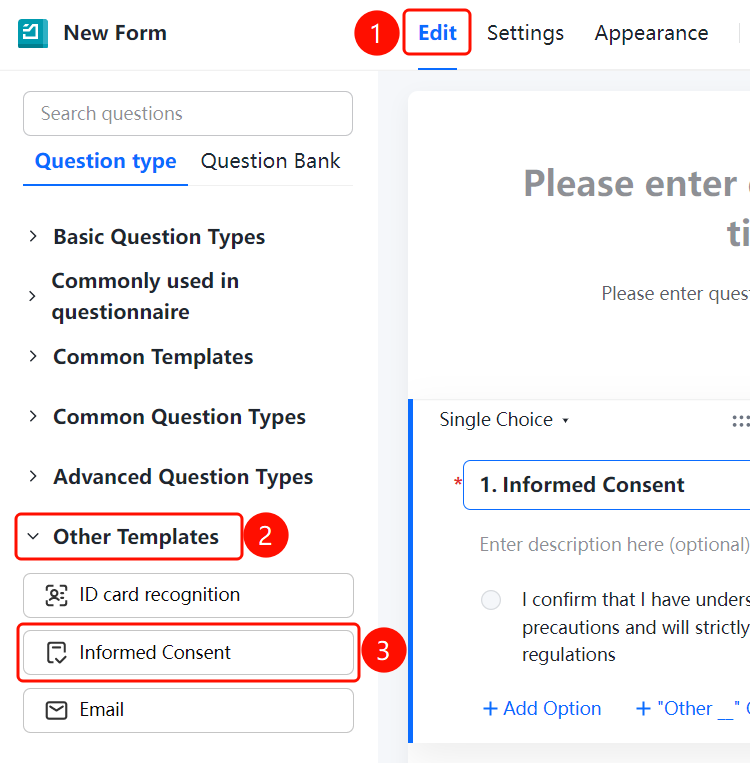
"Edit" tab → "Other Templates" → "Informed Consent" button
- Click the "Edit" tab at the top.
- Expand the "Other Templates" area in the left panel.
- Click the "Informed Consent" button to add informed consent to the questionnaire.
Set Preset Answers
Feature Entry
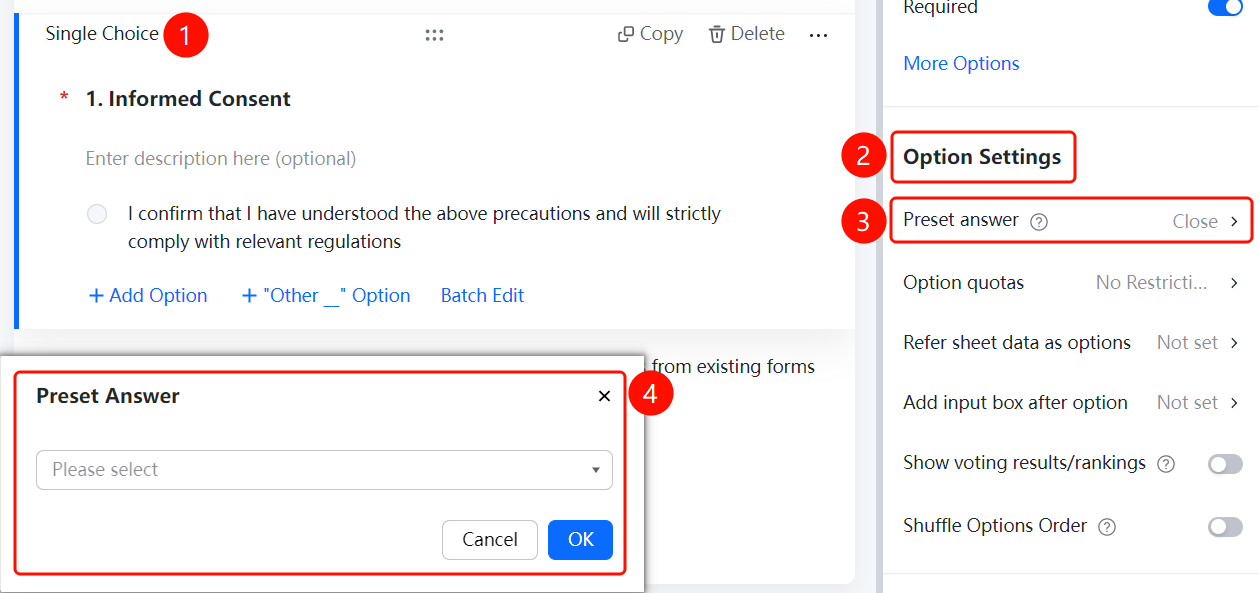
Informed Consent → "Option Settings" → "Preset Answers" option
- Click the added informed consent question.
- Click "Preset Answers" in the "Option Settings" panel below.
- In the pop-up "Preset Answers" dialog box, select a preset answer from the drop-down list.
- After setting the default option, if the respondent does not modify it, the default value will be submitted as the respondent's data.
Set Option Quotas
Feature Entry
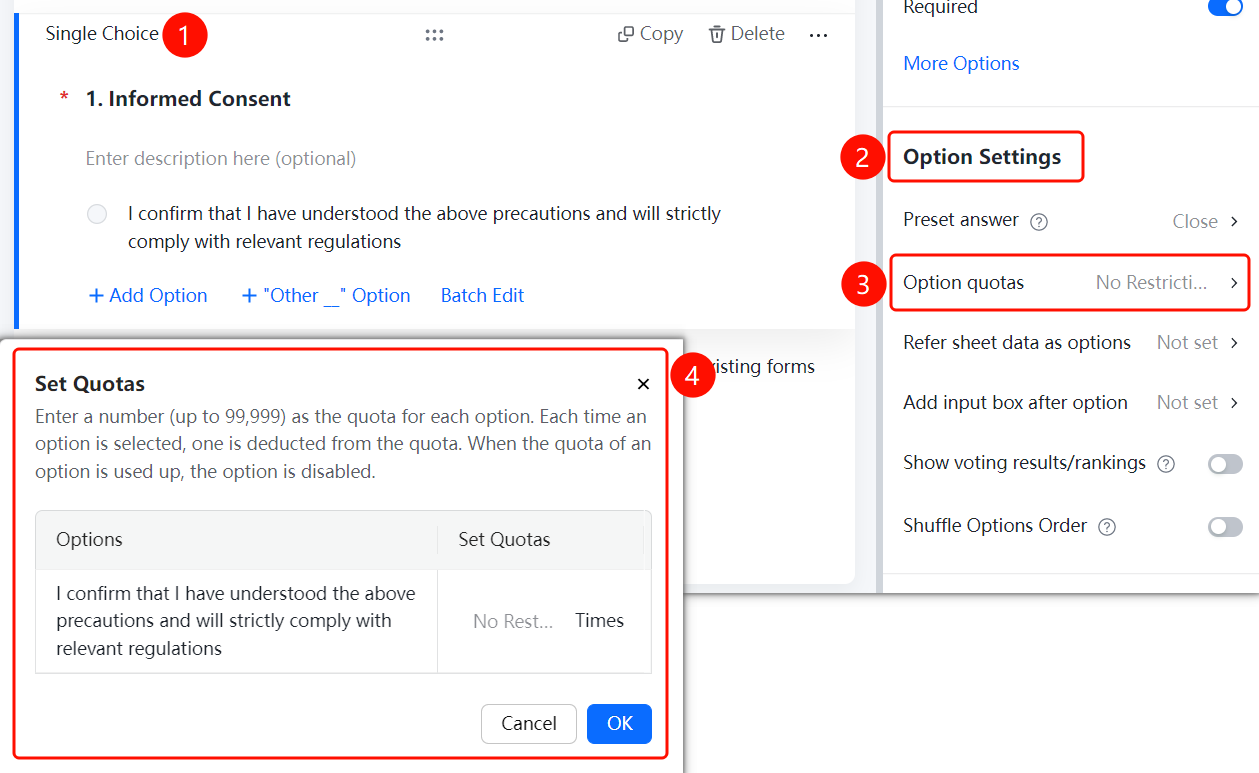
Informed Consent → "Option Settings" → "Option Quotas" option
- Click the added informed consent question.
- Click "Option Quotas" in the "Option Settings" panel below.
- In the pop-up "Set Option Quotas" dialog box, enter the quota quantity for each option. The maximum quota quantity supported is 99999.
- Each time an option is selected, one quota will be consumed. Once the quota is exhausted, the option can no longer be selected.
- Click "OK" to save.
Reference Sheet Data as Options
Feature Entry
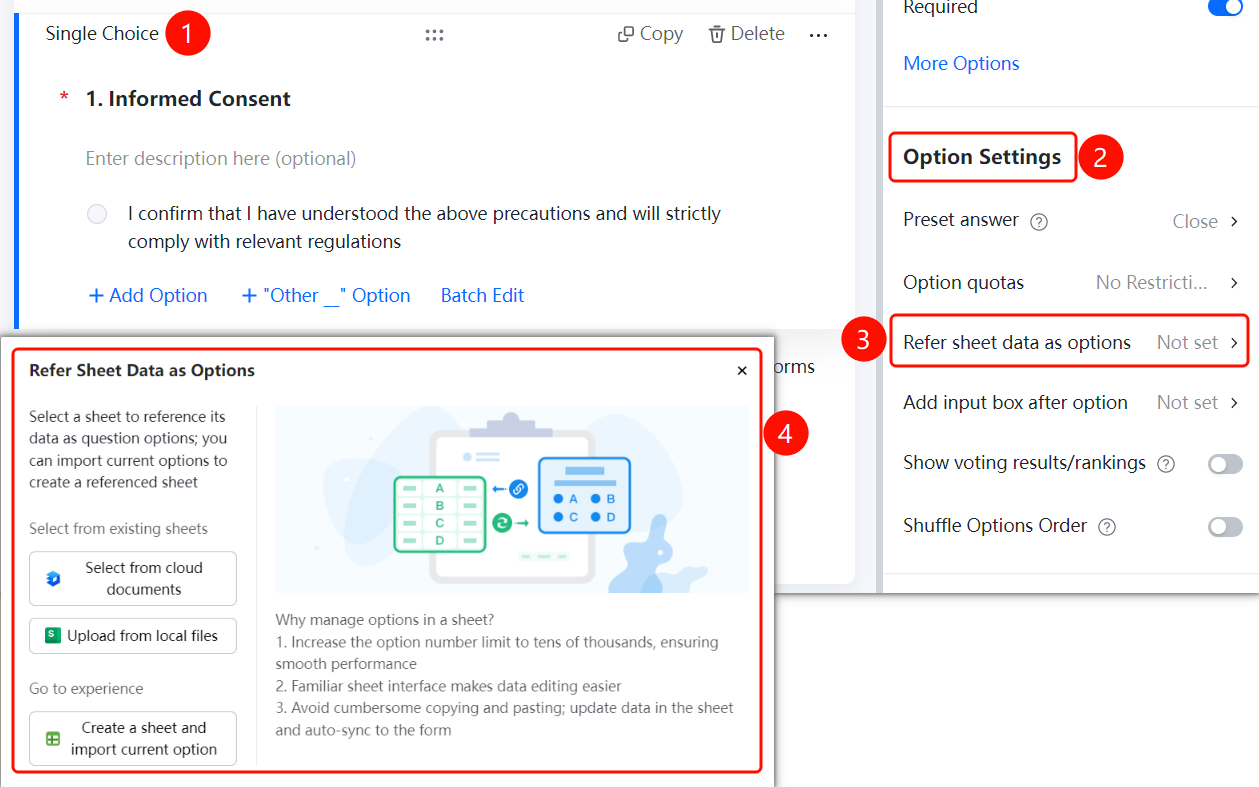
Informed Consent → "Option Settings" → "Reference Sheet Data as Options" option
- Click the added informed consent question.
- Click "Reference Sheet Data as Options" in the "Option Settings" panel below.
- In the pop-up dialog box, select the sheet source: "Select from Cloud Documents", "Upload from Local File", or click "Create New Sheet and Import Current Options".
- Advantages: The upper limit of the number of options is increased to tens of thousands; editing is simpler with the familiar sheet interface; data updates in the sheet are automatically synchronized to the form.
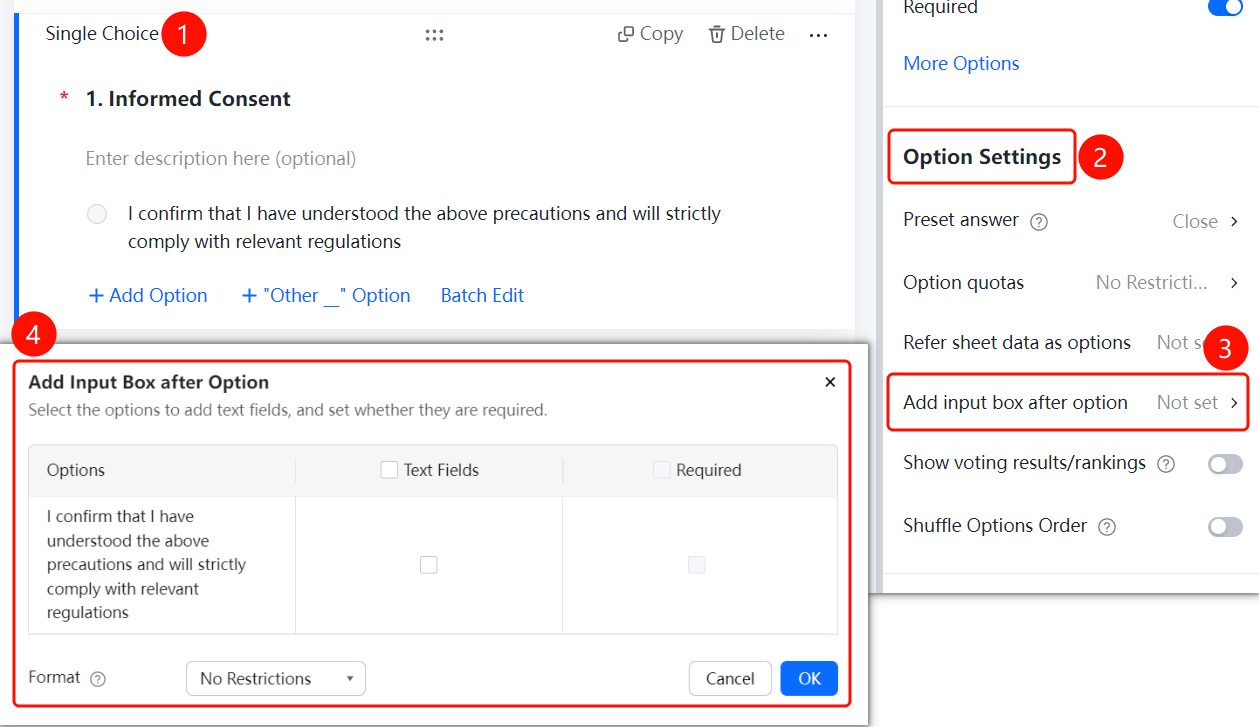
Add Input Box After Option
Feature Entry
Informed Consent → "Option Settings" → "Add Input Box After Option" option
- Click the added informed consent question.
- Click "Add Input Box After Option" in the "Option Settings" panel below.
- In the pop-up "Add Input Box After Option" dialog box, check the options that need an input box, and you can set "Input Box Required".
- Select the format limit through the "Input Content Format Limit" drop-down box, such as no limit.
- Click "OK" to save.
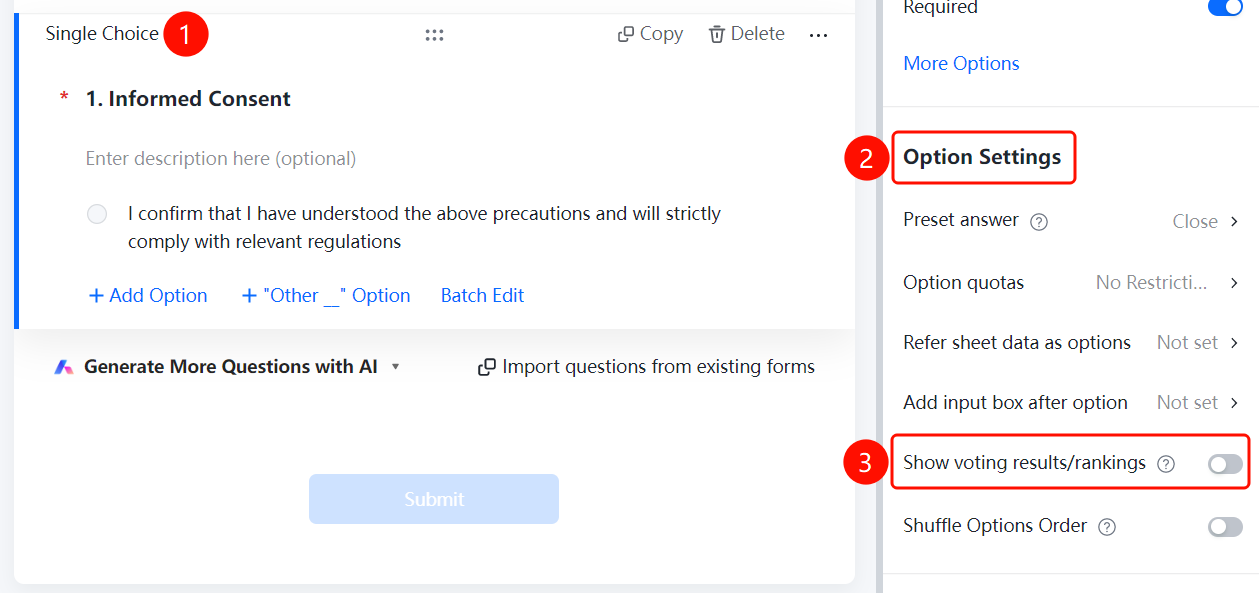
Show Vote Results/Leaderboard
Feature Entry
Informed Consent → "Option Settings" → "Show Vote Results/Leaderboard" switch
- Click the added informed consent question.
- Turn on the "Show Vote Results/Leaderboard" switch in the "Option Settings" panel below.
- Once enabled, respondents can view the vote results and leaderboard of this question after submitting.
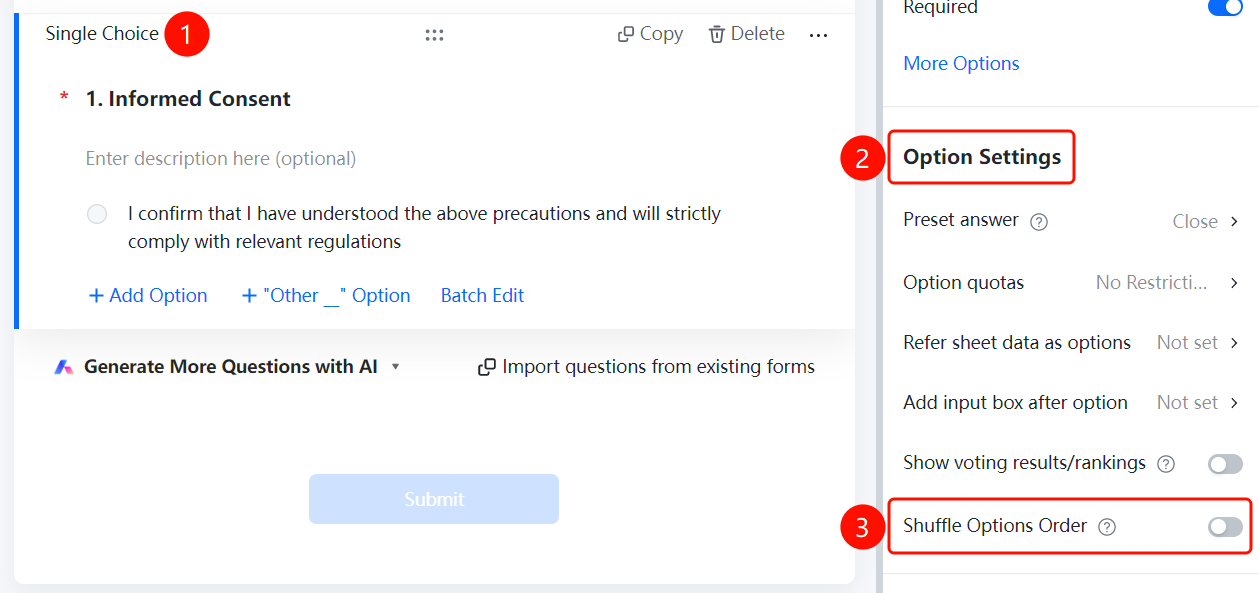
Shuffle Option Order
Feature Entry
Informed Consent → "Option Settings" → "Shuffle Option Order" switch
- Click the added informed consent question.
- Turn on the "Shuffle Option Order" switch in the "Option Settings" panel below.
- Once enabled, respondents will see the shuffled option order.
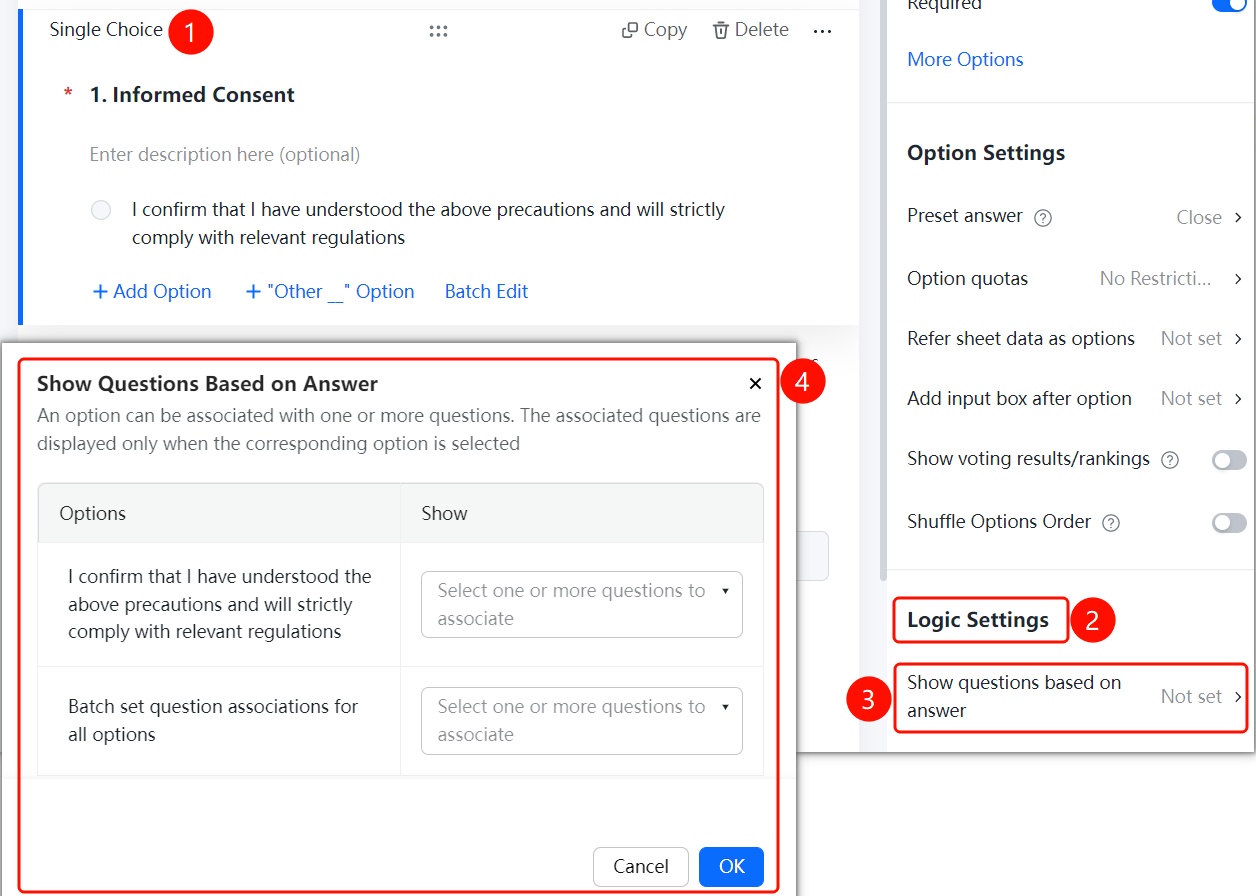
Set Question Logic
Feature Entry
Informed Consent → "Logic Settings" → "Question Logic" option
- Click the added informed consent question.
- Click "Question Logic" in the "Logic Settings" panel below.
- In the pop-up "Set Question Logic" dialog box, set the associated questions for each option.
- An option can be associated with one or more questions. The associated questions will only be displayed when the respondent selects the specified option.
- You can also batch set question logic for all options.
- Click "OK" to save.
FAQ
Q1: What is the default option for Informed Consent?
- Solution: The default option is "I confirm that I have read and understood the above precautions and will strictly abide by them in accordance with relevant regulations." It can be modified in the option editing area.
Q2: What question type does Informed Consent belong to?
- Solution: Informed Consent belongs to the single-choice question type, and respondents can only select one option.
Notes
- Informed Consent is located in the "Other Templates" area and belongs to the single-choice question type.
- It supports preset answers, option quotas, referencing sheet data, adding input boxes after options, showing vote results/leaderboards, shuffling option order, and question logic settings.