Feature Summary
A matrix scale allows multiple items to be scored together, commonly used for NPS surveys, satisfaction assessments, and "voting campaigns." Respondents can rate multiple sub-items within the same scale.
Feature Description
| Feature Dimension | Description |
|---|---|
| Membership Restrictions | No membership restrictions |
| Version Restrictions | No version restrictions |
Operating Steps
Adding a Matrix Scale Question
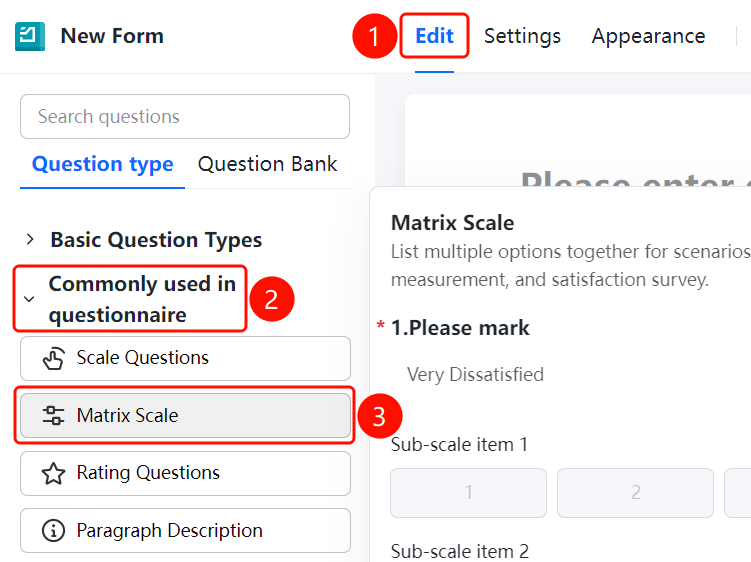
Access Point"Edit" tab → "Common Survey Elements" → "Matrix Scale" button
- Click the "Edit" tab at the top
- Expand the "Common Survey Elements" section in the left panel
- Click the "Matrix Scale" button to add a matrix scale question to the survey
- The default question is "Please rate", including sub-scale items 1 and 2
- Click "+ Add Sub-item" to add more sub-items, or click "Batch Edit" to manage multiple items at once
Set Scale Type
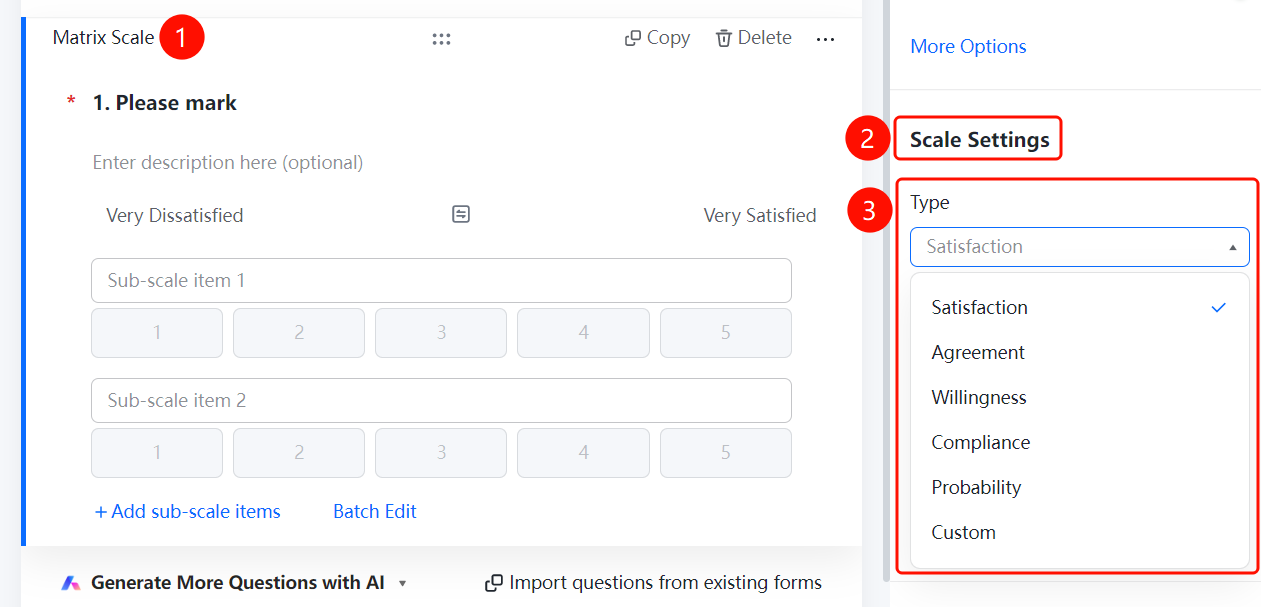
Function Access PathMatrix Scale → "Scale Settings" → "Scale Type" dropdown menu
- Click on the added "Matrix Scale" question
- In the "Scale Settings" panel below, click the "Scale Type" dropdown menu
- Select a scale type: "Satisfaction" (default), "Agreement", "Willingness", "Fit", "Likelihood", or "Custom"
- Different types will automatically update the label texts at both ends
Set Range
Function Access Path
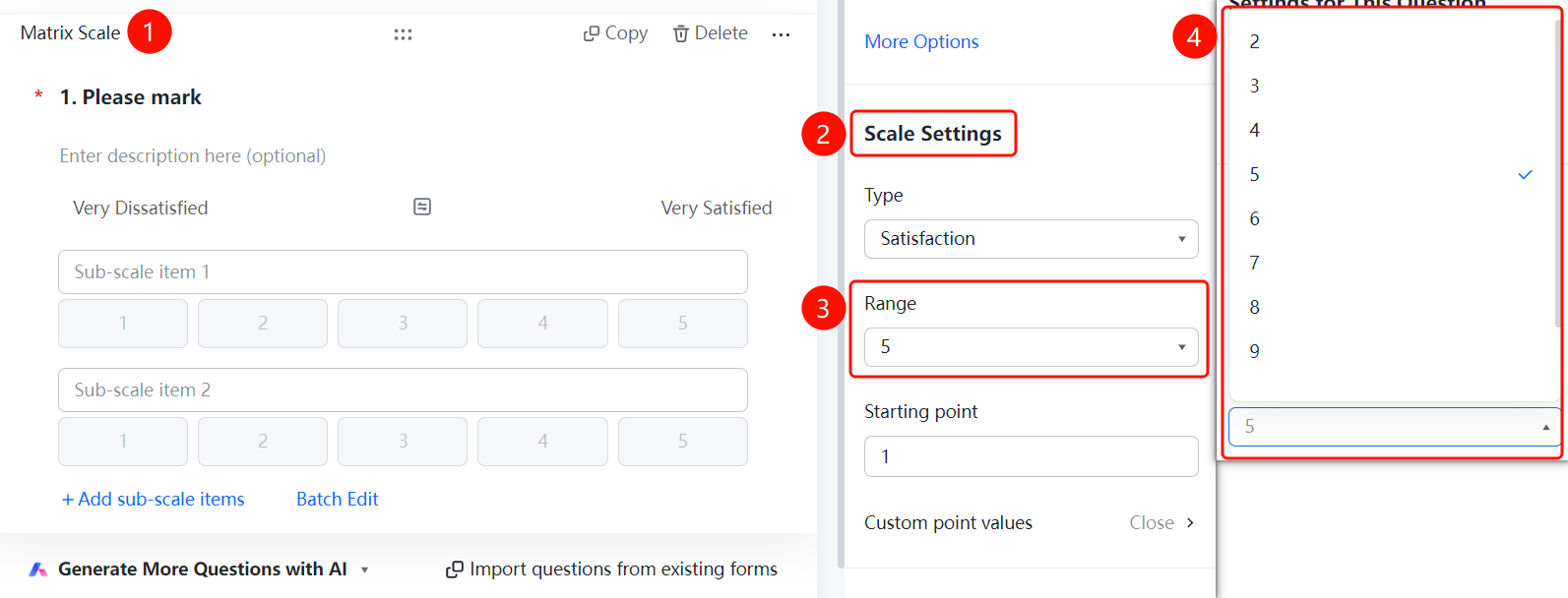
Matrix Scale → "Scale Settings" → "Range" dropdown menu
- Click on the added "Matrix Scale" question
- In the "Scale Settings" panel below, click the "Range" dropdown menu
- Select the number of levels (2–9); default is "5"
Set Starting Value
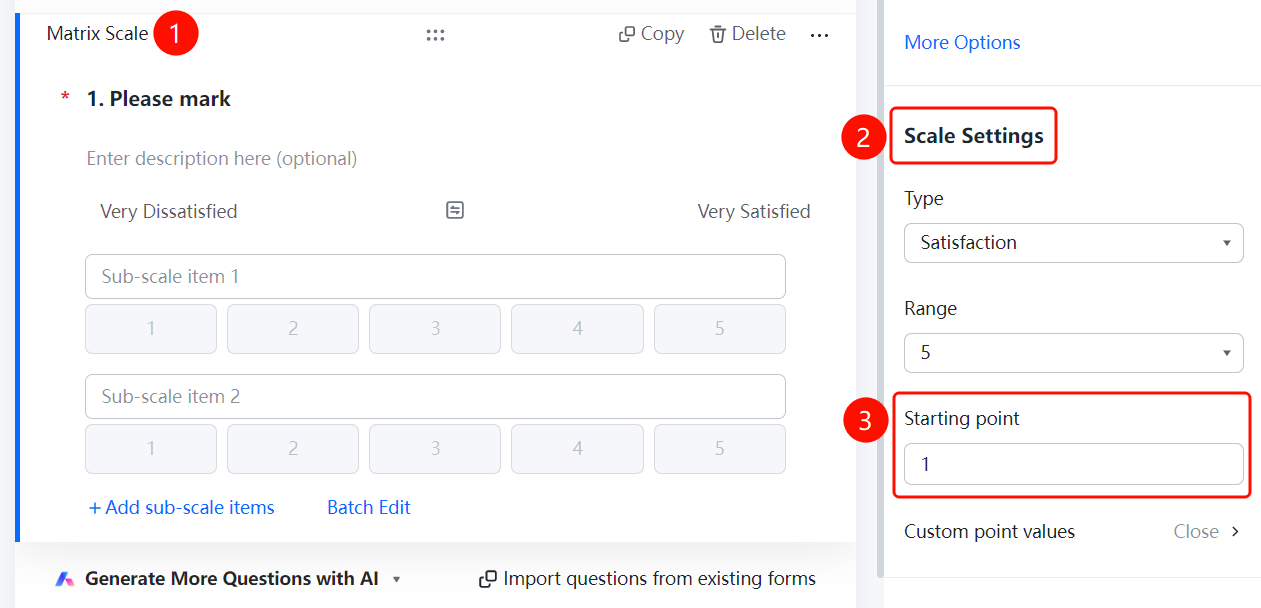
Access PathMatrix Scale → "Scale Settings" → "Starting Value" input field
- Click on the added "Matrix Scale" question
- In the "Scale Settings" panel below, locate "Starting Value"
- Enter the starting value; default is "1"
Custom Score Values
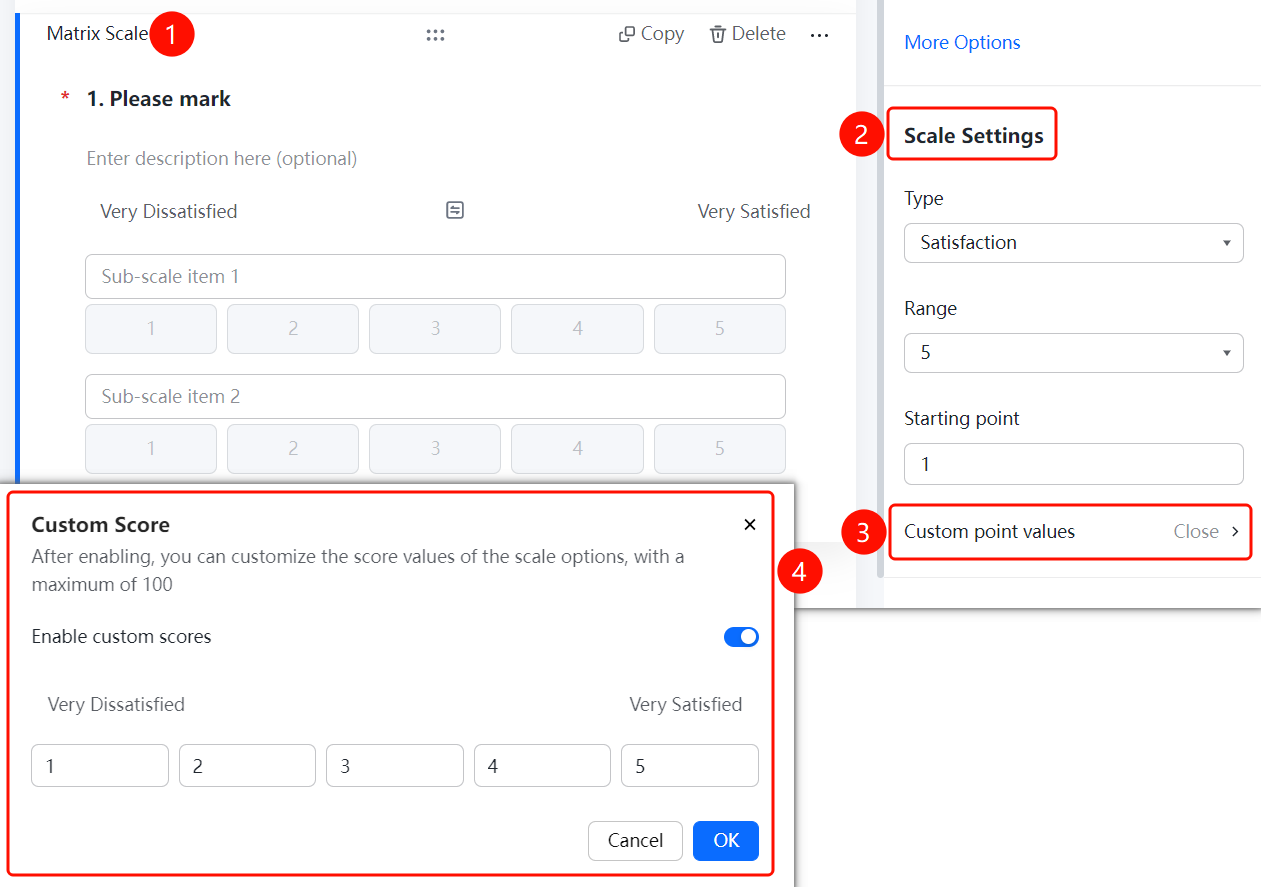
Feature Access PathMatrix Scale → "Scale Settings" → "Custom Score Values"
- Click on the added "Matrix Scale" question.
- In the "Scale Settings" panel below, click "Custom Score Values" (currently set to "Off").
- In the pop-up "Custom Score" dialog box, turn on the "Enable Custom Score" switch.
- After enabling, you can customize the score values for each scale item, with a maximum value not exceeding 100.
- Each scale level's score can be set independently; click "Confirm" to save.
Frequently Asked Questions
Question 1: What is the difference between a matrix scale and a scale question?
- Solution: A matrix scale can include multiple sub-scale items, requiring respondents to rate each individual item; a scale question has only one rating item.
Question 2: What types of scales are supported in a matrix scale?
- Solution: Supported types include satisfaction, agreement, willingness, fit, likelihood, and custom scales.
Notes
- The matrix scale is located in the "Commonly Used in Surveys" section.
- Custom score values must not exceed 100.