Feature Summary
Response Details is used to view the submission time and answers of each response collected by the questionnaire. It supports filtering by time range and keywords.
Feature Description
| Feature Dimension | Description |
|---|---|
| Premium Limitation | No premium limitation |
| Version Limitation | No version limitation |
Steps
View Response Details
Feature Entry
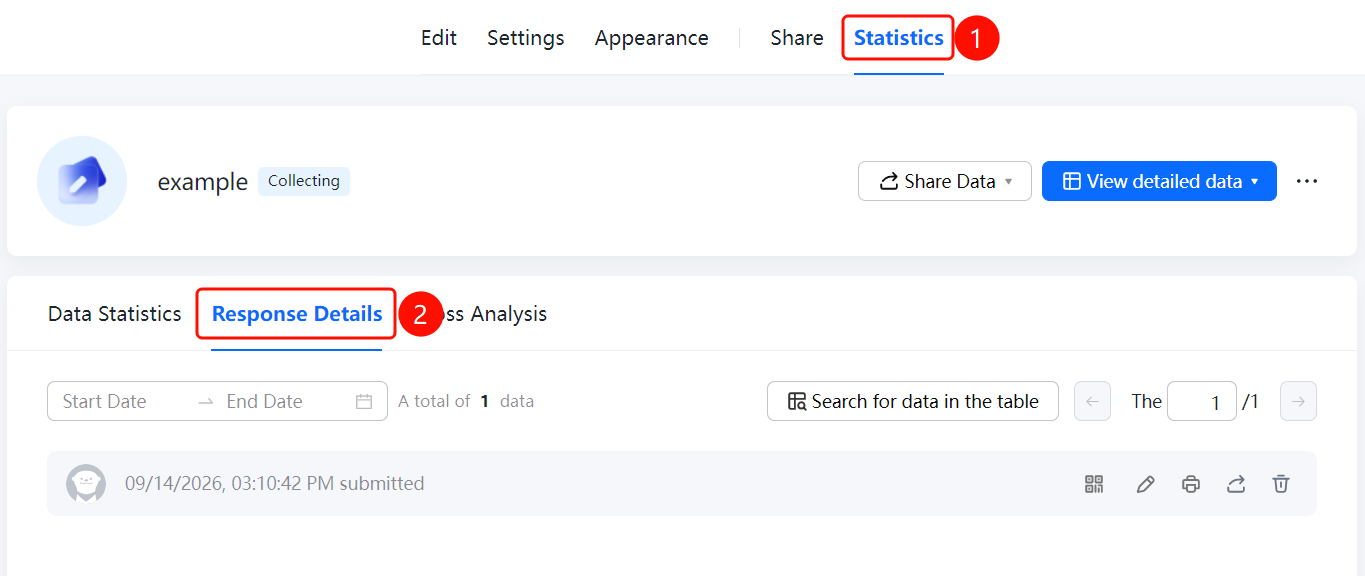
Statistics tab > Response Details option
- Click the Statistics tab at the top.
- Click the Response Details option in the left menu.
- You can set the Start Date and End Date at the top of the page to filter the time range.
- Enter keywords in the Find data in sheets input box to quickly find responses.
- View the submission time of each response (such as Submitted on 2026-08-17 9:13:37 AM). On the right, you can perform the following actions: View Response, Edit Response, Print, Share, and Delete.
FAQs
Question 1: How do I filter responses by time range?
- Solution: Set the Start Date and End Date at the top of the Response Details page to view response data within that time period.
Question 2: How do I quickly find a specific response?
- Solution: Enter keywords in the Find data in sheets input box on the Response Details page to quickly locate the relevant response.
Question 3: What is the difference between Response Details and Data Statistics?
- Solution: Response Details displays the submission time and answers of each response individually, while Data Statistics summarizes and analyzes the overall data. The two can be used together.
Notes
- Response details are displayed in reverse chronological order of submission time, with the latest submitted response displayed at the top.
- The total number of responses is displayed at the bottom of the page, such as "Total: 1 response".