Feature Summary
Users can select contacts from Contacts to fill in contact-related fields, such as selecting a task owner or evaluation target. This is a common question type.
Feature Description
| Feature Dimension | Description |
|---|---|
| Subscription Limit | No subscription limit |
| Version Limit | No version limit |
Steps
Add Contacts
Feature Entry
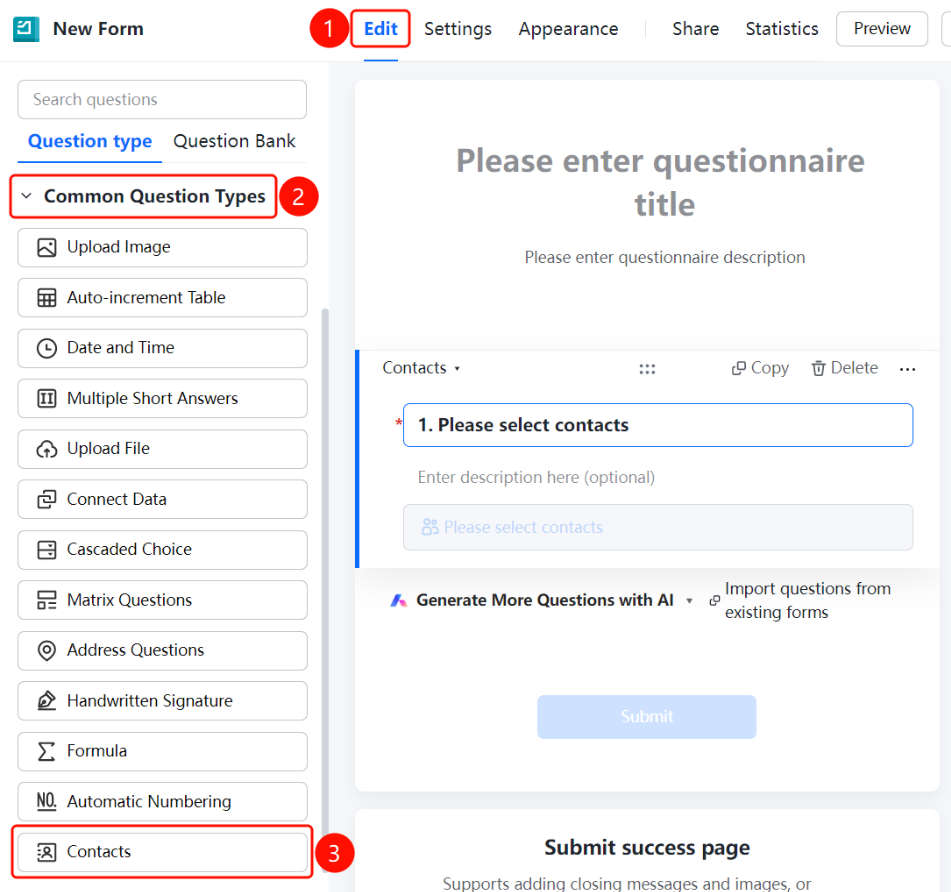
Edit tab → Common Question Types → Contacts button
- Click the Edit tab at the top.
- Expand the Common Question Types section in the left panel.
- Click the Contacts button to add the contact field to the questionnaire.
- The default question is Select Contact, and respondents can select contacts from Contacts.
Allow Selecting Multiple Contacts
Feature Entry
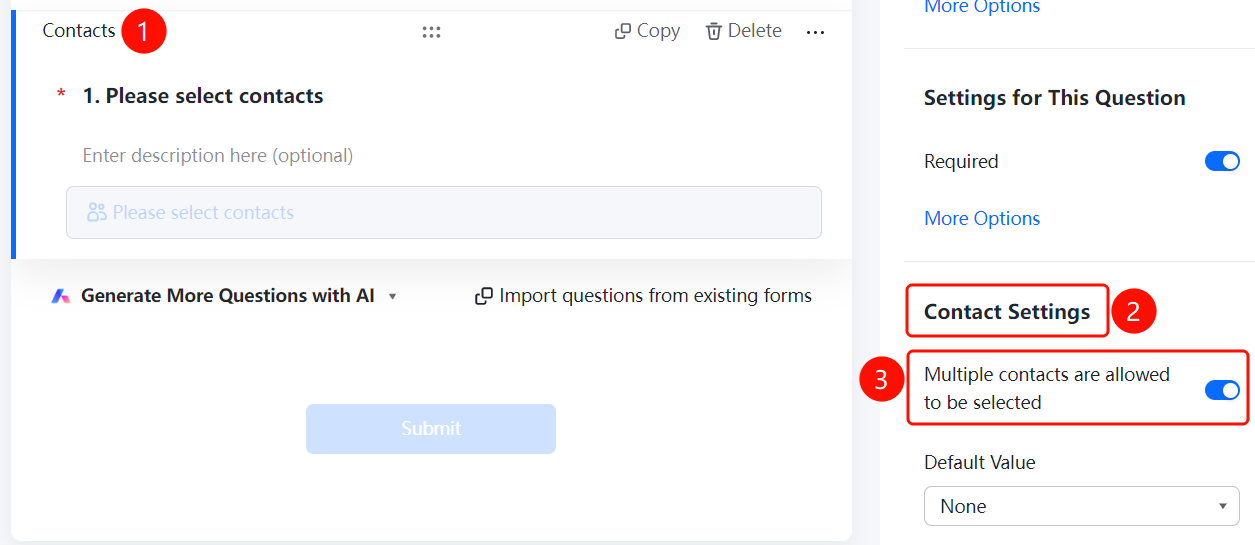
Contacts → Contact Settings → Allow Selecting Multiple Contacts switch
- Click the added Contacts question.
- Turn on the Allow Selecting Multiple Contacts switch in the Contact Settings panel below.
- Once enabled, respondents can select multiple contacts.
Set Default Value
Feature Entry
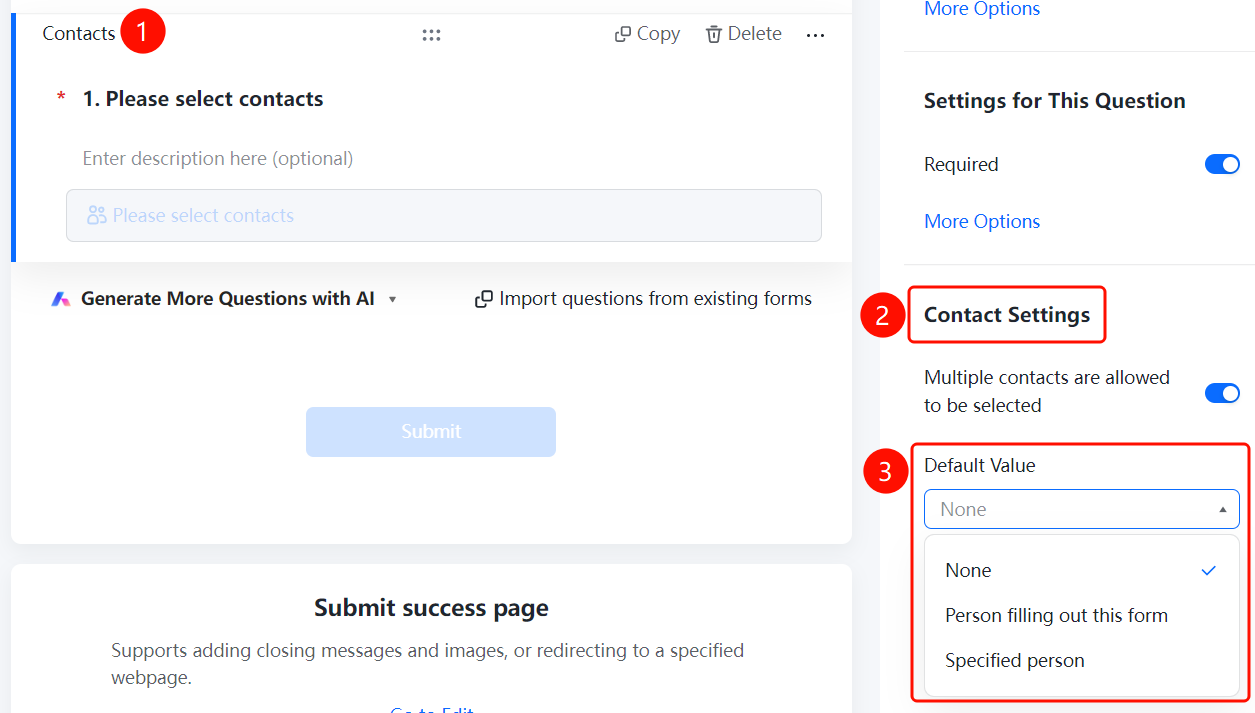
Contacts → Contact Settings → Default Value drop-down list
- Click the added Contacts question.
- Click the Default Value drop-down list in the Contact Settings panel below.
- Select a default value: None (default), Respondent, or Specified Person.
FAQ
Question 1: What is the purpose of the Contacts feature?
- Solution: It allows users to select contacts from Contacts to specify task owners, evaluation targets, and more.
Question 2: How do I set the default selection to the respondent?
- Solution: In Contact Settings, click Default Value and select Respondent.
Notes
- The Contacts button is located in the Common Question Types section.
- Features such as allowing multiple contacts and setting default values are supported.