Feature Summary
Auto-numbering automatically generates a unique number for each submitted record, such as serial numbers, order numbers, product numbers, etc. It is automatically generated upon submission without requiring input from the respondent, and belongs to "Common Question Types".
Feature Description
| Feature Dimension | Description |
|---|---|
| Member Limit | No member limit |
| Version Limit | No version limit |
Operating Steps
Add Auto-Numbering
Feature Entry
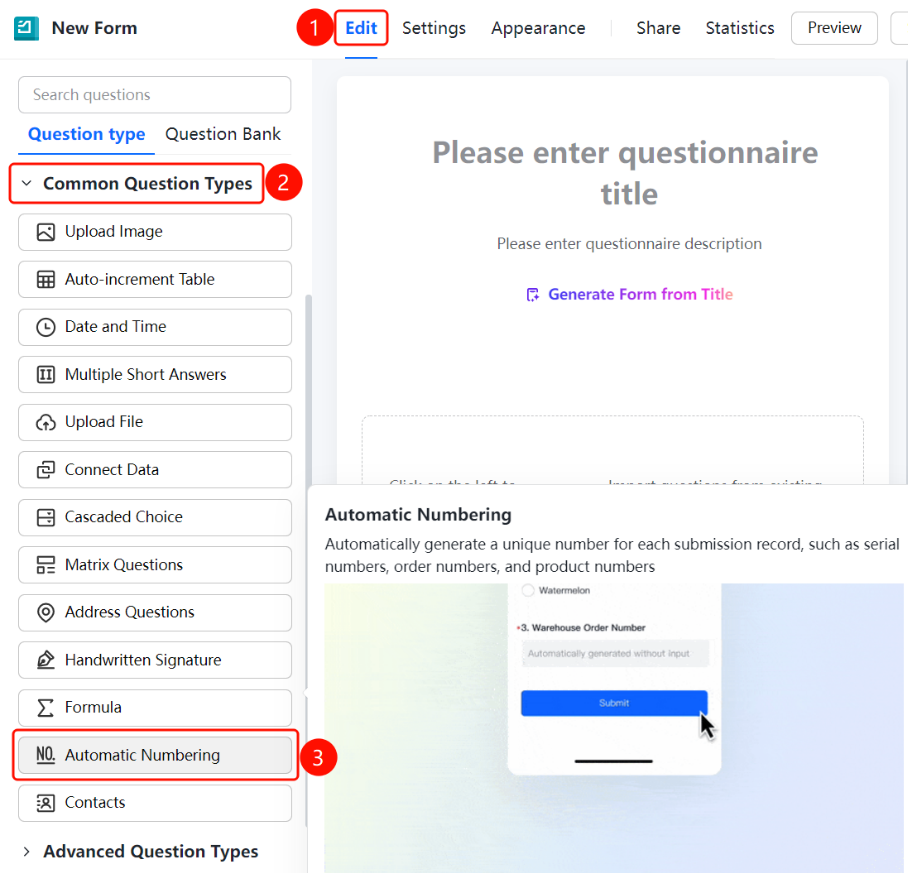
"Edit" tab → "Common Question Types" → "Auto-Numbering" button
- Click the top "Edit" tab
- Expand the "Common Question Types" area in the left panel
- Click the "Auto-Numbering" button to add auto-numbering to the questionnaire
- The default question title is "Auto-Numbering", and the input area displays "Automatically generated upon submission, no input required"
Set Up Auto-Counting
Feature Entry
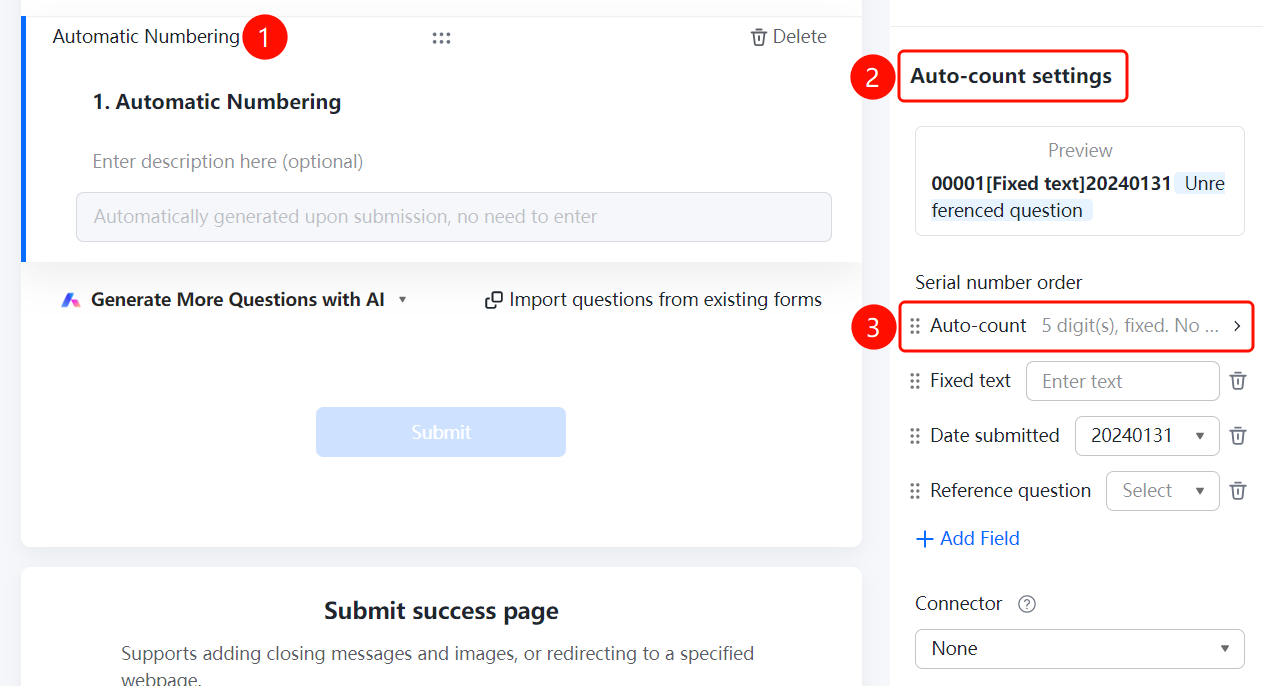
Auto-Numbering → "Auto-Numbering Settings" → "Auto-Counting" option
Click the added "Auto-Numbering" question
Click "Auto-Counting" in the "Auto-Numbering Settings" panel below (currently "5 digits; Fixed; No reset")
Set the following in the pop-up "Auto-Counting Settings" dialog box:
- "Number of Digits": e.g., 5 digits, check "Fixed Digits"
- "Start Value": Default is "1"
- "Reset Cycle": Default is "No reset"
- "When the number reaches the maximum value and submission continues": Select "Continue Incrementing"
The numbering range is 00001–99999
Click "OK" to save
Set Up Fixed Text
Feature Entry
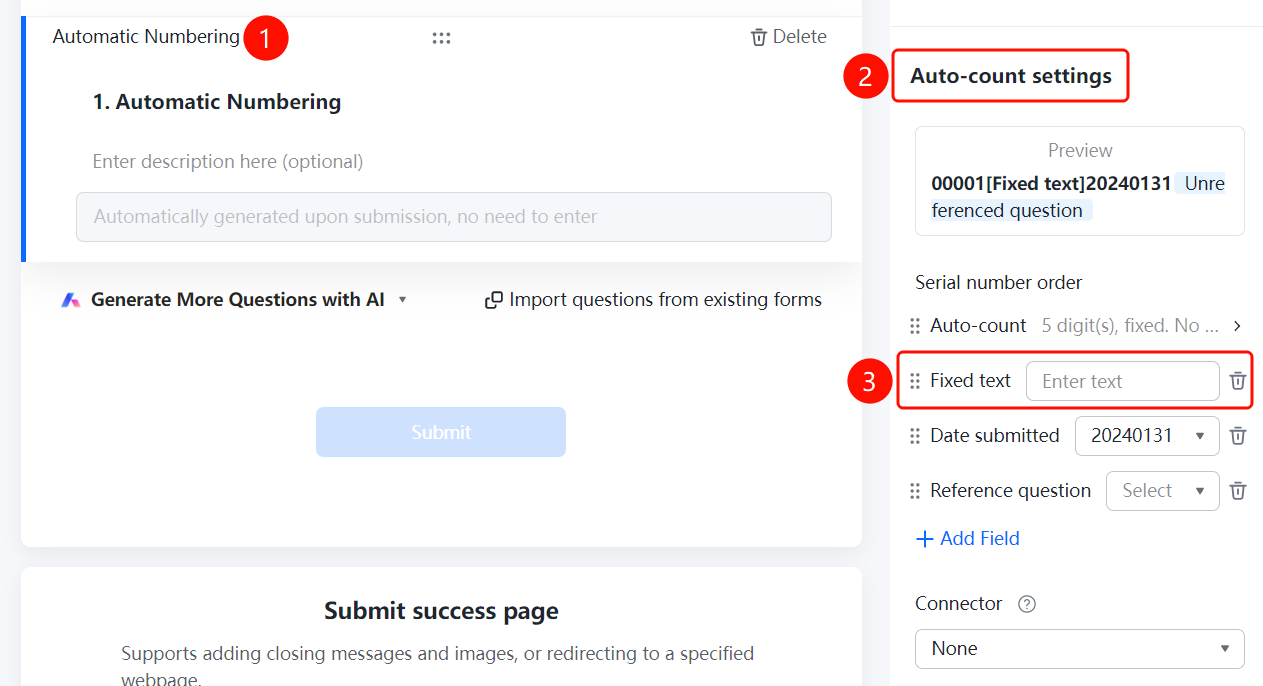
Auto-Numbering → "Auto-Numbering Settings" → "Fixed Text" option
- Click the added "Auto-Numbering" question
- Find "Fixed Text" in the numbering sequence of the "Auto-Numbering Settings" panel below
- Enter the fixed text content in the "Please enter" input box
- The fixed text will be displayed in the numbering preview, such as "00001[Fixed Text]20240131"
- You can click the delete icon to remove this field
Set Up Submission Date
Feature Entry
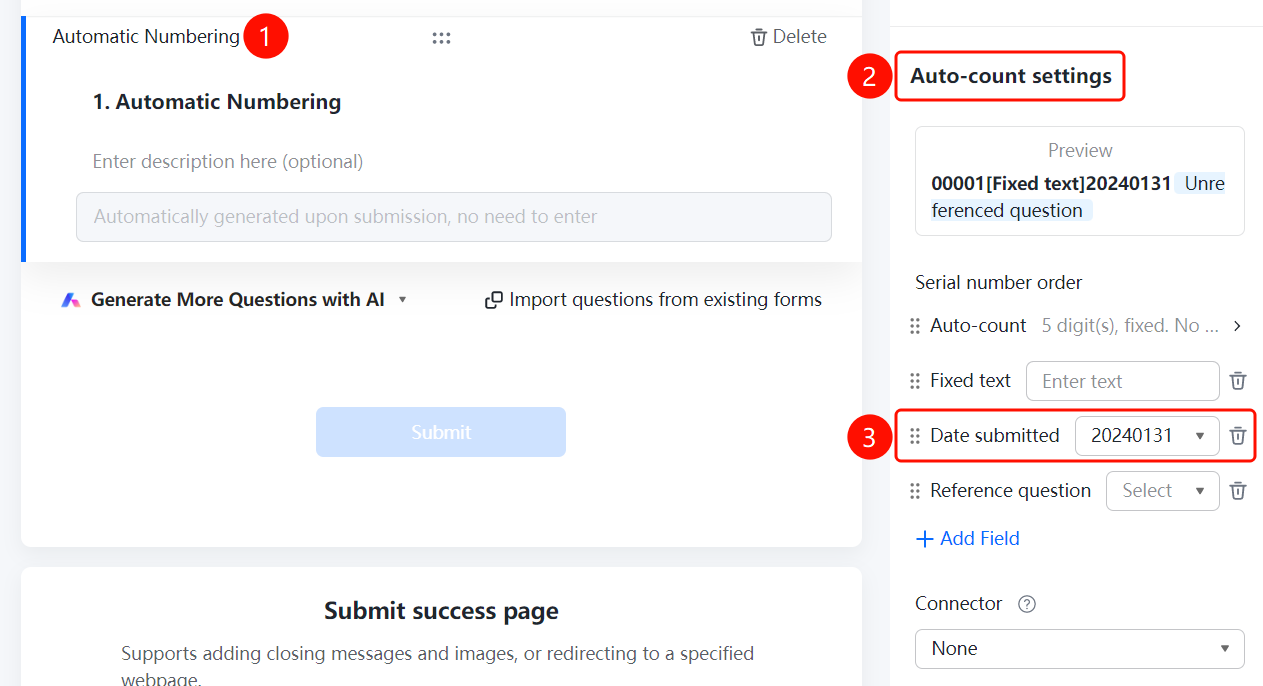
Auto-Numbering → "Auto-Numbering Settings" → "Submission Date" option
- Click the added "Auto-Numbering" question
- Find "Submission Date" in the numbering sequence of the "Auto-Numbering Settings" panel below
- Select the date format in the drop-down box, such as "20240131"
- The submission date will be automatically filled with the current submission date
- You can click the delete icon to remove this field
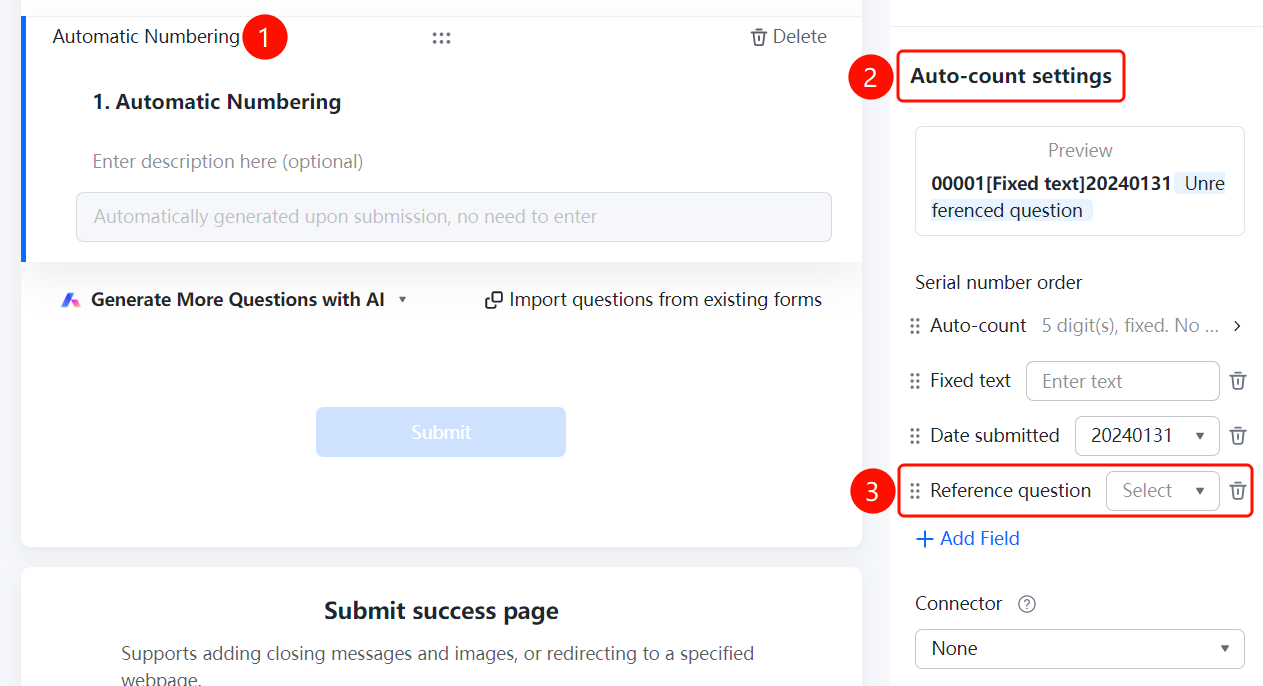
Reference Question
Feature Entry
Auto-Numbering → "Auto-Numbering Settings" → "Reference Question" option
- Click the added "Auto-Numbering" question
- Find "Reference Question" in the numbering sequence of the "Auto-Numbering Settings" panel below
- Select the question to reference in the drop-down box (such as Name, Phone Number, etc.)
- The filled content of the referenced question will be used as part of the number
- You can click the delete icon to remove this field
Add Field
Feature Entry
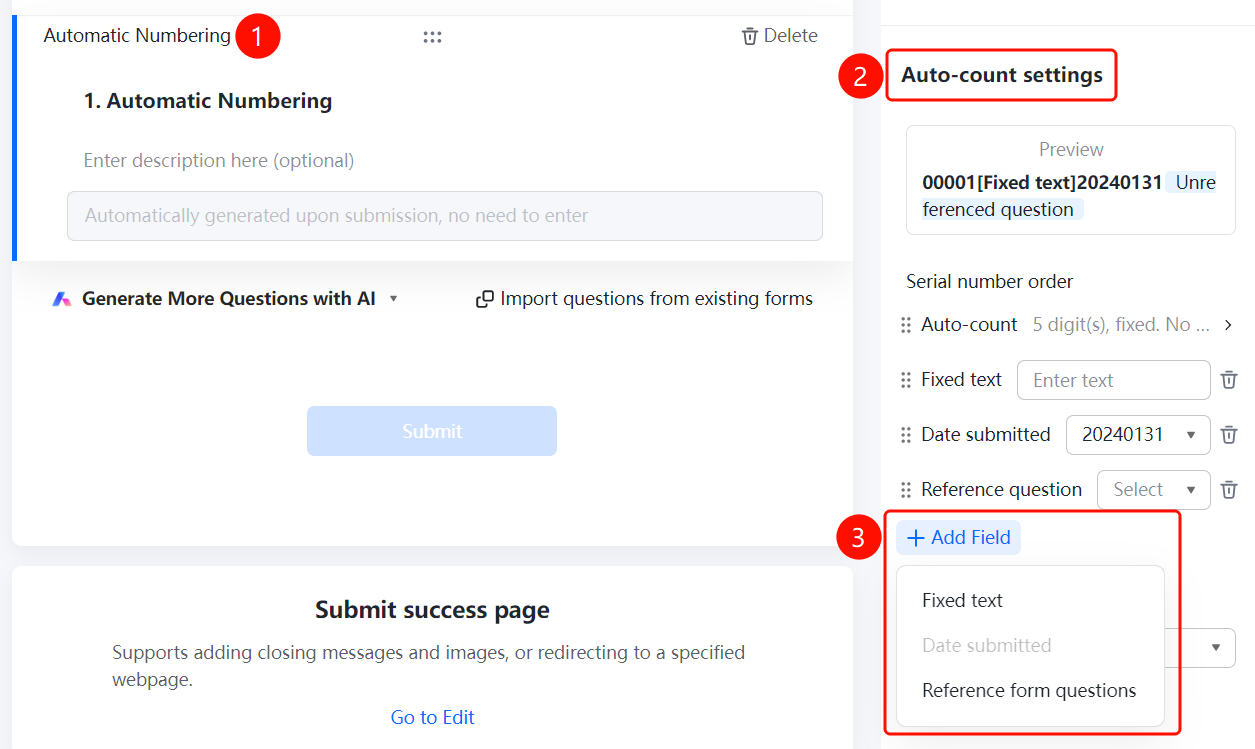
Auto-Numbering → "Auto-Numbering Settings" → "+ Add Field" button
- Click the added "Auto-Numbering" question
- Click "+ Add Field" in the "Auto-Numbering Settings" panel below
- Select the field type in the pop-up menu: "Fixed Text", "Submission Date", "Reference Form Question"
- The new field will be added to the numbering sequence
Set Up Connector
Feature Entry
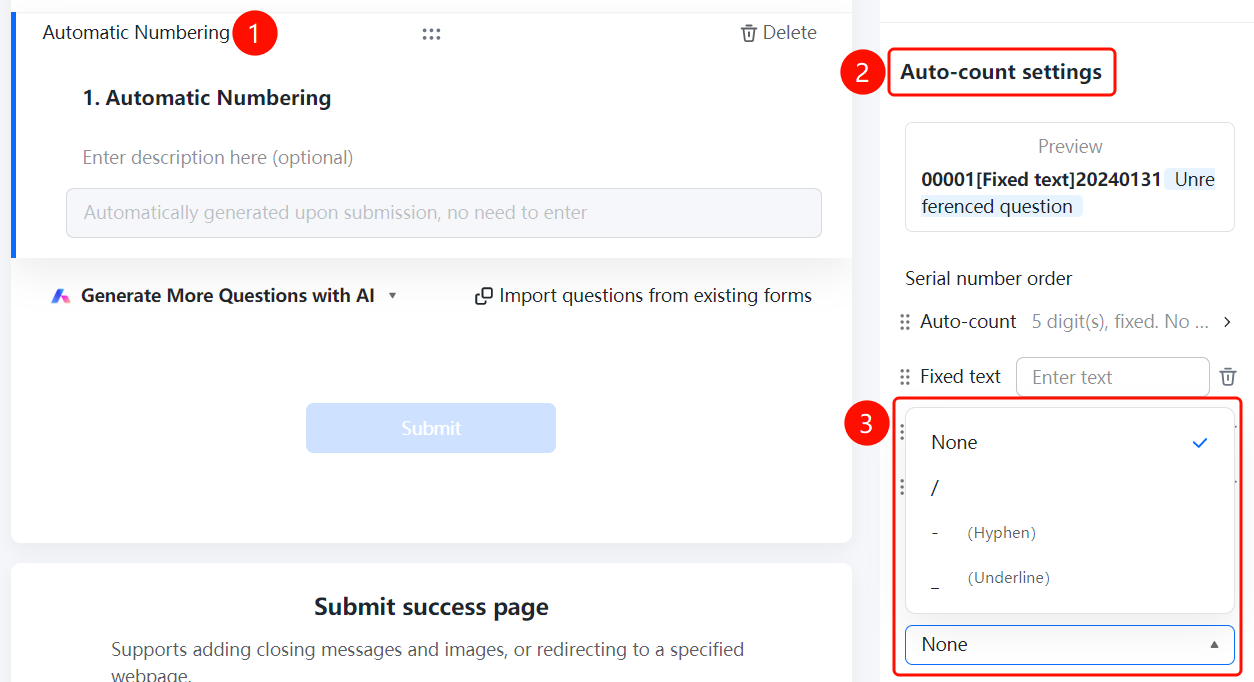
Auto-Numbering → "Auto-Numbering Settings" → "Connector" drop-down box
- Click the added "Auto-Numbering" question
- Click the "Connector" drop-down box in the "Auto-Numbering Settings" panel below
- Select the connector between each part of the number, default is "None"
FAQ
Q1: What is the maximum number of digits for auto-numbering?
- Solution: The numbering range is 00001–99999, with a maximum of 5 digits.
Q2: Can the numbering be reset?
- Solution: Yes, you can set the "Reset Cycle" in "Auto-Counting Settings", which supports resetting by day, week, month, etc.
Notes
- Auto-numbering is located in the "Common Question Types" area
- The number is generated by combining fields such as auto-counting, fixed text, submission date, and referenced questions