Feature Summary
Self-adding tables are used to collect multiple pieces of information uploaded by respondents, where the number of entries may vary per respondent. This is a "Common Question Type." A minimum of 1 record and a maximum of 5 records can be added for this question.
Feature Description
| Feature Dimension | Description |
|---|---|
| Premium Restrictions | No premium restrictions |
| Version Restrictions | No version restrictions |
Steps
Adding a Self-Adding Table
Feature Entry
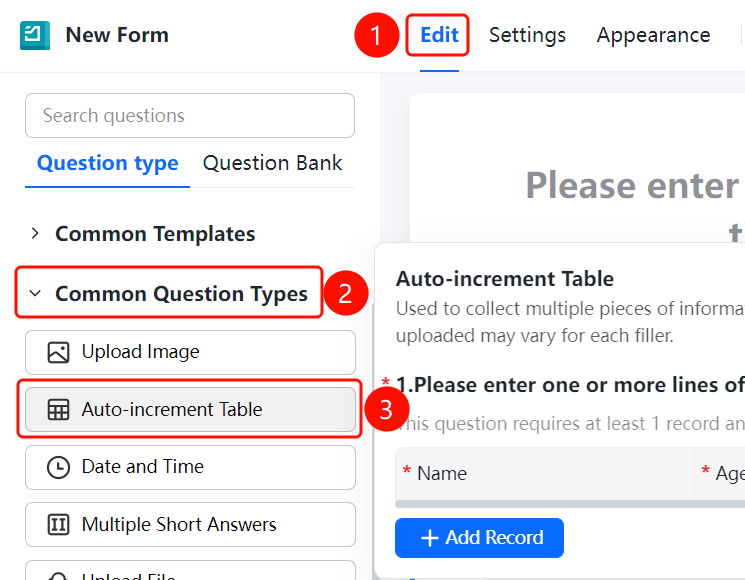
"Edit" tab → "Common Question Types" → "Self-Adding Table" button
- Click the "Edit" tab at the top.
- In the left panel, expand the "Common Question Types" area.
- Click the "Self-Adding Table" button to add the self-adding table to the questionnaire.
- The default question is "Please enter one or more lines of content", which includes default columns such as Name, Age, and Gender.
- Click "+ Add a Record" to add rows, and click "Edit Table Question" to edit column headers.
Setting Table Rows
Feature Entry
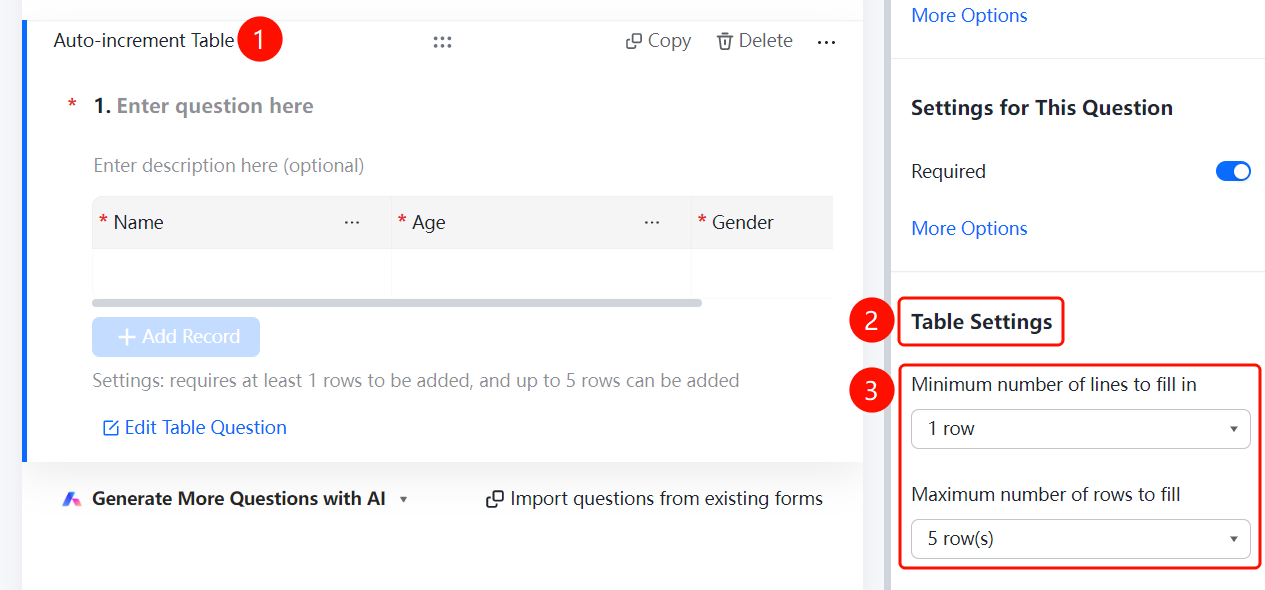
Self-adding table → "Table Settings" panel
- Click the added "Self-Adding Table" question.
- In the "Table Settings" panel below, set the "Minimum Rows" (default is 1 row) and "Maximum Rows" (default is 5 rows).
- Once set, respondents must fill in at least the minimum number of rows and cannot exceed the maximum number of rows.
FAQs
Q1: What is the maximum number of rows that can be added to a self-adding table?
- Solution: By default, up to 5 records can be added. You can adjust the maximum number of rows in "Table Settings."
Q2: How do I edit the column headers of a self-adding table?
- Solution: Click the self-adding table question, and then click "Edit Table Question" to edit the headers and types of each column.
Notes
- The self-adding table is located in the "Common Question Types" area.
- It is suitable for scenarios where you need to collect multiple pieces of information with the same structure.