Feature Summary
Industry questions are used to collect information about the industry in which respondents work. This question type belongs to the multi-stage selection category in "Common Templates," pre-setting primary and secondary industry options for respondents to select step by step.
Feature Description
| Feature Dimension | Description |
|---|---|
| Member Limit | No member limit |
| Version Limit | No version limit |
Operation Steps
Add an Industry Question
Feature Entry
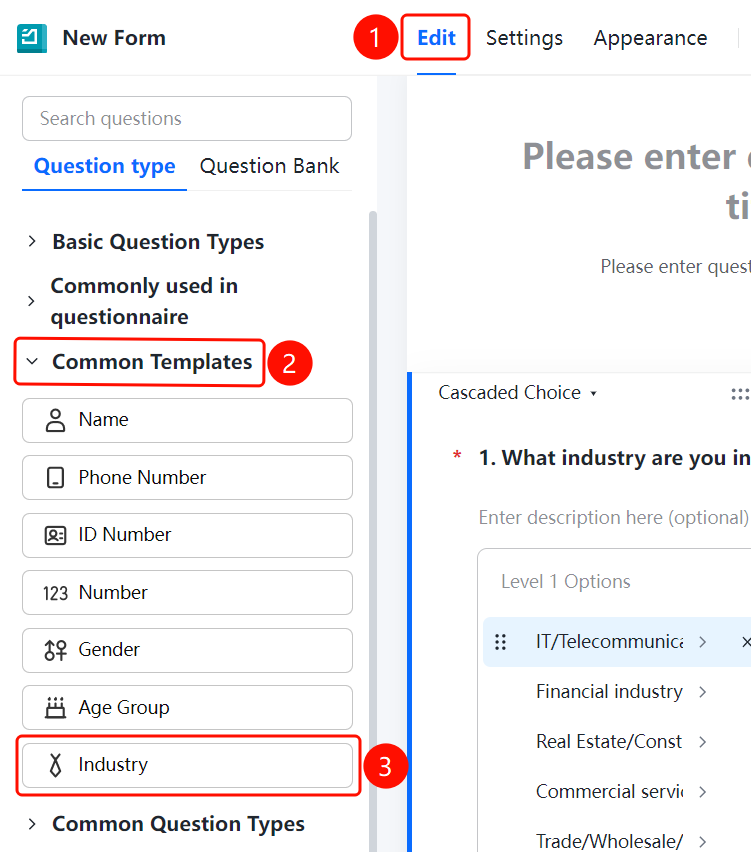
"Edit" tab > "Common Templates" > "Industry" option
- Click the "Edit" tab at the top.
- In the left panel, expand the "Common Templates" area.
- Click the "Industry" option to add the industry question to the questionnaire.
- By default, it is a multi-stage selection type, and the question is "What industry do you work in?"
- Primary options (such as "IT/Telecom/Electronics/Internet", "Finance", "Real Estate/Construction", "Business Services", and "Trade/Wholesale/Retail") and secondary options (such as "Internet/E-commerce", "IT Services (System/Data/Maintenance)", "Computer Hardware", and "Computer Software") are pre-set.
Set Pre-set Answers
Feature Entry
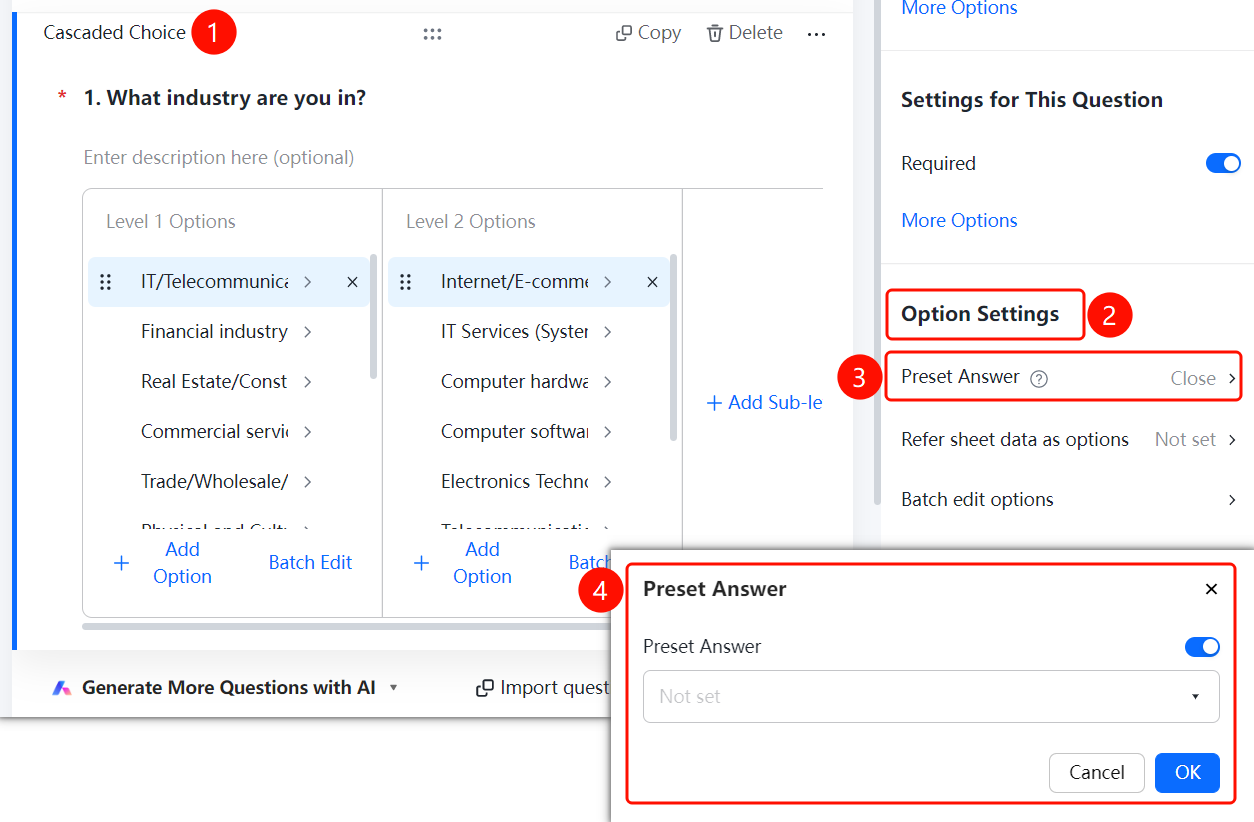
Industry question > "Option Settings" > "Pre-set Answers" option
- Click the added industry question.
- In the "Option Settings" panel on the right, click "Pre-set Answers" (currently displayed as "Off").
- In the pop-up "Pre-set Answers" dialog, turn on the "Pre-set Answers" switch.
- Select the default option in the drop-down box and click "OK" to save.
Reference Table Data as Options
Feature Entry
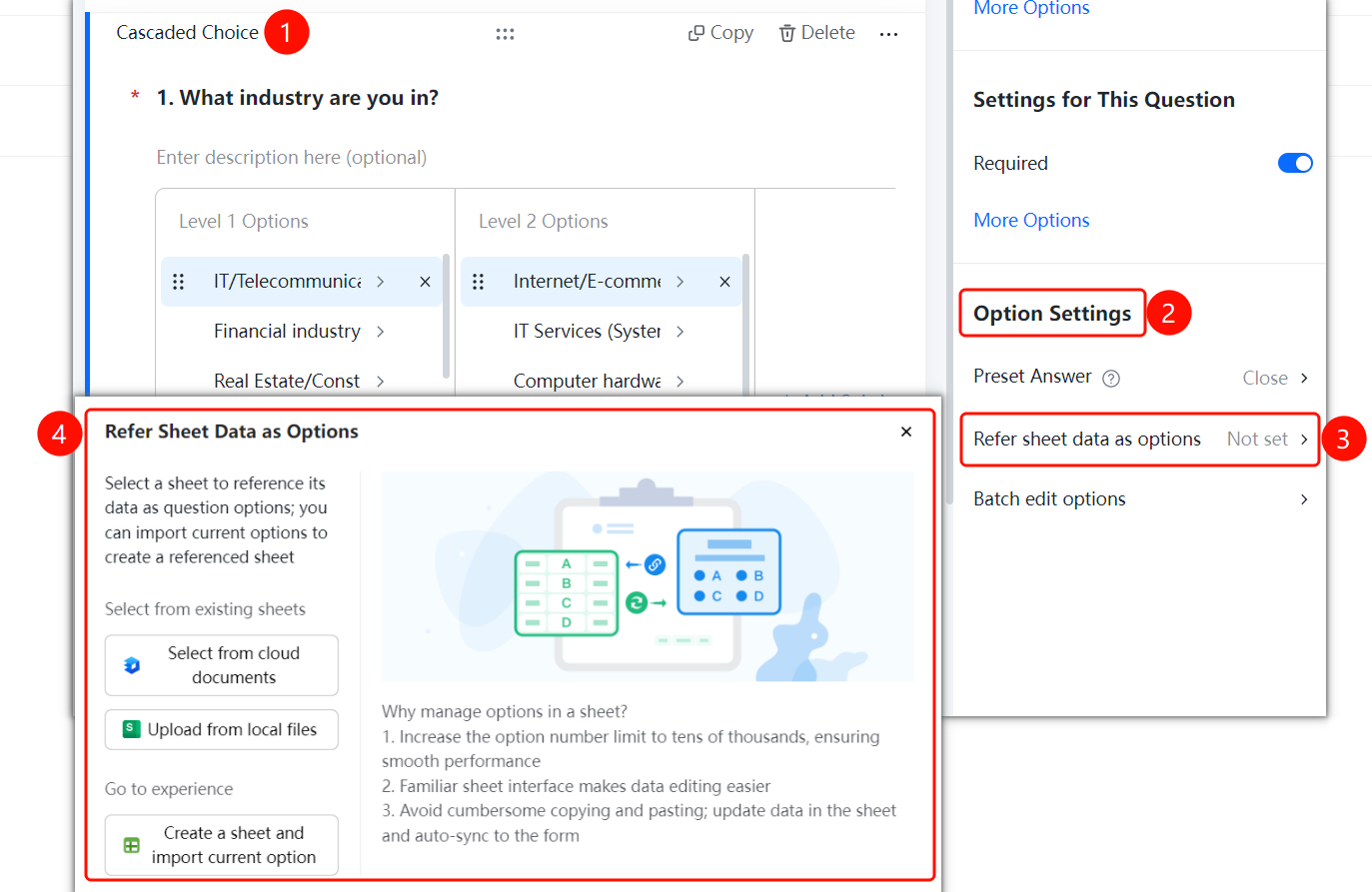
Industry question > "Option Settings" > "Reference Table Data as Options" option
- Click the added industry question.
- In the "Option Settings" panel on the right, click "Reference Table Data as Options" (currently displayed as "Not Set").
- In the pop-up dialog, select the table source: "Select from Cloud Documents" or "Upload from Local File", or click "Create Table and Import Current Options".
- Advantages: The maximum number of options is increased to tens of thousands; editing is simpler in the familiar table interface; data updates in the table are automatically synchronized to the form.
Batch Edit All Options
Feature Entry
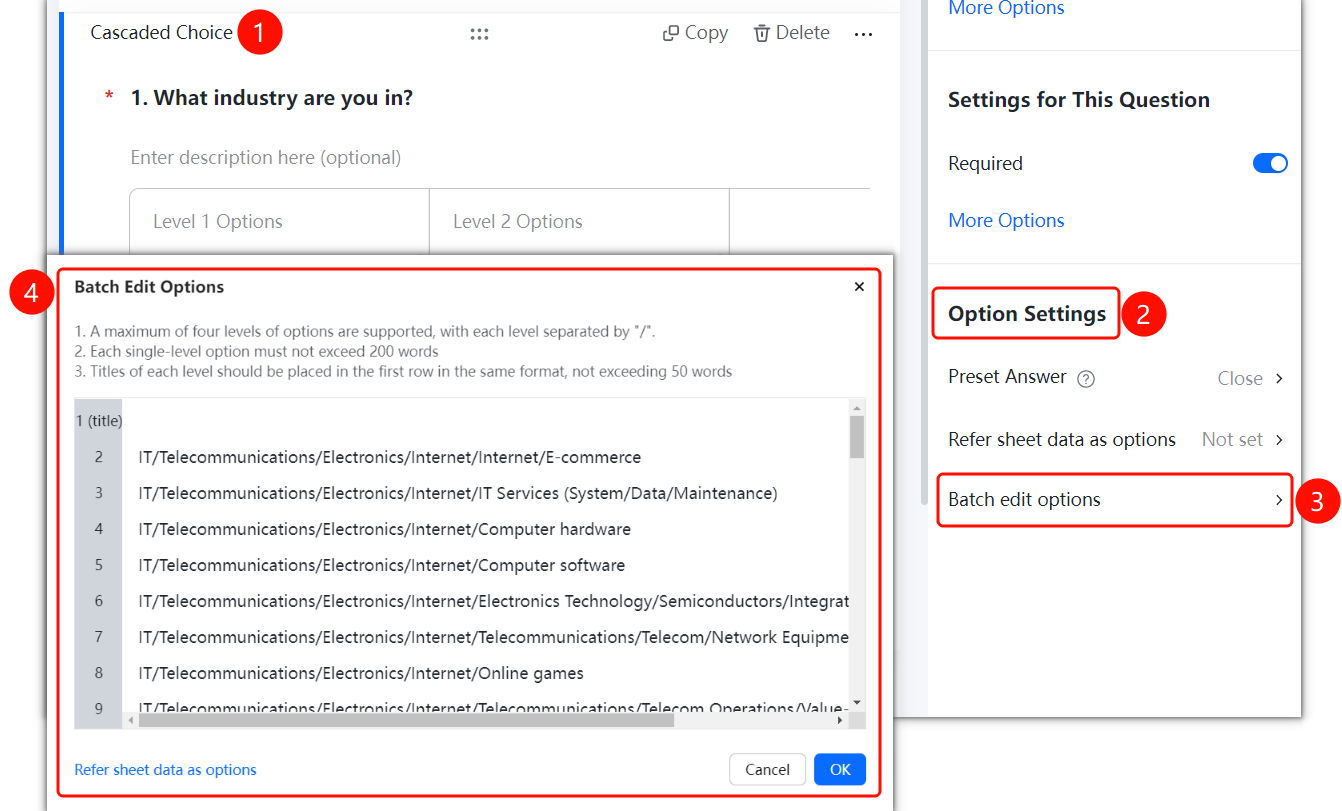
Industry question > "Option Settings" > "Batch Edit All Options" option
Click the added industry question.
In the "Option Settings" panel on the right, click "Batch Edit All Options".
In the pop-up dialog, batch edit options at all levels. Rules:
- Up to four levels of options are supported, with each option separated by a slash (/).
- A single-level option must not exceed 200 characters.
- Headings of all levels must be placed on the first line in the same format, and each heading must not exceed 50 characters.
After editing, click "OK" to save.
FAQ
Question 1: What are the pre-set options for industry questions?
- Solution: Primary industry options (IT/Telecom/Electronics/Internet, Finance, Real Estate/Construction, etc.) and secondary industry options (Internet/E-commerce, IT Services, Computer Hardware, etc.) are pre-set, supporting multi-level cascade selection.
Question 2: How do I batch edit industry options?
- Solution: Click the industry question, click "Batch Edit All Options" in "Option Settings," and separate options at each level with a slash (/) for batch editing. You can also use "Reference Table Data as Options" to import from a table.
Notes
- Industry questions belong to the multi-stage selection category in "Common Templates."
- Up to four levels of options are supported, and each heading must not exceed 50 characters.