Feature Summary
Rating questions are commonly used for scoring. Users can choose from 1 to 5 stars, with the rating results visually displayed through star icons.
Feature Description
| Feature Dimension | Description |
|---|---|
| Premium Limit | No premium limit |
| Version Limit | No premium limit |
Steps
Add a Rating Question
Feature Entry
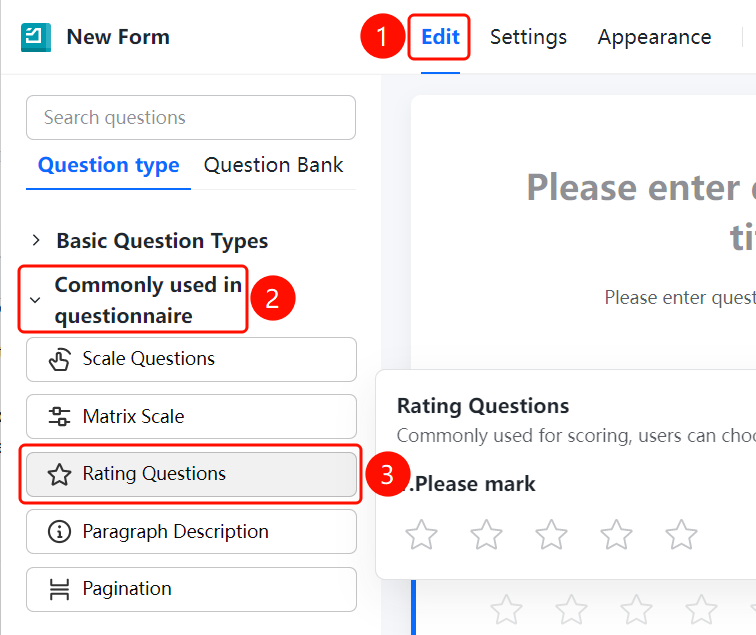
Edit tab > Common Questionnaire > Rating Question button
- Click the Edit tab at the top.
- In the left panel, expand the Common Questionnaire area.
- Click the Rating Question button to add a rating question to the questionnaire.
- The default question title is Please Rate.
- Respondents rate by clicking the star icons, which default to 1-5 stars.
FAQ
Question 1: What is the difference between rating questions and scale questions?
- Solution: Rating questions display star icons, and users rate by clicking the stars. Scale questions display number buttons, and users select a specific value.
Question 2: Can I customize the rating range for rating questions?
- Solution: The default range is 1-5 stars. You can adjust the rating range in the question settings.
Notes
- Rating questions visually display ratings through star icons and are suitable for scenarios such as satisfaction surveys.
- Respondents can complete the rating by clicking the stars.