Feature Summary
Question settings are used to configure the parameters of a single question, including required settings, visibility settings, and numbering settings.
Feature Description
| Feature Dimension | Description |
|---|---|
| Member Limit | No member limit |
| Edition Limit | No member limit |
Operation Steps
Set Question as Required
Feature Entry
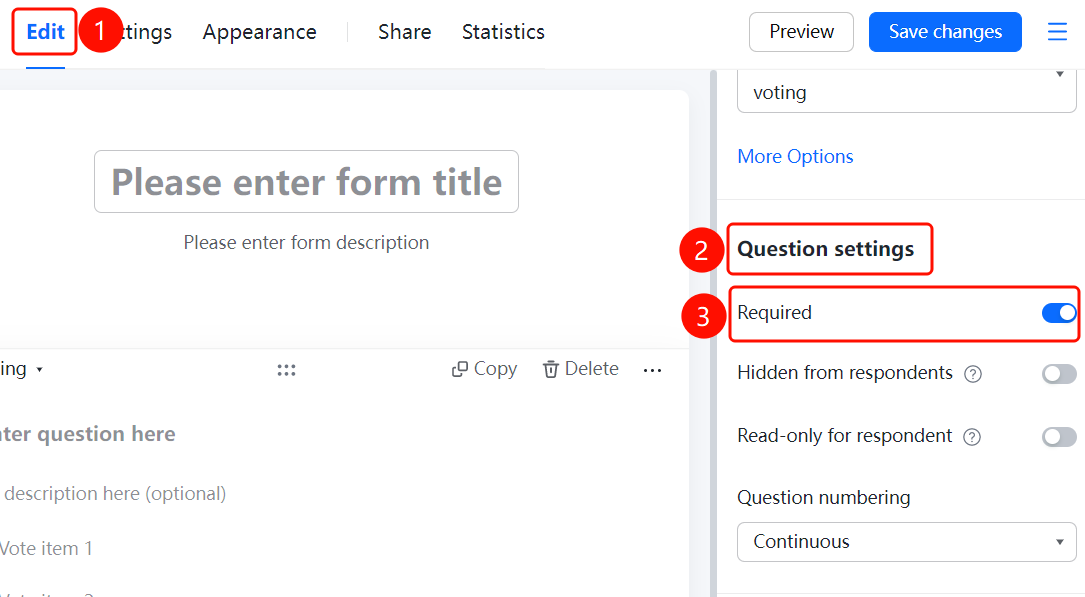
Question settings panel → "Question Settings" → "Required" switch
- Click the added question.
- Find "Question Settings" in the settings panel on the right.
- Turn on or off the "Required" switch.
- Once enabled, respondents must answer this question before submitting.
Hide Question
Feature Entry
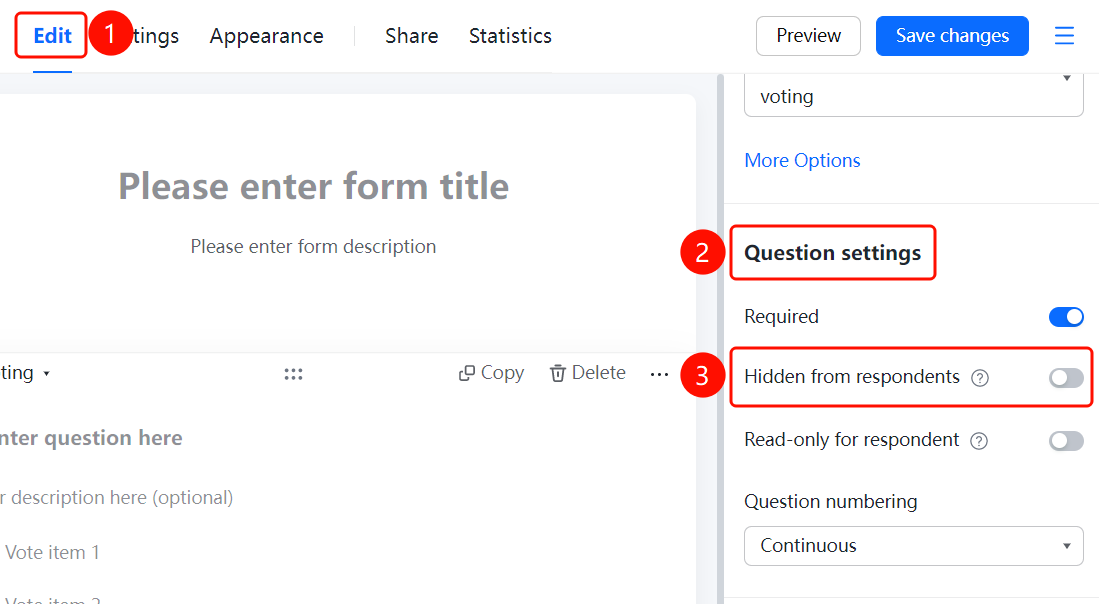
Question settings → "Hide from Respondents" switch
- Click the question you want to configure.
- Turn on the "Hide from Respondents" switch in the "Question Settings" panel on the right.
- Once selected, respondents cannot see this question. This is suitable for adding hidden information, such as remarks or evaluations, to submitted responses.
Set Question as Read-Only for Respondents
Feature Entry
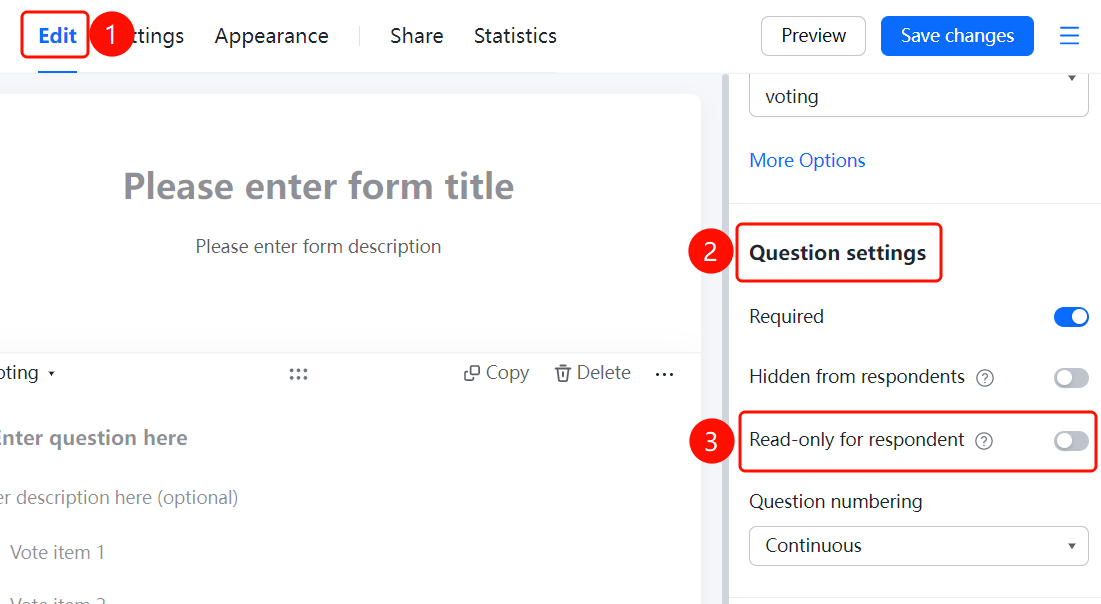
Question settings → "Read-Only for Respondents" switch
- Click the question you want to configure.
- Turn on the "Read-Only for Respondents" switch in the "Question Settings" panel on the right.
- Once selected, respondents can see but cannot answer this question. This is suitable for adding and displaying replies, such as reservation results, to submitted responses.
Set Question Numbering
Feature Entry
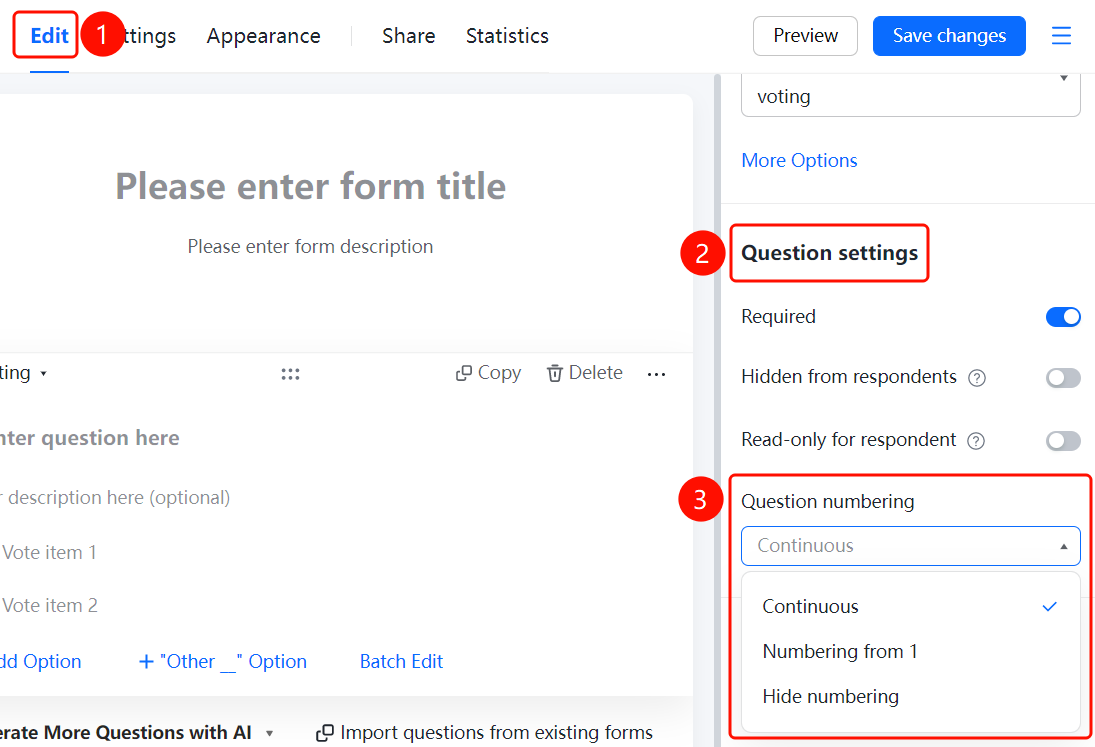
Question settings panel → "Question Settings" → "Question Numbering Settings" option
- Click the added question.
- Find "Question Numbering Settings" in the settings panel on the right.
- Select a numbering method: "Continuous Numbering" or other methods.
FAQ
Question 1: What is the purpose of "Hide from Respondents"?
- Solution: Once enabled, respondents cannot see this question, but the Admin can add hidden information, such as remarks or evaluations, to submitted responses in the Admin Console.
Question 2: How do I set continuous numbering?
- Solution: Select "Continuous Numbering" in "Question Numbering Settings". Questions will be automatically numbered in the order of 1, 2, 3.
Notes
- Question settings only affect a single question. For global configurations, use "Global Settings".
- Hidden questions are suitable for scenarios where the Admin adds information in the Admin Console.