Feature Overview
Multi-step selection questions are commonly used for hierarchical choices, such as selecting "Province-City-District" or "Primary Department-Secondary Department-Tertiary Department." This feature supports up to four levels of options, allowing users to make selections step by step.
Feature Description
| Functional Dimension | Description |
|---|---|
| Membership Restrictions | No membership restrictions |
| Version Restrictions | No version restrictions |
Operating Steps
Adding a Multi-Section Multiple Choice Question
Feature Access
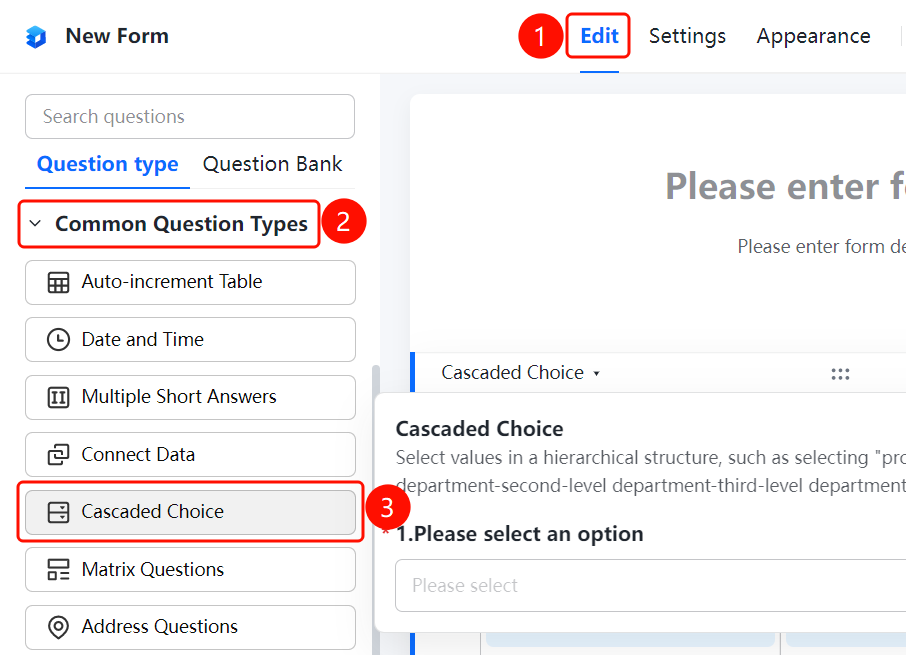
"Edit" tab → "Common Question Types" → "Multi-Section Selection" button
- Click the "Edit" tab at the top
- Expand the "Common Question Types" section in the left panel
- Click the "Multi-Section Selection" button to add a multi-section multiple choice question to the file collection
- Enter the question content in the question editing area, and set titles for each level of options (e.g., primary option title, secondary option title) and option contents (e.g., "Option 1", "Option 2")
Frequently Asked Questions
Q1: How many levels of options does multi-level selection support?
- Solution: Multi-level selection supports up to four levels. Each option is separated by "/", and each individual option should not exceed 200 characters.
Q2: How can I edit multiple options in bulk for a multi-level selection?
- Solution: Click on the multi-level selection question, then in "Option Settings," select "Batch Edit Options." Enter the title in the first row, and input each option content in subsequent rows.
Q3: Can I reference table data as options?
- Solution: Yes. Click on the multi-level selection question, then in "Option Settings," select "Reference Table Data as Options." You can choose from cloud documents, upload local files, or create a new table.
Notes
- Up to four levels are supported; each level's title must not exceed 50 characters.
- After referencing table data, any updates in the table will be automatically synchronized to the form.