Feature Summary
When you are unsure of which formula to use or prone to making errors when writing formulas, the AI-assisted formula generation feature can generate usable formulas based on natural language descriptions, helping you complete calculations and statistics faster.
Feature Description
| Feature Dimension | Description |
|---|---|
| Membership Limits | Available for both WPS Pro+ and WPS Premium |
| Version Limits | Applicable to the latest version on the WPS official website |
Steps
AI Formula
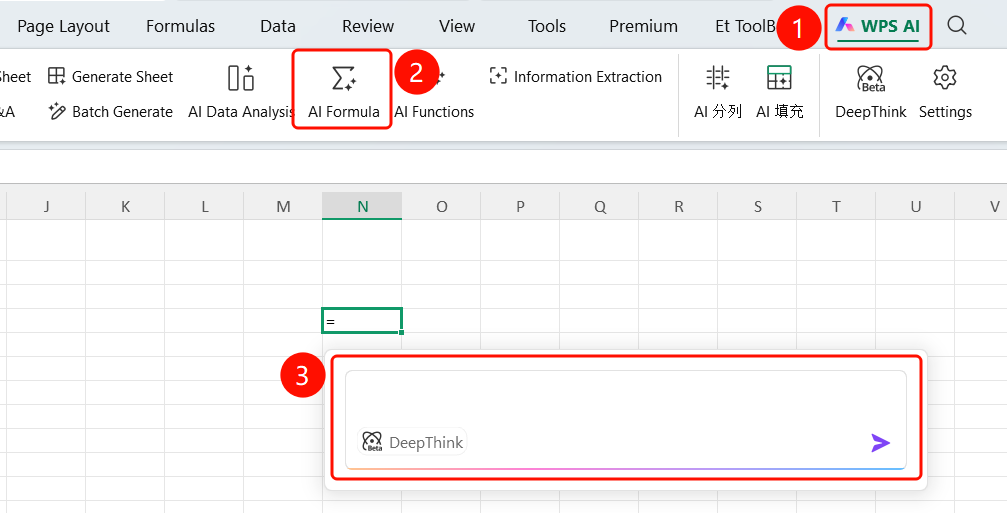
Feature Entry ①
"WPS AI" tab → "AI Formula"
- Open a WPS Sheets document.
- Click the WPS AI tab on the top menu bar.
- Find and click the AI Formula button.
- The formula input box will appear.
Feature Entry ②
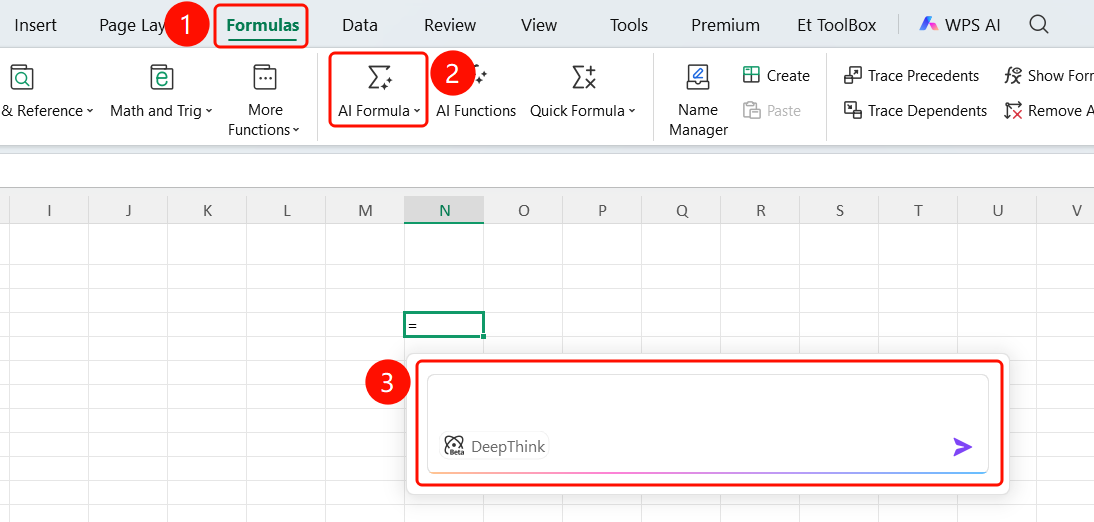
"Formulas" tab → "AI Formula"
- Open a WPS Sheets document.
- Click the Formulas tab on the top menu bar.
- Find and click the AI Formula button.
- The formula input box will appear.
Feature Entry ③
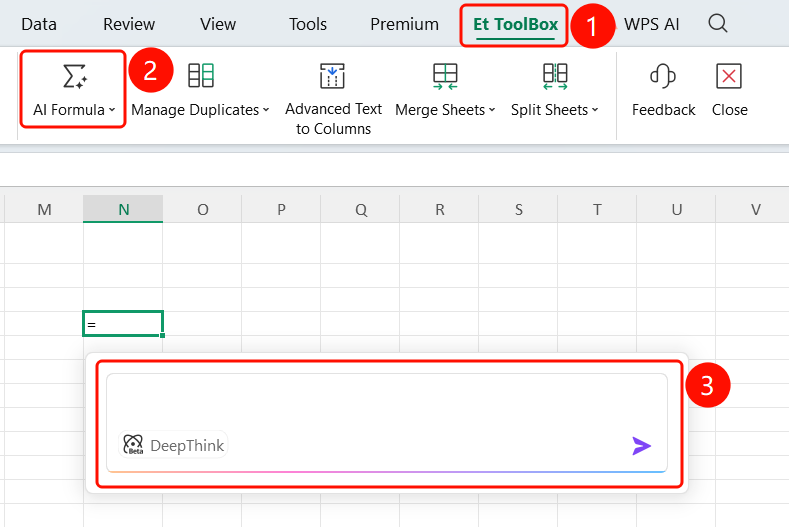
"Et Toolbox" → "AI Formula"
- Open a WPS Sheets document.
- Click the Et Toolbox tab on the top menu bar.
- Find and click the AI Formula button.
- The formula input box will appear.
Enter Formula Requirements
Feature Entry
Cell input box
- Select the target cell and enter "=".
- The AI formula input box will appear.
- Describe your formula requirements in natural language in the input box (e.g., "write a vlookup formula for me").
- The DeepThink option is provided at the bottom.
- Click the SlateGray Send button.
View Generated Results
Feature Entry
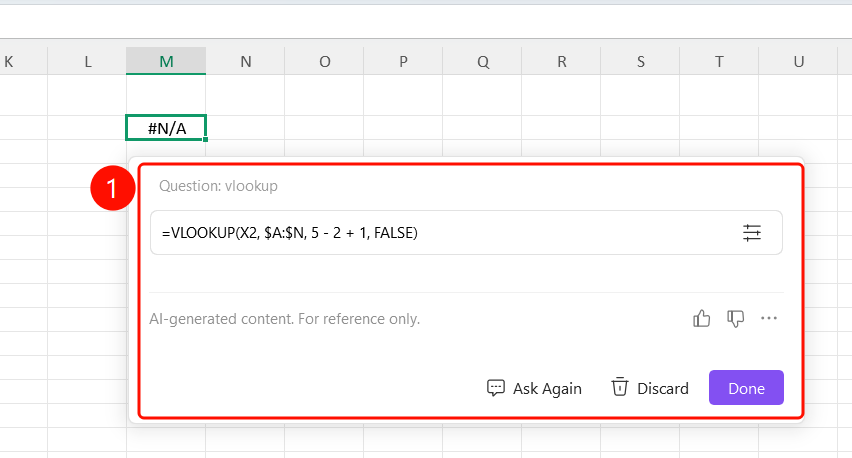
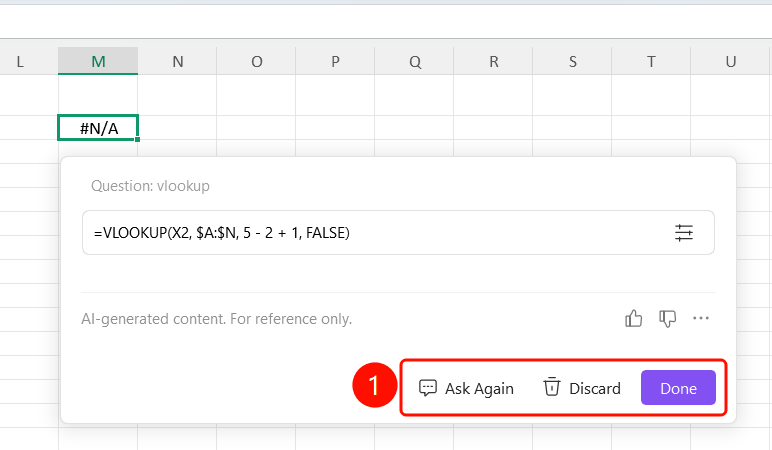
Formula generation results page
The generated formula is displayed after AI generation is complete.
A note "AI-generated information is for reference only. Please verify its accuracy." is displayed at the bottom.
Three actions are provided:
- Ask Again: Modify requirements and regenerate.
- Discard: Close the formula without using it.
- Done : Confirm and use the formula.
FAQ
Q1: What formula types does AI Formula support?
- Solution: It supports common functions and formulas such as SUM, VLOOKUP, IF, and COUNTIF. You can describe your requirements in natural language, and the AI will automatically generate the corresponding formula.
Q2: Can the generated formula be modified?
- Solution: Yes. After clicking "Done", the formula will be applied to the cell and can be manually modified in the formula bar. You can also click "Ask Again" to regenerate it.
Q3: What should I do if the generated formula is incorrect?
- Solution: Click "Discard" to close the current formula, or click "Ask Again" to provide a more detailed description and regenerate.
Notes
- Generated formulas are for reference only. We recommend checking them before use.
- Supports enabling the DeepThink mode to handle complex formula requirements.