Feature Summary
When you need to split mixed data in a single column (such as name + phone number) into multiple columns based on rules, Smart Text to Columns can auto-recognize the separation patterns and complete the split, helping you quickly organize messy data and improve data processing efficiency.
Feature Description
| Feature Dimension | Description |
|---|---|
| Membership Limits | Available for both WPS Pro+ and WPS Premium |
| Version Limits | Applicable to the latest version on the WPS official website |
Operation Steps
AI Text to Columns
Feature Entry
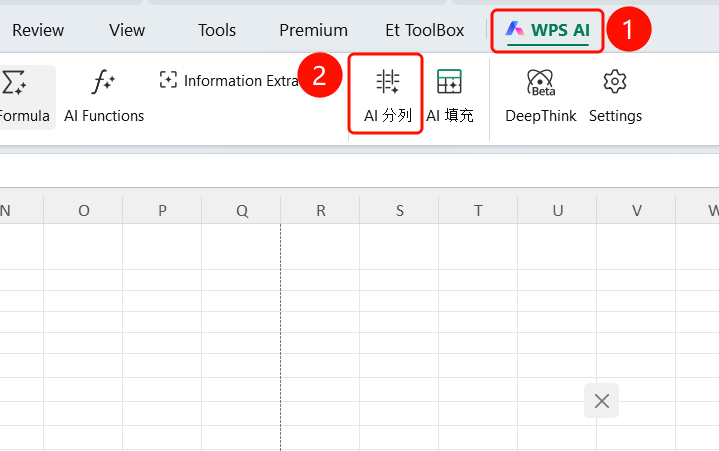
"WPS AI" tab → "AI Text to Columns"
- Select the data column you want to split.
- Click the "WPS AI" tab on the top menu bar.
- Click the "AI Text to Columns" button.
- The Smart Text to Columns dialog will pop up.
Choose Split Mode
Feature Entry
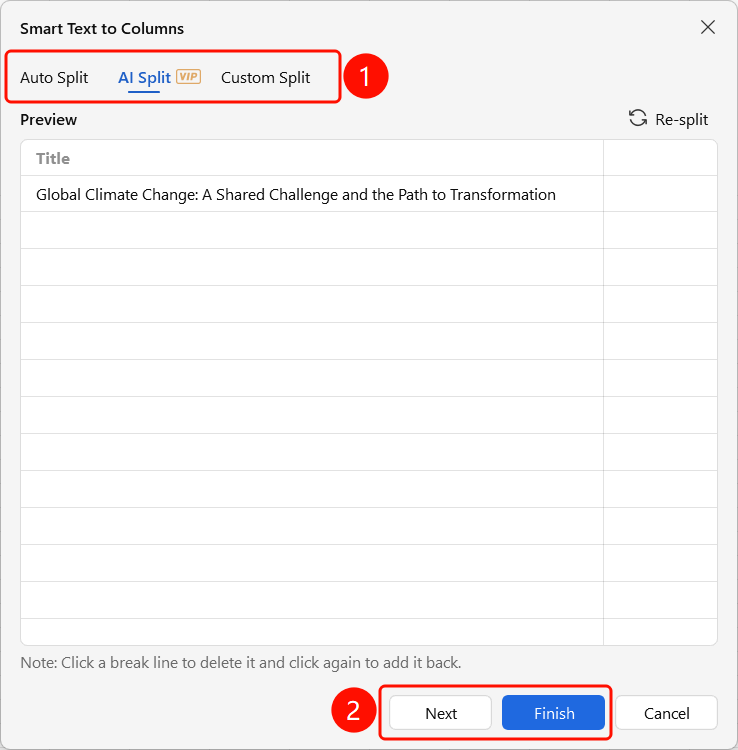
Smart Text to Columns dialog
Three split modes are provided at the top of the dialog:
- "Auto Split": AI auto-recognizes separation rules.
- "AI Split": Intelligently analyzes data structure for splitting.
- "Custom Split": Manually set delimiters and rules.
The preview area in the middle shows the effect after splitting.
You can click a break line to cancel the split, or click again to add a split.
Click "Next" or "Done" to execute the split.
Confirm Split Results
Feature Entry
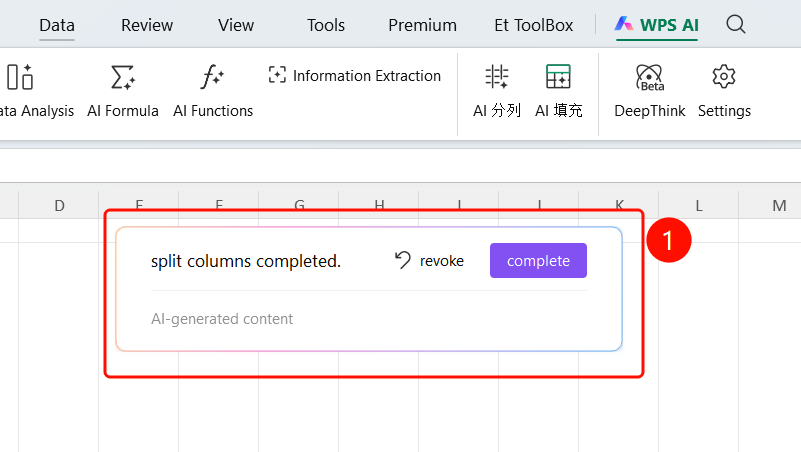
Floating action bar
After AI automatically completes the split, a floating tip bar is displayed.
It prompts "Split completed for you."
Two operations are provided:
- "Undo": Undo this split operation.
- "Done" (SlateGray button): Confirm the split results.
After clicking "Done", the data is split into multiple columns.
FAQ
Question 1: What data formats does Smart Text to Columns support?
- Solution: It supports splitting by common delimiters such as spaces, commas, and semicolons, and also supports AI smart recognition of separation patterns in mixed data.
Question 2: What should I do if the data format changes after splitting?
- Solution: You can manually adjust the column format after the split is completed. Formats such as dates and numbers need to be reset in the cell formatting settings.
Question 3: Can I redo the operation if I am not satisfied with the split results?
- Solution: Yes. Click "Undo" on the floating bar to revert the split, select the data again, and use AI Text to Columns again.
Notes
- WPS Plus and Premium members have unlimited use of the Smart Text to Columns feature.
- We recommend backing up your original data before splitting, as the original column data will be replaced after splitting.
- For complex data, we recommend using "Custom Split" to manually set rules.
- The split operation will overwrite data in the adjacent columns on the right. Ensure that the columns on the right are empty.