Feature Summary
When you need to write formulas based on data logic in Sheets, Sheets AI Formula can understand your calculation intent and automatically generate the correct formula, helping you easily complete common calculation tasks such as summing, counting, and searching.
Feature Description
| Feature Dimension | Description |
|---|---|
| Membership Limits | Available for both WPS Pro+ and WPS Premium |
| Version Limits | Applicable to the latest version on the WPS official website |
Operating Steps
Sheets AI Formula
Feature Entry ①
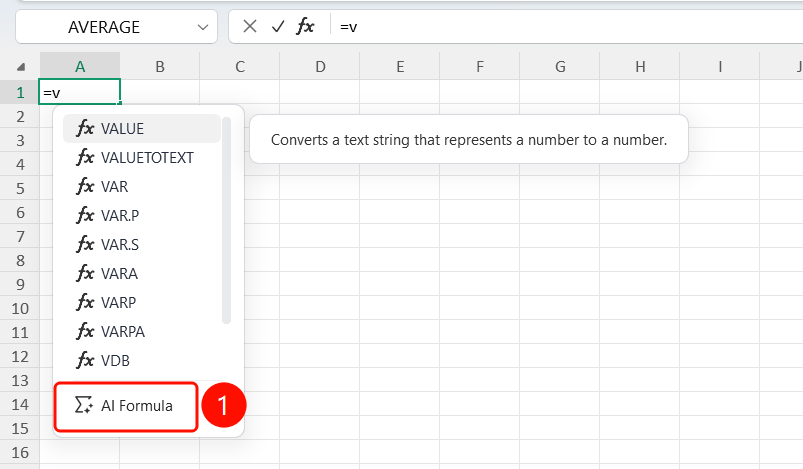
Enter an equal sign in a cell → Dropdown menu → "AI Formula"
- Select the target cell.
- Enter the "=" sign.
- Find "AI Formula" at the bottom of the pop-up function dropdown menu.
- Click to enter the AI Formula input box.
Feature Entry ②
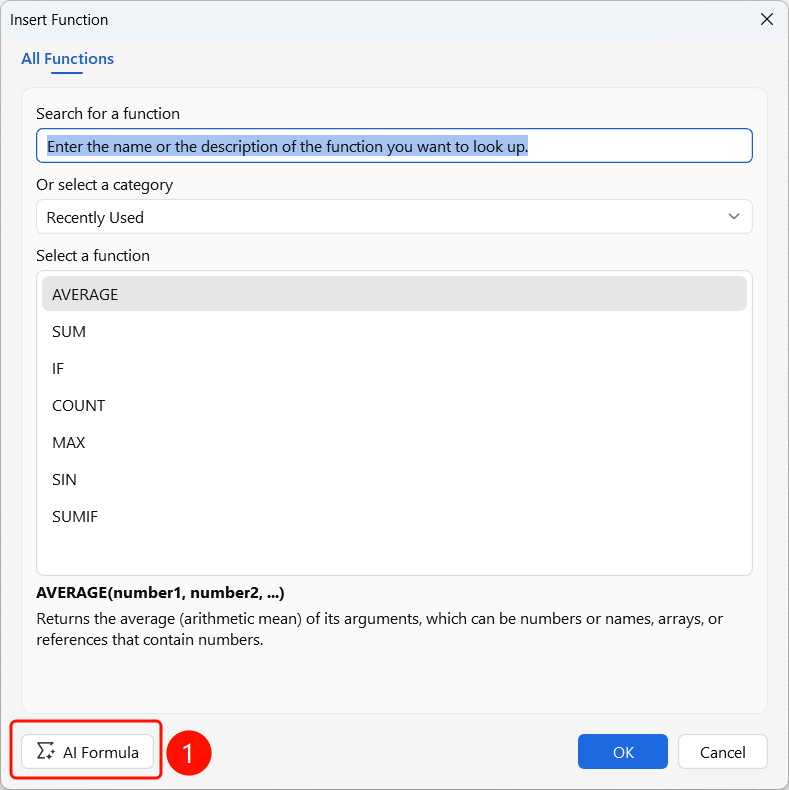
"fx" button → Insert Function → "AI Formula"
- Select the target cell.
- Click the "fx" button on the left side of the formula bar.
- Open the Insert Function dialog box.
- Click the "AI Formula" link at the bottom.
Enter Formula Requirements
Feature Entry
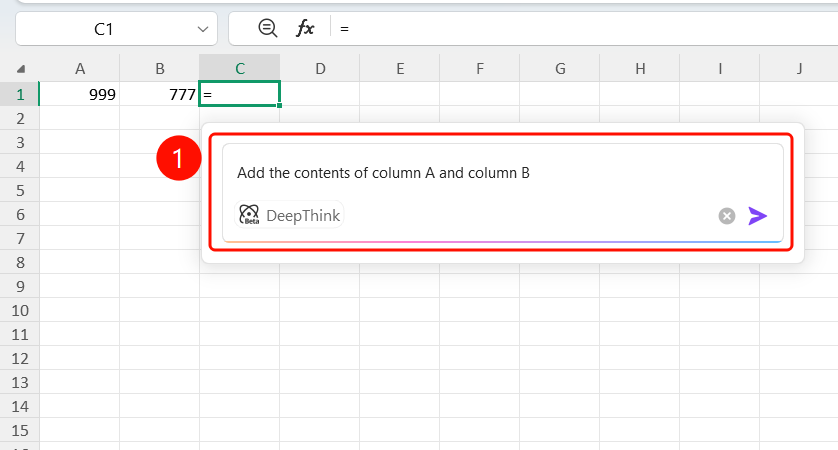
AI Formula input box
- Describe your formula requirements in natural language in the input box (e.g., "add column B and column C").
- A "DeepThink" option is provided at the bottom (can be enabled when processing complex formulas).
- Click the Send button on the right to submit your requirements.
Confirm Formula Results
Feature Entry
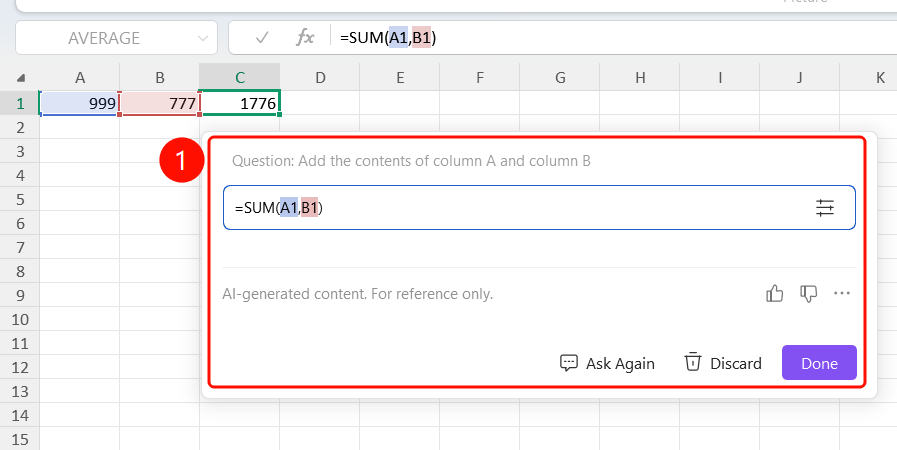
Formula generation result interface
After AI generation is complete, the calculation results and formula are displayed.
The thinking process is displayed (e.g., "Thinking: 2s").
The formula bar displays the generated formula (e.g., "=B1+C1").
Three actions are provided at the bottom:
- "Ask Again": Modify requirements and regenerate.
- "Discard": Close the formula without using it.
- "Done" (SlateGray button): Confirm to use the formula.
A note at the bottom states: "AI-generated information is for reference only. Please verify its accuracy."
FAQ
Question 1: What calculation types does Sheets AI Formula support?
- Solution: It supports common formula requirements such as sum, count, lookup, and conditional calculations. You can describe them in natural language, and the AI will automatically generate the corresponding formula.
Question 2: Can the generated formula be modified?
- Solution: Yes. After clicking "Done", the formula will be applied to the cell, and you can manually modify it in the formula bar. You can also click "Ask Again" to regenerate.
Question 3: What should I do if the generated complex formula is inaccurate?
- Solution: Enable "DeepThink" mode for deeper AI analysis. It is also recommended to use more detailed descriptions to express your requirements.
Notes
- There is no limit on the number of times WPS Plus and Premium members can use the Sheets AI Formula feature.
- Generated formulas are for reference only. We recommend checking them before use.
- For complex formulas, we recommend enabling "DeepThink" mode to improve accuracy.
- Cell references in formulas are highlighted in color for easy verification.