Feature Overview
When you need to process multiple data entries in bulk (such as generating charts or filling formulas in batches), the Table Assistant's batch generation feature enables efficient batch processing, helping you complete large-scale data operations with minimal effort.
Feature Description
| Feature Dimension | Description |
|---|---|
| Membership Limits | Available for both WPS Pro+ and WPS Premium |
| Version Limits | Applicable to the latest version on the WPS official website |
Operating Steps
Batch Generation
Feature Access
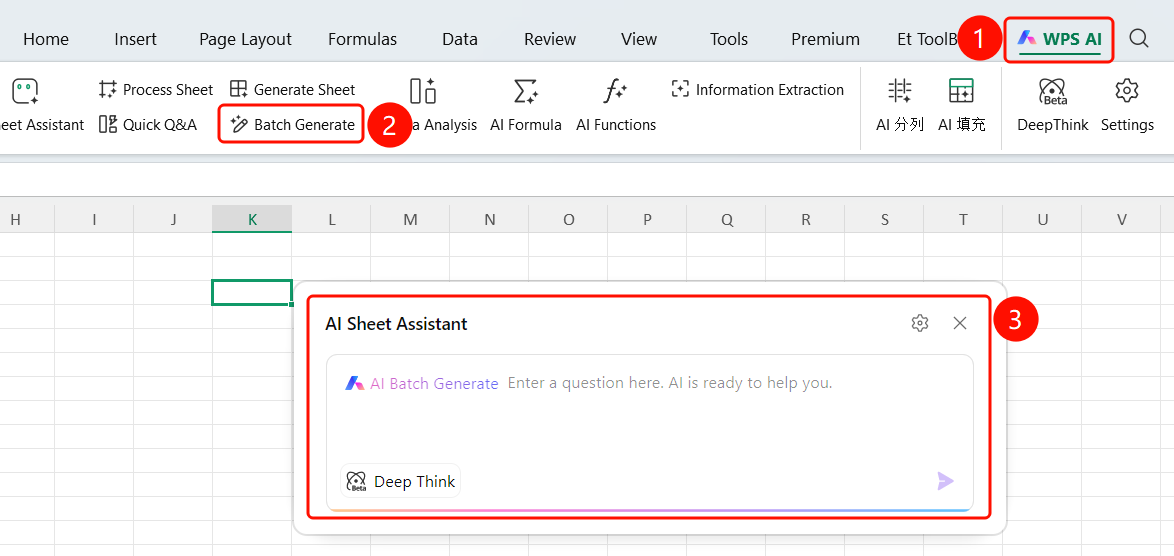
「WPS AI」Tab → 「Batch Generation」
- Open a WPS Spreadsheet document
- Click the 「WPS AI」 tab in the top menu bar
- Click the 「Batch Generation」 button
- The AI Spreadsheet Assistant input box will appear
Input Generation Requirements
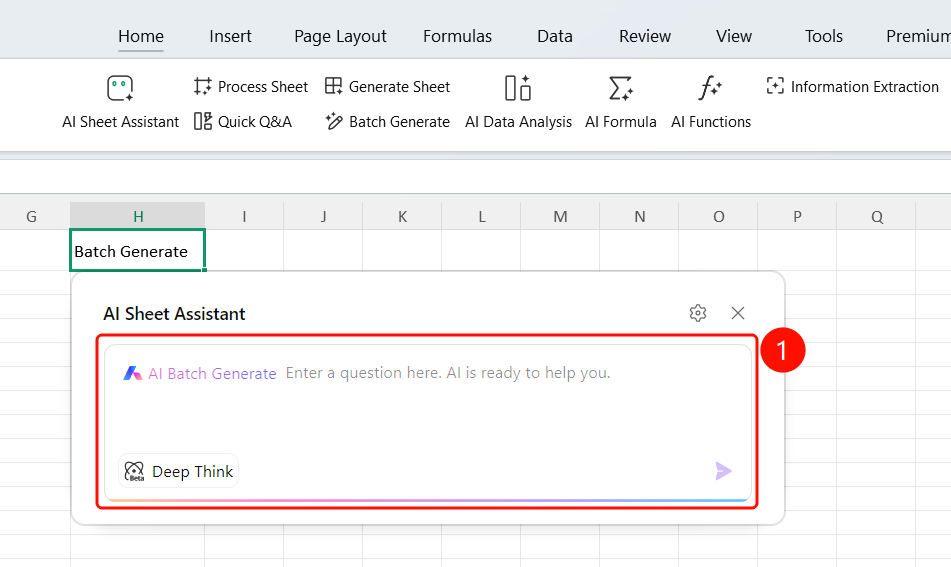
Feature Entry PointAI Table Assistant input box
- Describe batch generation requirements in natural language within the input box
- A "Deep Thinking" option is provided at the bottom
- Click the Send button on the right to submit the task
Preview and Apply
Feature Access
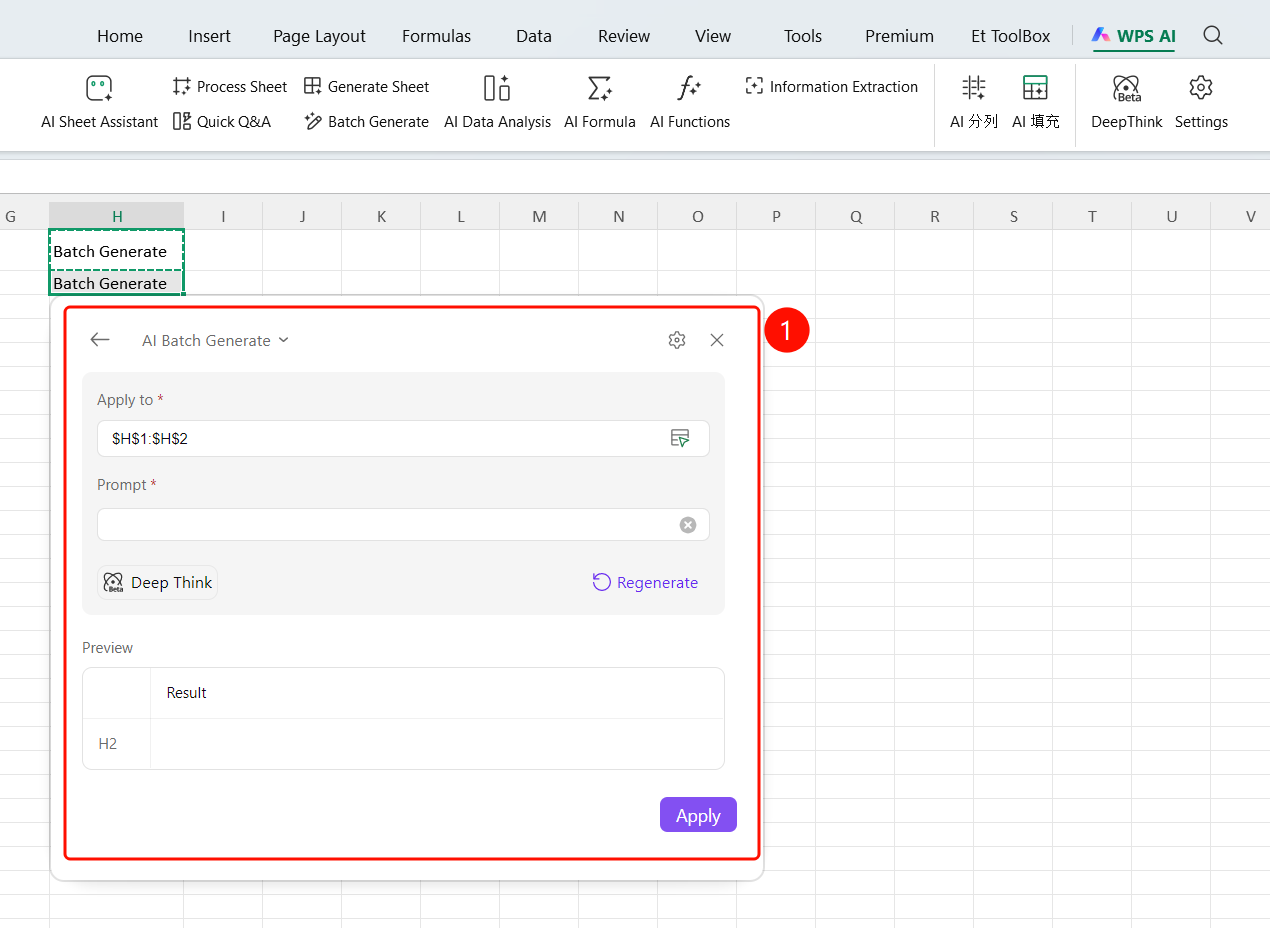
Generated result preview interface
- After AI generation is complete, display the preview interface
- Show "Application Scope": Set the target area for data population
- Show "Describe Your Needs": Confirm the description of generation requirements
- "Preview Data": Display a preview of the generated results
- Click "Regenerate" to generate new data
- Click "Apply" to confirm and apply
Confirm Generation Results
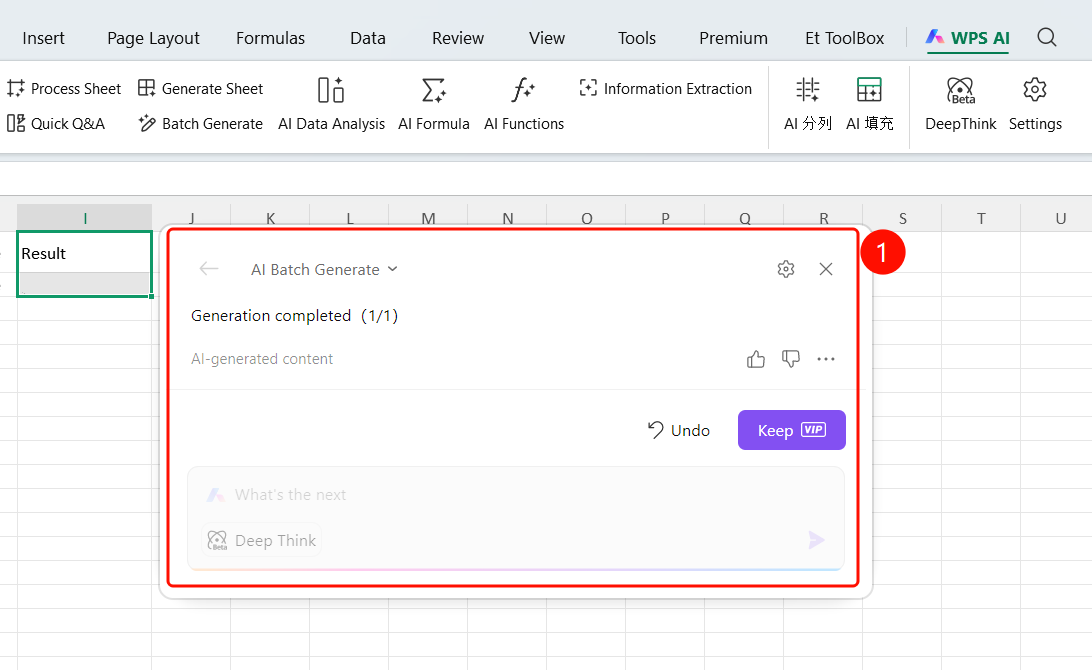
Function Access PointOperation Result Panel
- After applying, table data is automatically populated.
- Two operations are available:
- "Undo": Revert the current generation and restore original data
- "Keep": Confirm and retain the generated results
- You can continue entering new tasks in the input box; AI will execute them sequentially.
Frequently Asked Questions
Question 1: What types of data does batch generation support?
- Solution: Supports various bulk data processing needs, including random numbers, sequence data, extracted data, translated data, and more.
Question 2: Can I undo the generation if the data is incorrect?
- Solution: Yes. Click the "Undo" button in the results panel to restore the original data. Once confirmed correct, click "Keep."
Question 3: How do I set the application range?
- Solution: Enter the target cell range (e.g., $A$2) in the "Application Range" field within the preview interface. The AI will fill the generated results into the specified location.
Notes
- It is recommended to back up your data before operating to prevent accidental changes.
- For complex generation tasks, enable the "Deep Thinking" mode to improve accuracy.
- Membership verification is required to confirm operations.