Feature Summary
When you encounter professional terminology, complex concepts, or content you do not understand while reading a document, AI Text Selection Explanation provides easy-to-understand explanations to help you quickly grasp difficult points and lower reading barriers.
Feature Description
| Feature Dimension | Description |
|---|---|
| Membership Limits | Available for both WPS Pro+ and WPS Premium |
| Version Limits | Applicable to the latest version on the WPS official website |
Steps
AI Text Selection Explanation
Feature Entry ①
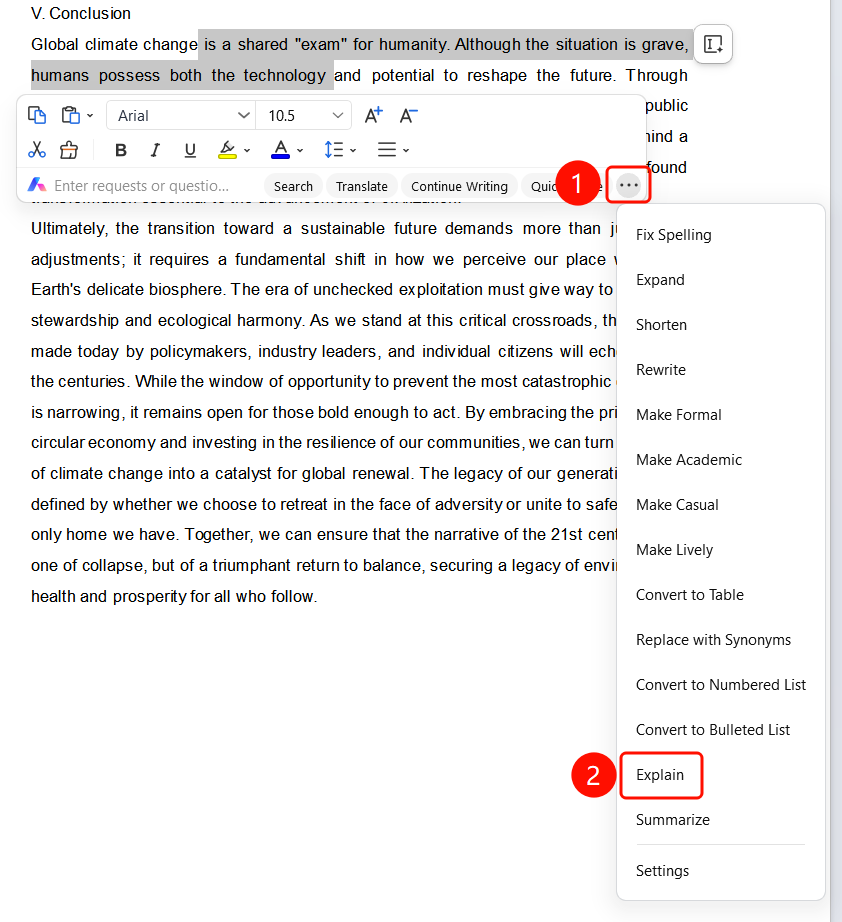
Select Text → Selection Toolbar → "More" → "Explain"
- Drag and select the text paragraph that needs explanation in the document.
- A floating selection toolbar pops up above the selected area.
- Click the "More" button.
- Select the "Explain" option in the dropdown menu (the dropdown list contains options such as Quick Polish, Expand, Shorten, Rewrite, Make Formal, etc.).
- AI automatically generates the explanation.
Feature Entry ②
Right-click → Selection Toolbar → "More" → "Explain"
- Drag and select the text paragraph that needs explanation in the document.
- Right-click the selected text.
- Select the selection toolbar in the right-click menu.
- Click "More" → "Explain" in sequence.
View Explanation Results
Feature Entry
"Explain" dialog
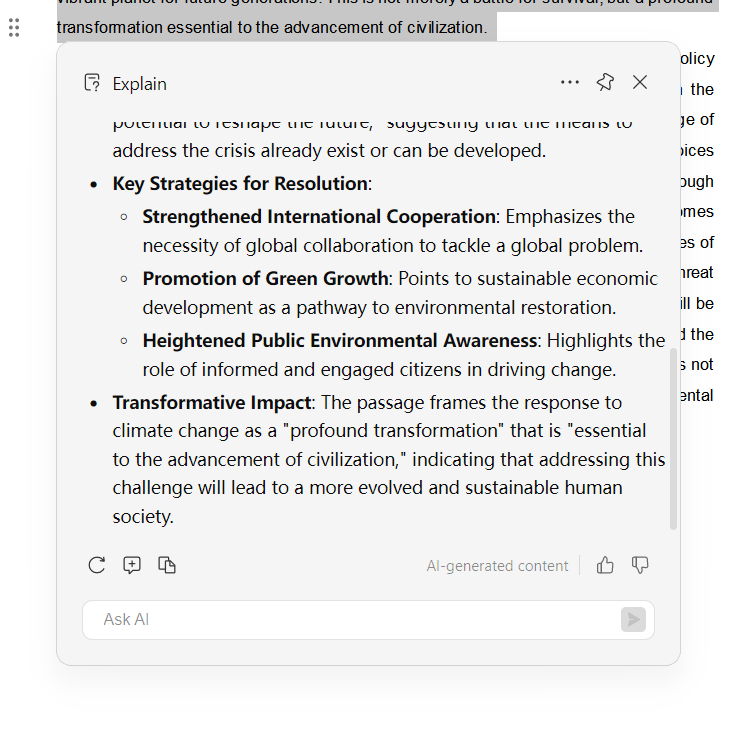
After the AI explanation is complete, the "Explain" dialog pops up.
The dialog title is "Explain", and the upper right corner provides More, Favorites, and Close buttons.
The body introduces the selected content in bullet points, such as architecture description, comparative analysis, practical significance, etc.
The bottom action bar contains:
- "Regenerate": Regenerate the explanation.
- Feedback (thumbs-up/thumbs-down icons): Evaluate the explanation results.
- "Copy": Copy the explanation to the clipboard with one click.
The bottom displays the "Generated by AI" label.
An "Ask AI" input box is provided at the very bottom to continue asking questions.
FAQ
Question 1: What is the difference between AI Text Selection Explanation and AI Text Selection Summary?
- Solution: AI Text Selection Explanation focuses on providing easy-to-understand explanations for the selected content, suitable for understanding professional terminology and complex concepts; AI Text Selection Summary focuses on extracting core information.
Question 2: Can the explanation results be copied?
- Solution: Yes. Click the "Copy" button at the bottom of the explanation dialog to copy the explanation to the clipboard.
Question 3: What should I do if there is no explanation option after selecting text?
- Solution: After selecting text in the document, the "More" menu in the floating toolbar will list multiple AI feature options, including Explain. Scroll down to find "Explain".
Notes
- There is no limit on the number of times WPS Plus and Premium members can use the AI Text Selection Explanation feature.
- The more specific the selected content, the more targeted the explanation will be.
- An "Ask AI" input box is provided at the bottom of the dialog to continue asking in-depth questions.
- The content is generated by AI. Please verify the accuracy of the information.