Feature Summary
When you do not want to read large amounts of document content, the AI Read Aloud feature can convert document text into voice messages, supporting custom voice and speed to help you easily listen to document content.
Feature Description
| Feature Dimension | Description |
|---|---|
| Membership Limits | Available for both WPS Pro+ and WPS Premium |
| Version Limits | Applicable to the latest version on the WPS official website |
Steps
AI Read Aloud
Feature Entry ①
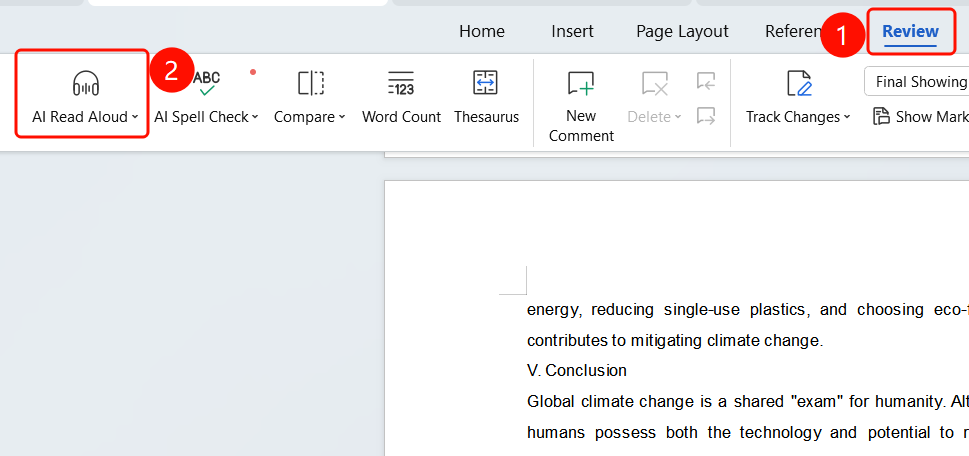
WPS Docs: "Review" tab -> "AI Read Aloud"
- Open a WPS Office document.
- Click the Review tab in the top menu bar.
- Find and click the AI Read Aloud button (headphone icon with a drop-down arrow).
- The floating playback control bar will appear, and reading will start automatically.
Feature Entry ②
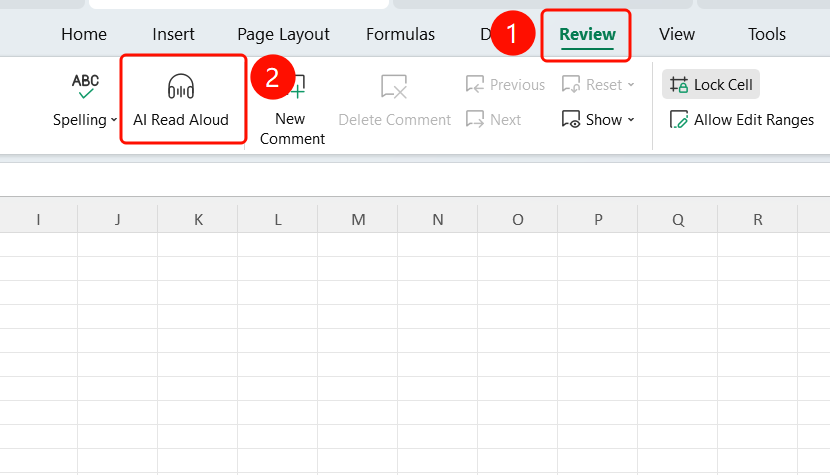
WPS Sheets: "Review" tab -> "AI Read Aloud"
- Open a WPS Office sheet.
- Click the Review tab in the top menu bar.
- Find and click the AI Read Aloud button.
Feature Entry ③
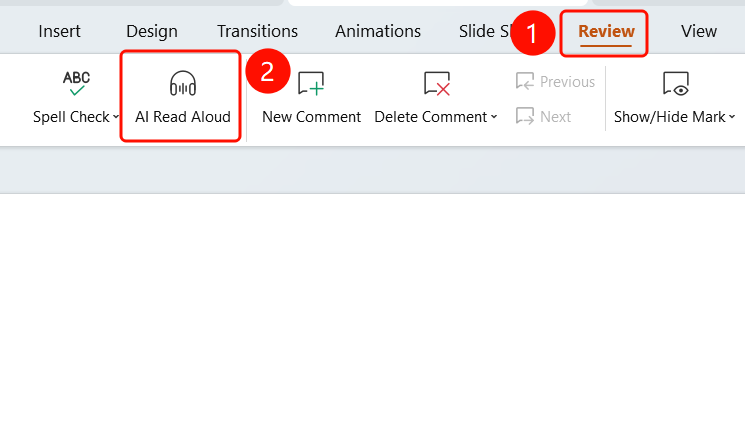
WPS Slides: "Review" tab -> "AI Read Aloud"
- Open a WPS Office presentation.
- Click the Review tab in the top menu bar.
- Find and click the AI Read Aloud button.
Feature Entry ④
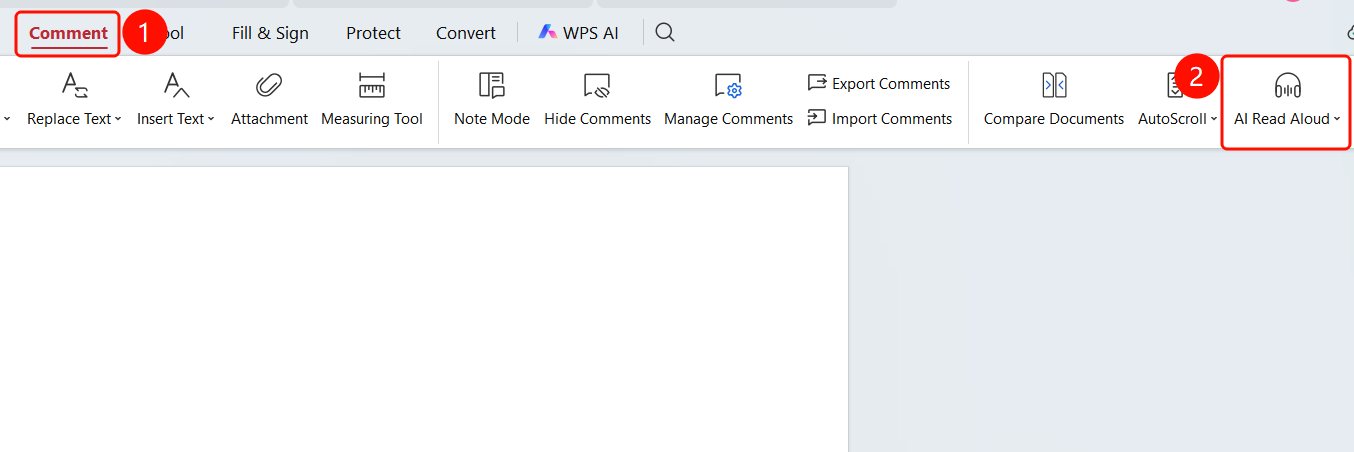
WPS PDF: "Comment" tab -> "AI Read Aloud"
- Open a WPS PDF document.
- Click the Comment tab in the top menu bar.
- Find and click the AI Read Aloud button on the right side of the toolbar.
Floating Control Bar
Feature Entry
Floating control bar
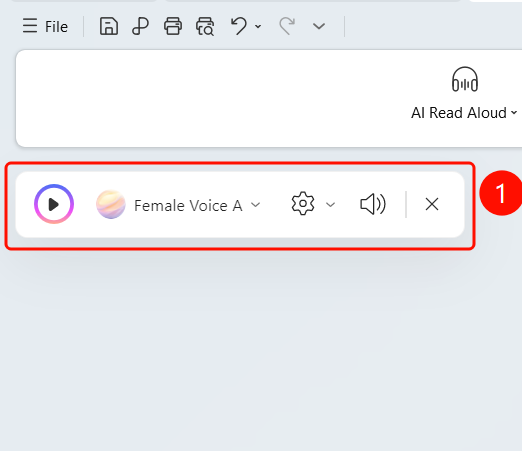
The floating control bar appears after you click AI Read Aloud.
The control bar contains:
- Play/Pause button (play icon on the left)
- Current Voice Name (such as "Female Voice A", click to expand and select)
- Settings button (gear icon, click to expand more settings)
- Volume button (speaker icon, click to adjust volume)
- Close button (× icon, close reading)
Select Language and Voice
Feature Entry
Voice selection panel
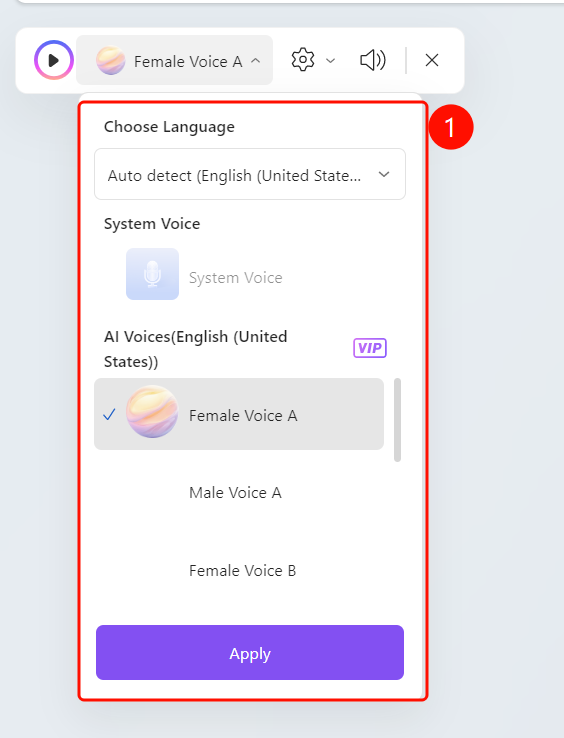
Click the voice name in the floating control bar (such as "Female Voice A") to expand the voice selection panel.
Select Language: You can choose auto-detect or manually specify a language (such as Simplified Chinese Mandarin).
System Voice: Use the system default voice.
AI Voice (Simplified Chinese Mandarin): VIP exclusive AI voice, you can choose:
- Female Voice A: Default female voice
- Female Voice B: Another female voice
- Male Voice A: Male voice
- Scroll down to view more voices
After selecting a voice, click the Apply button to confirm.
Set Reading Mode
Feature Entry
Floating control bar -> Settings panel
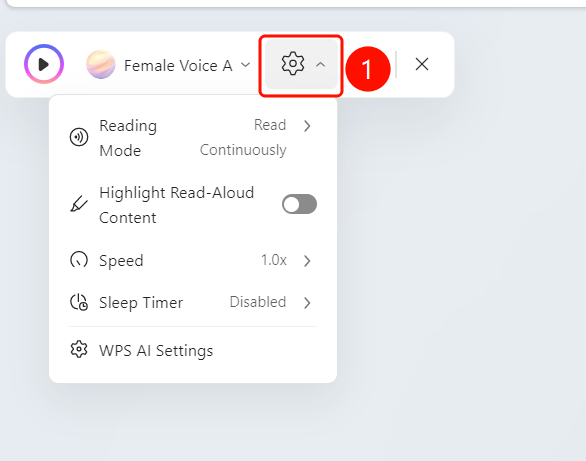
Click the Settings (gear icon) button in the floating control bar to expand the settings panel.
You can set the following options:
- Reading Mode: Select reading modes such as "Continuous Reading".
- Highlight Current Content: When enabled, the text currently being read will be highlighted.
- Speed: Adjust the reading speed (such as 1.0x).
- Timer: Set the automatic stop time for reading (disabled by default).
- WPS AI Settings: Go to WPS AI related settings.
Set Volume
Feature Entry
Floating control bar -> Volume adjustment
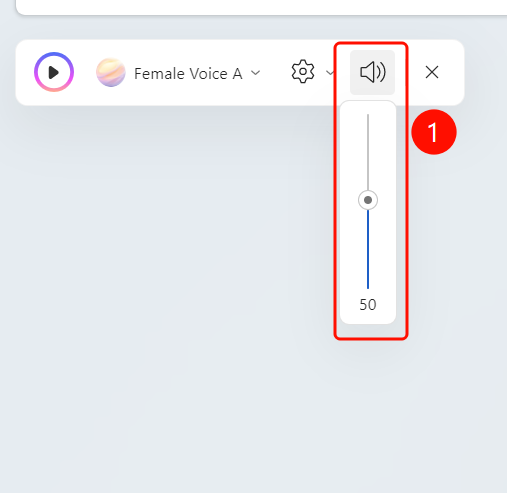
- Click the Volume (speaker icon) button in the floating control bar.
- A vertical volume slider will pop up.
- Scroll the slider up and down to adjust the volume (such as current value 50).
- Release to apply the volume setting.
FAQ
Question 1: Which languages does AI Read Aloud support?
- Solution: It supports multiple languages including Simplified Chinese (Mandarin). It auto-detects by default, and you can also manually select a language.
Question 2: What is the difference between AI voices and system voices?
- Solution: System voices use the built-in text-to-speech engine of your system. AI voices use high-quality voices synthesized by WPS AI, which sound more natural and are exclusive to VIP members.
Question 3: How do I highlight the current text during reading?
- Solution: Click the Settings button on the floating control bar, and turn on the "Highlight Current Content" switch in the settings panel.
Notes
- WPS Plus and Premium members can use the AI voice reading feature. AI voices are exclusive to VIP members.
- Reading starts from the current page or cursor position.
- You can set the automatic stop time for reading through the timer feature.