Feature Summary
When you've completed a document but are concerned about language flaws or inconsistent style, the AI full-text polishing feature systematically optimizes the entire text, helping you instantly enhance its professionalism and readability.
Feature Description
| Feature Dimension | Description |
|---|---|
| Membership Limits | Available for both WPS Pro+ and WPS Premium |
| Version Limits | Applicable to the latest version on the WPS official website |
Operating Steps
AI Full-Text Polishing
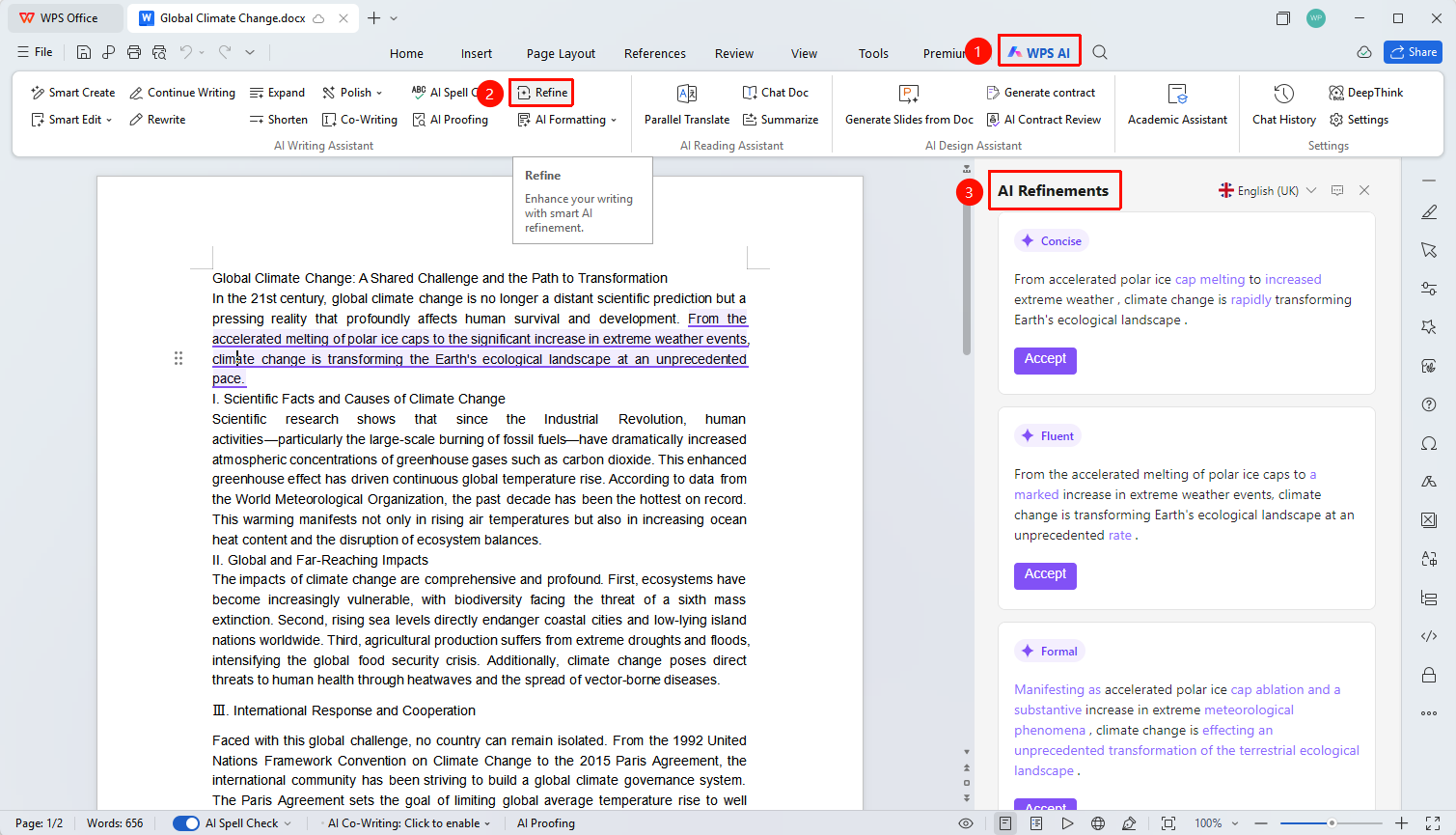
Access Method「WPS AI」Tab → 「Full-Text Polishing」
- Open the English document you wish to polish
- Click on the 「WPS AI」 tab in the top ribbon
- Locate and click the 「Full-Text Polishing」 button in the ribbon
- An AI polishing sidebar will appear on the right side
Selecting Polishing Suggestions
Access MethodAI Polishing Sidebar → 「Accept」Button
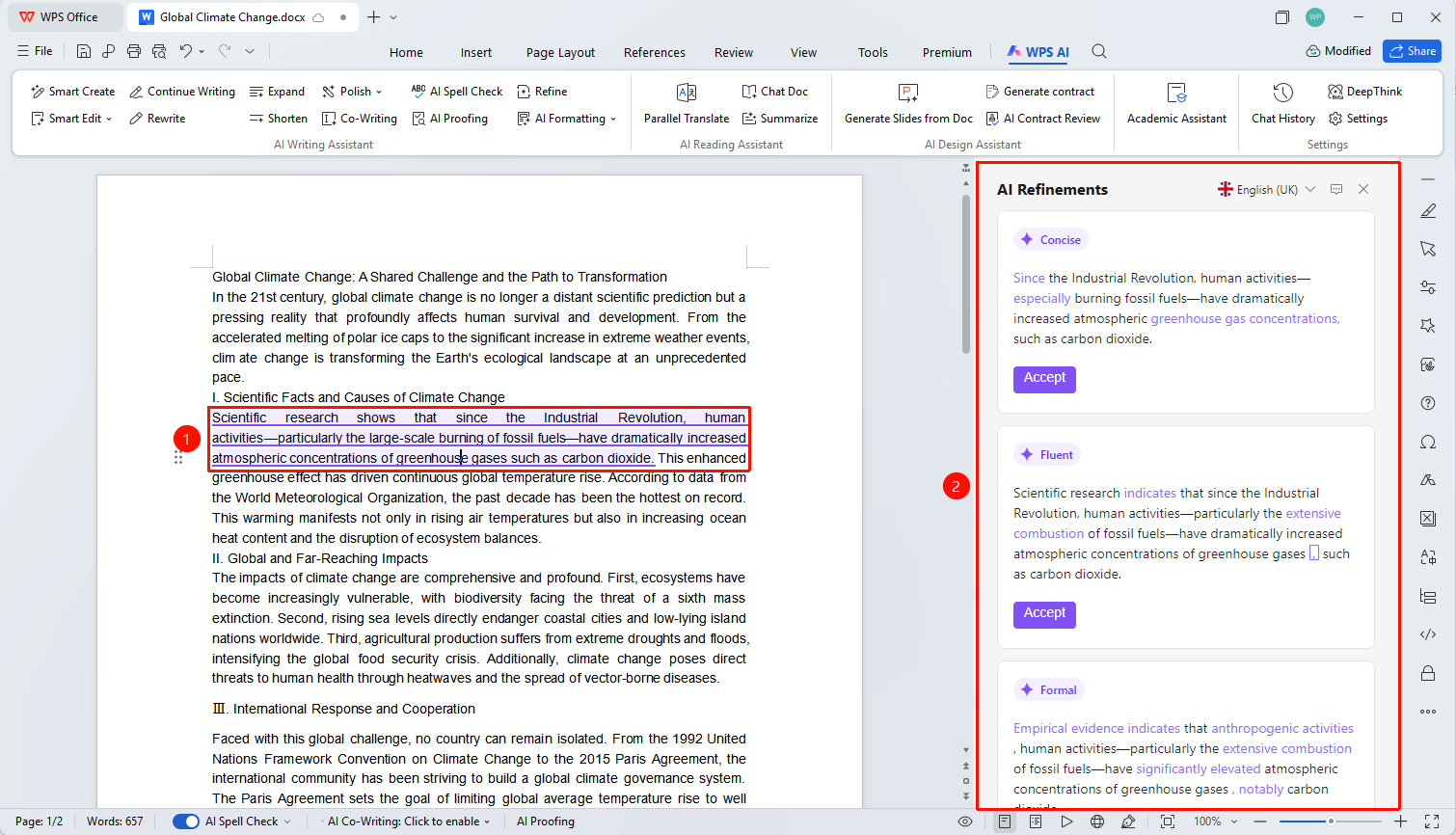
Click on any sentence in the document that needs polishing
Click the language option to switch the polishing language
The panel displays different style-based polishing suggestions, such as:
- Concise: Rewrites the sentence into a more concise version
- Fluent: Rewrites the sentence into a smoother, more natural expression
- Standard: Rewrites the sentence into a more formal, standard version
In each suggestion card, modified text is highlighted in purple
Click the purple 「Accept」 button within a suggestion card to replace the original sentence with the polished version
Modified sentences are marked with a light blue background, indicating they have been rewritten by AI
Continue clicking other sentences to apply polishing
Frequently Asked Questions
Question 1: Does AI full-text polishing support Chinese?
- Solution: Currently, the AI full-text polishing feature only supports English documents; Chinese documents are not supported for full-text polishing at this time.
Question 2: What styles does AI polishing offer?
- Solution: Multiple styles are available, including concise and formal styles. Each suggestion card will indicate the style name and changes made, with modified sections highlighted in purple.
Question 3: Can I undo a polished edit after accepting it?
- Solution: Yes. After accepting a polish, you can use the "Undo" button (Ctrl+Z) in the top toolbar to revert the change and restore the original sentence.
Notes
- Click any sentence to view individual polishing suggestions and accept them one by one
- Sentences that have been polished will be highlighted, making it easy to identify edited areas
- Super Members and Premium Members have no usage limits