Feature Summary
When you are unsure how to describe your needs to the AI to get the best results, AI Prompt Optimization can help you transform vague descriptions into precise and efficient prompts, helping you better master AI tools and obtain more satisfactory generation results.
Feature Description
| Feature Dimension | Description |
|---|---|
| Membership Limits | Available for both WPS Pro+ and WPS Premium |
| Version Limits | Applicable to the latest version on the WPS official website |
Steps
AI Prompt Optimization
Feature Entry
"WPS AI" tab → "Help Me Write" → "AI Optimization Prompt" button
- Click the "WPS AI" tab at the top, then locate and click the "Help Me Write" button.
- Open the Smart Create input box.
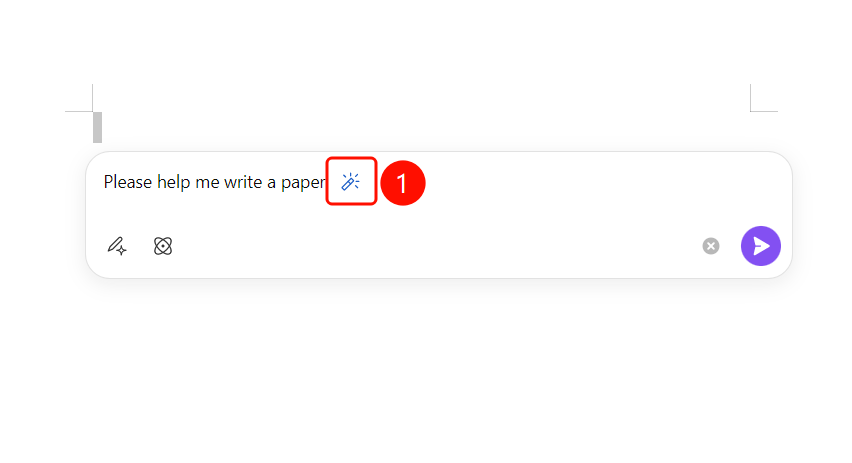
- Enter your description of needs in the input box (such as "help me write a thesis").
- Click the "AI Optimize Prompt" button (magic wand icon) on the right side of the input box.
- The AI will automatically transform the vague description into a precise and detailed prompt.
View Optimization Results
Feature Entry
AI writing input box
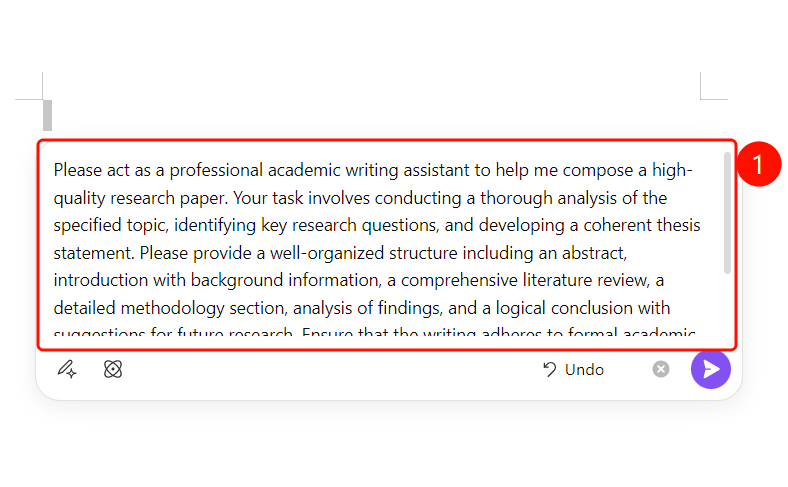
- After the AI optimization is complete, the optimized detailed prompt will be displayed in the input box.
- The optimized prompt will add specific requirements (such as writing role, structural requirements, content specifications, etc.).
- An "Undo Optimization" button is provided at the bottom to restore the original input.
- After confirming that it is correct, click the SlateGray "Send" button to start generating.
FAQ
Question 1: Where is the AI Optimize Prompt button?
- Solution: After entering content in the Smart Create input box, the "AI Optimize Prompt" button (magic wand icon) will appear on the right side of the input box. Click it to optimize.
Question 2: What should I do if I am not satisfied with the optimized prompt?
- Solution: Click the "Undo Optimization" button at the bottom to restore the original input, then try to reenter with a more specific description and click the optimize button again.
Question 3: What is the difference between optimizing prompts and direct input?
- Solution: Optimizing prompts will transform simple descriptions (such as "help me write a thesis") into detailed prompts containing specific roles, structural requirements, content specifications, etc., making the generation results more precise.
Notes
- There is no limit on the number of times WPS Plus and Premium members can use the AI Prompt Optimization feature.
- The optimized prompt will replace the original content in the input box. You can use "Undo Optimization" to restore it.
- The more specific the input description, the more precise the prompt optimized by the AI will be.