Feature Summary
When you feel that the expression in your document is not smooth or the wording is not precise enough, AI Polish can perform grammatical corrections, sentence structure optimization, and vocabulary enhancement on the selected text, helping you improve the language quality and expressive effect of your article.
Feature Description
| Feature Dimension | Description |
|---|---|
| Membership Limits | Available for both WPS Pro+ and WPS Premium |
| Version Limits | Applicable to the latest version on the WPS official website |
Steps
AI Polish
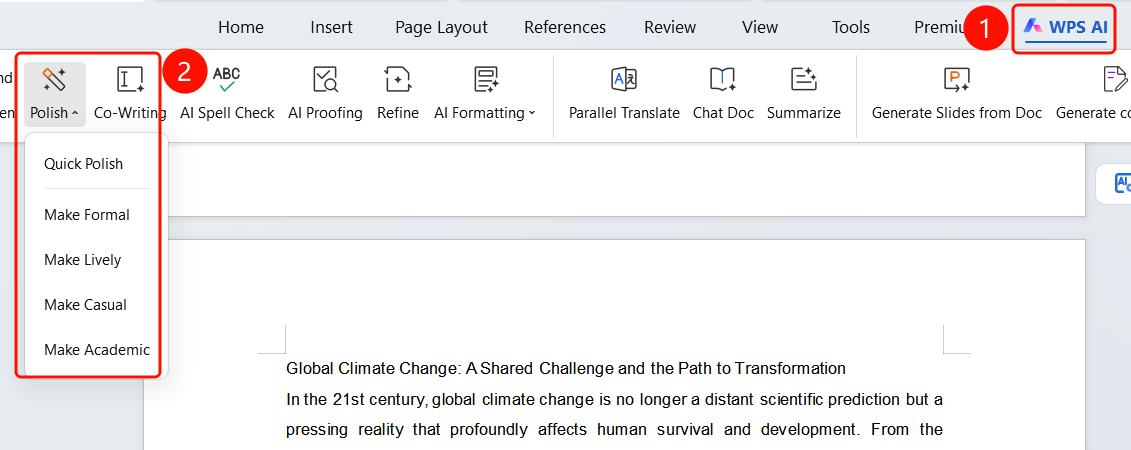
Feature Entry ①
"WPS AI" tab → "Polish" → Select style
Select the text you want to polish.
Click the "WPS AI" tab on the top menu bar.
Click the "Polish" button (with a drop-down arrow).
Select a polishing style from the drop-down menu:
- Quick Polish: One-click optimization
- Make Formal: Suitable for formal documents
- Make Lively: Suitable for casual styles
- Make Casual: Suitable for colloquial expressions
- Make Academic: Suitable for academic writing
Feature Entry ②
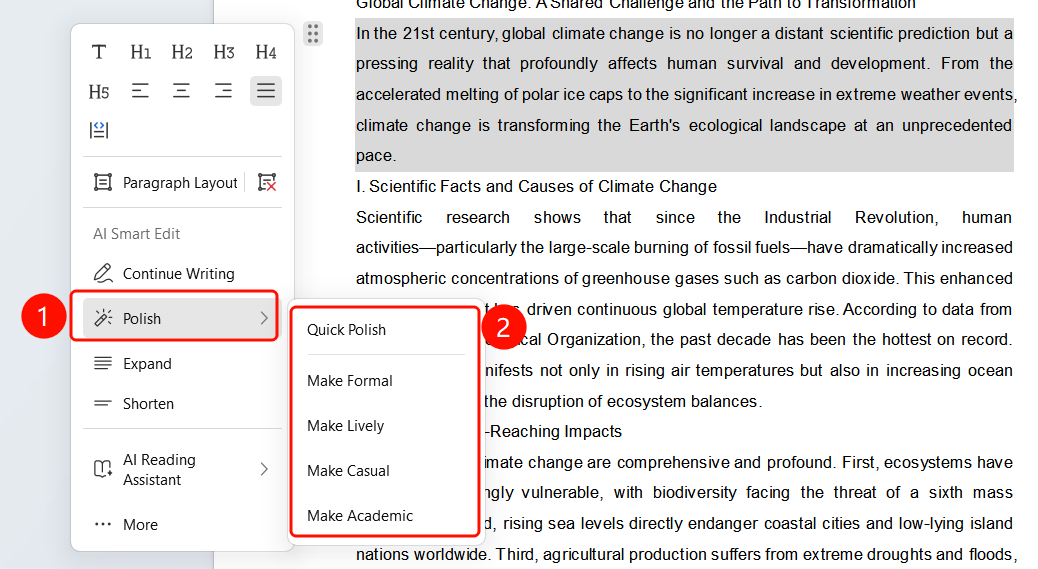
Paragraph handle → "Polish" → Select style
- Select the text you want to polish.
- Click the paragraph handle to expand the menu.
- Select "Polish", and choose the desired polishing style in the sub-menu.
View Polishing Results
Feature Entry
Floating action bar at the bottom
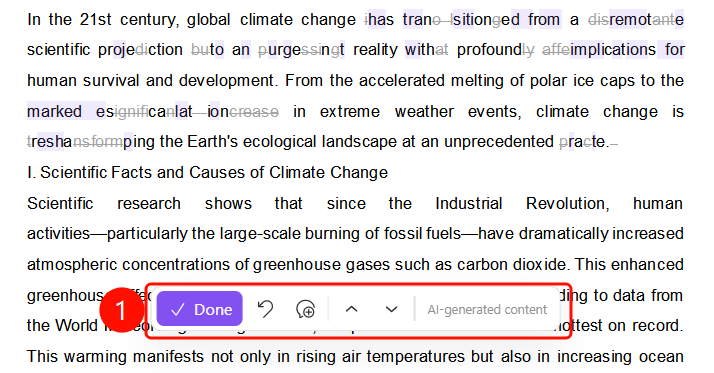
After AI Polish is completed, the original text is displayed in gray.
The polished text is displayed with SlateGray highlight marking.
The bottom floating action bar contains:
- "Done" (purple button): Confirm and accept the polishing results
- "Undo": Undo the polishing operation
- "Regenerate": Polish again
The bottom displays the "Generated by AI" label.
FAQ
Q1: What styles are available for polishing?
- Solution: Five styles are provided: Quick Polish (default), Make Formal, Make Lively, Make Casual, and Make Academic. You can choose according to the document scenario.
Q2: What is the difference between Polish and Quick Polish?
- Solution: Quick Polish is a general one-click optimization; other styles have clear directions, such as "Make Formal" for official documents and "Make Casual" for daily conversations.
Q3: Can I undo after polishing?
- Solution: Yes. Click the "Undo" button in the bottom floating action bar to restore the original text. The original text is displayed in gray for easy comparison of the modified content.
Notes
- There is no limit on the number of times WPS Plus and Grand VIP members can use the AI Polish feature.
- After polishing, the original text is displayed in gray, and the modified content is highlighted in SlateGray.
- Choosing the appropriate polishing style based on the document type will yield better results.