Feature Summary
Use one WPS account to sign in to the client, maintaining a single sign in status, suitable for personal daily office scenarios.
Feature Description
| Feature Dimension | Description |
|---|---|
| Membership Restrictions | No membership restrictions |
| Version Restrictions | No version restrictions |
Operation Steps
Single-Account sign in Operation
Feature Entry
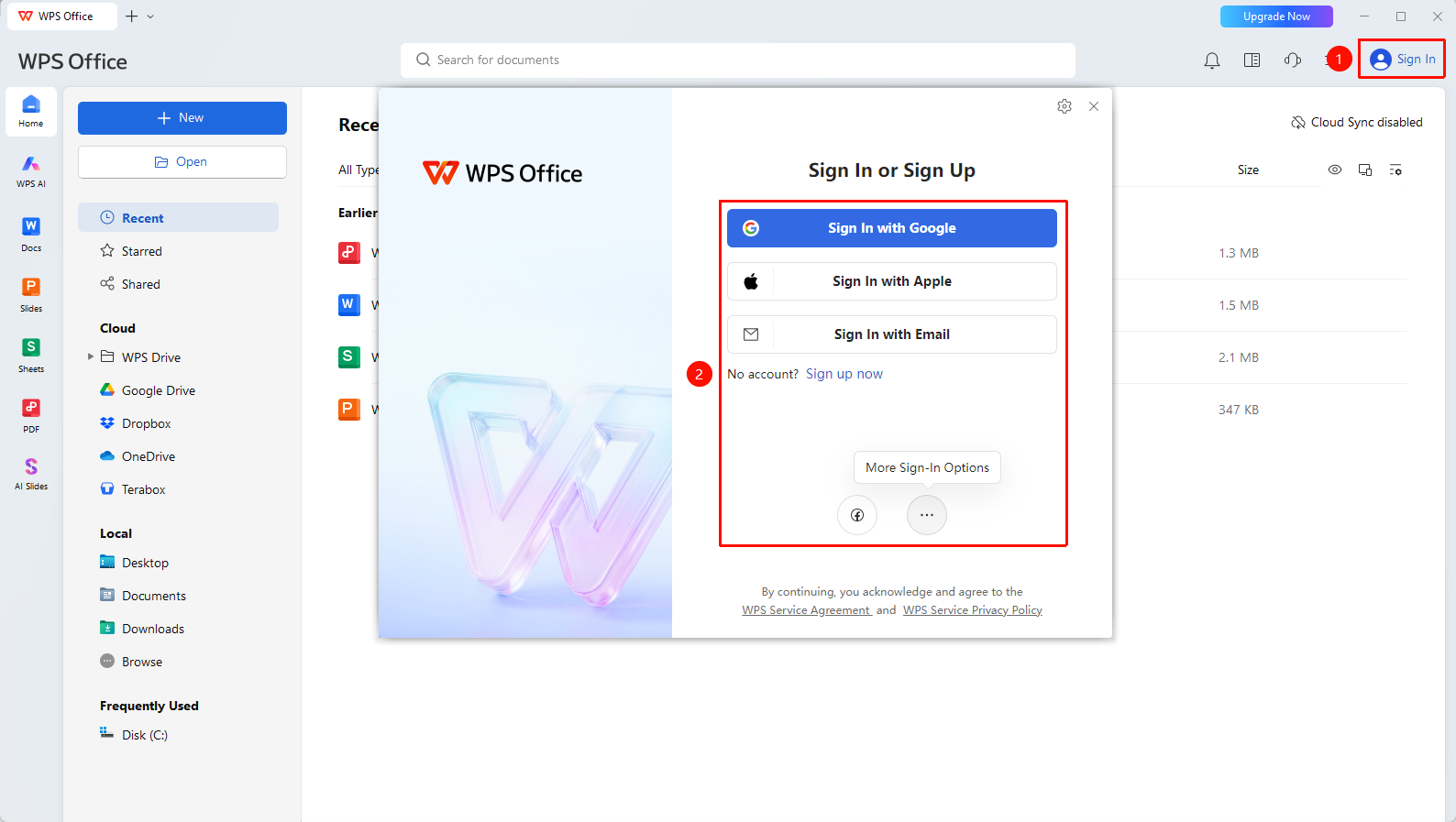
WPS Homepage top right corner → "sign in"
- Open the WPS Office client
- Click the "sign in" button in the top right corner
- Select a sign in method (Email sign in/Google sign in/Apple sign in)
- Enter account information to complete sign in
FAQ
Q1: After single-account sign in, can I sign in to another account?
- Solution: Yes, you can. Move the mouse to the profile picture in the top right corner, and select "sign in to another account" in the pop-up window.
Q2: Will single-account sign in automatically sync all cloud documents?
- Solution: Yes, after signing in, cloud documents will automatically sync to the current device, maintaining consistency across multiple devices.
Q3: How can I confirm which account is currently signed in?
- Solution: Click the profile picture icon in the top right corner of WPS to view the profile picture, nickname, and account information of the currently signed-in account.
Precautions
- When multiple WPS accounts are available under the binding method, it is recommended to only select the account needed for this sign in
- After signing in, it is recommended to enable the cloud sync feature
- For personal use scenarios, single-account sign in is recommended
- Click the More option at the bottom of the login page to find more login methods