Feature Summary
WPS supports multiple sign-in methods, including Email, Google account, and quick sign-in via third-party accounts, to meet sign-in needs in various scenarios.
Feature Description
| Feature Dimension | Description |
|---|---|
| Membership Restriction | No membership restriction |
| Version Restriction | No version restriction |
Operation Steps
Account Password Sign-In
Feature Entry
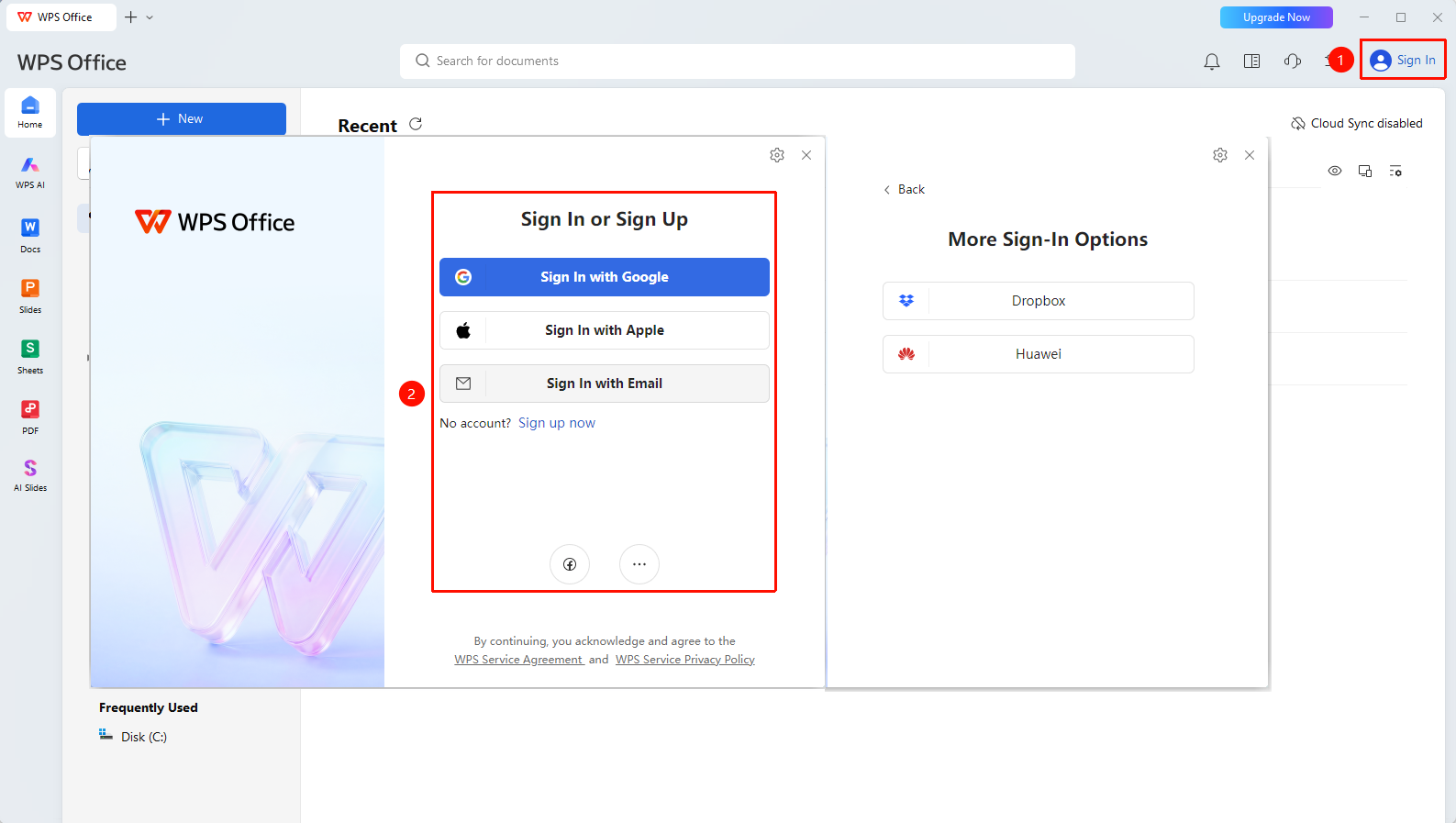
Top right corner of WPS home page → "Sign In"
- Open the WPS Office client
- Click the "Sign In" button in the upper right corner
- Select a sign-in method:
- "Google Sign-In": Sign in to your WPS account using a linked Google account
- "Apple Sign-In": Sign in to your WPS account using a linked Apple account
- "Email Sign-In": Sign in to your WPS account using a linked Email account
- "Facebook Sign-In": Sign in to your WPS account using a linked Facebook account
- "More Sign-In Methods": Dropbox sign-in and Huawei account sign-in
FAQ
Q1: What should I do if I cannot receive the SMS for verification code sign-in?
- Solution: Confirm that the email address/linked account is entered correctly, and check your blocking settings.
Q2: What should I do if third-party sign-in authorization fails?
- Solution: Confirm that the third-party platform account status is normal, check whether WPS has the corresponding authorization permissions, and try re-authorizing or switching to another sign-in method.
Notes
- Third-party sign-in allows quick sign-in without memorizing an additional password
- An organization account typically uses a phone number or email to sign in