Feature Summary
View the sign in status of the current WPS account across all devices, manage signed-in devices, and safeguard account security.
Feature Description
| Feature Dimension | Description |
|---|---|
| Membership Restriction | No membership restriction |
| Version Restriction | No version restriction |
Operation Steps
View Online Devices
Feature Entry
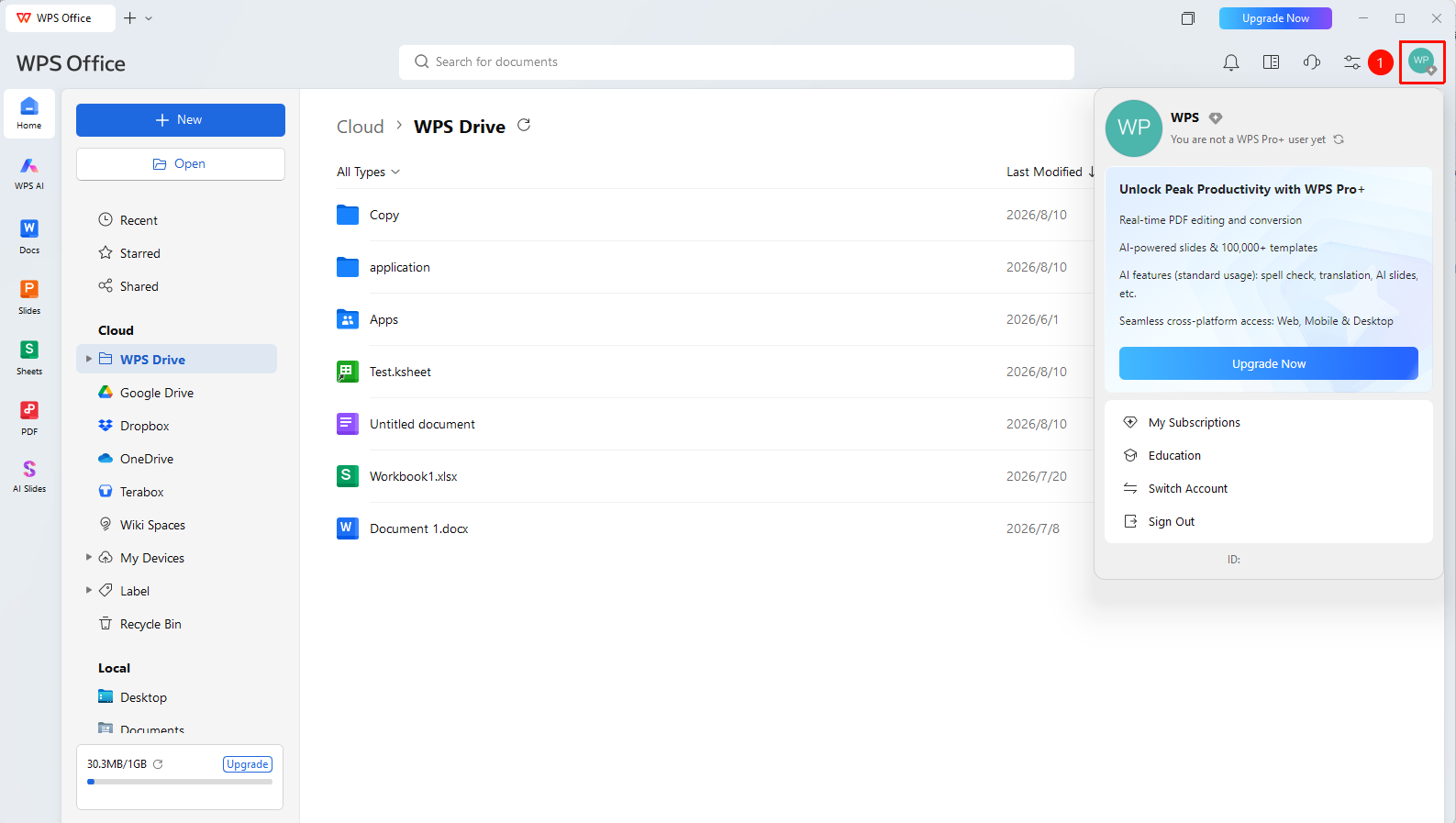
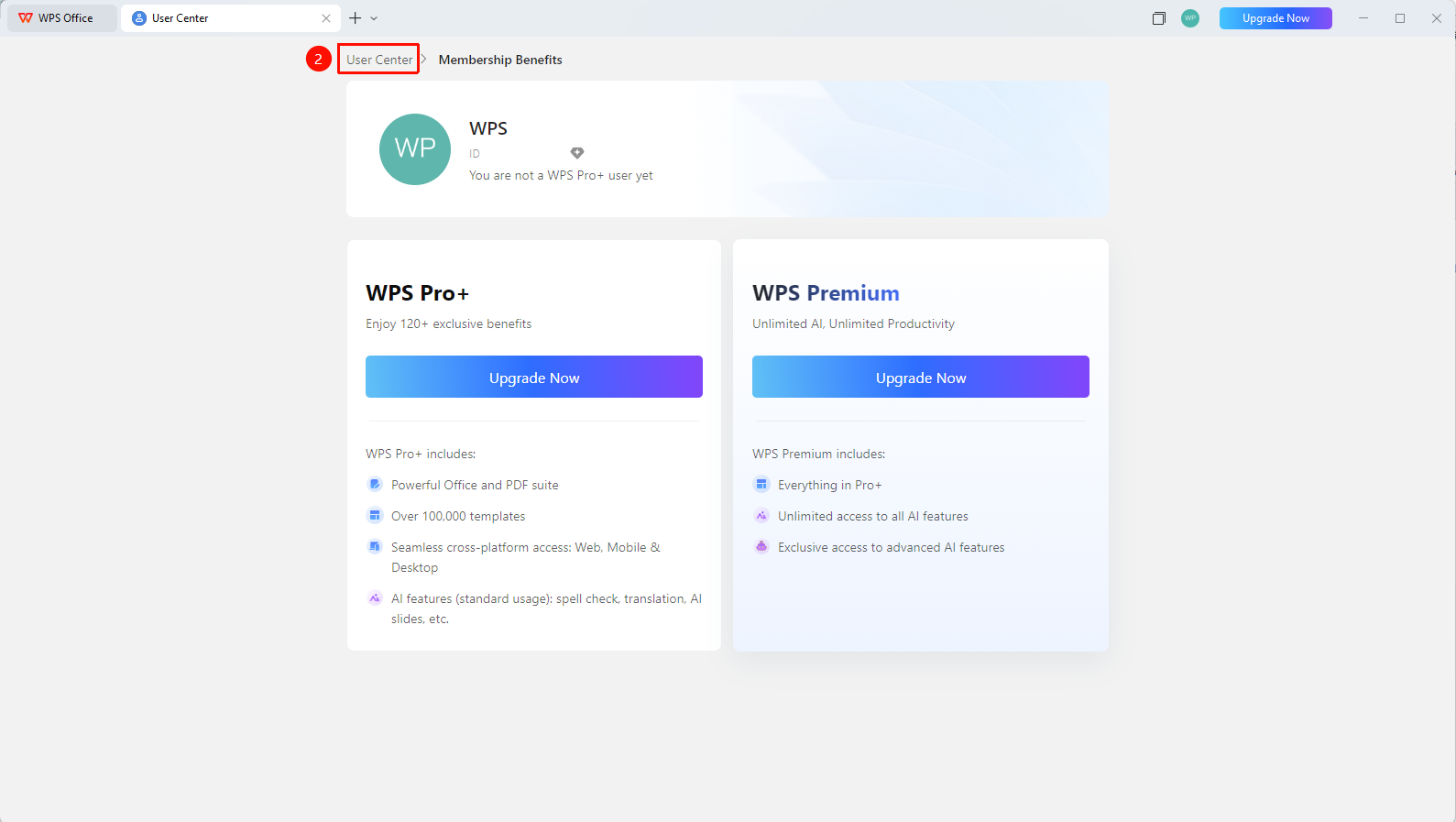
WPS Home → profile picture → Personal Center → "Current Online Devices"
- Click the "profile picture" icon in the upper right corner of WPS
- Click the 「Personal Center」 button to enter the 「Personal Center」
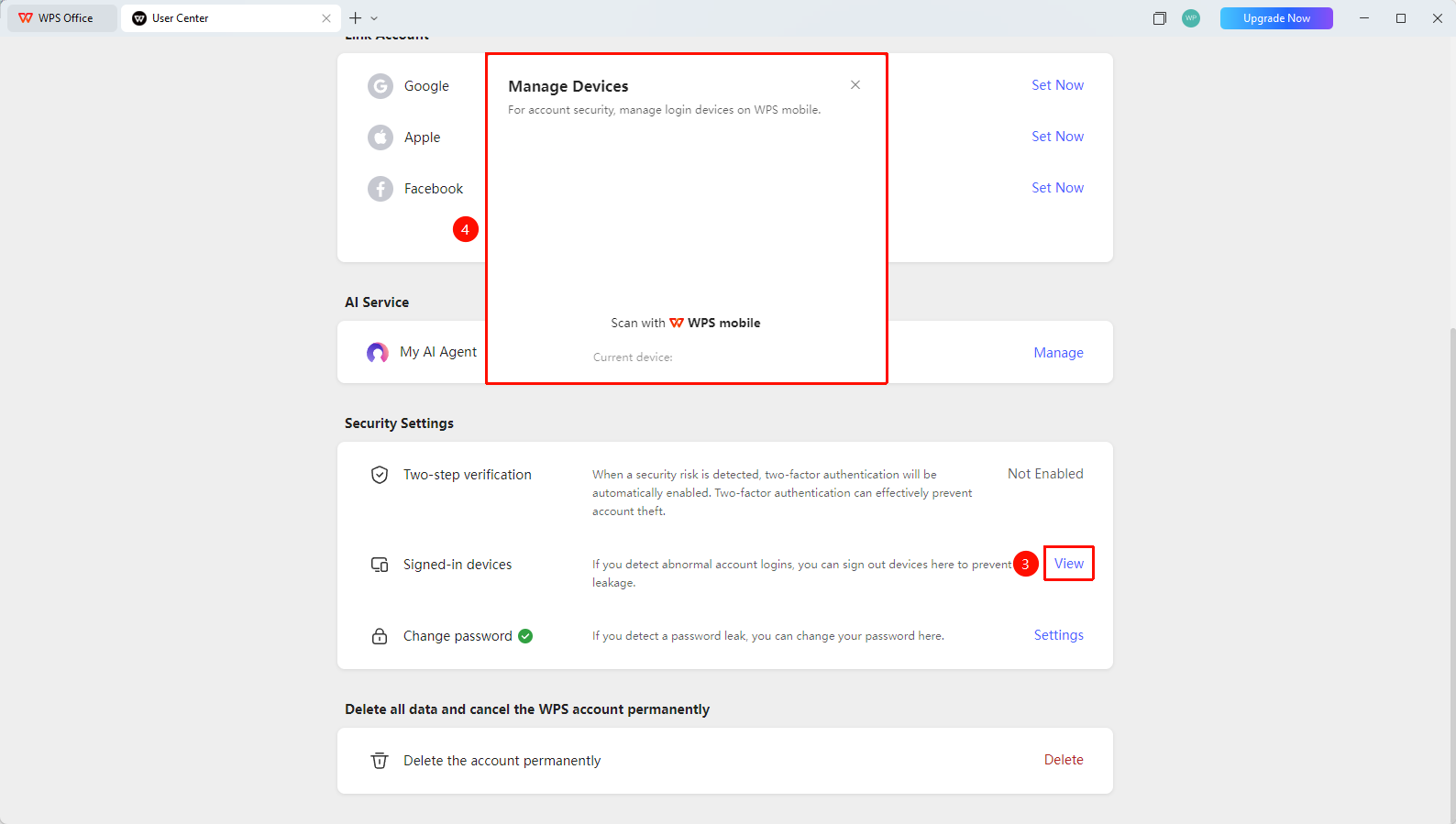
- Select "Current Online Devices"
- Click "View" to expand the device management interface
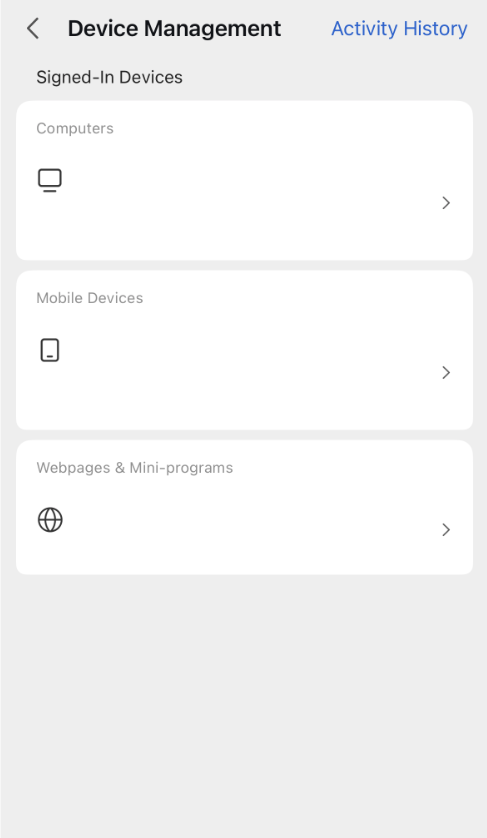
- Use Mobile WPS to scan the QR code to check the current account's login status across all devices
Remote Sign Out of Device
Feature Entry
Online Device List → "Sign Out"
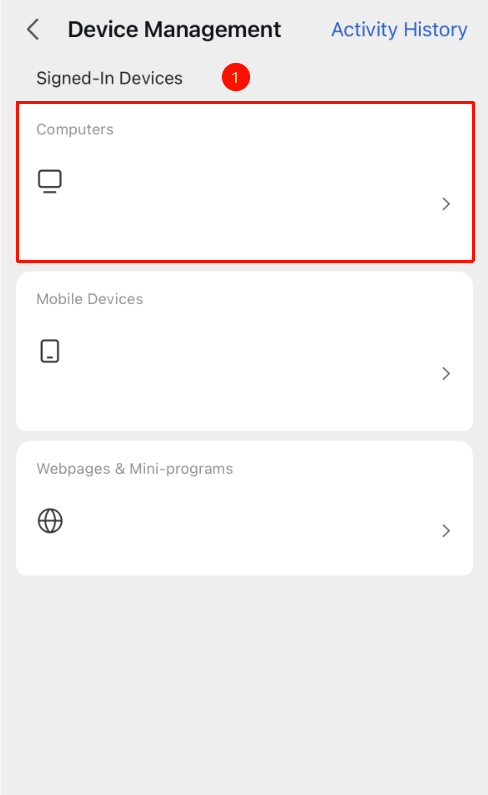
- View the signed-in devices in the online device list
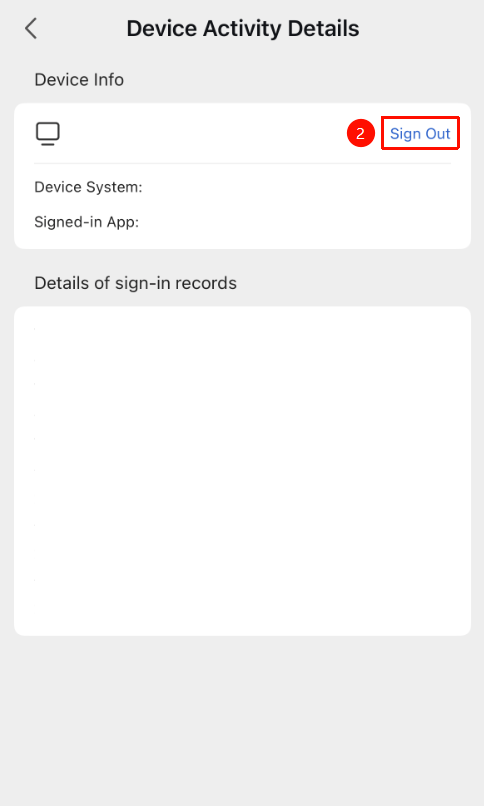
- Locate the device you want to log out of and click its name to enter the management page
- Click the "Logout" button next to the device
- Confirm the action and click "Confirm Logout" to remotely log out of the account and clear account data
FAQ
Q1: What should I do if an unfamiliar device appears in the online device list?
- Solution: Immediately force sign out of that device in Personal Center. It is recommended to change your account password immediately, replace any risky binding methods, and enable two-step verification to enhance security.
Q2: Is the sign in time displayed in the device list accurate?
- Solution: Yes, it is accurate. The system records the last sign in time of each device, making it easy to determine device usage.
Notes
- Regularly check the online device list to ensure account security
- Sign out of old devices promptly after switching devices
- If an abnormal signed-in device is found, change your password immediately
- When signing in to your WPS account on a shared device, remember to "Sign Out" when you finish using it