Feature Summary
Enable two-step verification (two-factor authentication) for your WPS account to add an extra verification step when you sign in, enhancing account security and preventing account theft.
Feature Description
| Feature Dimension | Description |
|---|---|
| Membership Restrictions | No membership restrictions |
| Version Restrictions | No version restrictions |
Steps
Enable Two-Step Verification
Feature Entry
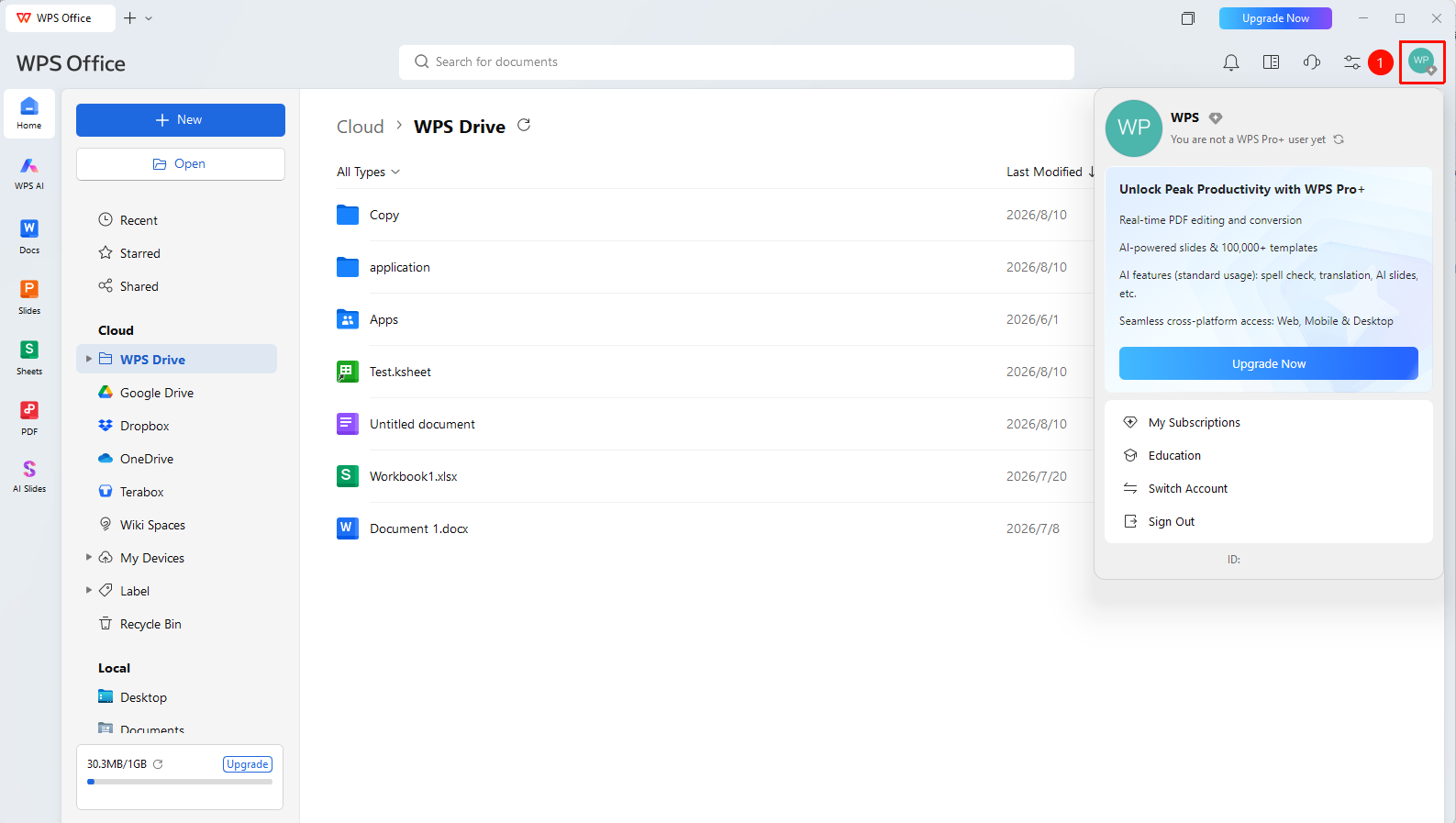
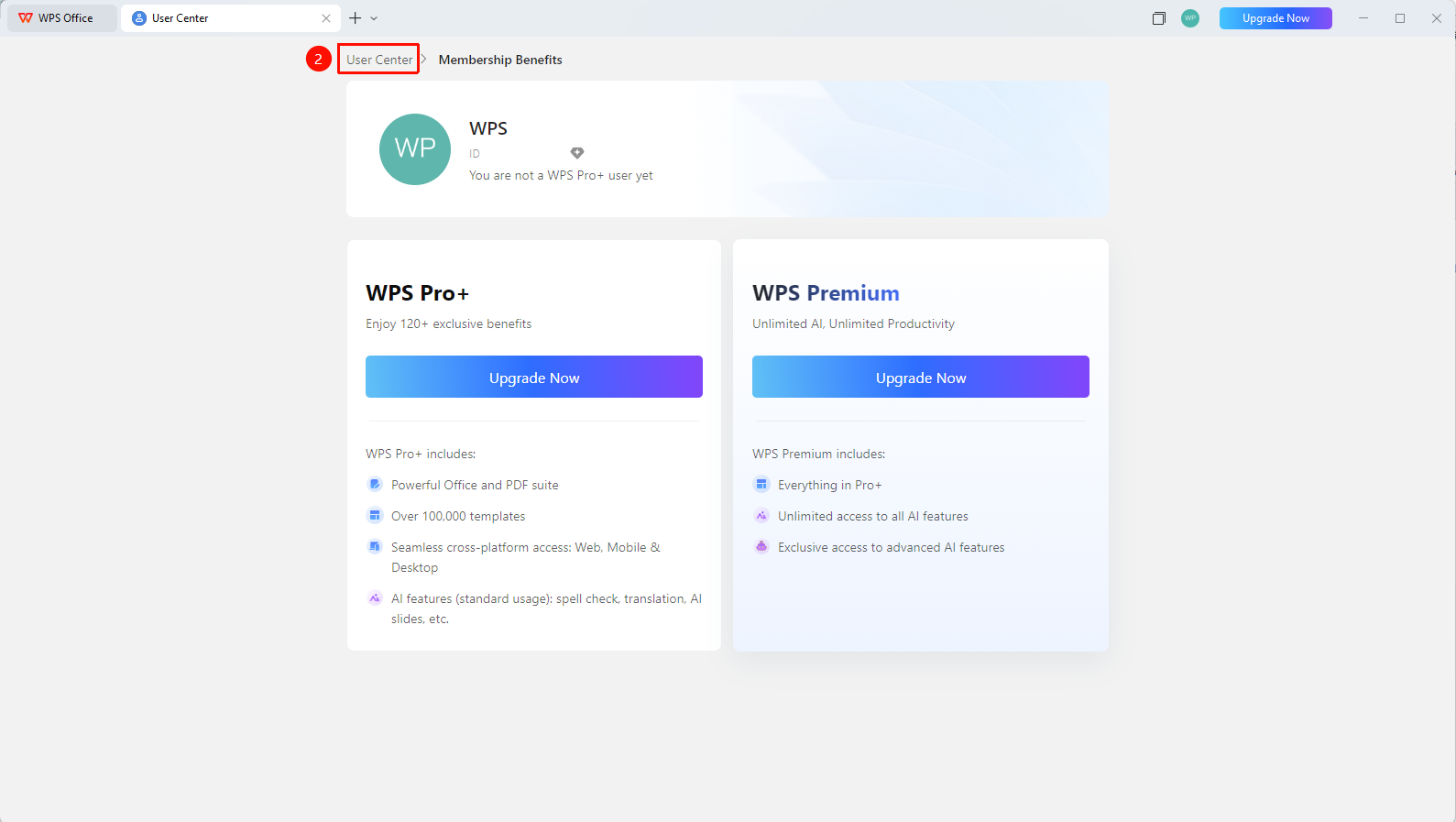
WPS Home → profile picture → Personal Center → Security Settings → Two-Step Verification
- Click the 「profile picture」 icon in the upper right corner of WPS
- Click the 「Personal Center」button to enter the「Personal Center」
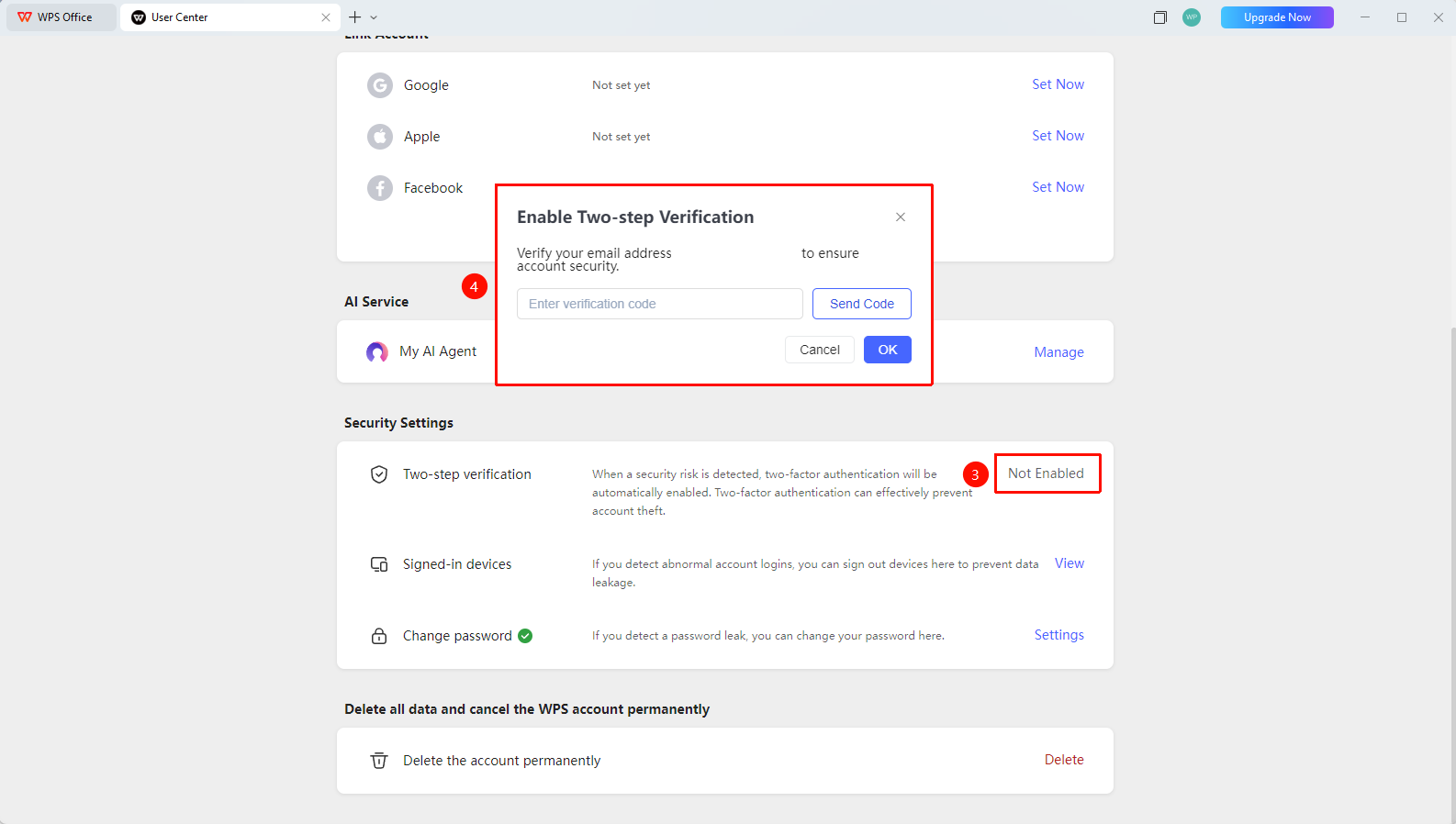
- Locate the 「Security Settings」 section
- Find the 「Two-Step Verification」 option
- Click the 「Not Enabled」 button
- Select the verification method (Email verification code)
- Follow the prompts to complete the verification binding
- Once enabled, additional verification will be required each time you sign in on a new device
Disable Two-Step Verification
Feature Entry
Personal Center → Account Security → Two-Step Verification → 「Settings」
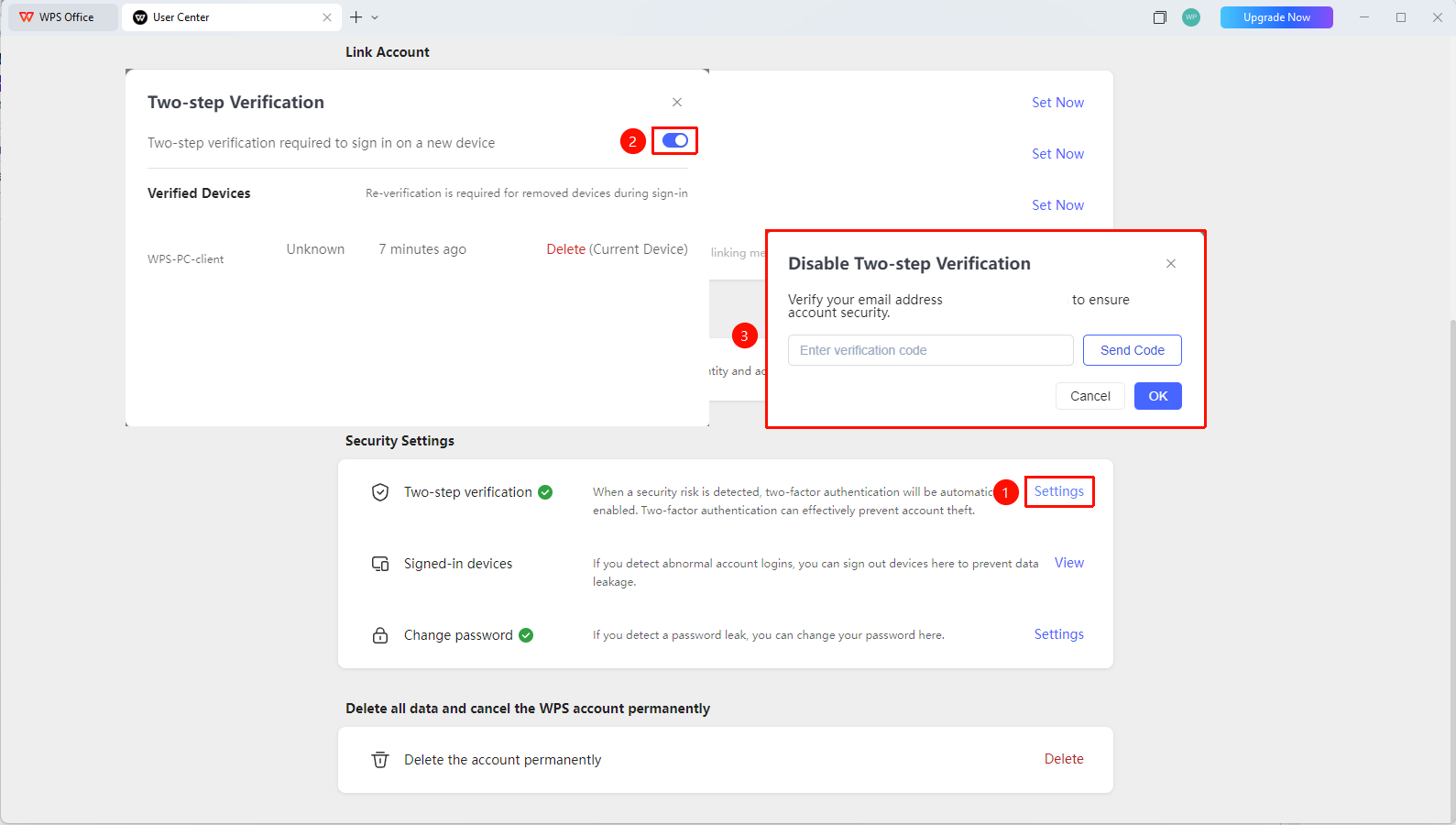
- Locate the 「Security Settings」 section
- Find the 「Two-Step Verification」 option
- Click the 「Settings」 button to expand the settings menu
- You can view and manage currently verified devices.
- Click the toggle button for 「Require two-step verification for new device login」
- Confirm that you have disabled the two-step verification function after completing identity verification.
FAQ
Q1: Do I need to verify every time I sign in after enabling two-step verification?
- Solution: Verification is only required when you sign in on a new device or after clearing your browser cache. You can choose to trust frequently used devices, eliminating the need for repeated verification.
Q2: What should I do if I cannot receive the verification code for two-step verification?
- Solution: Check whether the linked third-party account or Email is available and whether any blocking policies such as verification code filtering have been set.
Q3: Why do I need to enable two-step verification?
- Solution: Two-step verification effectively prevents account theft by adding an extra layer of verification, significantly enhancing security.
Q4: Why was two-step verification enabled automatically?
- Solution: It is automatically enabled when WPS detects a security risk with the account. You can manually disable it in Personal Center.
Notes
- It is recommended to enable two-step verification to protect account security
- Before enabling, ensure that your third-party account or Email can receive verification codes normally