Feature Summary
Through the My AI Agent (AI Comate) portal, use and manage the built-in intelligent assistant in WPS, including intelligent task processing for office scenarios such as meeting minutes and message summaries, to improve work efficiency.
Feature Description
| Feature Dimension | Description |
|---|---|
| Membership Restriction | No membership restriction |
| Version Restriction | Must be updated to the latest version to use |
Operation Steps
Create AI Agent
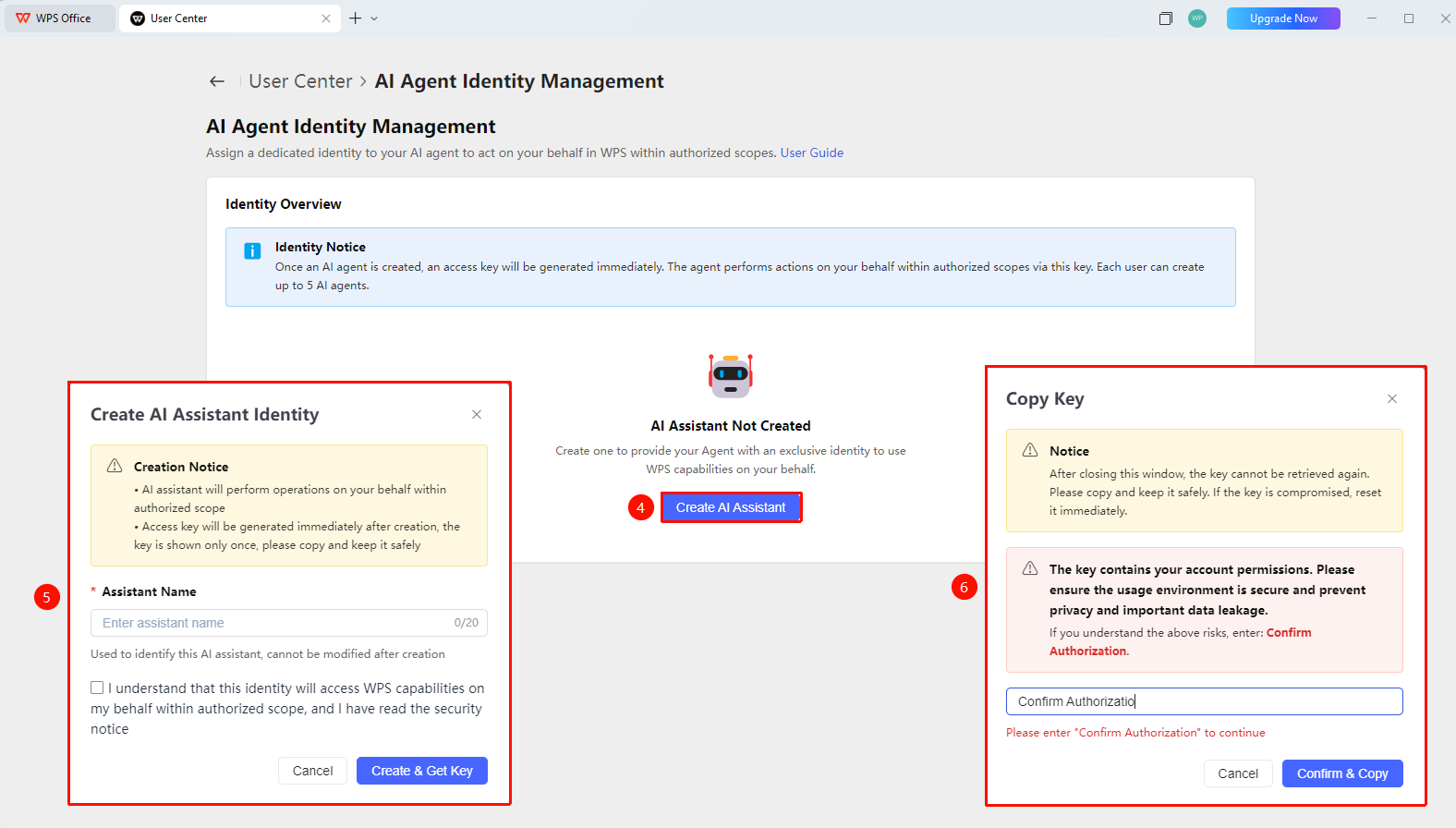
The key is automatically generated by the system. It can be automatically copied after creation, please keep it safe
Feature Portal
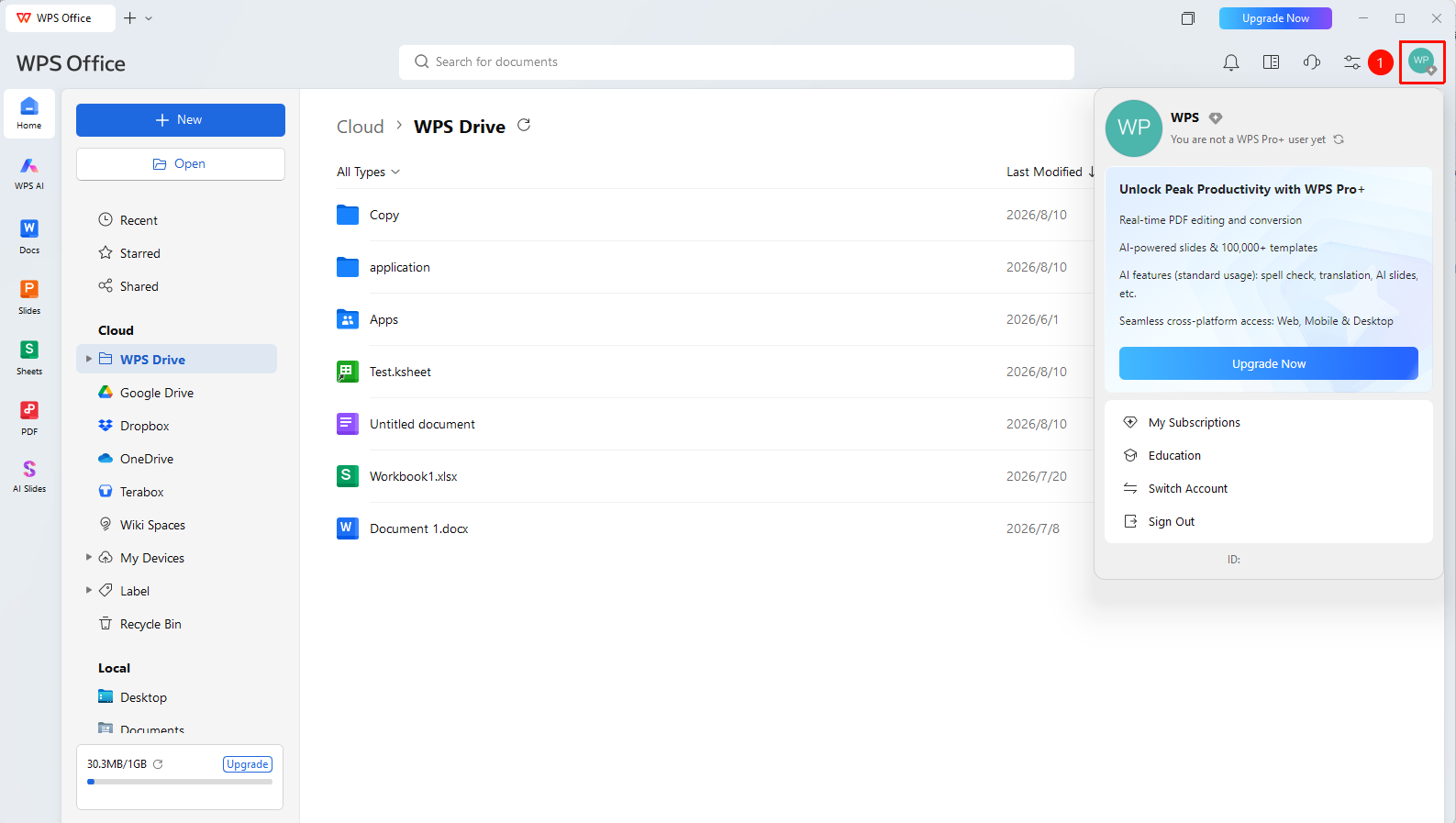
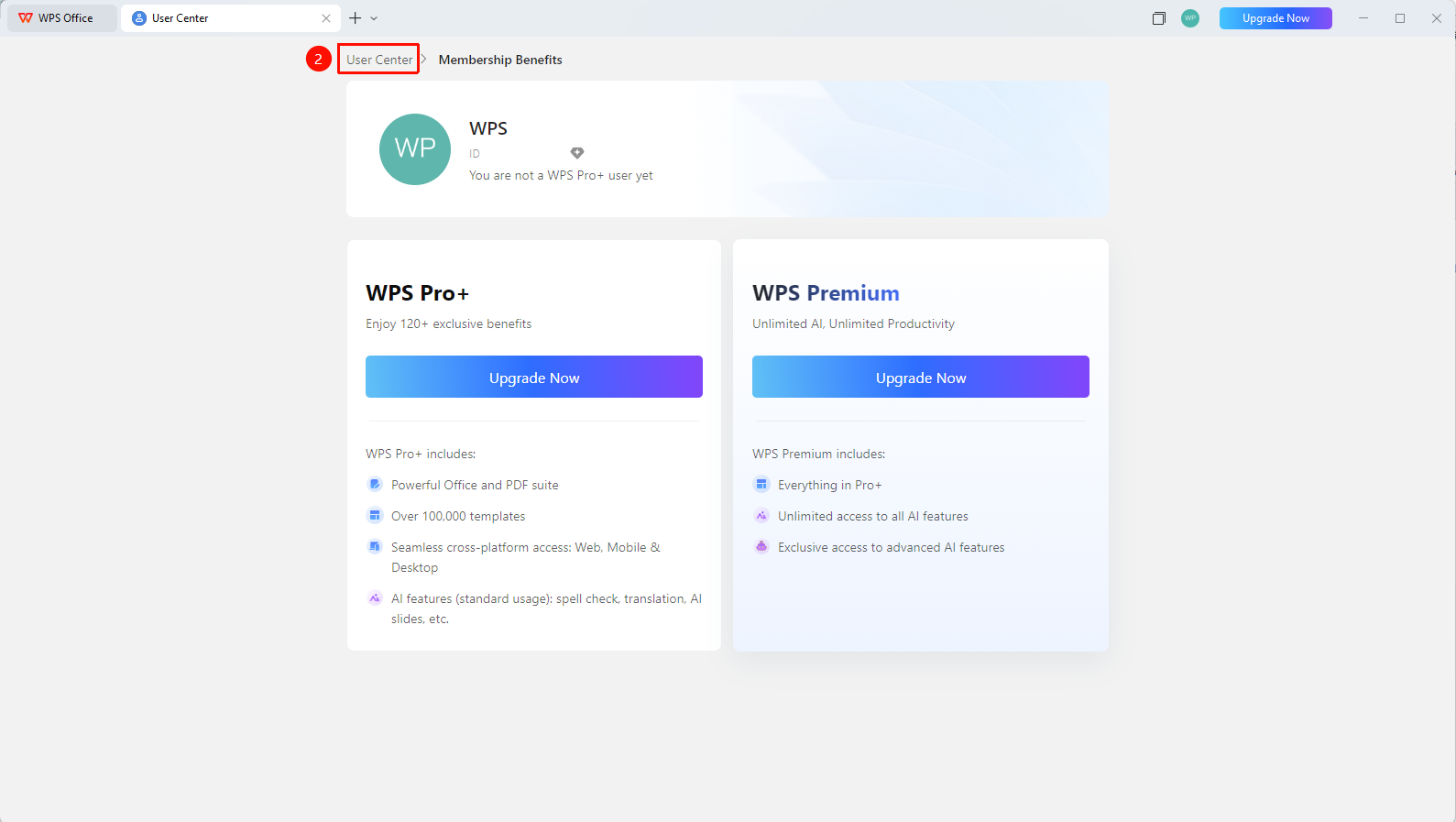
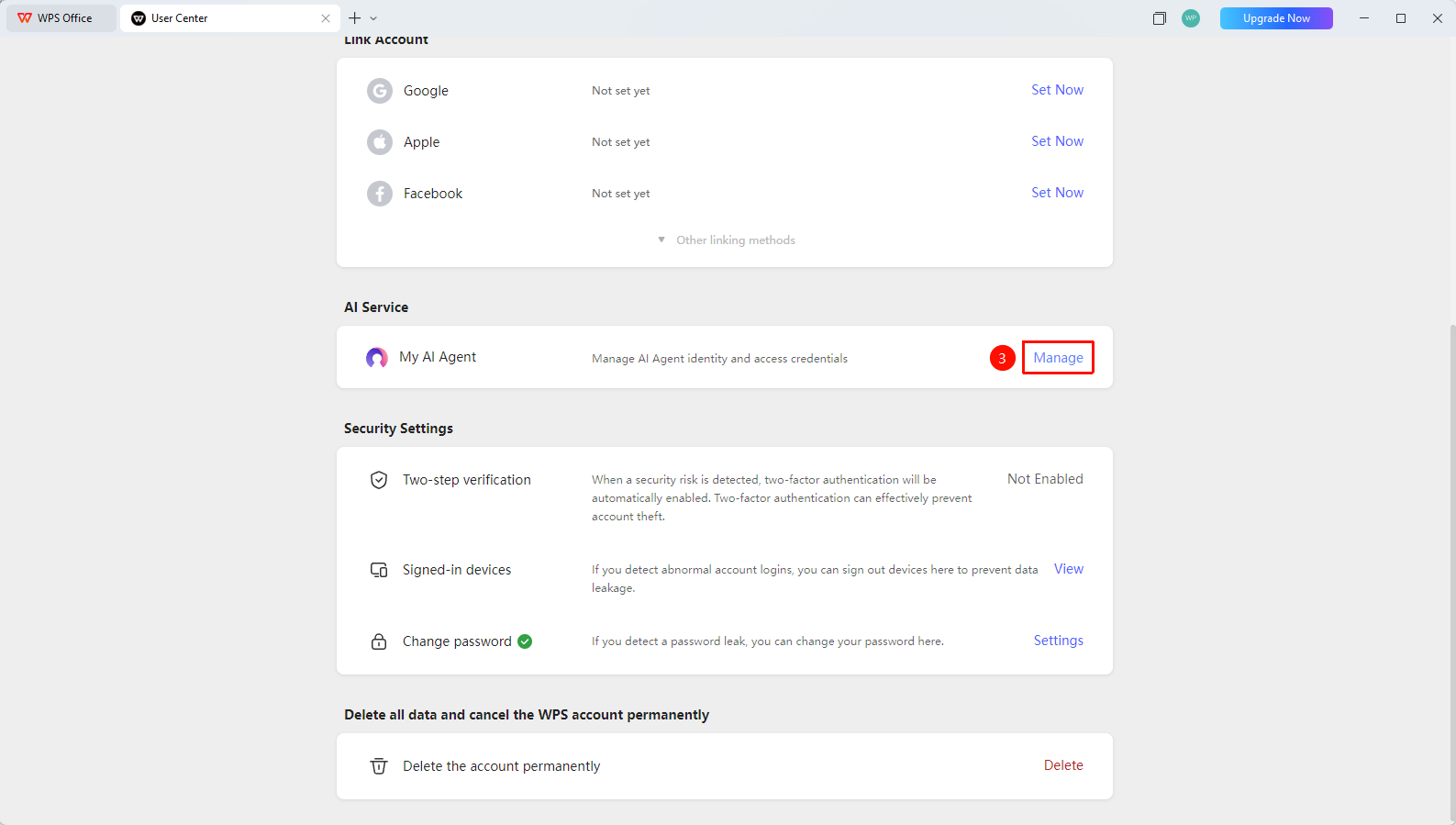
WPS Homepage → profile picture → Personal Center → My AI Agent → Manage
- Click the 「profile picture」 icon in the upper right corner of WPS
- Click the 「Personal Center」button to enter the「Personal Center」
- Find the 「My AI Agent」 section
- Click the 「Manage」 button to enter the AI Agent management page
- Click 「Learn More」 to view the complete introduction to AI Agent
- Click 「Create AI Assistant」 to start creating my AI Agent
- Enter the 「Assistant Name」 and click 「Create and Get Key」
- Enter 「Confirm Authorization」 and click 「Confirm and Copy」 to complete the AI Agent creation
Manage AI Agent Authorization
Feature Portal
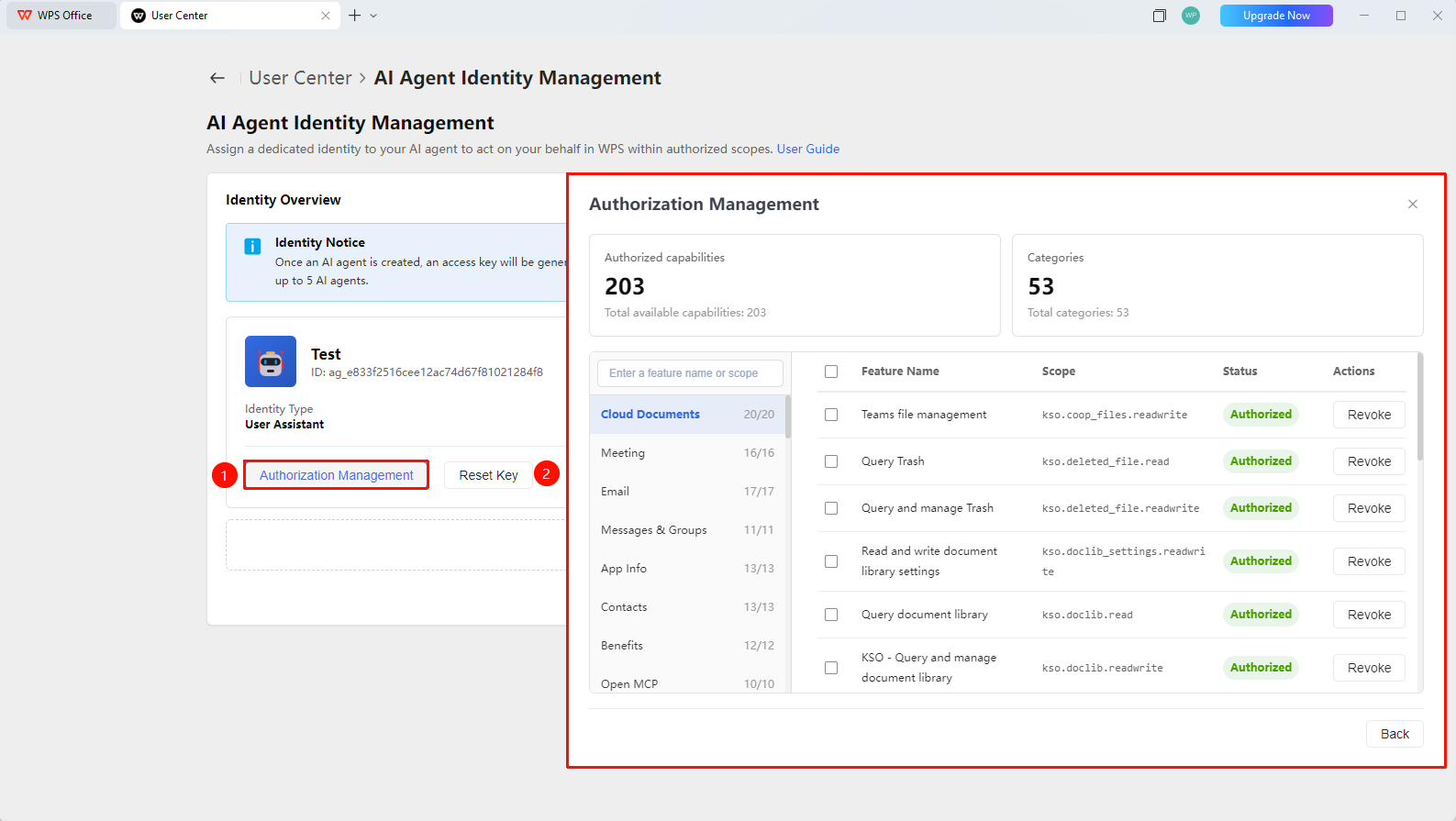
My AI Agent →「Manage Authorization」
- After creating the AI assistant, you can click → 「Manage Authorization」 on the 「My AI Agent」 interface
- Expand all authorizations of the created AI assistant
- Toggle 「Authorize/Deauthorize」 as needed
Reset AI Agent Key
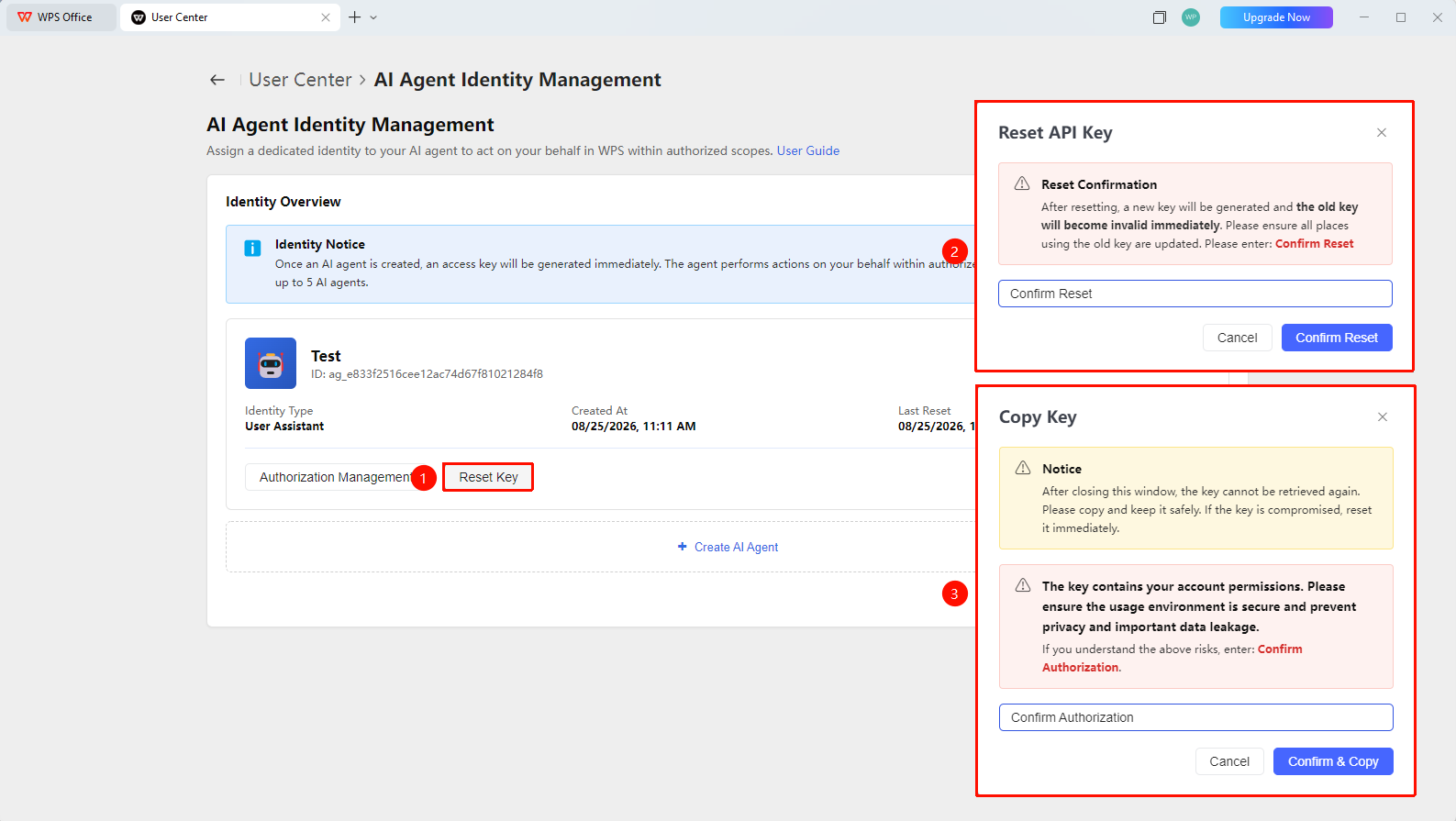
After the current window is closed, the key cannot be queried again. Please copy it immediately and keep it safe. If the key is leaked, please reset it immediately
Feature Portal
My AI Agent →「Reset Key」
- Click the 「Reset Key」 button on the 「My AI Agent」 interface to reset the AI Agent key
- Follow the instructions to enter 「Confirm Reset」 → 「Confirm Reset」 to complete the AI Agent key reset
- Click 「Confirm and Copy」 to copy the new key after reset
Delete AI Agent
Feature Portal
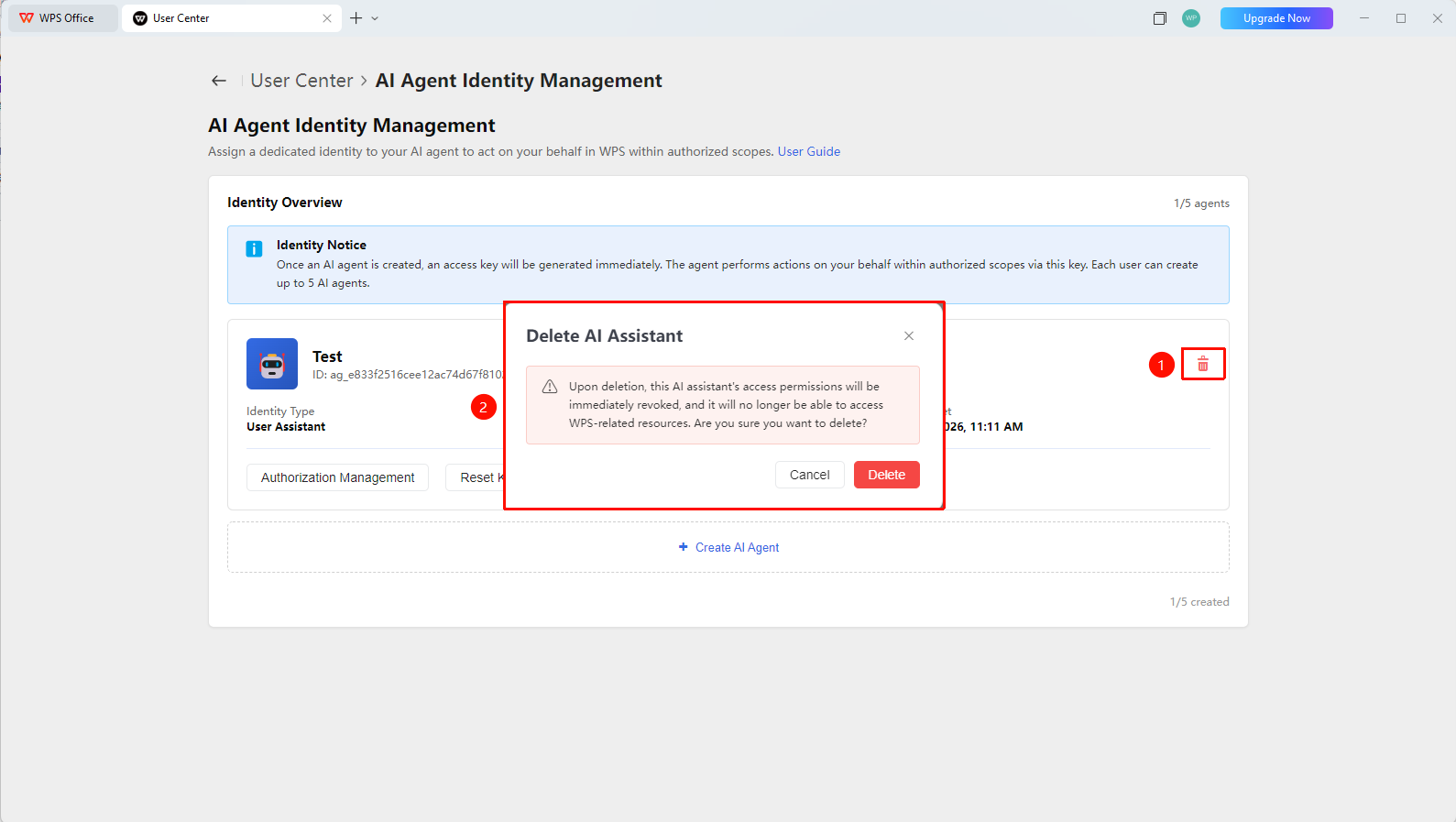
My AI Agent →「Delete」
- After creating the AI assistant, you can find the 「Identity Overview」 section on the 「My AI Agent」 interface
- Click the red 「Delete」 button on the right
- Click 「Confirm Delete」 to remove the AI Agent
Precautions
- The AI Agent feature relies on a network connection and cannot be used offline
- AI-generated content is for reference only, manual verification is recommended for critical data
- The use of AI features is subject to the organization's security and compliance policies