Feature Summary
Set and modify the nickname of your WPS account to personalize the display name, making it easier for others to identify you when collaborating and sharing.
Feature Description
| Feature Dimension | Description |
|---|---|
| Membership Restriction | No membership restriction |
| Version Restriction | No version restriction |
Operation Steps
Modify Account Nickname
You can only modify your nickname 2 times within a week
Feature Entry
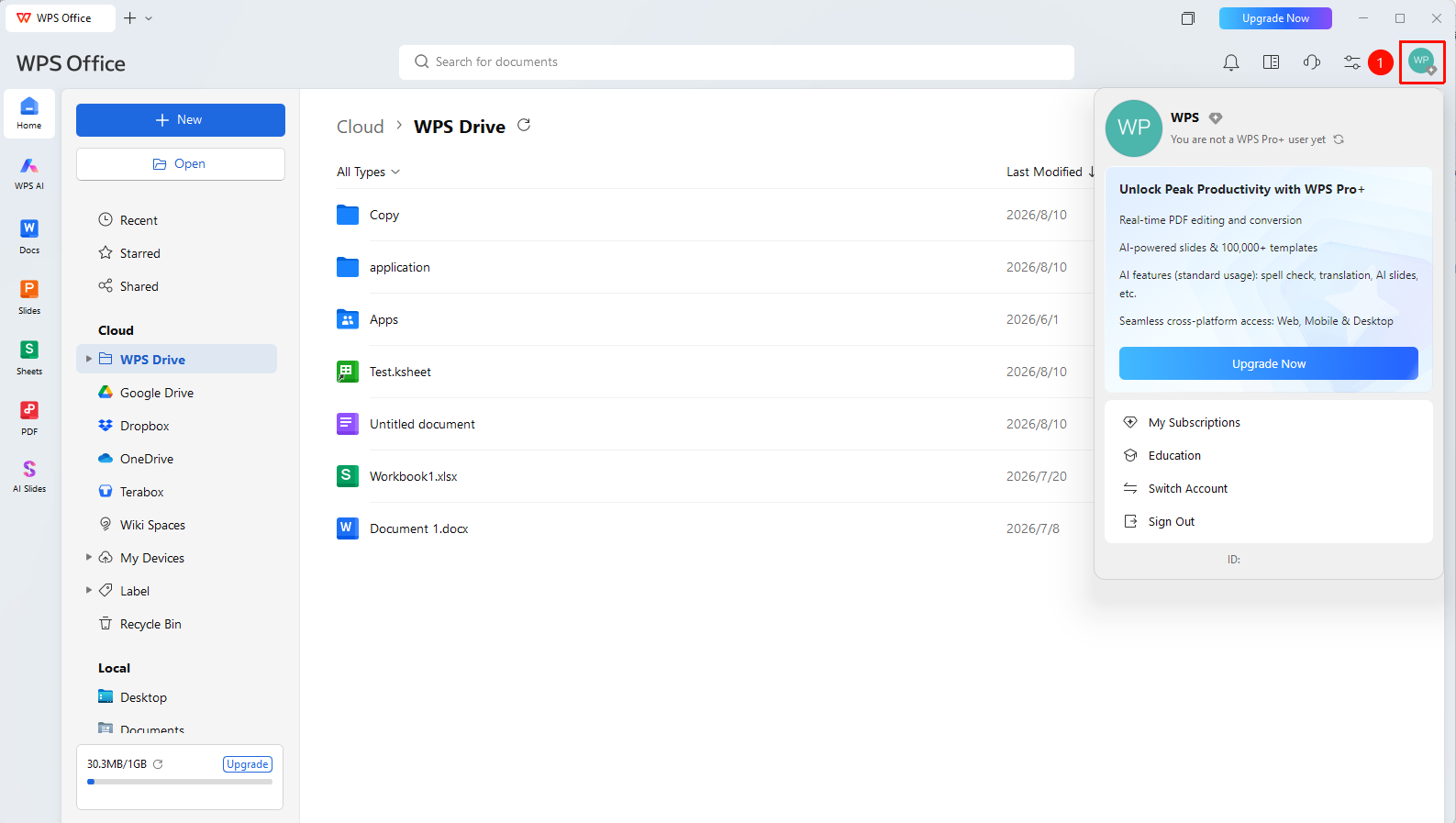
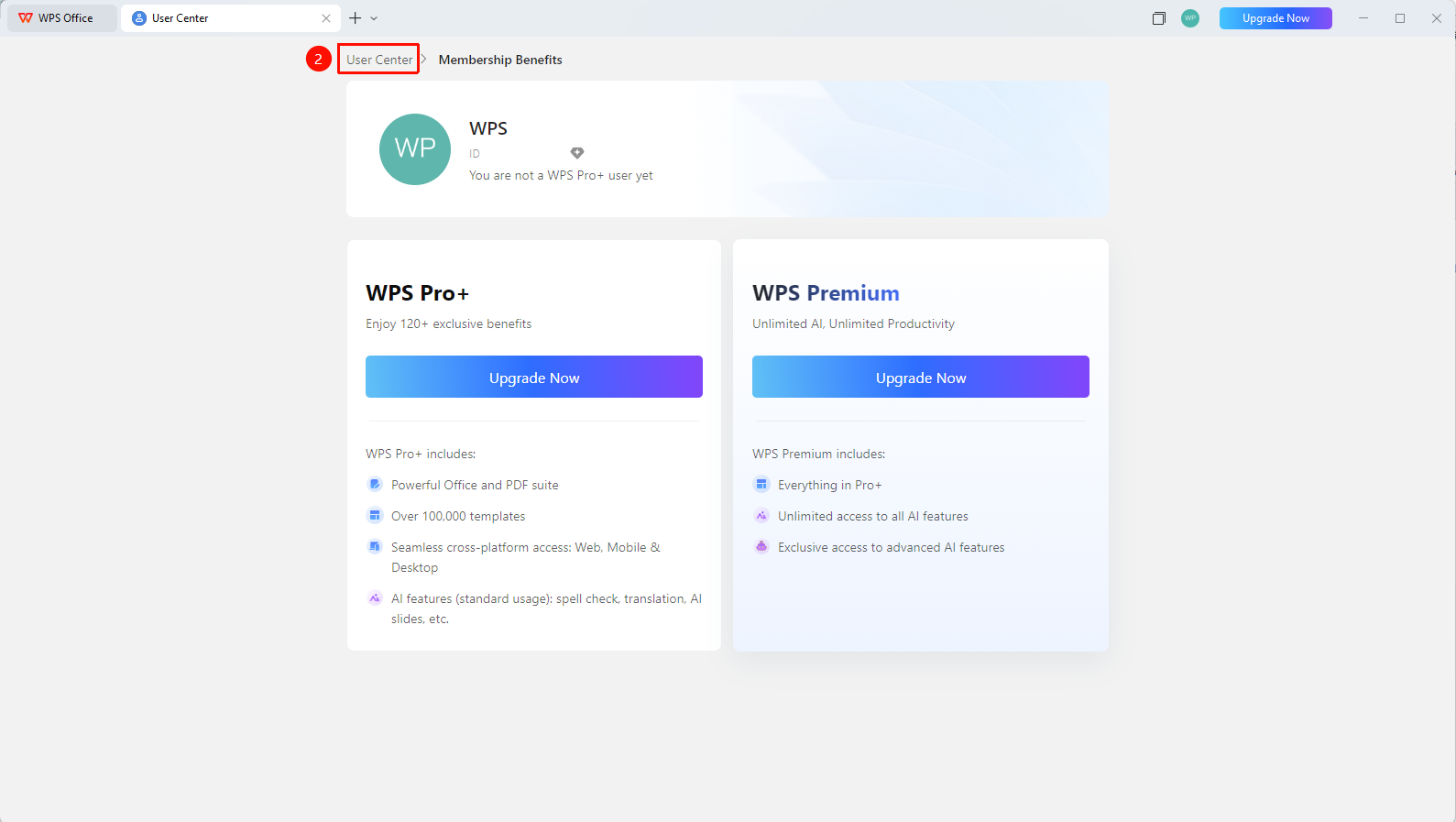
WPS Home → profile picture → Personal Center → Account Nickname
- Click the 「profile picture」 icon in the upper right corner of WPS
- Click the 「Personal Center」 button to enter the 「Personal Center」
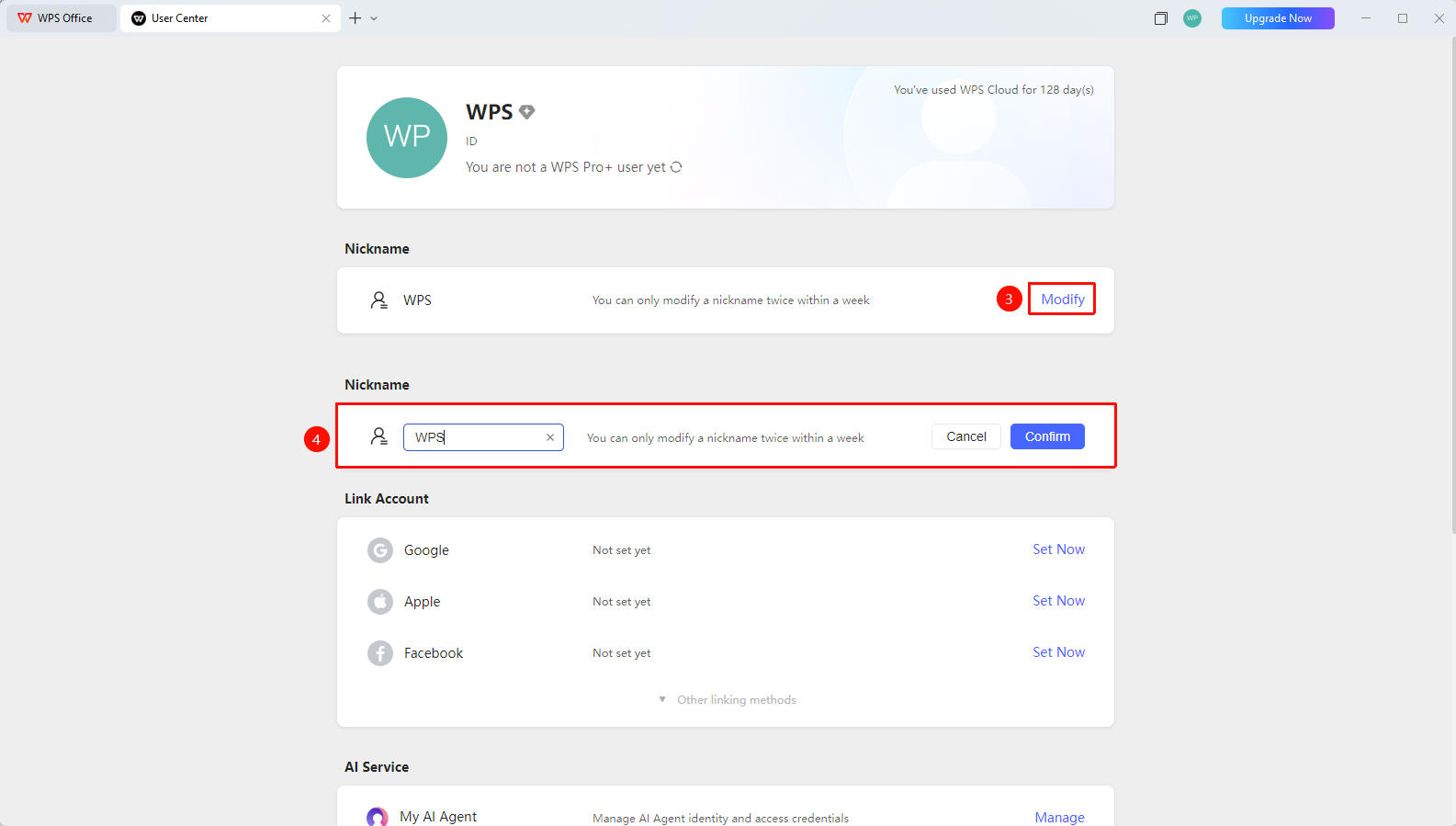
- Click the 「Modify」 button in 「Account Nickname」 below the profile picture
- Enter a new nickname in the input box
- Click 「Confirm」 to complete the modification
FAQ
Q1: Is there a limit on how often I can modify my nickname?
- Solution: You can only modify your nickname 2 times within a week. If you exceed this limit, you can modify it again next week.
Q2: Can the nickname contain special characters?
- Solution: Chinese, English, numbers, and some special characters are supported. The specific restrictions are subject to the actual input limits. Characters such as ! @ # $ % ^ * ? , . are not allowed.
Q3: Will the display name in collaboration be updated synchronously after modifying the nickname?
- Solution: Yes. After modifying the nickname, the display name in all collaborative documents, comments, and messages will be updated synchronously.
Notes
- The nickname is the name displayed to other users
- The nickname of an organization account is managed by the Admin, and ordinary members cannot change it themselves
- Modifying the nickname does not affect the account sign in and security information