Feature Summary
Set and change the profile picture of your WPS account to personalize your account identity, making it easier for others to quickly identify you during collaboration, comments, and meetings.
Feature Description
| Feature Dimension | Description |
|---|---|
| Membership Restriction | No membership restriction |
| Version Restriction | No version restriction |
Operation Steps
Change Profile Picture
Profile picture can only be modified 2 times within a week
Feature Entry
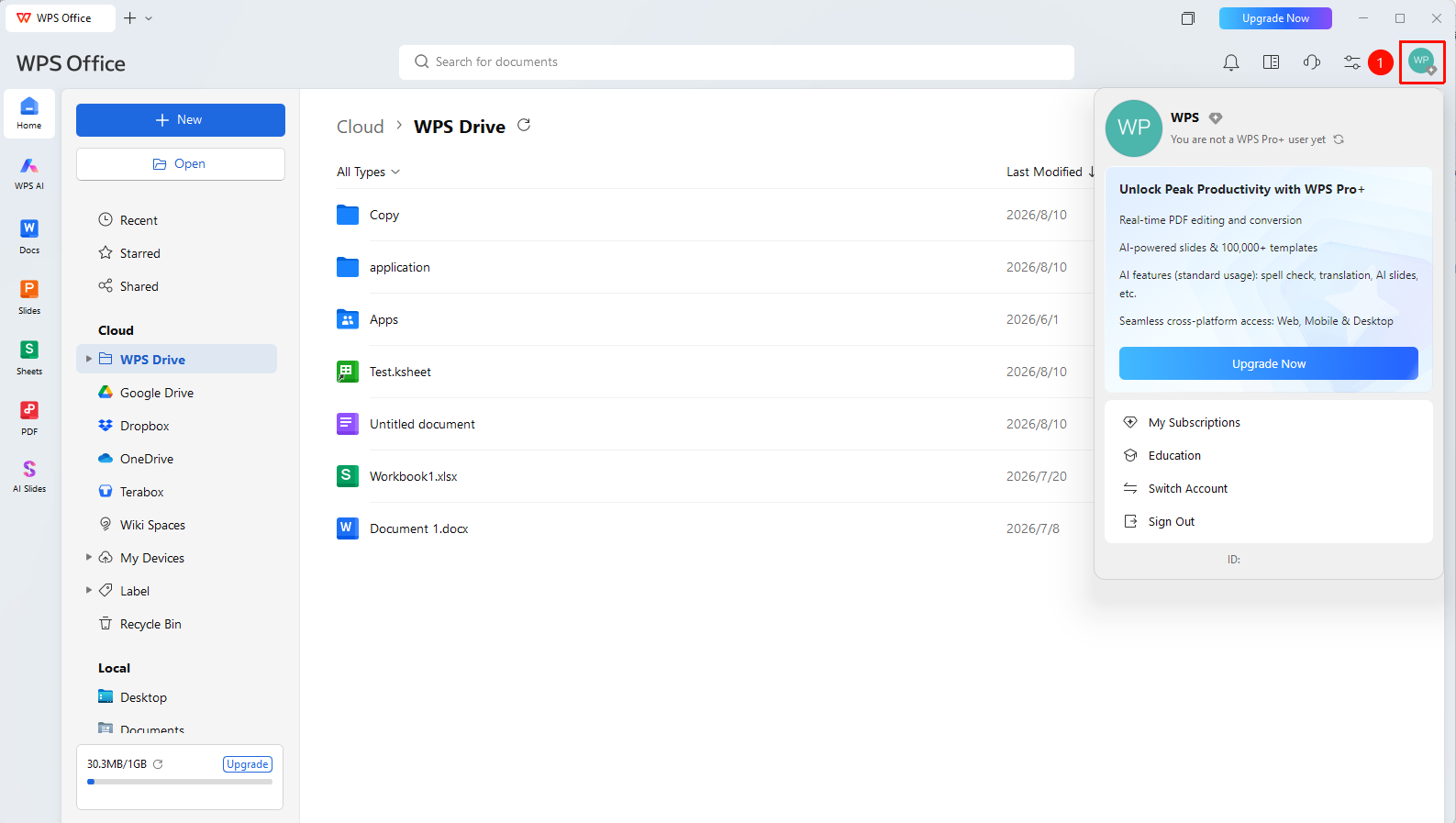
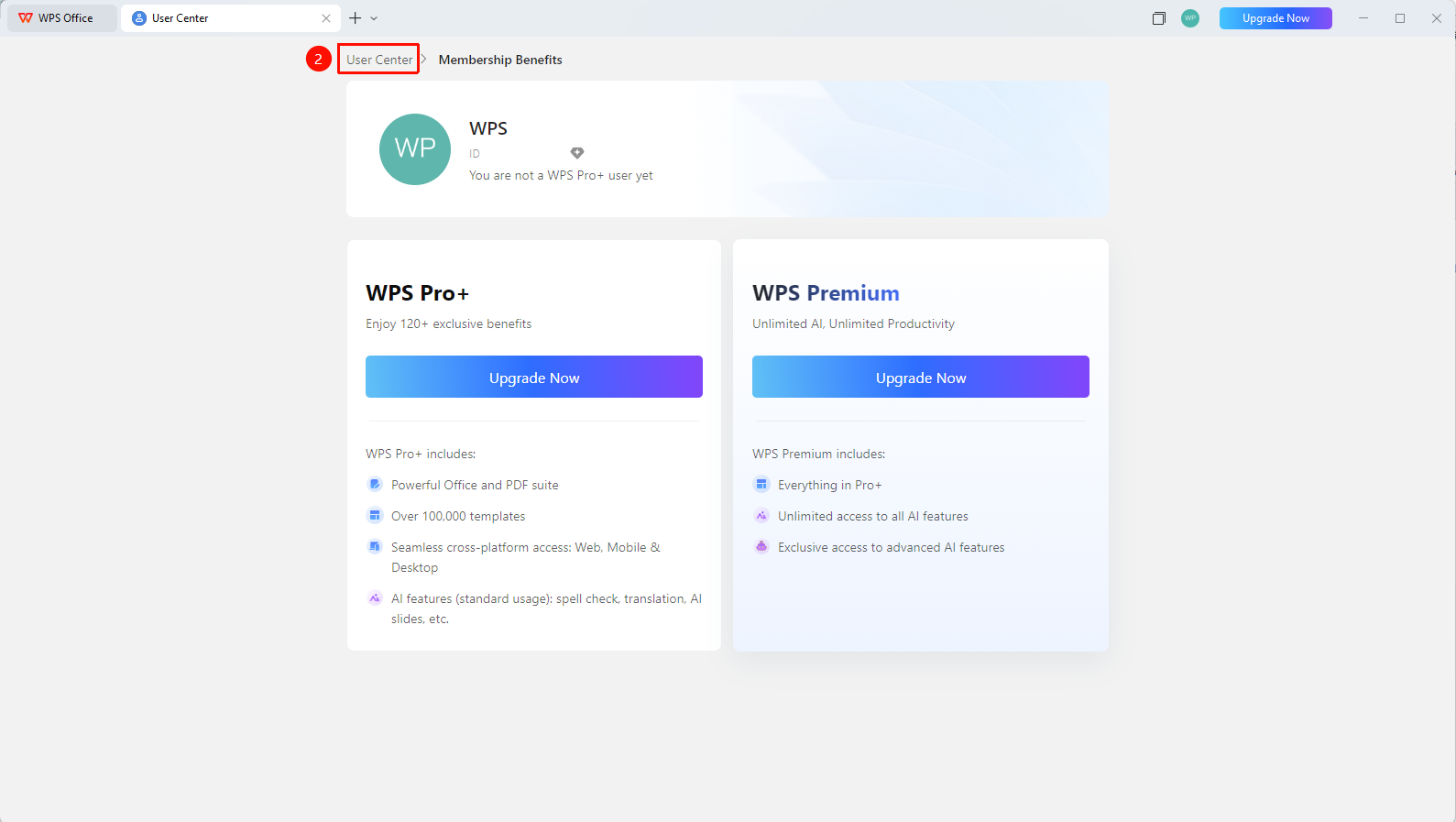
WPS Home → Profile Picture → Personal Center → Change profile picture
- Click the 「Profile Picture」 icon in the upper right corner of WPS
- Click the 「Personal Center」 button to enter the 「Personal Center」
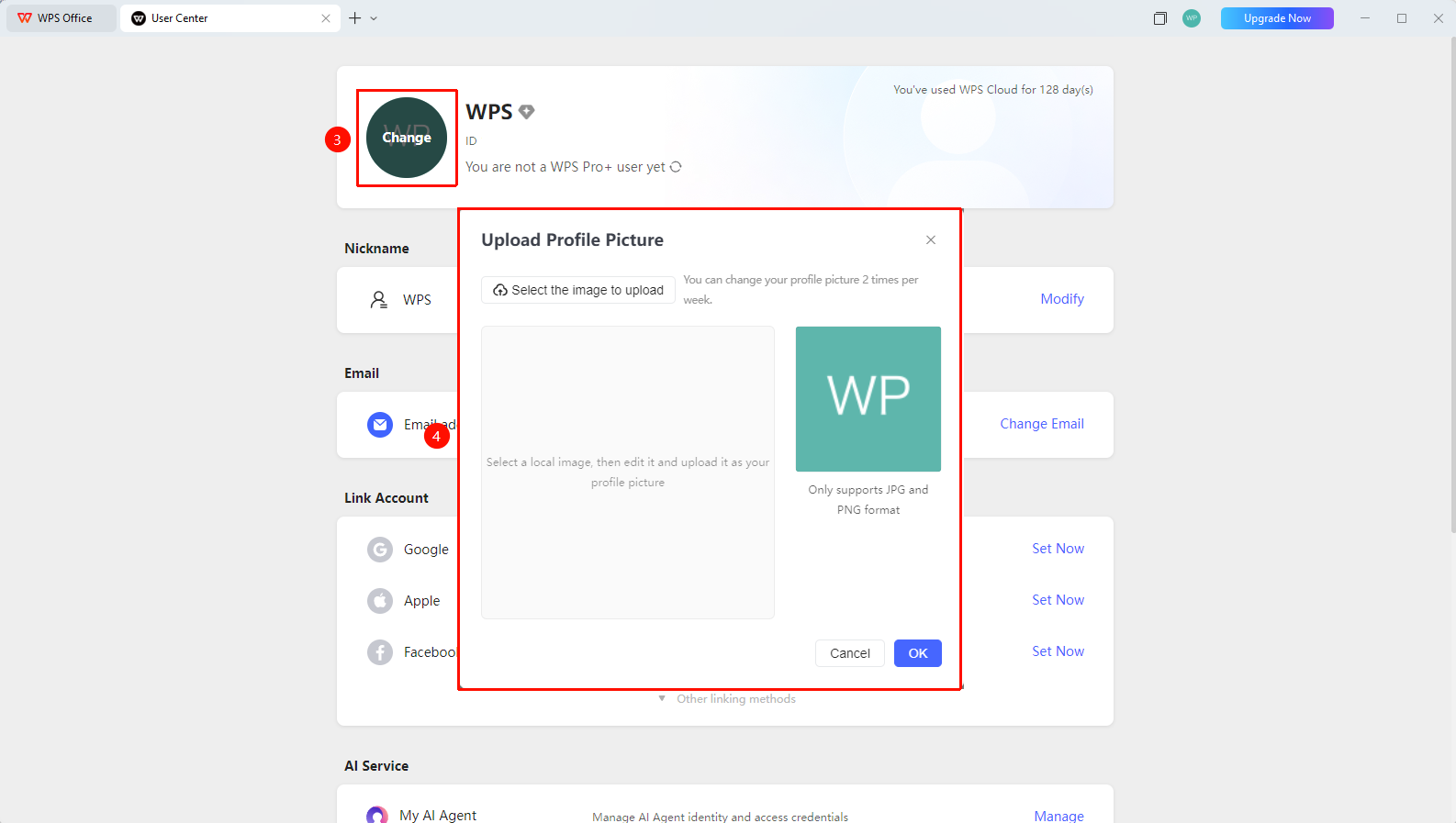
- On the Personal Center page, click the current profile picture to enter the modification page
- After uploading, drag the cropping box to adjust the display area, and flip to adjust the profile picture
- Click 「Confirm」 to complete the modification
Frequently Asked Questions
Question 1: What image formats are supported for profile pictures?
- Solution: Common image formats such as JPG and PNG are supported. Animated images (GIF dynamic images) and special formats are not supported. It is recommended to use square images for the best display effect.
Question 2: How long does it take for the profile picture change to take effect?
- Solution: The change takes effect immediately. If it does not update instantly, try refreshing the page or signing out of the account and signing in again to check.
Question 3: Can the profile picture be restored to the default profile picture after uploading?
- Solution: It is currently not possible to change back to the default profile picture. The default profile picture is a square solid-color background with the user name. You can try using WPS to create a similar image.
Notes
- After changing the profile picture, the profile picture in collaborative documents, comments, and meetings will be updated synchronously
- It is recommended to upload a clear and easily recognizable profile picture for quick identification during team collaboration