Feature Summary
Permanently cancel your WPS account and delete all associated data and information. This is suitable for scenarios where you no longer use WPS services.
Feature Description
| Feature Dimension | Description |
|---|---|
| Membership Restrictions | No membership restrictions |
| Version Restrictions | No version restrictions |
Operation Steps
Before Account Cancellation
Feature Entry
Cloud Document → Backup Data
- Back up all cloud document data to your local device in advance
- Unlink any bound third-party accounts
- Cancel automatic membership renewal
- Confirm that there is no important unsaved data in the account
Permanently Delete Account
Deleting an account is a high-risk operation. Please confirm the following precautions again:
- Proactively Clear Documents: Before deleting the account, ensure that there are no public or private documents in the account.
- Proactively Leave Teams: Before deleting the account, ensure that you have deleted any teams you created and left any teams you were invited to join.
- All Benefits Under the Account Will Be Deleted: Before deleting the account, ensure you understand that all owned benefits will be deleted after the account is deleted.
Feature Entry
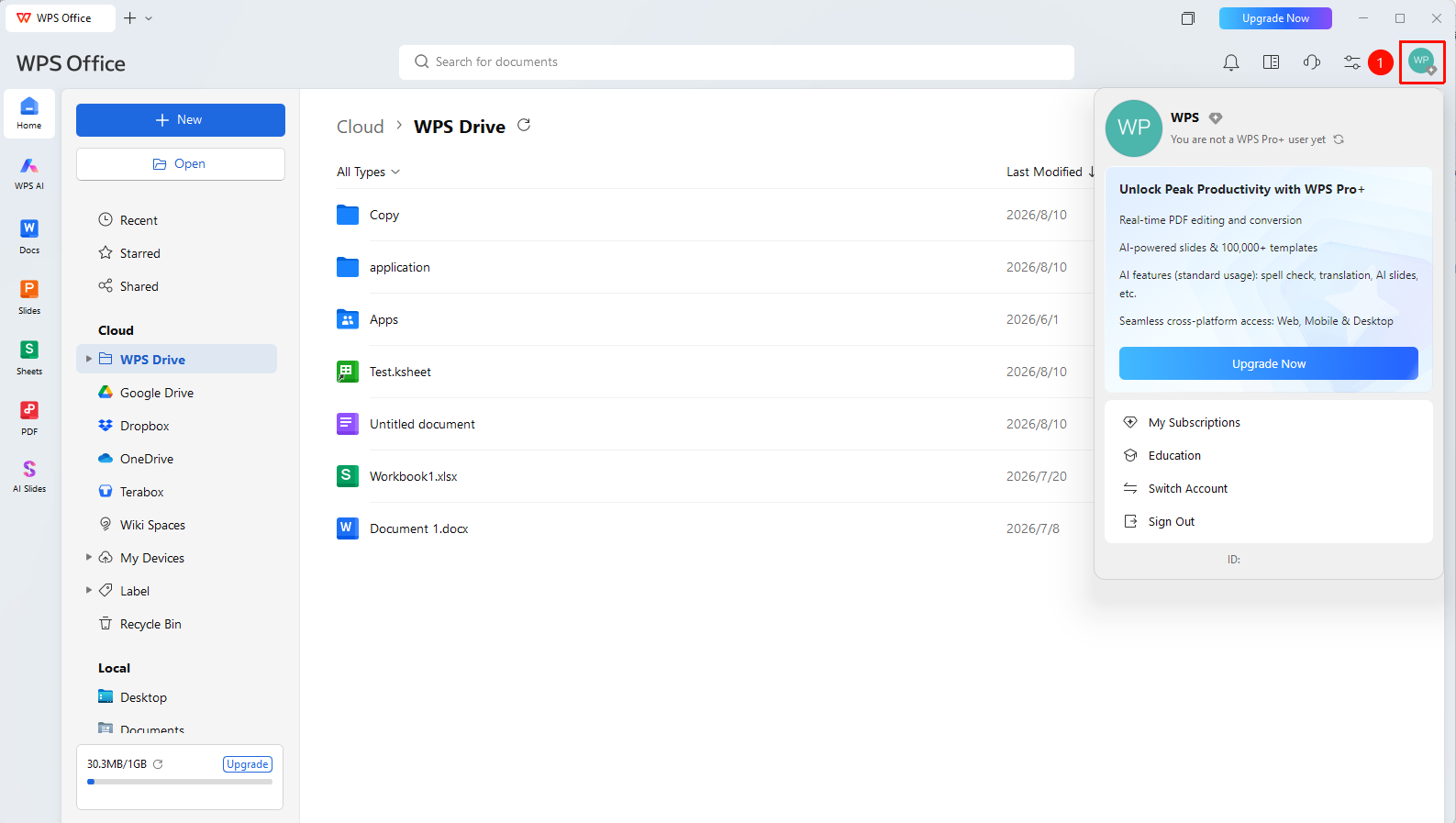
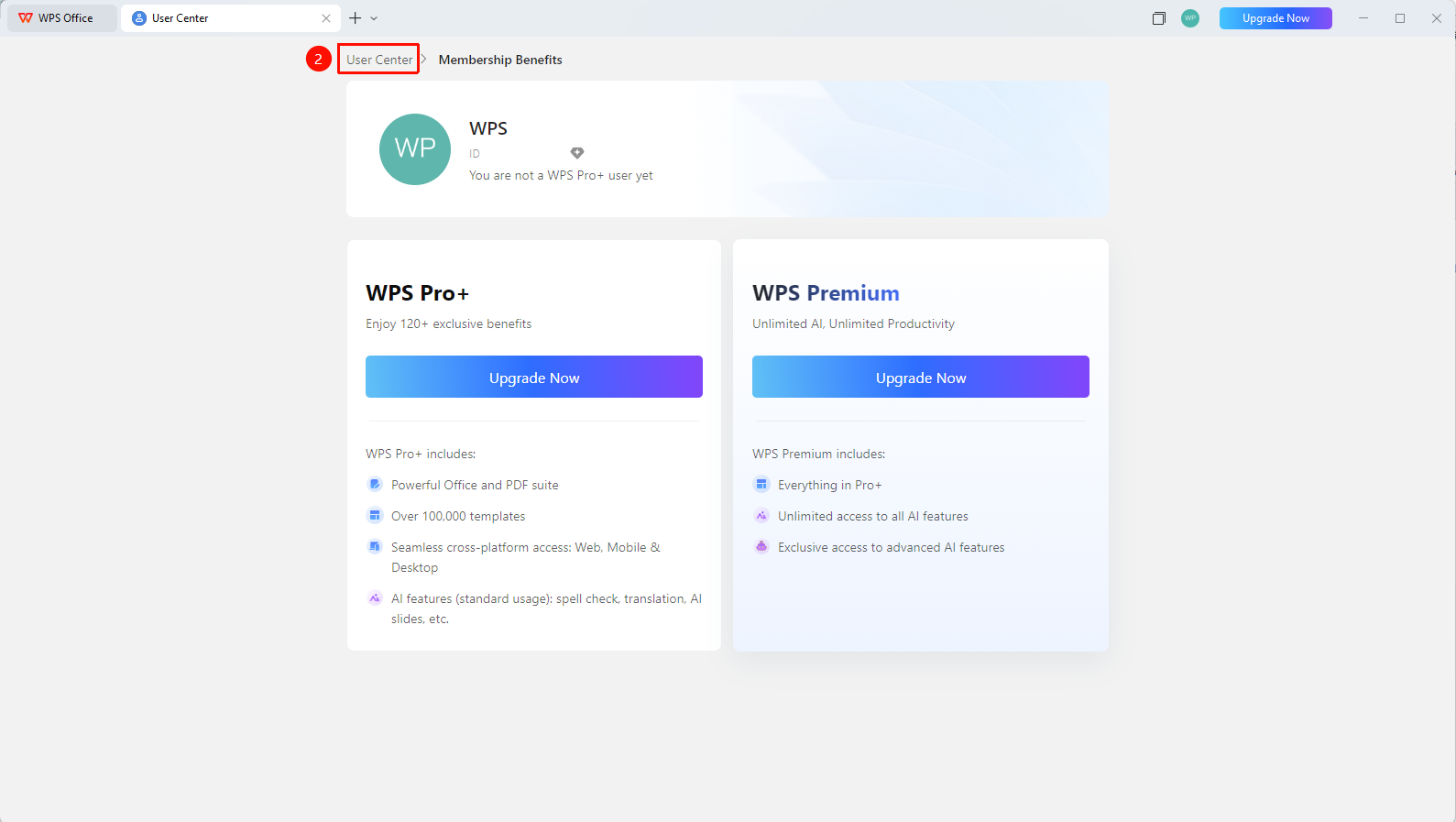
WPS Homepage → profile picture → Personal Center → Permanently Delete Account
- Click the 「profile picture」 icon in the upper right corner of WPS
- Click the 「Personal Center」 button to enter the 「Personal Center」
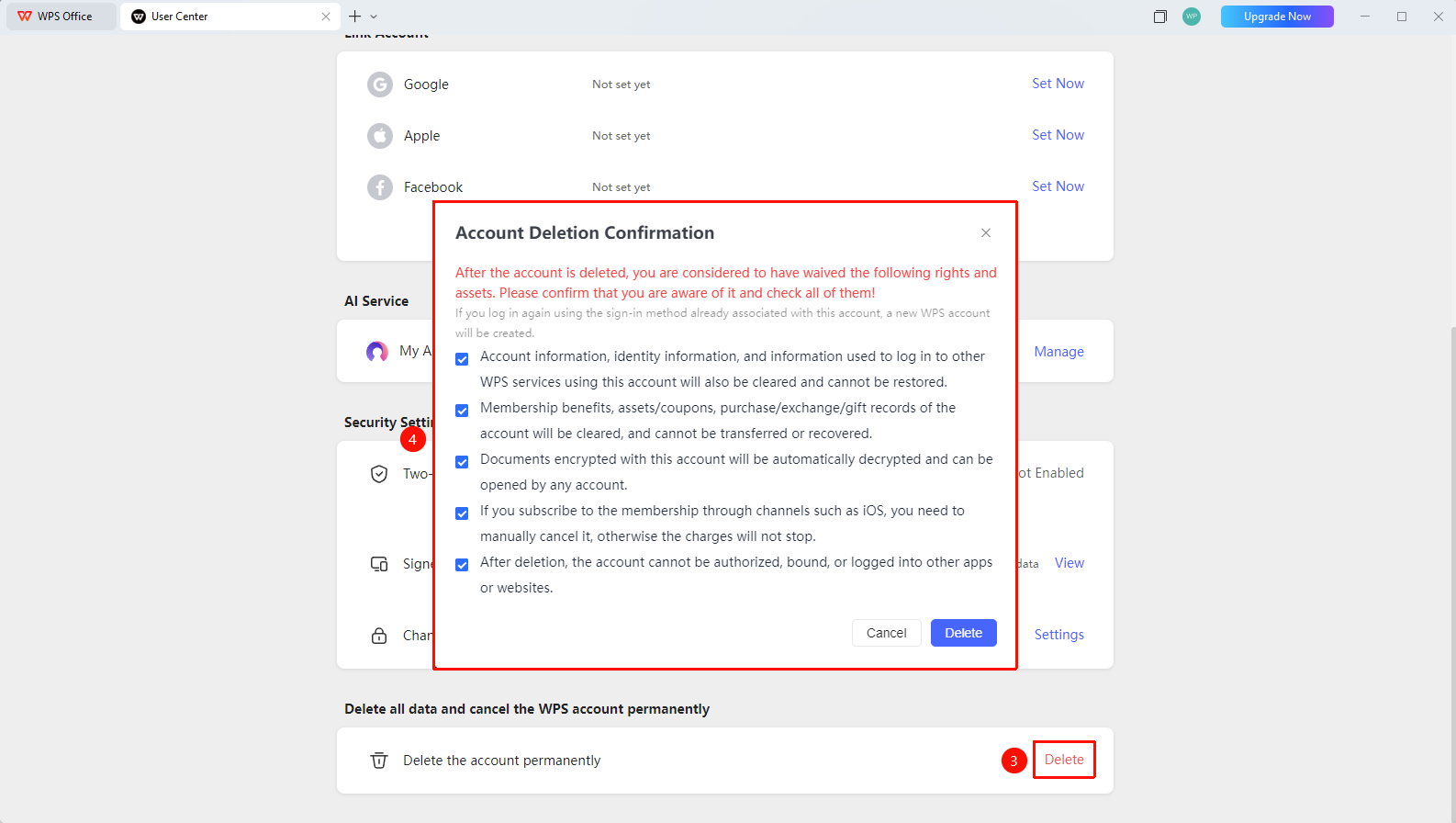
- Find and click 「Permanently Delete Account」 at the bottom of the page
- Review and check the account deletion confirmation
- Click the 「Confirm Cancellation」 button
- Complete the account cancellation verification to finish the cancellation
FAQ
Q1: Can data be recovered after account deletion?
- Solution: No. After account cancellation, all cloud documents, membership benefits, and personal data will be permanently deleted and cannot be recovered. Please back up in advance.
Q2: How long does it take to delete an account?
- Solution: It takes effect immediately after passing the account cancellation verification.
Q3: Can the account deletion request be withdrawn after submission?
- Solution: It cannot be withdrawn. Before deleting the account, ensure that cloud documents have been cleared and you have left all teams.
Q4: Unable to delete the account?
- Solution: Re-verify. You need to clear the Drive contents and exit any joined/created sync folders.
Precautions
- Be sure to back up all important data before cancellation
- To cancel an organization account, please contact the organization Admin for processing