Feature Summary
The document permission feature controls the permissions of users who access documents via shared links. You can set different permission levels such as view, edit, and comment, as well as the link validity period, to ensure secure document sharing.
Feature Description
| Feature Dimension | Description |
|---|---|
| Membership Restriction | No membership restriction |
| Version Restriction | Collaboration mode must be enabled |
Operation Steps
Set Link Permissions
Feature Entry
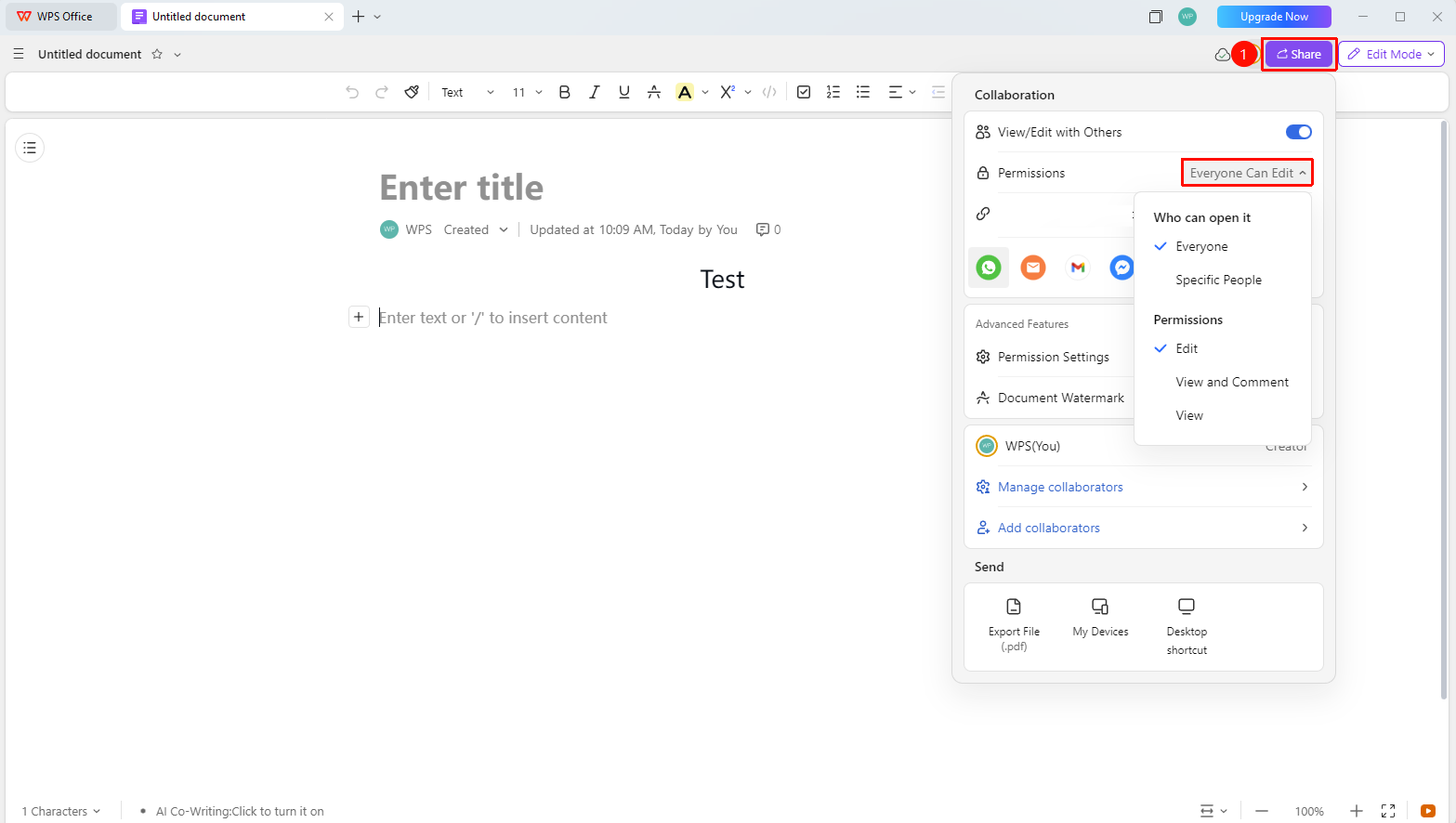
「Share」→「Link Permissions」
- Open the document and click 「Share」 in the upper right corner
- Turn on the 「View/Edit Together」 switch
- Click 「Link Permissions」
- Set permissions:
- Who can open: Everyone / Specified people
- Permission: Edit / View and comment / View
Set Link Validity Period
Feature Entry
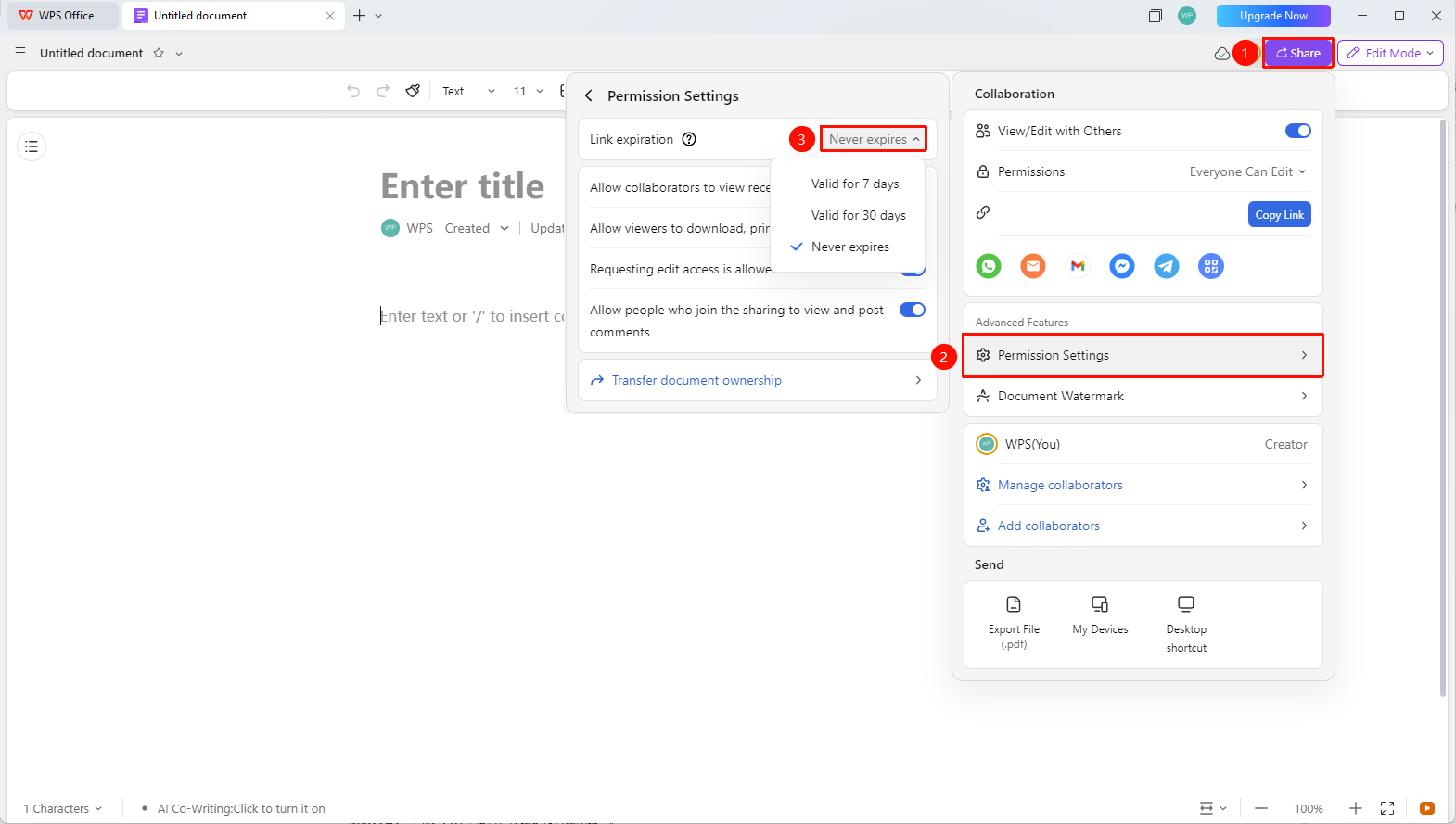
「Share」→「Permission Settings」→「Link Validity Period」
- Click 「Permission Settings」 on the sharing page
- Find the 「Link Validity Period」 option
- Options:
- Permanent: The link is valid long-term
- 7 days: The link expires after 7 days
- 30 days: The link expires after 30 days
FAQ
Q1: Do I need to re-share the link after modifying the link permissions?
- Solution: No. The link permission modification takes effect immediately, and the shared link will automatically apply the new permissions.
Q2: How to prevent others from downloading or printing the document?
- Solution: In 「Advanced Settings」, uncheck 「Allow viewers to download, print, save as, and copy」.
Q3: How to re-enable a link after it expires?
- Solution: Re-enter the sharing settings and modify the link validity period.
Notes
- Link permissions can be modified at any time and take effect immediately
- It is recommended to set 「Specified people」 permission for sensitive documents
- Regularly check the permission settings of shared links