Feature Summary
The Save/Save As feature supports saving documents to a local location or to WPS Cloud Documents, enabling multi-device synchronization and secure storage. Users can choose different save locations and file formats based on their needs.
Feature Description
| Feature Dimension | Description |
|---|---|
| Membership Restriction | No membership restriction; available to all users |
| Version Restriction | No version restriction; ensure sufficient cloud space capacity |
Operation Steps
Save Document
Feature Entry
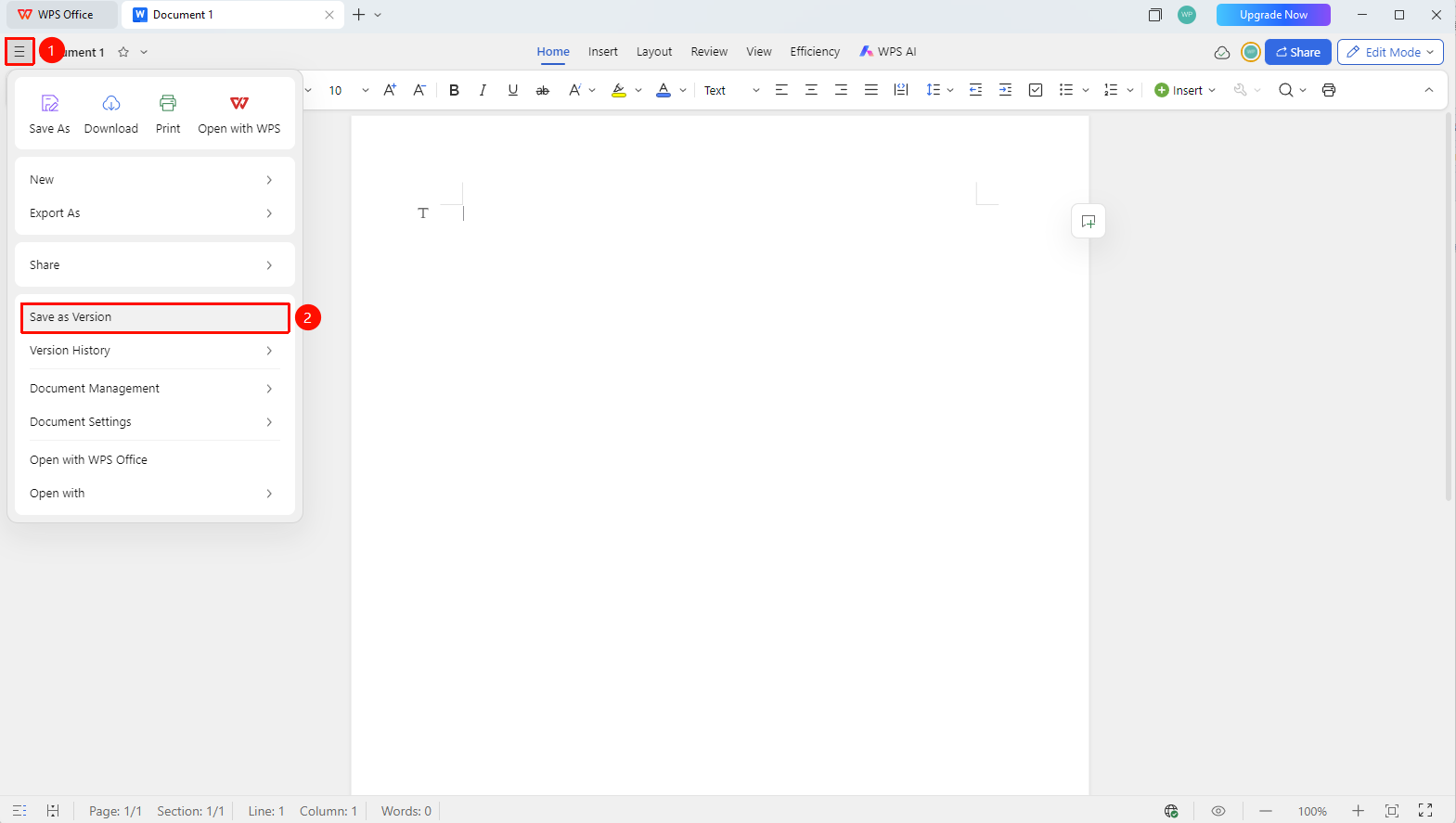
"File Operation" button → "Save Version" option
- Click the File Operation menu in the upper left corner (icon is three horizontal lines)
- Click the "Save Version" option
Shortcut:
Ctrl+S
Save Document As
Feature Entry
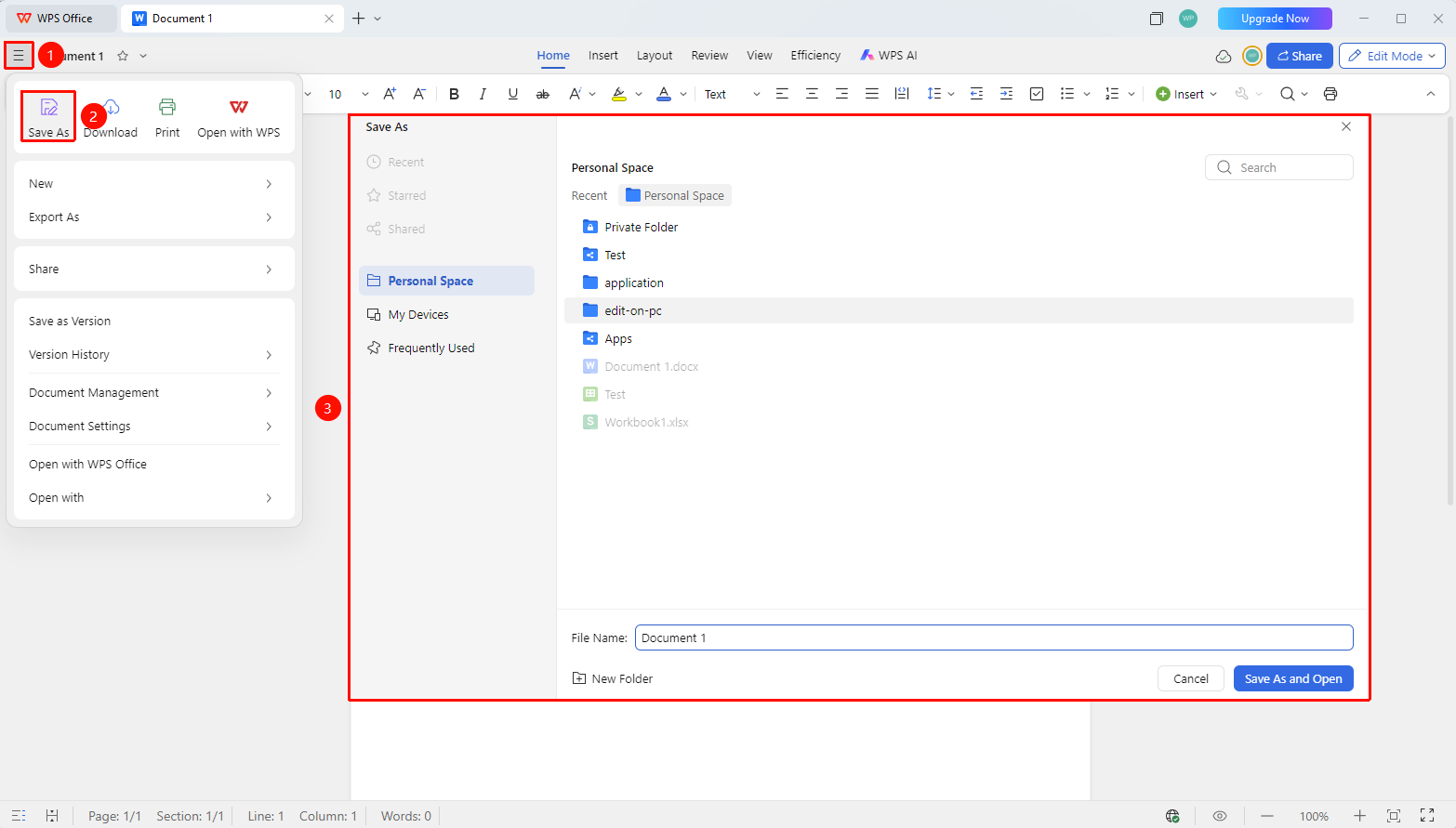
"File Operation" button → "Save As" option
- Click the File Operation menu in the upper left corner (icon is three horizontal lines)
- Click the "Save As" option
- Select the save location in the save dialog:
- Personal Space: Save to WPS Cloud Space, supporting multi-device synchronization
- My Devices: Save to the automatic backup path in WPS Cloud Space, supporting multi-device synchronization
4.Enter the file name and select the file format
5.Click Save As and Open to complete the save as operation
Right-Click Save Document
Feature Entry
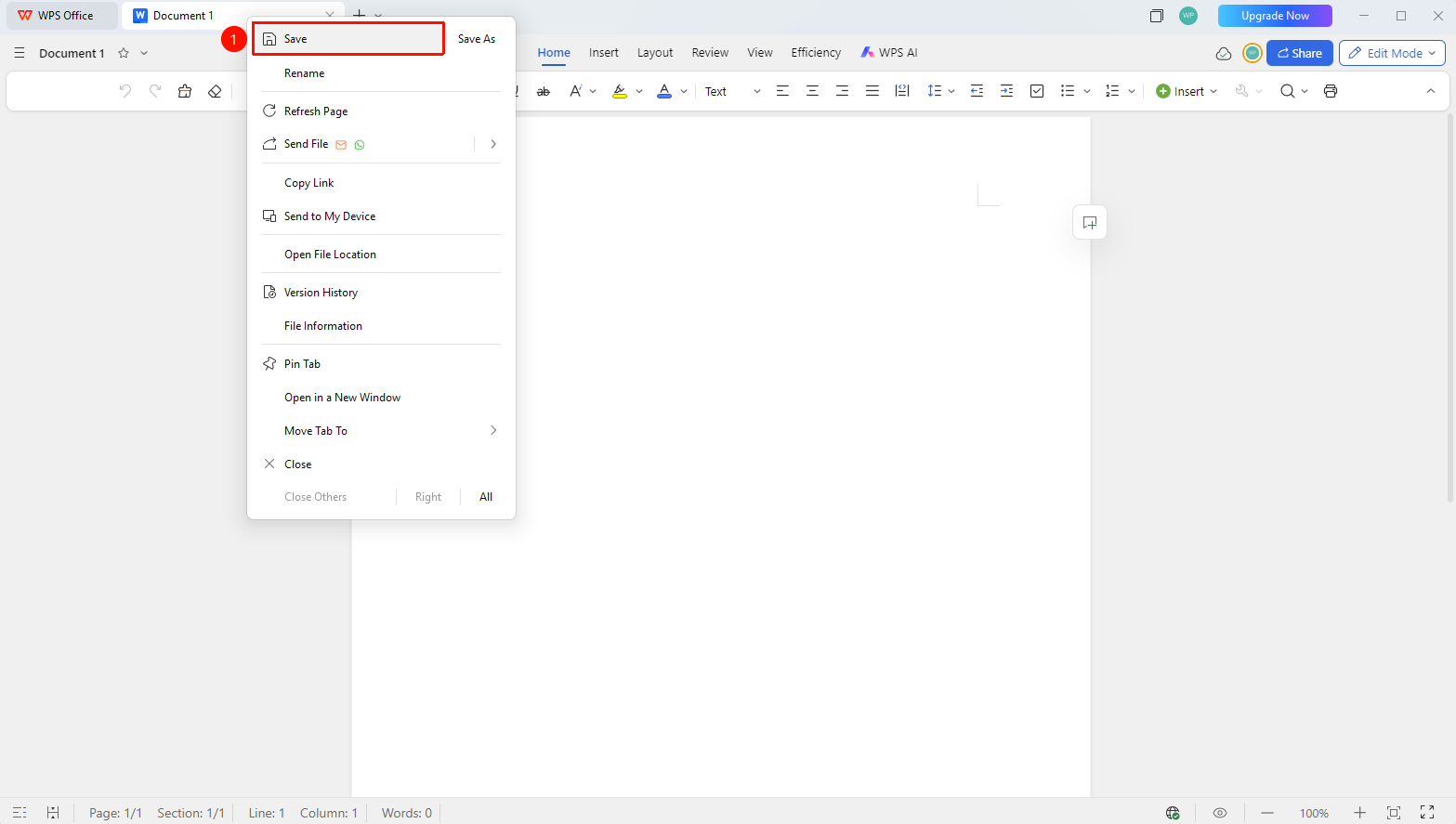
Right-click the file tab in the menu bar → "Save" option
- In the top menu bar of WPS, right-click the file tab
- Click the "Save" option
Right-Click Save Document As
Feature Entry
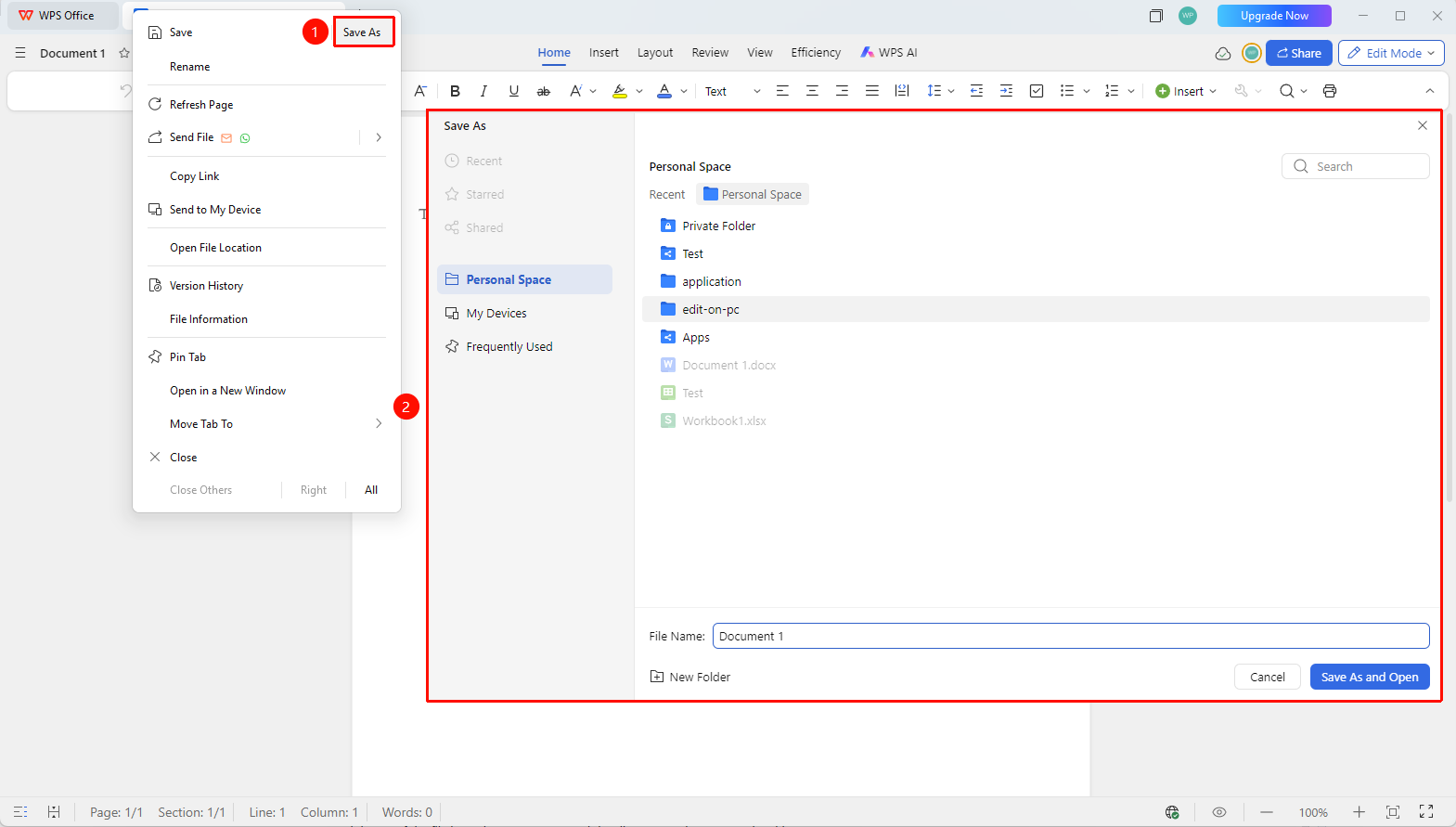
Right-click the file tab in the menu bar → "Save As" option
- In the top menu bar of WPS, right-click the file tab
- Click the "Save As" option
- Select the save location in the save dialog:
- Personal Space: Save to WPS Cloud Space, supporting multi-device synchronization
- My Devices: Save to the automatic backup path in WPS Cloud Space, supporting multi-device synchronization
FAQ
Question 1: What should I do if I am prompted "Cloud space is full" when saving?
- Solution:
- Clean up unnecessary files in the cloud space
- Purchase a membership to get more cloud space
Question 2: What should I do if I am prompted "Document size exceeds the limit" when saving?
- Solution: The single file upload limit for non-members is 10MB, and for members/super members it is 2GB. If the file is too large, you can save it locally or upgrade your membership.
Question 4: How can I check if the document upload is complete?
- Solution: The cloud icon in the upper right corner of the document shows "↑" to indicate uploading is in progress, and a green "√" to indicate the upload is complete.
Notes
- Saving to cloud documents requires signing in to a WPS account
- Cloud documents support multi-device synchronization and can be accessed on devices such as phones, tablets, and computers
- Cloud documents automatically retain historical versions, which can be restored at any time