Feature Summary
The local editing feature in WPS Docs supports switching Cloud Documents to the local WPS client editing mode. It is suitable for scenarios requiring local features or when the network is unstable, but be aware of the risk of content conflicts during multi-person collaboration.
Feature Description
| Feature Dimension | Description |
|---|---|
| Membership Restriction | No membership restriction |
| Version Restriction | No version restriction |
Operation Steps
Switch to Local Editing Mode
Feature Entry
「File Operations」→「WPS Open」
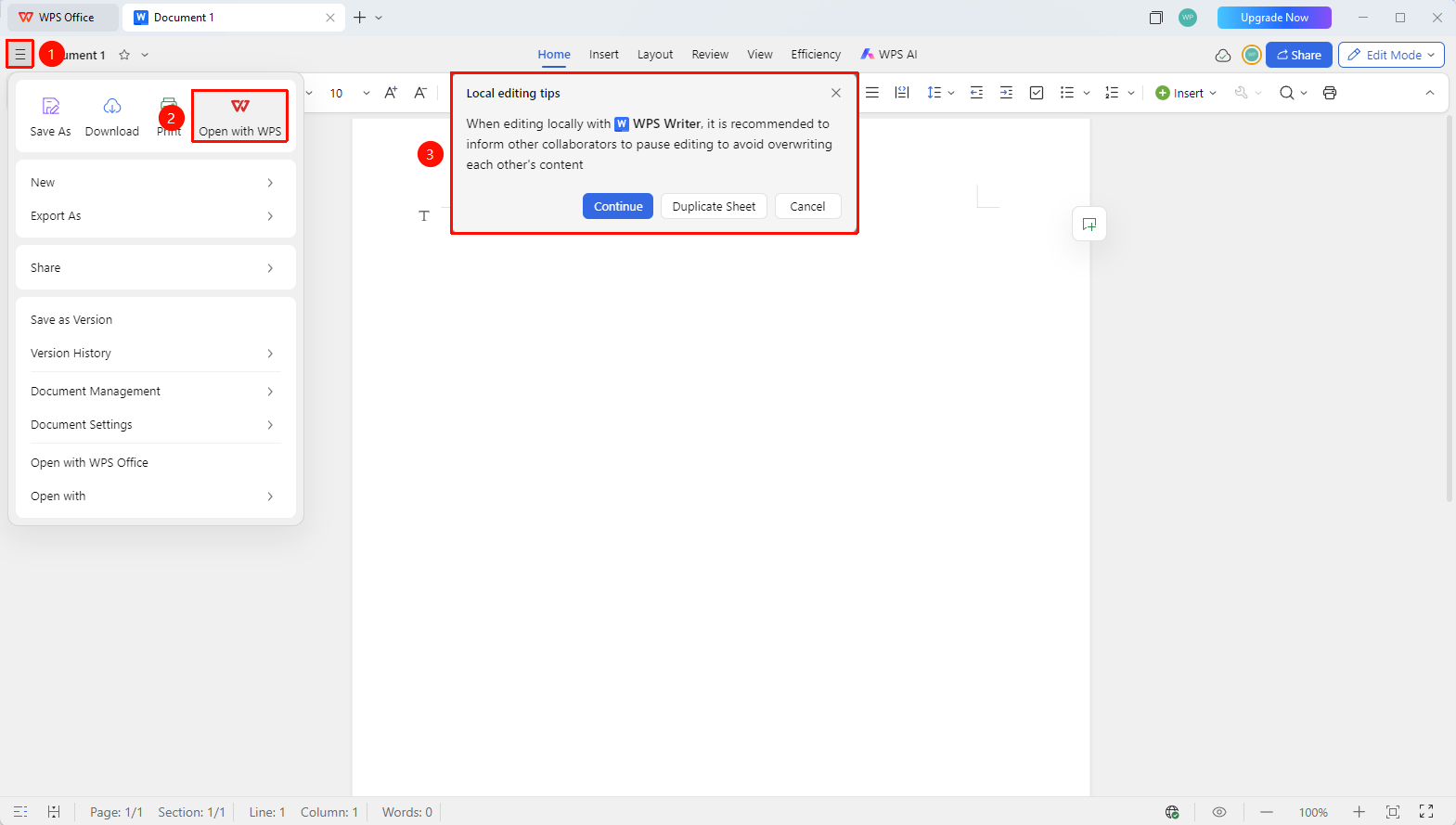
- Open the Cloud Document and click 「File Operations」 (☰ icon) in the upper left corner
- Select 「WPS Open」
- The system will prompt a pop-up reminder:
- If other users are editing, a pop-up will remind: When editing locally with WPS, it is recommended to inform other collaborators to pause editing to avoid content overwriting each other
4.You can choose:
- Create a Copy: Create a local copy without affecting the original Cloud Document
- Continue to Open: Edit the original file directly locally
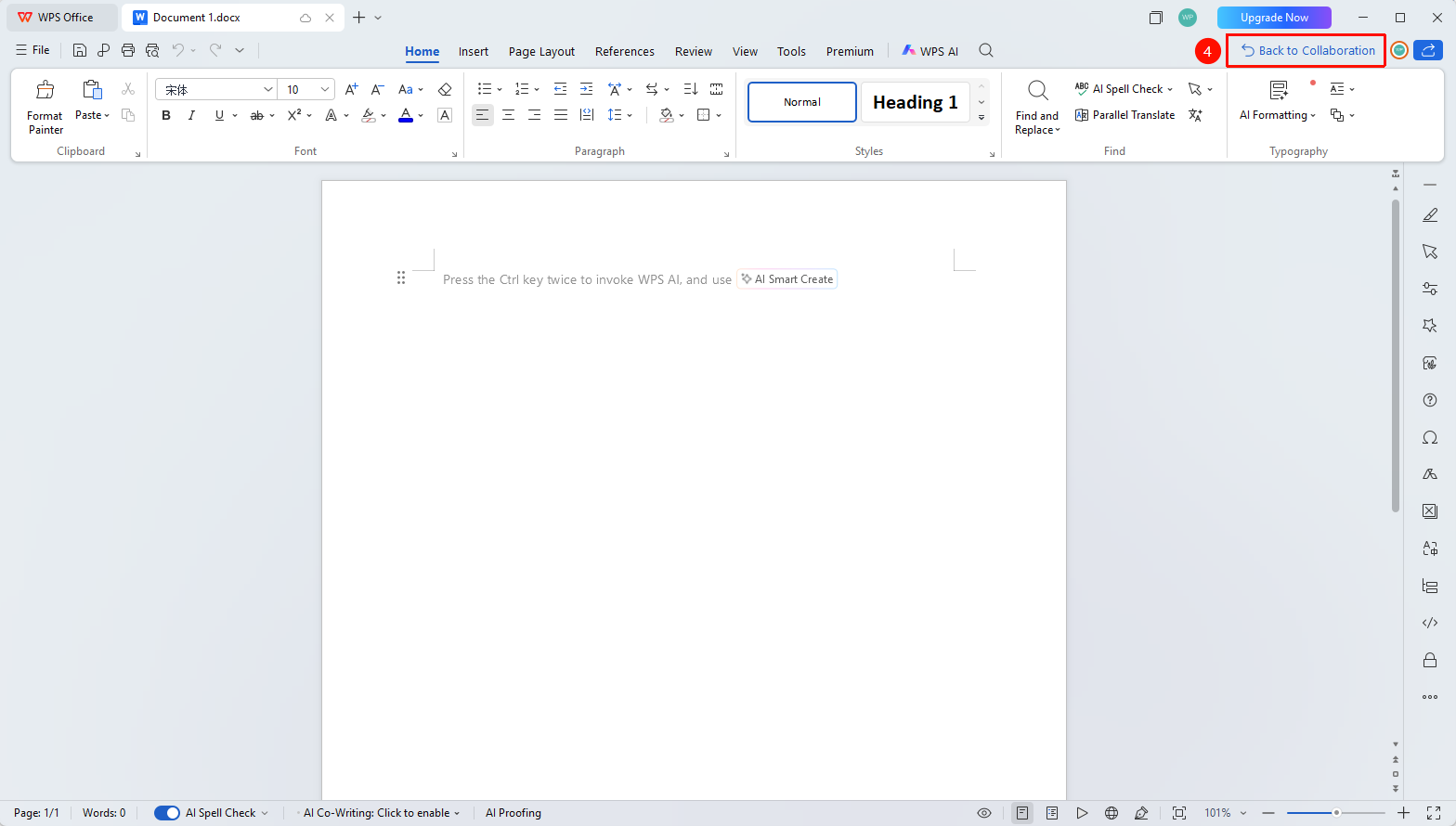
5.After editing, click the 「File」 option in the upper left corner → 「Save」 to save the document
6.Or click 「Back to Collaboration」 in the upper right corner to upload the written document and return to collaboration mode
Open a Copy for Editing
Feature Entry
「File Operations」→「WPS Open」→「Create a Copy」
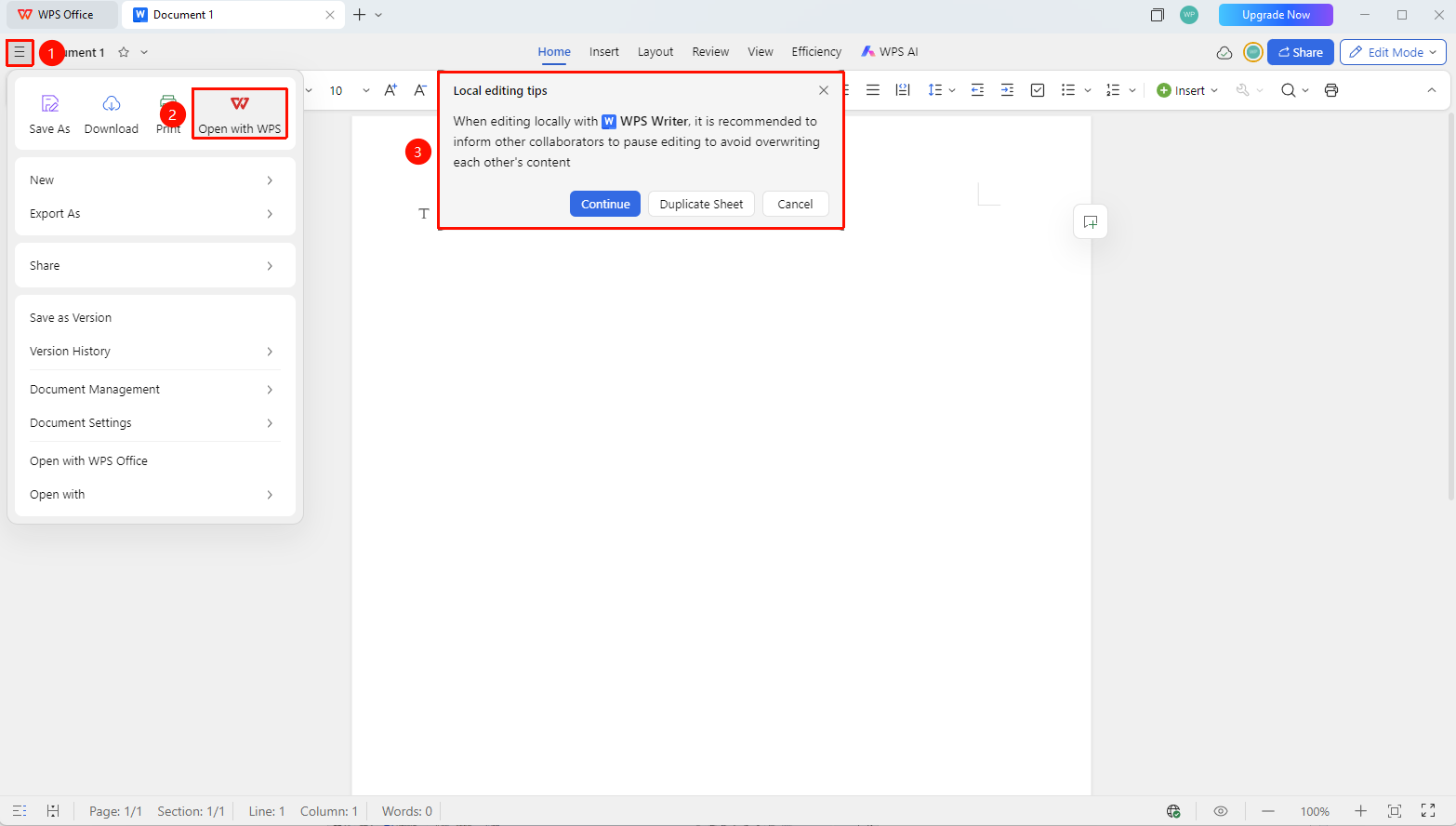
- Click 「File Operations」→「WPS Open」 in the upper left corner in sequence
- When entering local editing mode, the system will prompt a risk warning
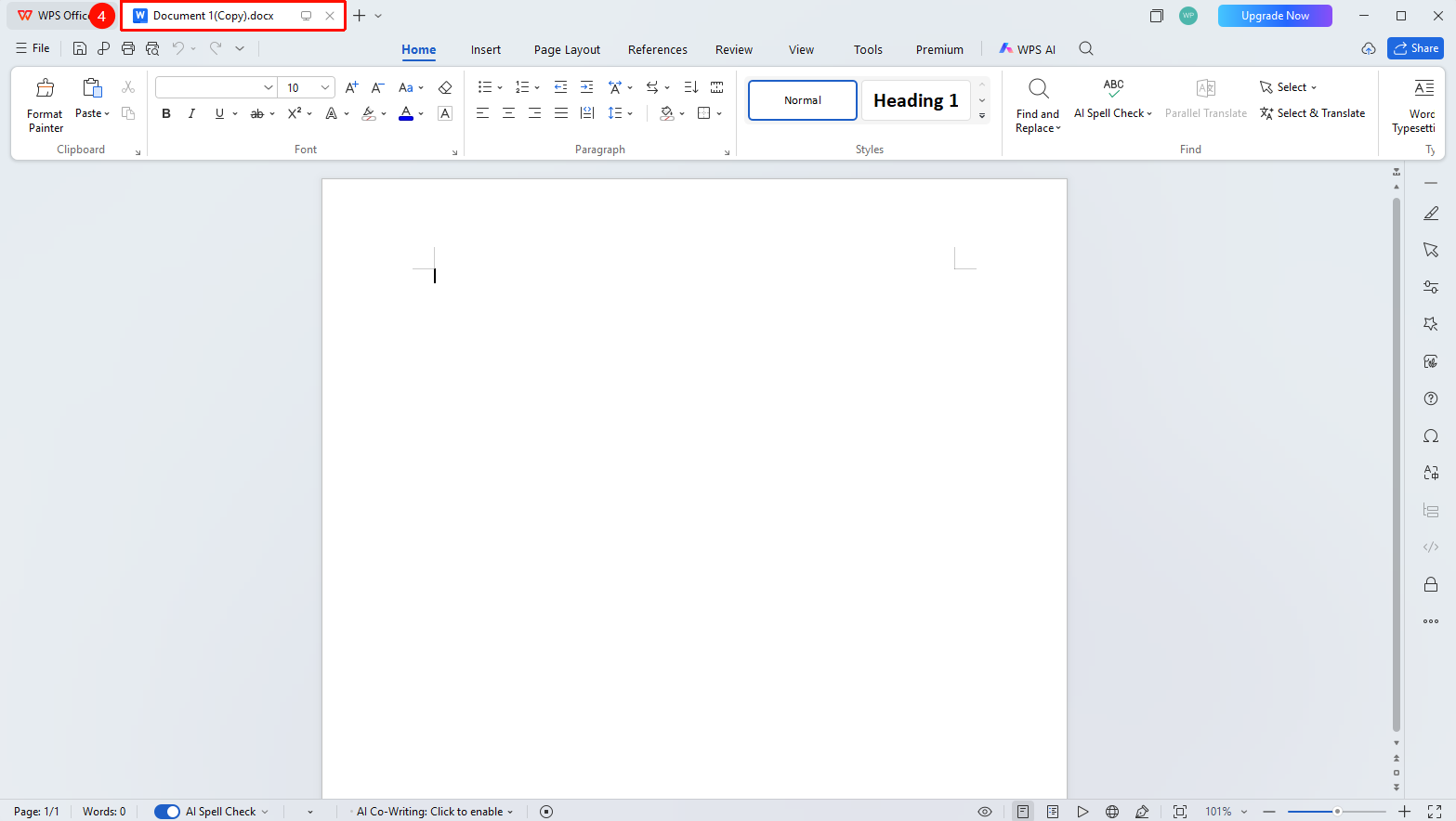
- Select 「Create a Copy」
- The document will be downloaded locally and a copy will be created
- After editing, you can save it as a new file or upload to overwrite the original file
Edit the Current File Directly
Feature Entry
「File Operations」→「WPS Open」→「Continue to Open」
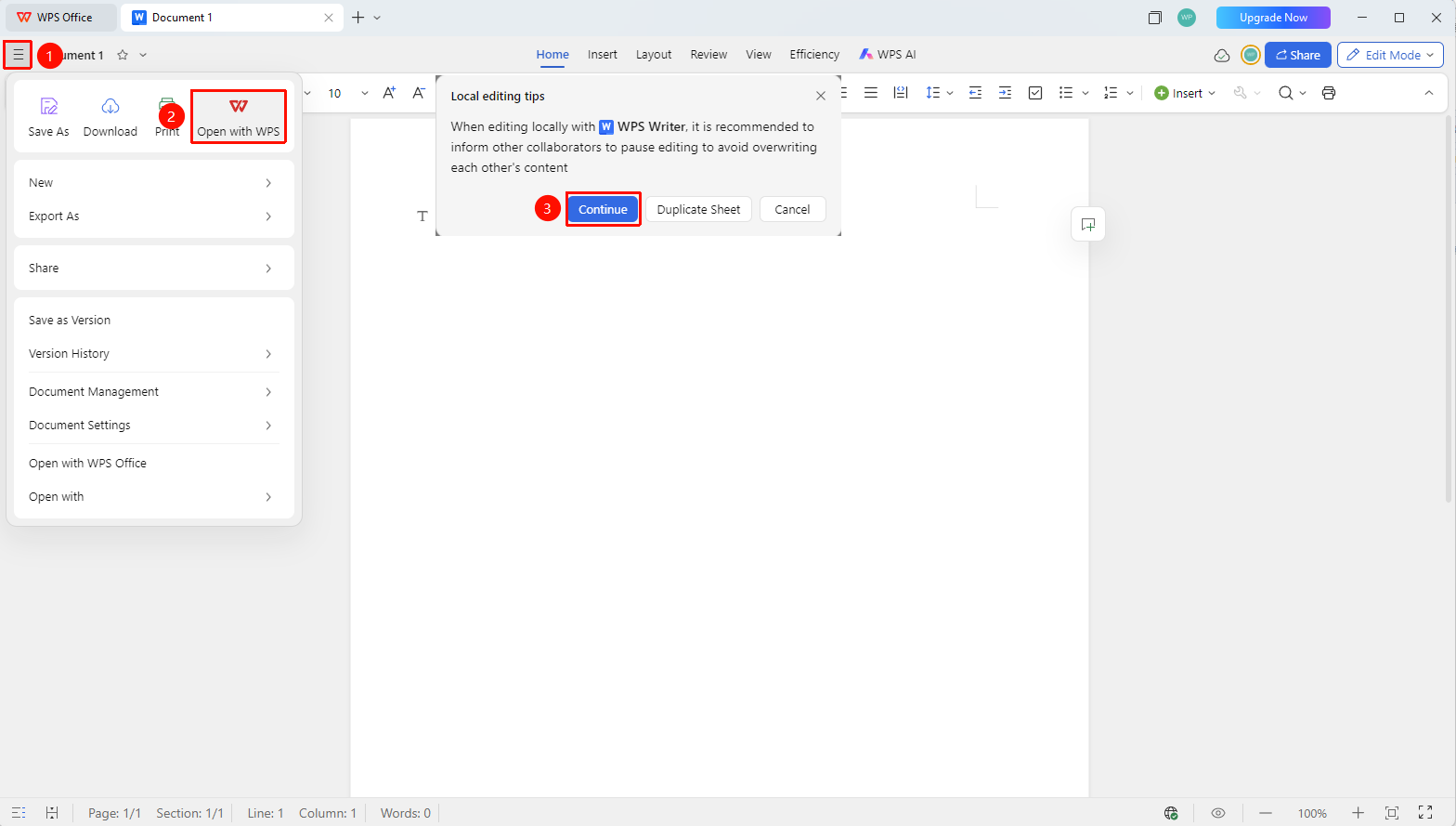
- Click 「File Operations」→「WPS Open」 in the upper left corner in sequence
- The system will warn: When editing locally with WPS, it is recommended to inform other collaborators to pause editing to avoid content overwriting each other
- Select 「Continue to Open」
- After editing, click the 「File」 option in the upper left corner → 「Save」 to save the document and upload it to the Cloud
- Or click 「Back to Collaboration」 in the upper right corner to upload the written document and return to collaboration mode
FAQ
Q1: Why is there no WPS Open option for files like multi-dimensional tables?
- Solution: Multi-dimensional tables require a stable network connection. Currently, data only supports Cloud editing. You can export to other formats for local editing.
Q2: What should I do if it prompts "No download permission" and cannot edit locally?
- Solution: The document owner needs to enable the "Allow Download" permission in the sharing settings, or contact the document Admin to obtain download permission.
Q3: How to sync to the Cloud after local editing?
- Solution:
- If you opened a copy: You need to manually save as and upload to the Cloud
- If you edited directly: It will automatically sync to the Cloud after saving
Q4: Will the content of other collaborators be overwritten during local editing?
- Solution: Yes. When selecting 「Continue to Open」 for direct editing, saving will overwrite modifications made by other collaborators. It is recommended to select 「Open a Copy」 to avoid conflicts.
Q5: How to recover if I accidentally overwrite other collaborators' operation records?
- Solution: Check the file's historical versions and collaboration records, compare version differences, and restore a historical version or manually modify the current version.
Precautions
- Local editing requires download permission for the document
- Using local editing during multi-person collaboration may cause content conflicts
- It is recommended to prioritize the 「Open a Copy」 method to avoid data loss
- In local editing mode, you cannot see real-time modifications from other users
- After editing, remember to save and sync to the Cloud