Feature Summary
Move files or folders in cloud documents to other target paths to organize and categorize documents.
Feature Description
| Feature Dimension | Description |
|---|---|
| Membership Restriction | No membership restriction |
| Version Restriction | No version restriction |
Operation Steps
Method 1: Move via Right-Click Menu
Feature Entry
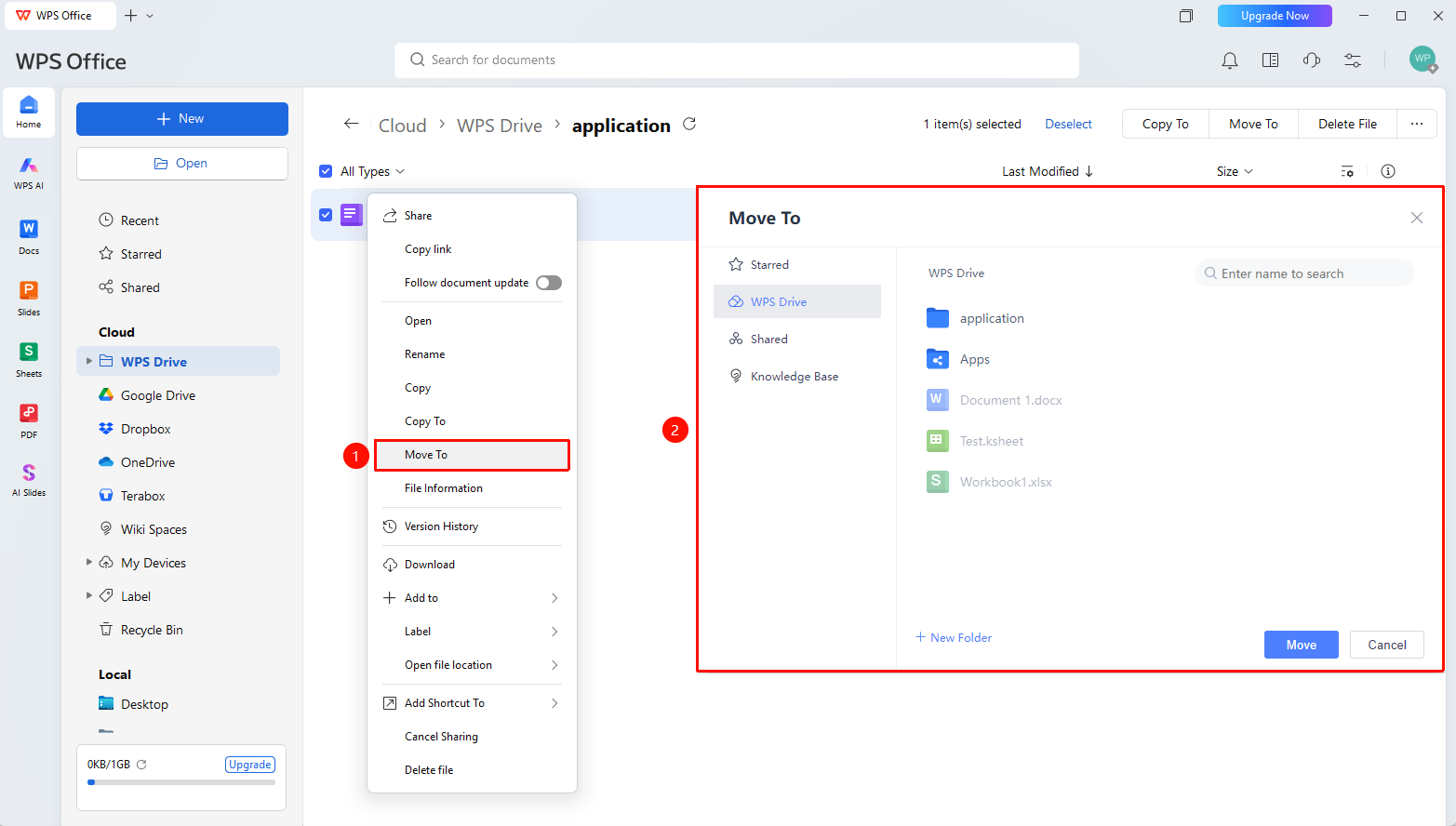
「Cloud Documents」list → Right-click menu →「Move to」
- Open WPS, go to the「Cloud Documents」page, and find the target file or folder you want to move
- Right-click the target file and select 「Move to」
- In the pop-up window, select the target folder and click 「Move」
Method 2: Batch Move
Feature Entry
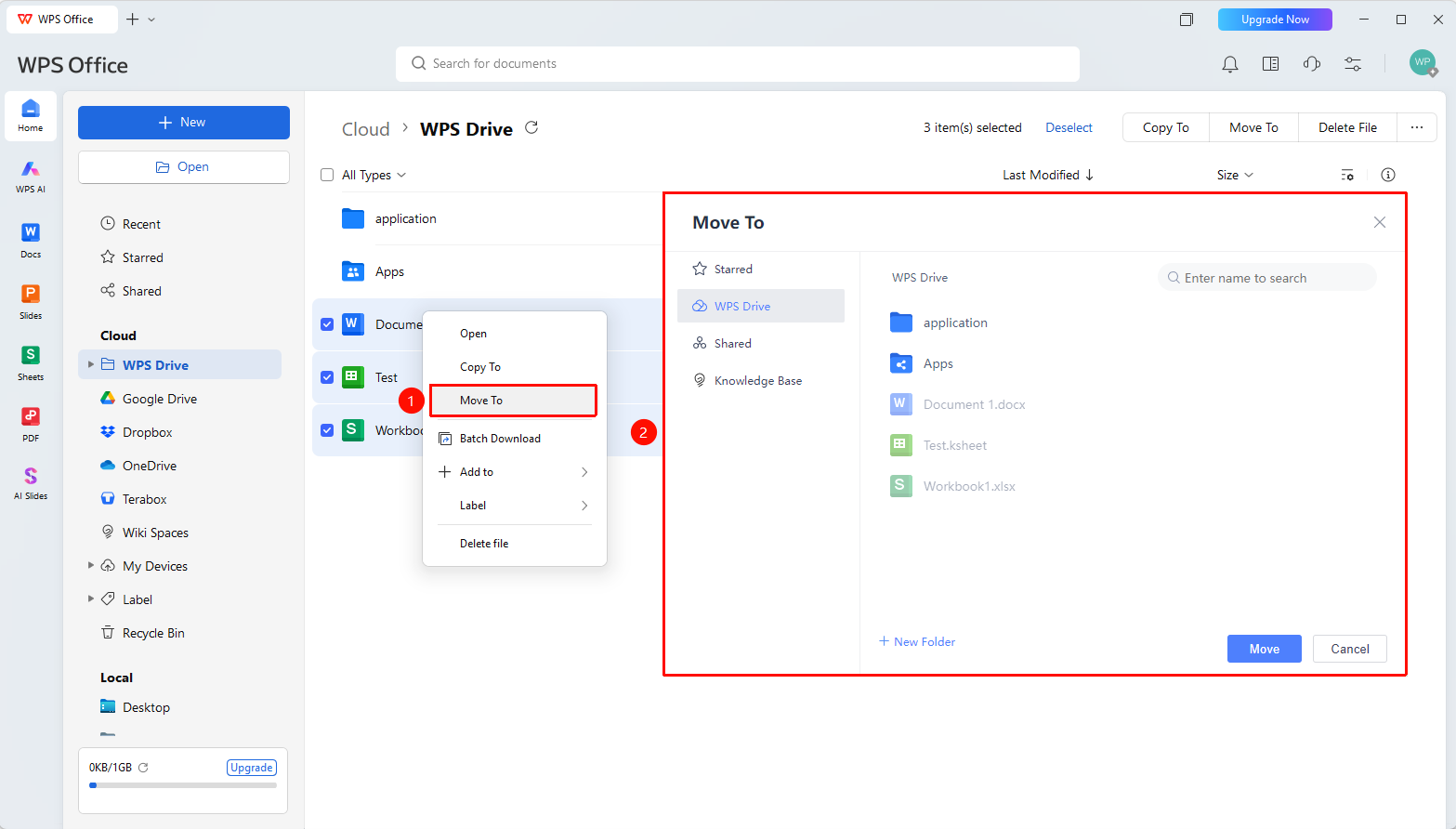
「Cloud Documents」list → Select files →「Batch Operations」→「Move to」
- In the cloud documents list, select multiple files or folders you want to move
- Click 「Move to」 in the top batch operation bar
- Select the target folder and click 「Move」 to complete the batch move
FAQ
Q1: Will the file remain in its original location after moving?
- Solution: The move operation cuts the file from its original location to the target location. The file will no longer be kept in the original location.
Q2: Can I move files to another user's cloud documents?
- Solution: No. The move operation is limited to your own cloud document directory. If you need to share with others, please use the「Share」feature.
Q3: When moving a folder, will the files inside be moved together?
- Solution: Yes. When moving a folder, all files and subfolders within that folder will be moved to the target location together.
Notes
- Cross-directory moving is supported, including moving from「Personal Space」to「Shared Folder」, etc.
- The move operation cannot be undone. If you need to restore, you can move the file again in the new directory.