Feature Summary
Centrally manage all sharing-related files, including received shared files, sent shared files, and shared folders.
Feature Description
| Feature Dimension | Description |
|---|---|
| Membership Restriction | No membership restriction |
| Version Restriction | No version restriction |
Operation Steps
View Shared Files
Feature Entry
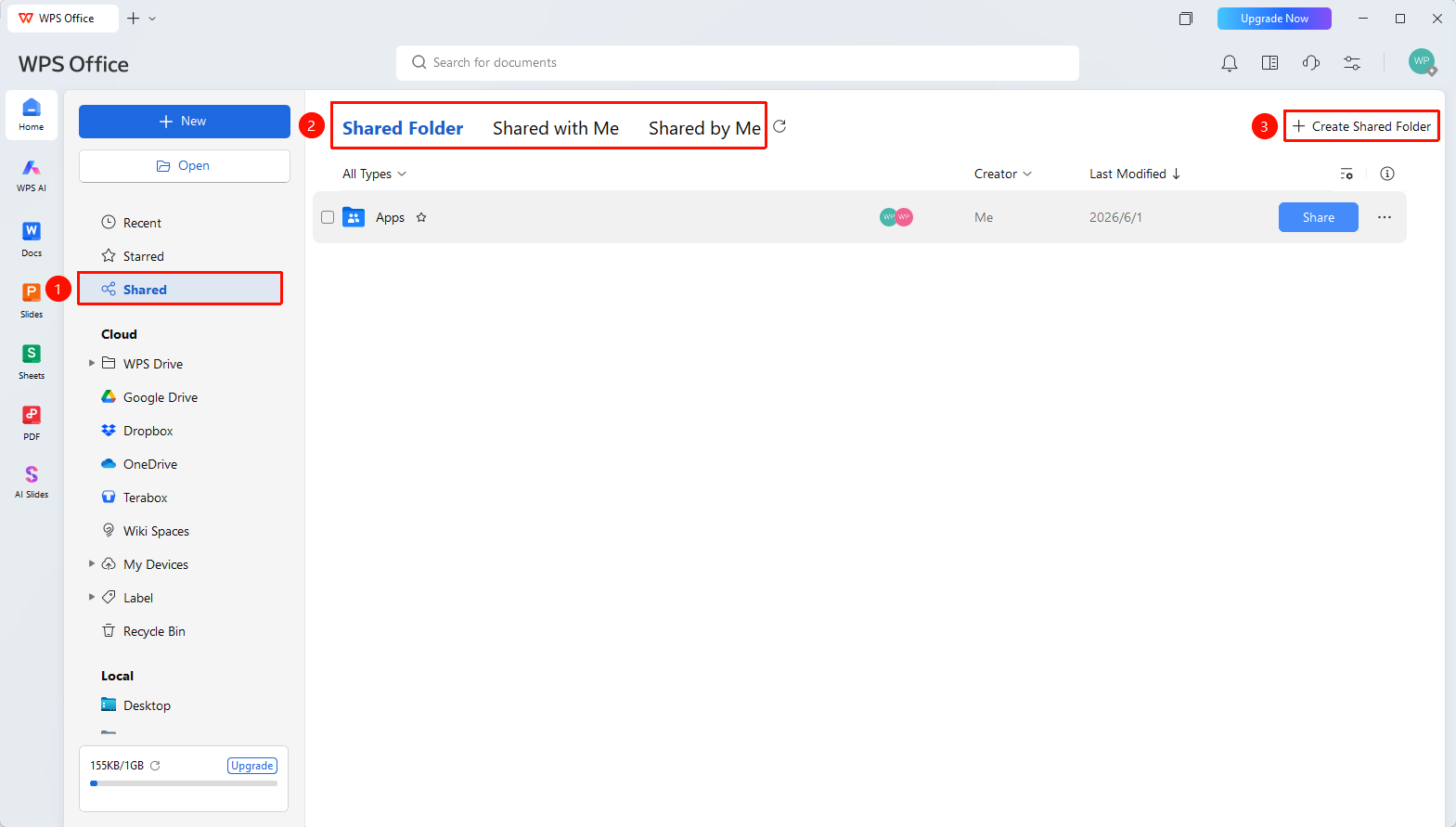
WPS Homepage left navigation bar → 「Shared」
- Open WPS and click the 「Shared」 tab in the left navigation bar
- You can view/manage all received shared files, sent shared files, and shared folders:
- 「Shared Folders」 : All shared folders initiated/joined by the account
- 「Received by Me」 : All shared files received by the account
- 「Sent by Me」 : All shared files initiated by the account
3.Click the 「New Shared Folder」 button in the upper right corner of the page to quickly create a new blank shared folder
4.Click the blue 「Share」 button on the right side of a specific file to adjust permissions, add/remove collaborators, or exit sharing
Shared List Settings
Feature Entry
Top of the Shared tab
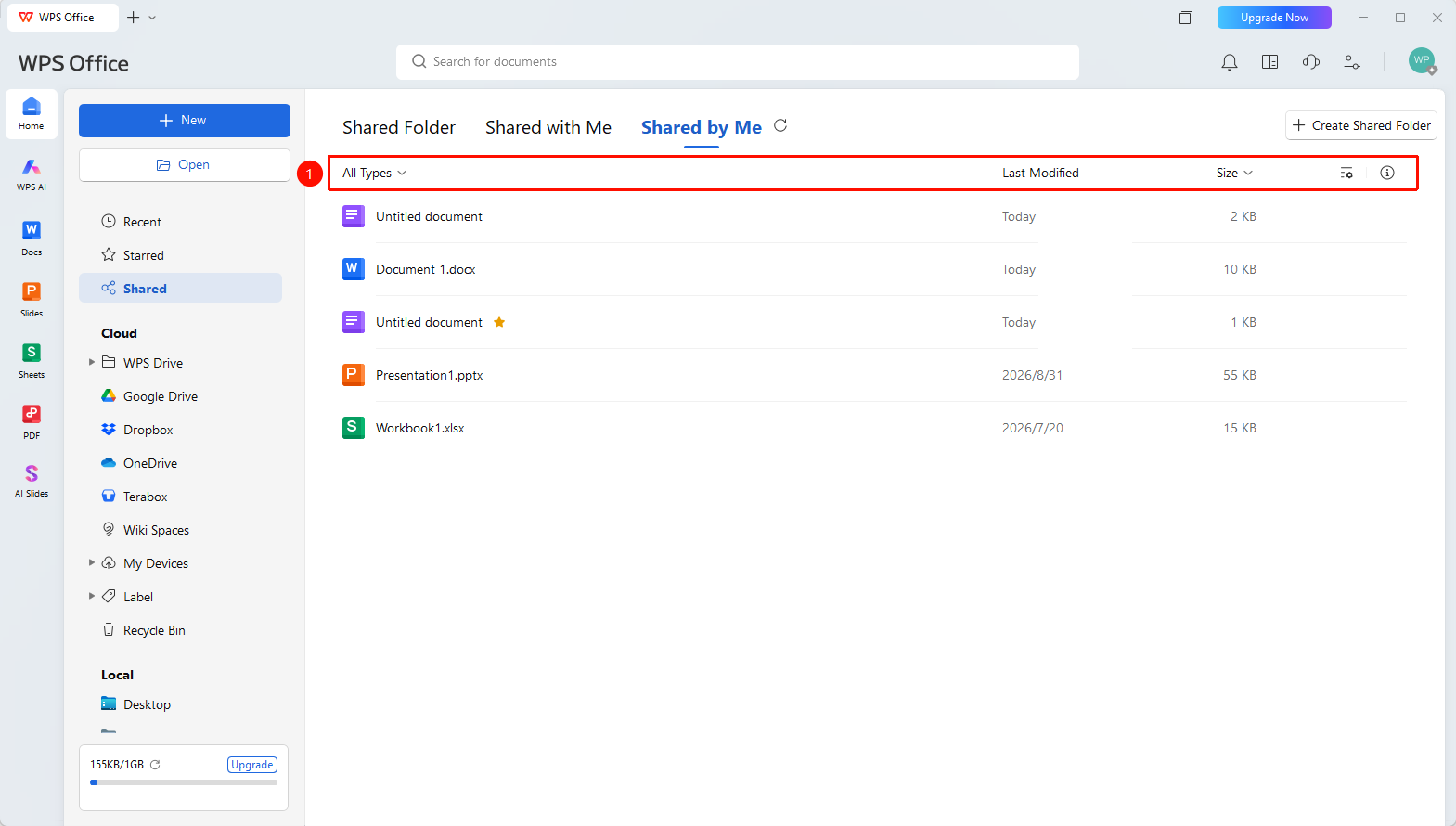
- At the top of the shared list, you can select the following setting options:
- 「All Types」 : Filter shared files by desired type
- 「Size」 : Sort shared files by file size
- 「Recently Modified」 : Sort shared files by file recency
- 「Settings」 : Set options for shared list sorting, view, custom list, etc.
- 「File Info」 : View file information of the selected file
FAQ
Q1: What content can be seen in the shared list?
- Solution: You can see the shared files you have received, the shared files you have sent, and the shared folders you have joined.
Q2: How to exit someone else's sharing?
- Solution: Right-click the file in the shared list and select 「Exit Sharing」.
Q3: Can a shared file be found after it is deleted?
- Solution: If the file owner deletes the file, it will no longer be displayed in the shared list and cannot be accessed.
Notes
- After exiting sharing, you will no longer be able to access the file
- The owner of the shared file can adjust permissions at any time